Help Center

Updated on 2026-05-20
views
5min read
Constantly entering your Apple ID password for every free app download on your iPhone can be incredibly annoying. It’s common for users to encounter ongoing password prompts, Face ID verification conflicts, or disabled settings that interrupt fast app installations. The good news is that you can quickly adjust your App Store settings to prevent Apple from asking for a password every time you download a free app.
In this guide, we will explore the exact steps and troubleshooting techniques to help you understand how to not require a password for App Store free downloads on your iPhone or macOS computer. We’ll help you pinpoint the right settings, bypass system restrictions, and speed up your user experience.
Key Takeaways
- You can completely turn off password prompts for free app downloads across iPhone, iPad, and Mac devices.
- Apple does not allow users to permanently remove password protection for paid purchases (except on Apple TV), but you can set a 15-minute grace period.
- If the “Password Settings” option is missing from your menu, it is because Face ID or Touch ID is currently active for App Store purchases.
- To access hidden Password Settings, you must temporarily disable “Face ID/Touch ID & Passcode” for iTunes & App Store.
- Screen Time restrictions can secretly override your App Store settings, causing password prompts to continue even after you've disabled them.
How to Not Require Password for App Store on iPhone
You can stop repeatedly entering your Apple ID password for free apps by changing a simple setting. Once disabled, you can install free apps instantly without repeated verification requests.
The following steps show how we removed the password requirement on an iPhone 14 running iOS 26.
1. Open the Settings app on your device. Tap your Apple ID Name at the very top of the screen.
2. Tap Media & Purchases.
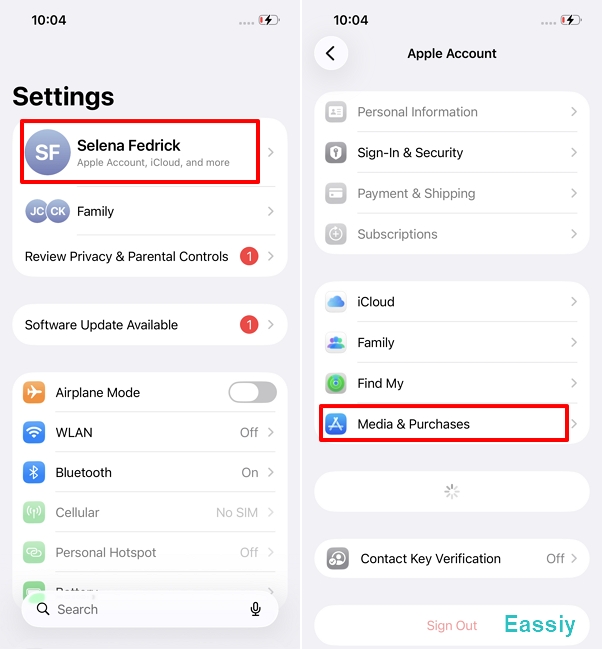
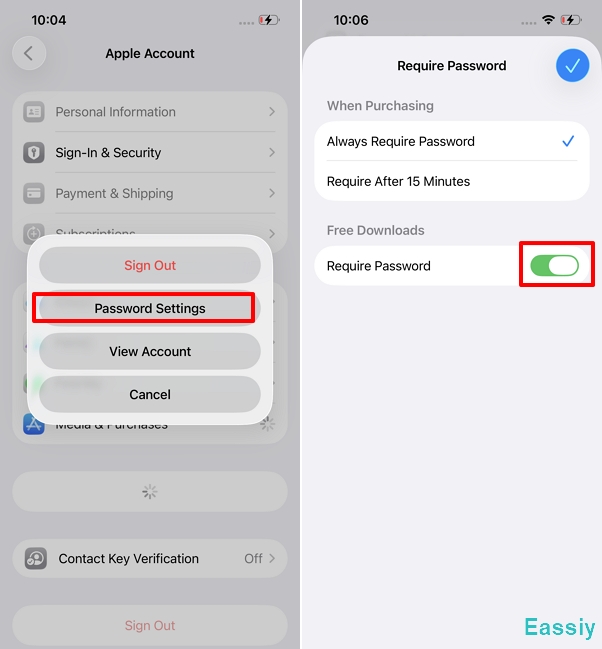
3. Select Password Settings from the pop-up menu at the bottom of the screen.
4. Under the "Free Downloads" section, turn OFF the toggle for Require Password, and then press the Done button.
How to Not Require Password for App Store on Mac
If you are working within the Apple ecosystem, you likely want to speed up your downloads on your Mac as well. The logic is the same, but the menus are slightly different:
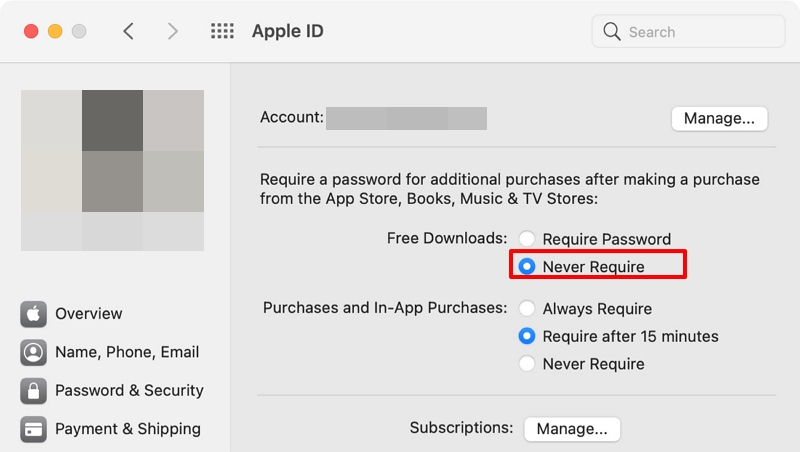
- Open the App Store on your Mac.
- In the top menu bar, click App Store > Settings (or Preferences on older macOS versions).
- Look for the Free Downloads section.
- Change it from Require Password to Never Require.
What About Paid Apps and In-App Purchases?
While Apple allows you to completely remove passwords for free apps, their financial security policies prevent you from doing the same for paid apps or subscriptions. However, you can make the process less annoying.
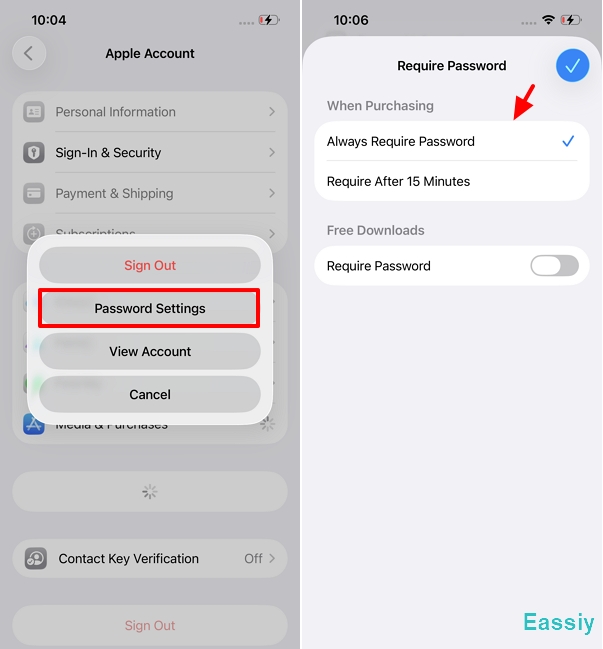
When you are in the Password Settings menu (from Step 4 above), look at the top section labeled "When Purchasing." You have two choices:
- Always Require: You will need a password for every single paid download.
- Require After 15 Minutes: If you select this, you only need to enter your password once. For the next 15 minutes, you can download as many paid apps or in-app purchases as you want without being prompted again.
Troubleshooting : How to Not Require Password for App Store
Don't See "Password Settings" Under Media & Purchases?
Many iPhone users get stuck on Step 4 because the “Password Settings” option is completely missing. This happens by design: if Face ID or Touch ID is enabled for App Store purchases, Apple's security architecture automatically hides the password menu.
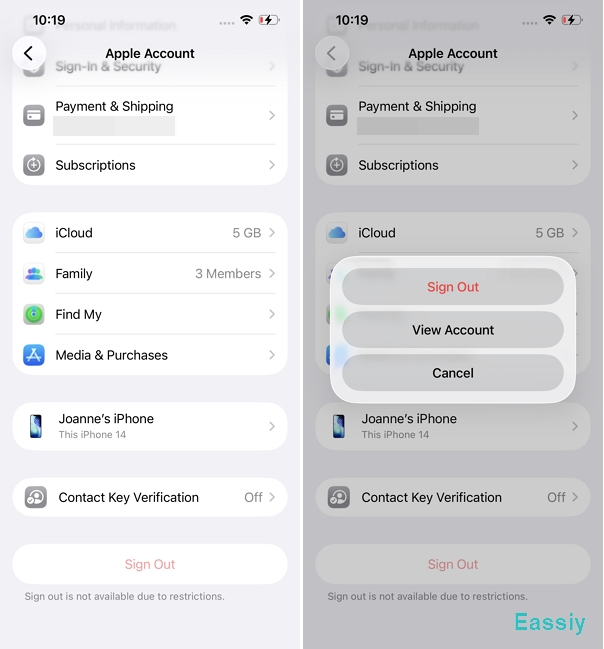
Fortunately, disabling biometric authentication brings the missing option right back.
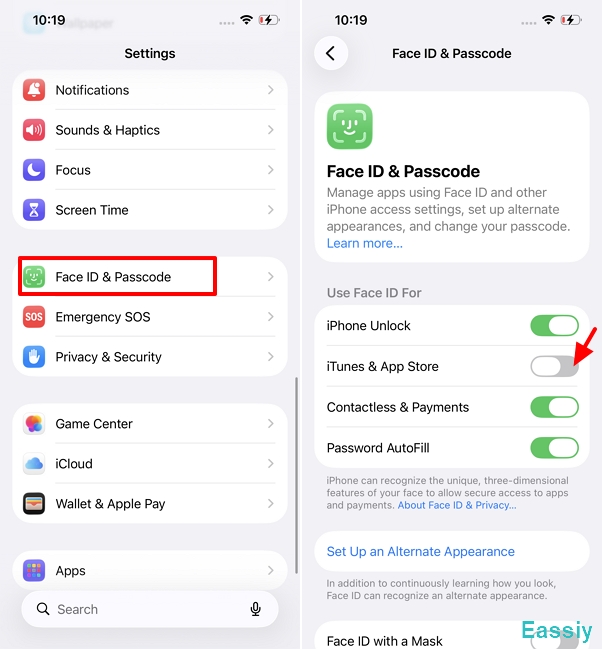
- Head into Settings and select Face ID & Passcode (or Touch ID & Passcode on older models).
- Enter your iPhone's lock screen passcode.
- In the “Use Face ID For” section at the top, toggle OFF the switch for iTunes & App Store.
- Now, go back to Settings > [Your Name] > Media & Purchases.
- The Password Settings option will magically reappear in the pop-up menu, allowing you to turn off the free download restrictions. (Note: You can turn Face ID back on after changing the setting!)
Changed the Settings but Still Need to Enter Your Password?
If you successfully turned off the password requirement in your Media & Purchases menu, but the App Store is still stubbornly asking for a password, your Screen Time settings are likely overriding your choices.
Screen Time acts as a master parental control switch. If strict purchase restrictions are active, they will force a password prompt regardless of your other settings. Here is how to fix this conflict:
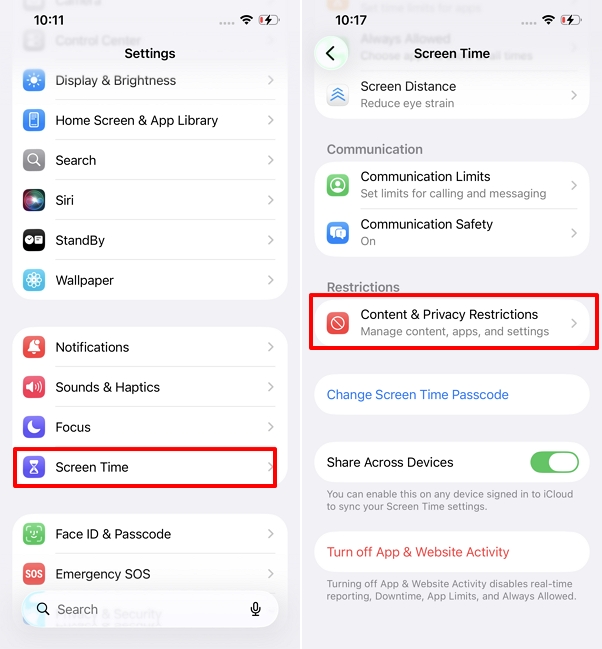
1. Go to the Settings app and tap Screen Time.
2. Press Content & Privacy Restrictions.
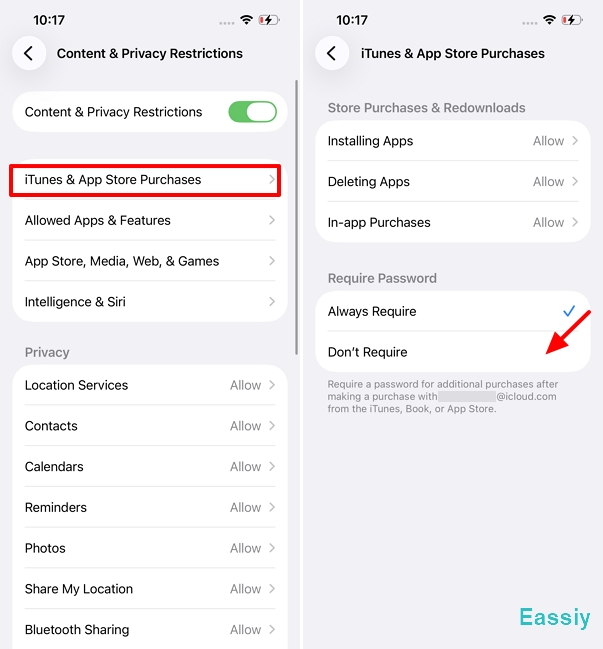
3. Tap on the iTunes & App Store Purchases option.
4. Ensure it says Allow next to Installing Apps, Deleting Apps, and In-app Purchases.
5. Most importantly, under the Require Password heading at the bottom, make sure Don’t Require is checked.
Why is the "Require Password" Toggle Grayed Out?
If the “Require Password” toggle in your App Store settings looks faded or unavailable, don’t panic. Users often encounter this problem due to temporary authentication limits or UI (User Interface) quirks—especially on legacy hardware, though it can persist all the way up through iOS 18 and newer systems like iOS 26.
During our hands-on testing with older devices (specifically an iPhone 6s), we discovered a surprising behavior regarding this specific menu. Sometimes the “Require Password” switch appears greyed out, giving the impression that it is permanently locked and cannot be changed.
Here's how we fix it simply :
The setting is not actually broken. Even if the toggle looks disabled, simply tap the greyed-out switch anyway. Your iPhone will immediately prompt you to enter your Apple ID password to verify your identity. Once you authenticate successfully, the switch will instantly unlock, allowing you to turn it off.
To Conclude
Once you understand how to navigate Apple's security settings, downloading free apps becomes a much faster and effortless experience. By changing a few simple settings under your Apple ID, you can stop repeated password prompts while still keeping your paid purchases secure.
Whether you are bypassing Face ID restrictions, digging into Screen Time overrides, or tapping through grayed-out menus, these lab-tested methods will streamline your App Store experience. Turning off password requirements for free apps is the easiest way to make exploring new iOS software seamless and hassle-free.