Help Center
Updated on 2026-07-07
views
5min read
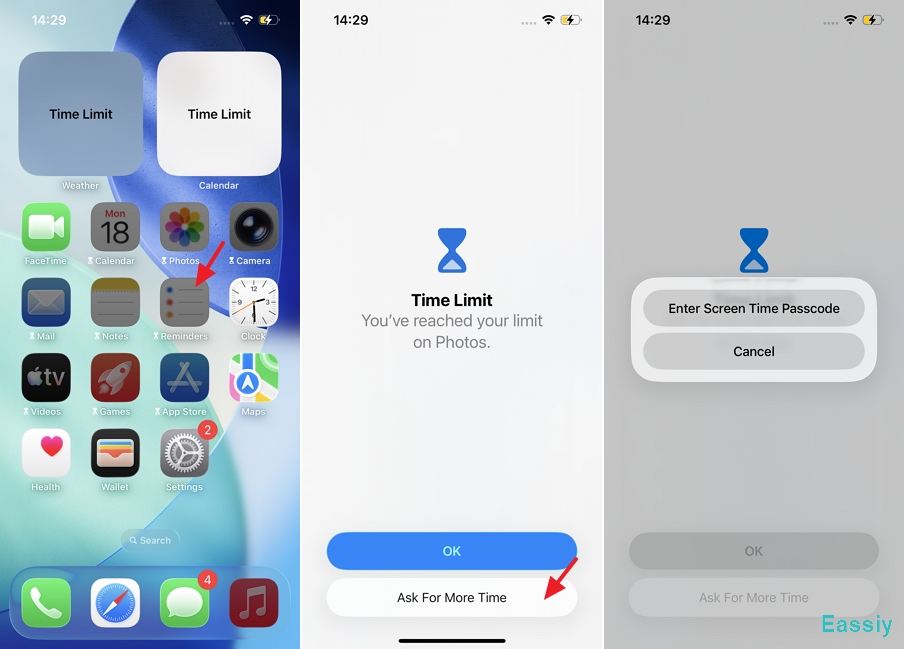
Have you ever been locked out of your favorite app right in the middle of using it, greeted only by a strict “Time Limit” screen? It is one of the most annoying experiences iPhone users can face.
It’s possible you enabled Screen Time months back to stay focused, and now the original settings are hard to remember. Maybe your child’s iPhone keeps blocking apps during homework hours, or you could be repeatedly stopped by app limits during gaming, streaming, chatting, or work.
Whatever the reason, these restrictions can quickly become frustrating—especially when you urgently need access to an app and do not know how to remove the limit.
In this comprehensive guide, we will walk you through exactly why this happens and provide lab-verified methods to turn off time limits—whether from your own device, a parent's device via Family Sharing, or using a professional tool if you have forgotten the passcode entirely. By the end, you’ll have a clear idea of how to turn off time limit on your iPhone without losing your personal data.
Key Takeaways
- The “Time Limit” screen on an iPhone is most often the result of Screen Time restrictions such as App Limits, Downtime, or Communication Limits. Understanding which setting is active makes it much easier to figure out how to remove it.
- The 4-digit Screen Time passcode allows you to disable App Limits and other restrictions directly on your iPhone without third-party tools.
- With Family Sharing active, restriction changes can only be made remotely from the parent or organizer’s device.
- Even if you’ve completely forgotten the Screen Time passcode, there are still ways to remove the restriction. Verified desktop tools like Eassiy iPhone Access can safely bypass Screen Time limits without erasing your local data.
Why Is There a Time Limit on Your iPhone?
An hourglass “Time Limit” screen means your iPhone’s Screen Time feature is actively limiting access to certain apps or functions. It is a native iOS tool designed to control screen usage, limit distractions, and enable parental restrictions. Before learning how to turn off the time limit, it is important to identify what is triggering it.
In most cases, the message appears when one of these three Screen Time settings is active:
- App Limits: These place daily time restrictions on individual apps or broad categories (such as Social Media, Games, and Entertainment). After the allotted usage time ends, the app is locked until the next day unless the limit is adjusted.
- Downtime: Think of Downtime as a scheduled lock period for your iPhone. During this time, only phone calls and specific apps added to the “Always Allowed” list remain accessible. All other apps will display the “Time Limit” screen.
- Communication Limits: These control which contacts you can reach via calls, messages, and FaceTime during normal use or Downtime.
Who Set It?
Identifying who initiated the limit is crucial before attempting to remove it:
- Self-Managed: These restrictions are set locally by the device owner. This typically occurs when a user enables Screen Time to cut distractions, but later forgets the passcode or the specific rules they created.
- Family Sharing: If you are using a child or teen account, the limits may be pushed remotely through Apple Family Sharing. In this setup, changes must be approved or removed from the parent or guardian’s iPhone.
How to Turn Off Time Limit on Your Own iPhone
If you enabled Screen Time yourself and still remember the passcode, removing restrictions is quick and straightforward. Below are the most effective methods to disable limits directly from your device.
Method 1: Turn Off App Limits
App Limits are the most common reason iPhones lock you out after spending too much time on TikTok or gaming apps.
Steps:
1. Open Settings > Screen Time on your iPhone.
2. Tap App Limits.
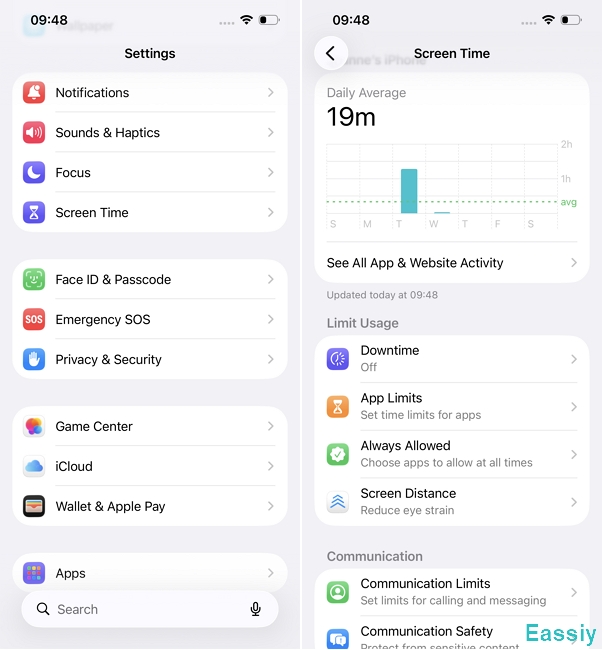
3. Enter your Screen Time passcode if prompted.
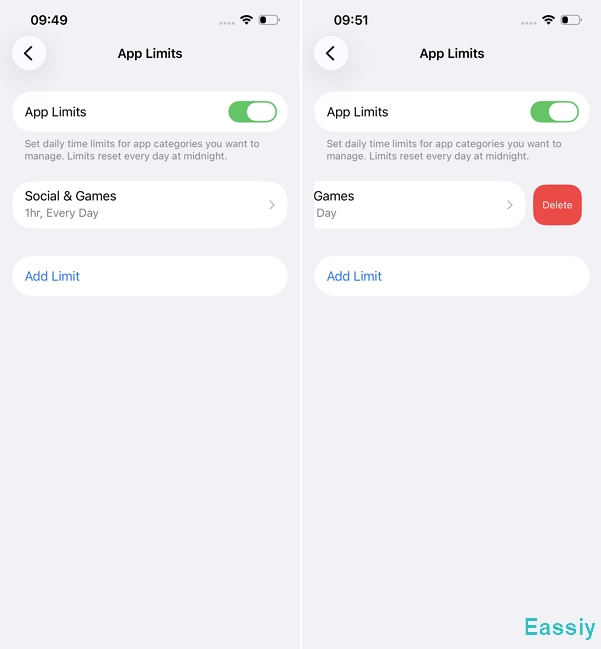
4. Toggle the main App Limits switch OFF completely.
5. To remove limits for specific apps only, you can simply swipe left on the app's name and select Delete.
Method 2: Turn Off Downtime
Downtime creates time-based blockades during certain hours, like bedtime or study time.
Steps:
1. Open Settings on your iPhone.
2. Tap Screen Time.
3. Select Downtime.
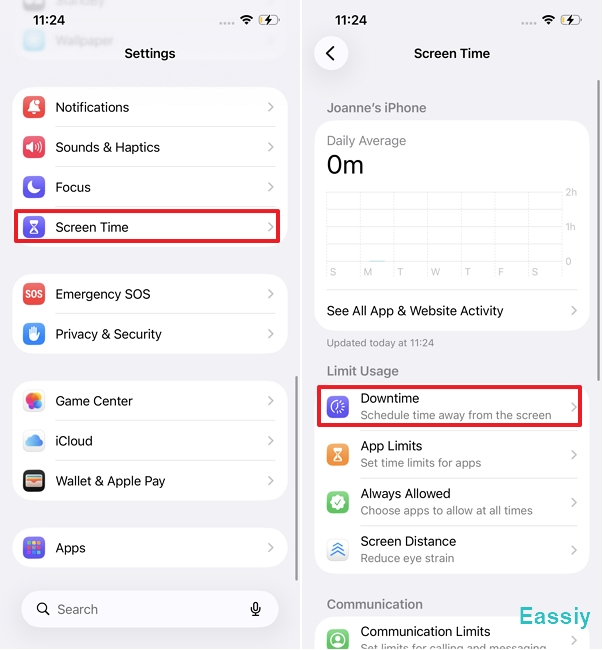
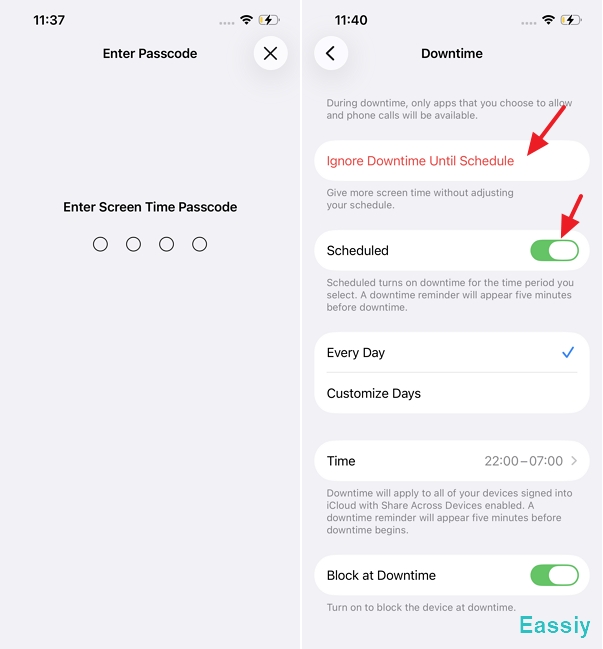
4. Enter your Screen Time passcode if prompted.
5. Toggle the Scheduled switch off.
Once disabled, your apps will no longer lock automatically based on a daily schedule.
Method 3: Turn Off Communication Limits
Steps:
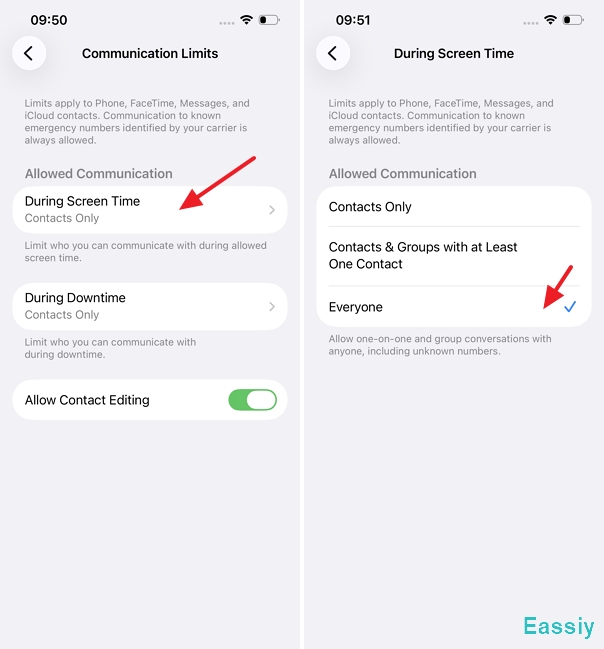
1. Open Settings and tap Screen Time.
2. Select Communication Limits.
3. Tap During Screen Time and change the parameter to Everyone.
4. Tap During Downtime and change it to Everyone as well.
Method 4: Turn Off Screen Time Completely
If you want a full reset of all restrictions, disabling Screen Time is the “all-in-one” solution.
Steps:
1. Open Settings on your iPhone.
2. Tap Screen Time and scroll down to the very bottom.
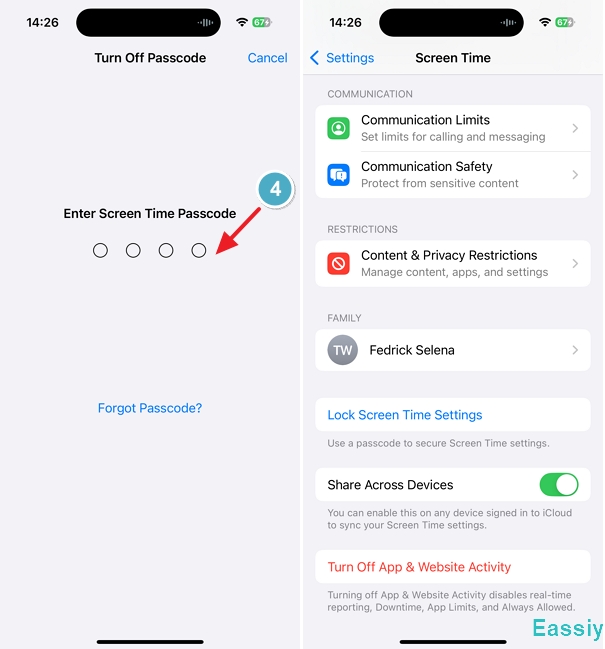
3. Tap Change Screen Time Passcode > Turn Off Screen Time Passcode (or Turn Off App & Website Activity on newer iOS versions).
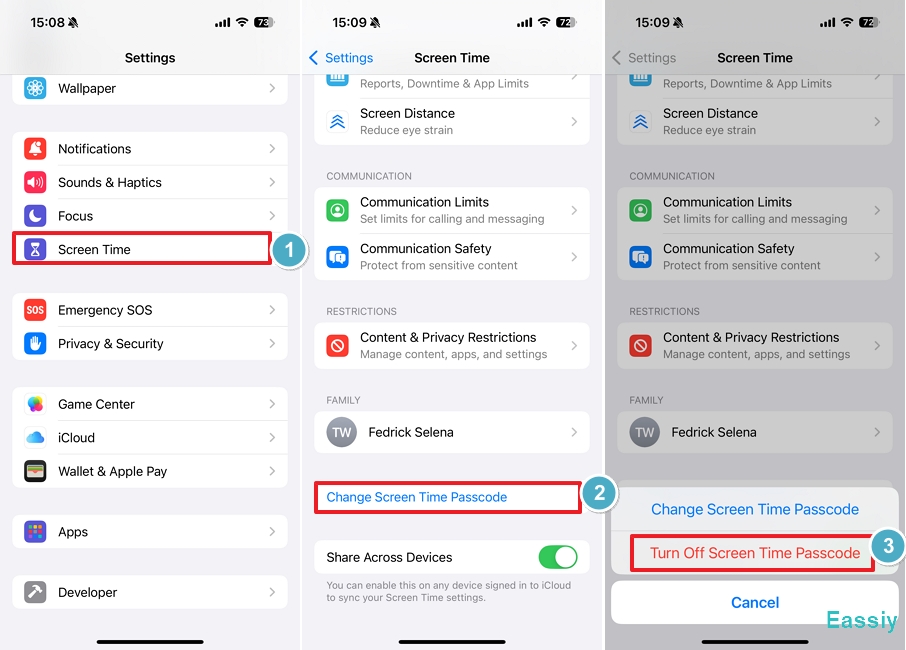
4. Enter your Screen Time passcode to confirm.
How to Turn Off Time Limit on a Child's iPhone
When Family Sharing is active, the child’s iPhone cannot bypass the restrictions locally. Parents or guardians must manage the settings remotely from their own iPhone. To make any changes, the parent will need their Screen Time passcode.
Method 1: Disable App Limits for the Child Device
1. Open Settings on the parent’s iPhone.
2. Tap Screen Time.
3. Select the [Child's Name] under the Family section.
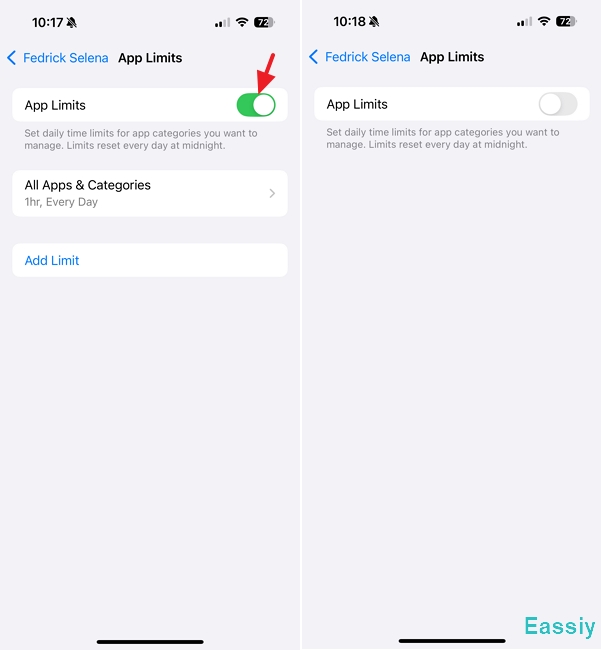
4. Tap App Limits.
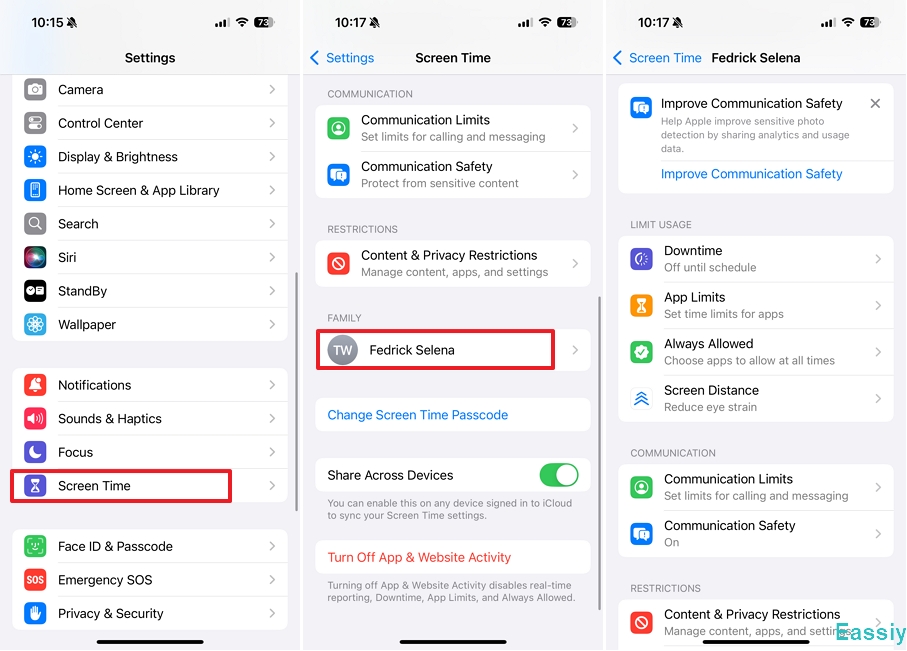
5. Toggle the App Limits switch OFF completely.
Method 2: Disable Downtime for the Child
1. Open Settings on the parent’s iPhone.
2. Tap Screen Time.
3. Select the child’s profile under the Family section.
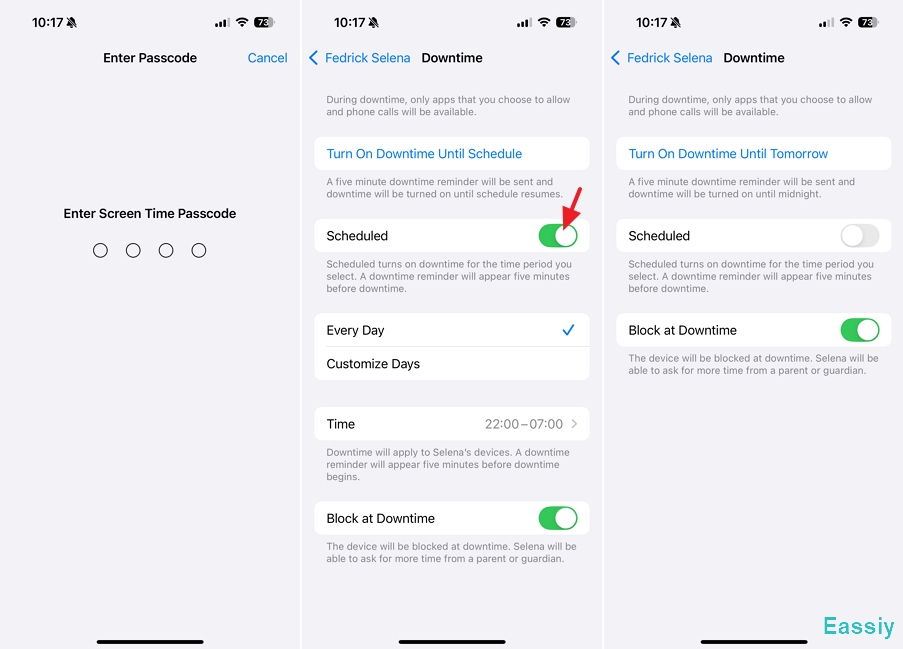
4. Tap Downtime.
5. Enter the Screen Time passcode.
6. Toggle the Scheduled switch off.
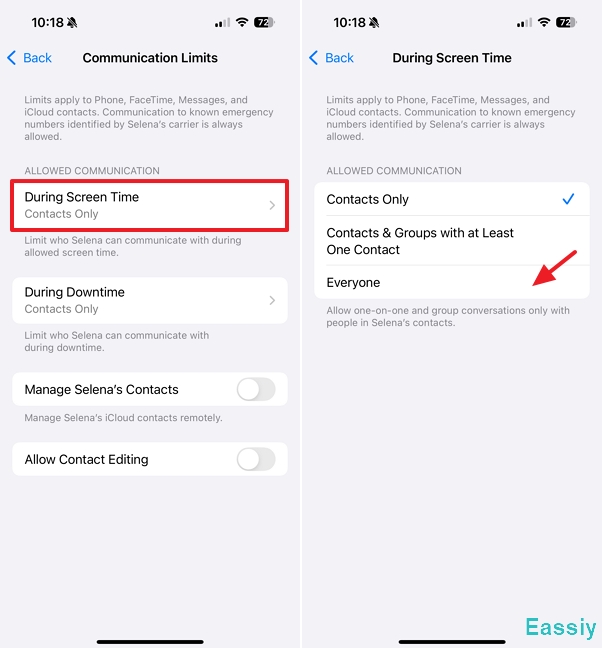
Method 3: Disable Communication Limits for the Child
1. Launch Settings on the parent’s iPhone.
2. Tap Screen Time > Select the child’s profile.
3. Tap Communication Limits.
4. Change During Screen Time and During Downtime to Everyone.
Method 4: Turn Off Screen Time Completely for the Child
If parents no longer wish to track or restrict the device remotely, they can disable the feature entirely.
1. Go to Settings > Screen Time on the parent's device.
2. Select the [Child's Name].
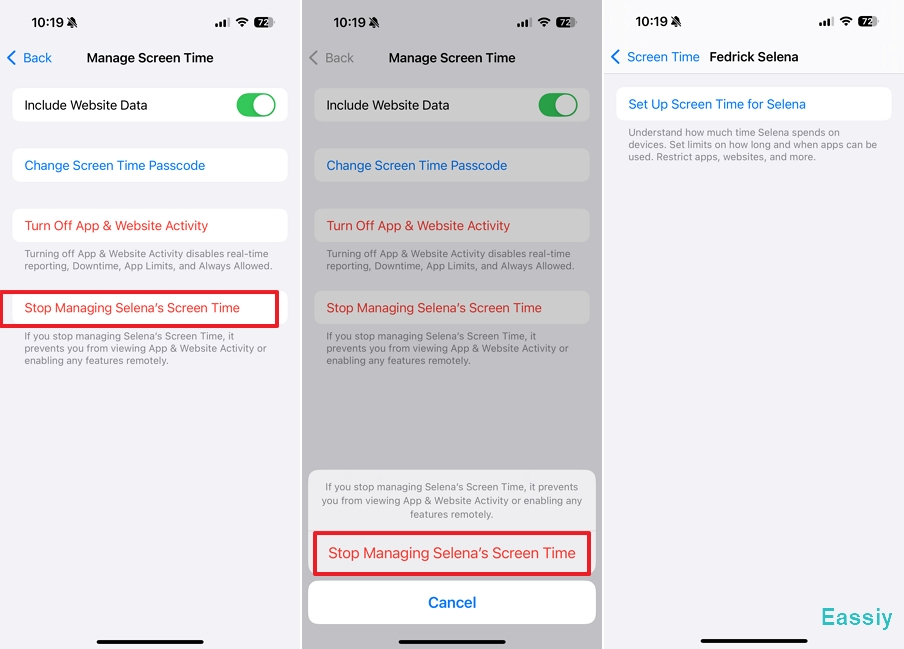
3. Scroll down and tap Manage Screen Time.
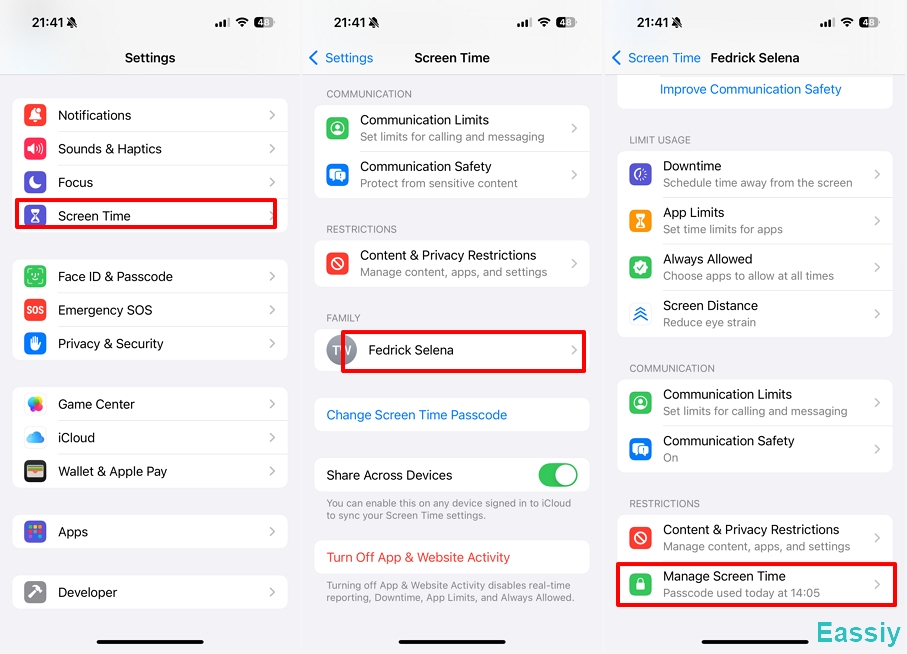
4. Tap Stop Managing [Child's Name] Screen Time, and tap again to confirm. After that, Screen Time will be completely turned off on the child's device.
How to Turn Off Time Limit Without Passcode (The Ultimate Fix)
Sometimes, the biggest challenge is not finding the settings—it is remembering the passcode. Many users are completely locked out because they forgot the 4-digit Screen Time PIN or cannot reach the organizer's device in Family Sharing.
Apple does not allow users to disable Screen Time limits without the correct passcode. Eassiy iPhone Access is a professional iOS utility designed specifically for situations where you are locked out of your device's controls. It removes the Screen Time passcode to turn off time limits on your iPhone safely.
Key Advantages:
- Universal Bypass: It turns off time limits whether they were set locally by yourself or remotely via Family Sharing.
- No Passcode Needed: It effortlessly bypasses the Screen Time PIN and does not require the Apple ID.
- High Compatibility & Comprehensive Unlocking: Fully lab-tested to support modern architectures up to iOS 26. Beyond Screen Time, it can also unlock an iPhone without a passcode, remove an Apple ID, and bypass Activation Locks.
Steps:
1. Download and launch Eassiy iPhone Access on your Mac or Windows PC.
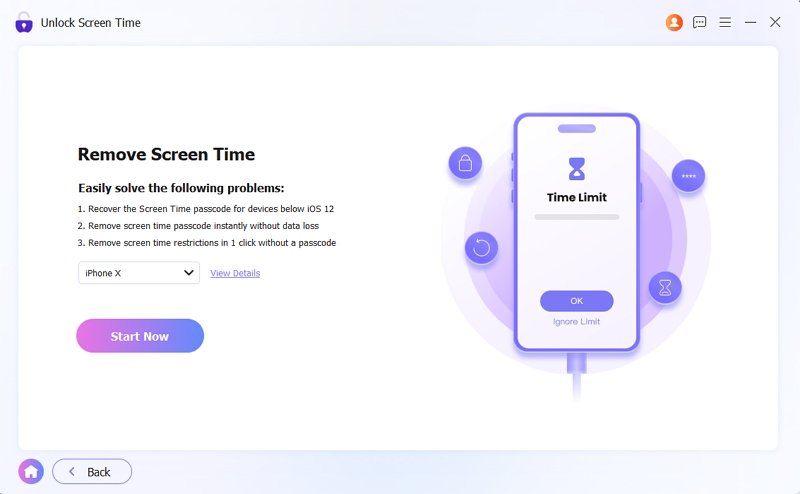
2. Select the Unlock Screen Time mode from the main interface.
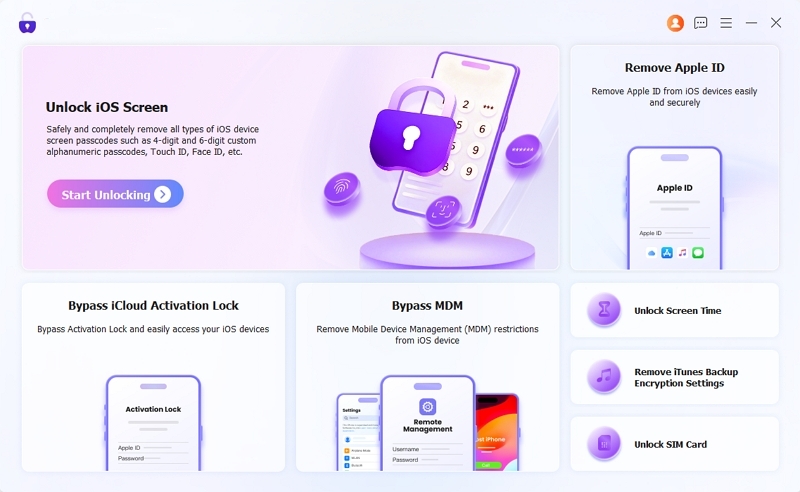
3. Identify how the Screen Time passcode was originally set up: directly on the device or remotely via Family Sharing.
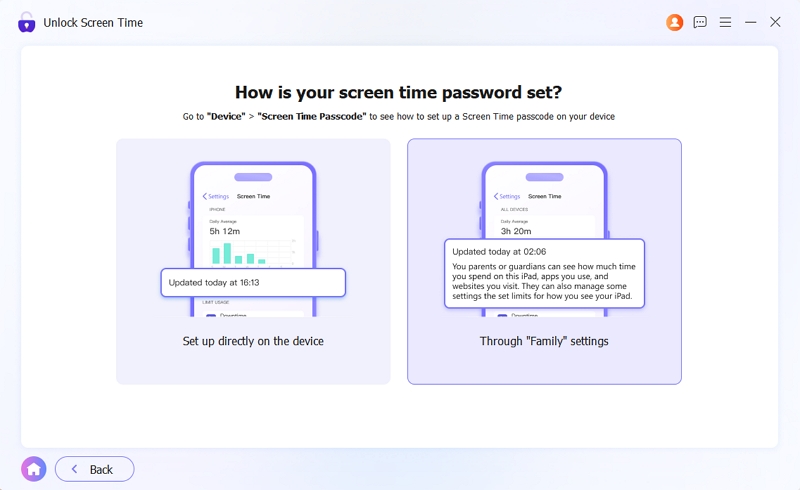
4. Connect your restricted iPhone via a USB cable, and click Start Now and follow the brief on-screen instructions.
5. Wait a few moments while the software safely analyzes your iOS architecture and removes the Screen Time restrictions.
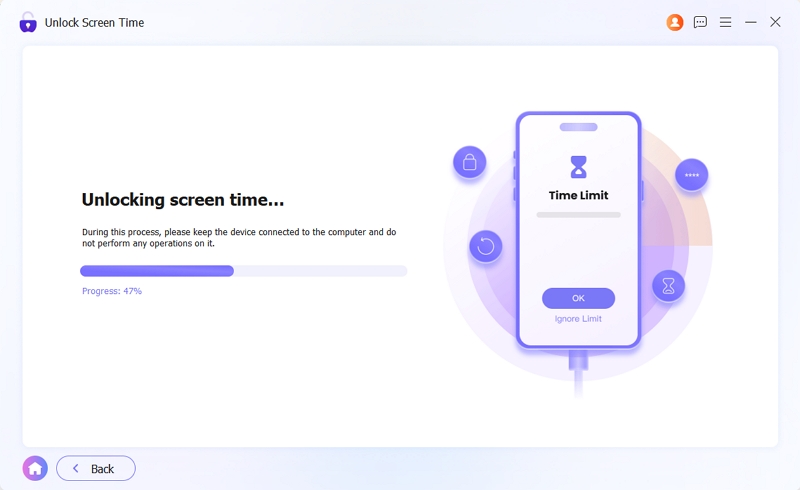
Once your iPhone reboots, the time limits will be permanently gone.
Frequently Asked Questions
Q1: Can I bypass the time limit without turning it off completely?
Answer: Yes. The “Ask for More Time” option lets you request additional usage directly from the Time Limit screen. You may bypass the limit temporarily for 15 minutes or for the rest of the day. However, if the "Block at End of Limit" feature is active, these extensions must be approved using the parent's or owner's Screen Time passcode.
Q2: Will a factory reset remove the Time Limit?
Answer: Not easily. A standard factory reset from your iPhone's Settings actually requires you to enter the Screen Time passcode before it allows you to erase the device. If you force a reset using a computer, restoring your data from an iCloud or iTunes backup will restore the Screen Time restrictions—and the forgotten passcode—right back onto your phone.
Q3: If I turn off the time limit on my iPhone, will it turn off on my iPad too?
Answer: It depends on your Apple Account settings. If the "Share Across Devices" toggle is enabled in your Screen Time menu, learning how to turn off time limit on iPhone will automatically remove the exact same restrictions from your synced iPad or Mac. If you only want to remove the limit on your phone, make sure to disable "Share Across Devices" first.
Conclusion
Removing a time limit on an iPhone is a straightforward process when you have access to the correct Screen Time passcode. App Limits, Downtime, and Communication Limits can be quickly managed or disabled in the Settings app, putting you back in control of your device.
However, if you are trapped by a forgotten Screen Time PIN or restrictive Family Sharing protocols, native Apple options will hit a dead end. In these scenarios, utilizing a verified desktop tool like Eassiy iPhone Access provides a swift exit strategy to clear the restrictions and restore full access to your favorite apps.