Help Center

Updated on 2026-07-07
views
5min read
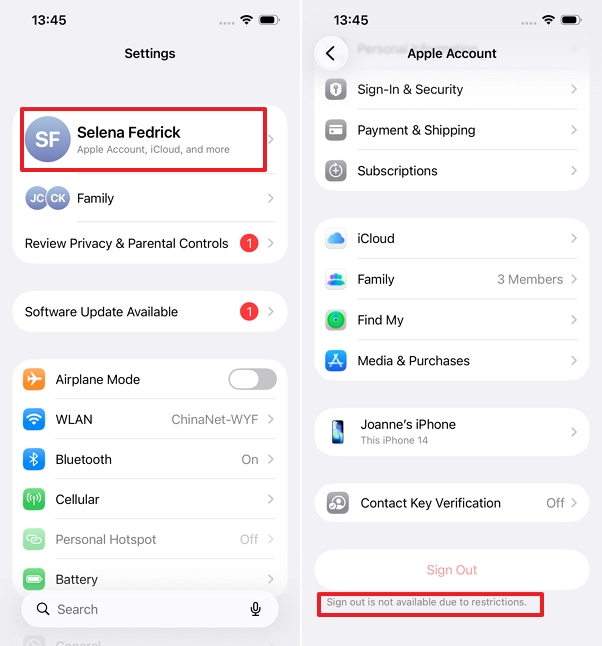
When the "Sign Out is Not Available Due to Restrictions" message appears on your iPhone, your Apple ID Sign Out button becomes completely greyed out. As a result, you are blocked from removing your account, changing your Apple ID, or turning off Find My. This can cause immense frustration, especially when troubleshooting a device or preparing to sell it.
If your sign-out option is restricted with this specific warning, the iOS operating system is actively intercepting Apple ID modifications to protect the device. The good news is that you can safely resolve this without losing your data. In this expert guide, we will break down the exact technical reasons behind this lock and walk you through the most dependable methods to regain full control of your Apple ID.
Key Takeaways
- The most immediate fix for this error is to allow account changes in your Screen Time settings or disable Screen Time entirely.
- If your device belongs to a Family Sharing group, only the parent or guardian can lift the restriction from their own device.
- Both parental controls and corporate MDM profiles trigger this exact same error message by pushing identical restriction payloads.
- If you have forgotten your Screen Time passcode, lab-tested desktop tools like Eassiy iPhone Access can safely bypass the restriction without erasing your local data.
Why Does Your iPhone Say "Sign Out is Not Available Due to Restrictions"?
Unlike other Apple ID locks such as iCloud restores or Stolen Device Protection, which display different warning texts, the word "restrictions" explicitly points to two core system mechanisms:
1. Screen Time Settings
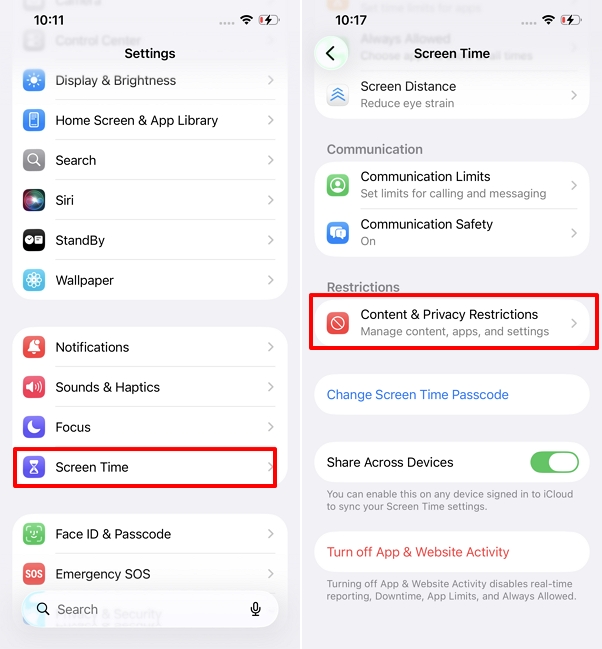
Apple’s Content & Privacy Restrictions are deeply integrated into the Screen Time module to govern account privileges. If the "Account Changes" parameter is set to "Don't Allow," the system instantly greys out the Sign Out button and displays the restriction warning. This is frequently enabled by accident, or intentionally activated as a basic parental control measure to stop children from switching Apple IDs.
2. MDM Profiles
An iPhone issued by a company or educational institution is typically governed by Mobile Device Management (MDM). From a technical standpoint, MDM software pushes the exact same underlying restriction code (allowAccountModification = False) to your iPhone as Screen Time does. This is why you will see the exact same "due to restrictions" error message. You cannot sign out unless the underlying MDM payload is successfully bypassed or removed by the IT administrator.
These Solutions Won't Work (Lab Test Verified)
Before rushing to fix the restriction, be aware that many online forums provide outdated or misleading advice that will not solve the problem or could permanently lock your device. Based on our rigorous hardware testing, here is what actually fails in modern iOS versions:
Allowing Account Changes in Settings
Many outdated guides claim you can simply navigate to Content & Privacy Restrictions and toggle "Account Changes" to "Allow". Our lab tests definitively prove this does not restore the Sign Out button. To fix the issue, the Screen Time feature must be turned off entirely.
A Standard Factory Reset
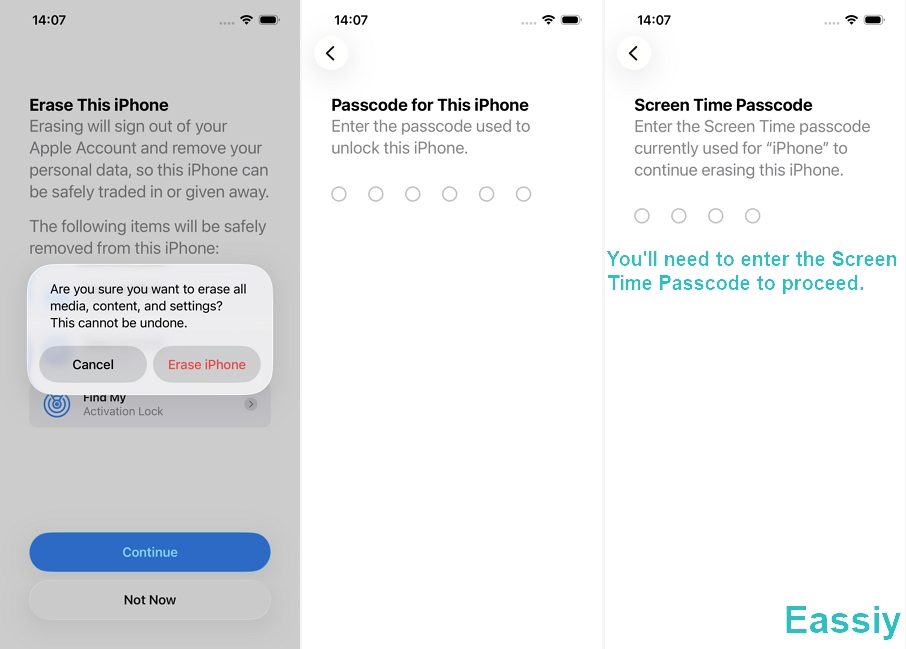
A common myth is that hitting "Erase All Content and Settings" will wipe the restrictions. In reality, iOS demands the Screen Time passcode to authorize the reset. If you don't have it, you remain stuck.
Avoid Erasing via iCloud
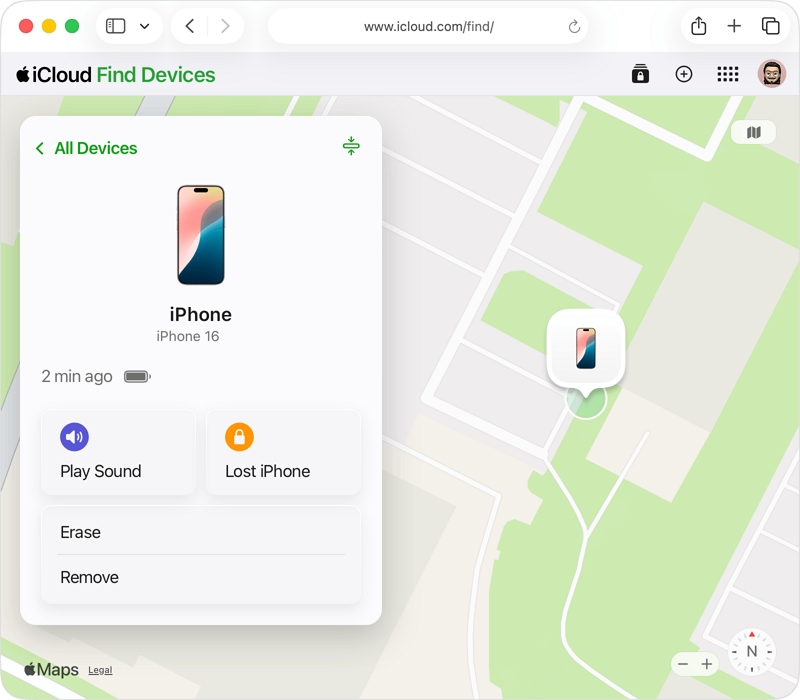
Attempting a remote erase via iCloud.com is dangerous. It will result in complete data loss and trigger Activation Lock. If you don't know the Apple ID credentials perfectly, your device will be permanently bricked.
How to Solve "Sign Out is Not Available Due to Restrictions"?
Since simply allowing account changes does not work, the only official way to restore the Sign Out button is to completely disable the Screen Time feature or remove the MDM profile. Follow these steps systematically.
Method 1: Ask Your Parent to Turn Off Screen Time (Family Sharing)
If your iPhone is logged into a child account managed via Apple Family Sharing, you cannot override the restrictions locally by yourself; the organizer (parent) must completely turn off the restriction for your device from their device.
1. On the parent's iPhone, go to Settings > Screen Time.
2. Look under the Family section and tap the [Child's Name].
3. Scroll down and tap Manage Screen Time.
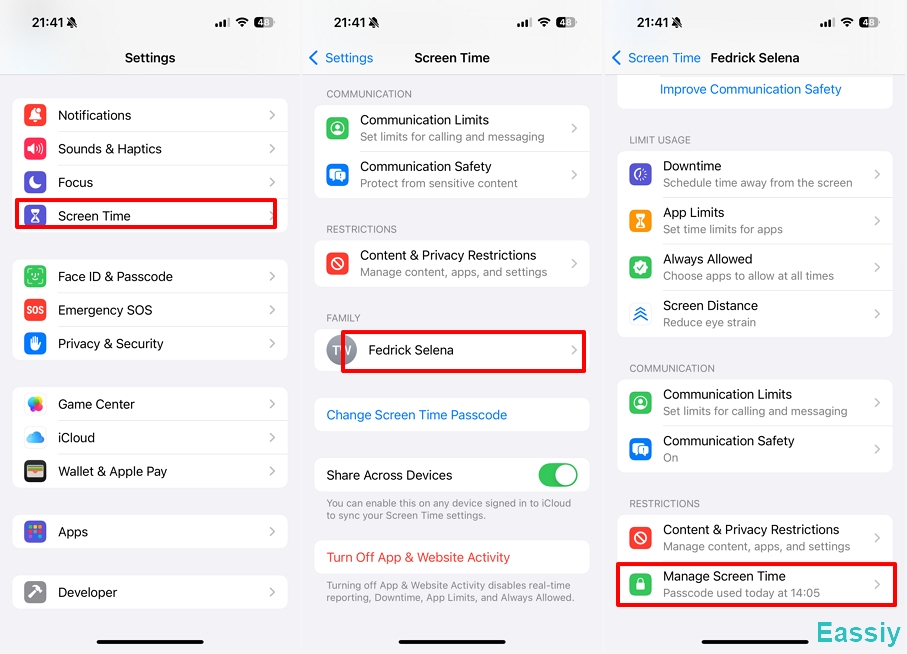
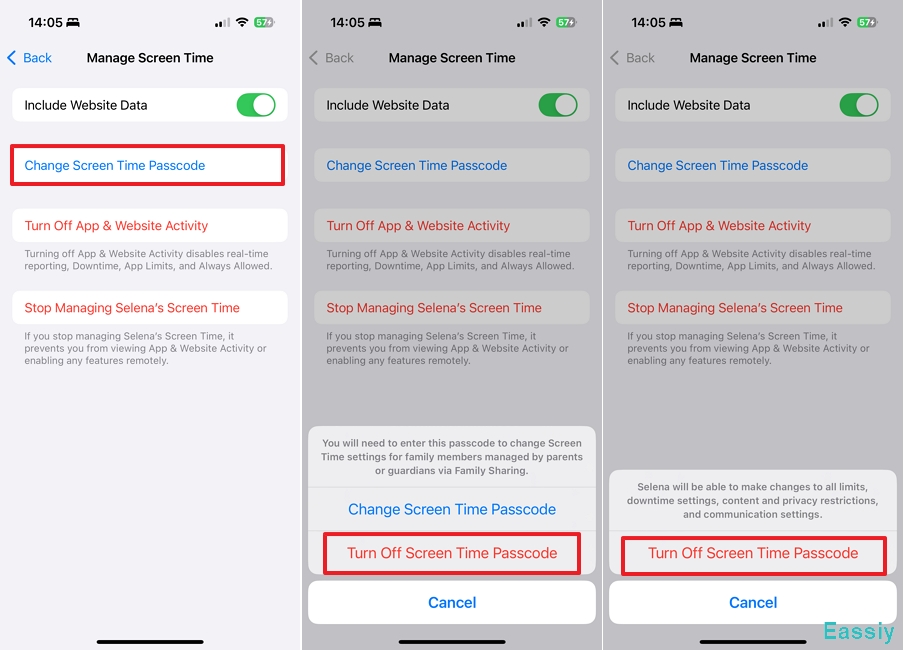
4. Tap Change Screen Time Passcode > Turn Off Screen Time Passcode to proceed.
5. Tap Turn Off Screen Time Passcode again.
Once the parent confirms the changes, the cloud servers will instantly push the updated profile to the child's iPhone, unlocking the Sign Out button.
Method 2: Turn Off Screen Time Completely (If you know the passcode)
If it is your own phone, and you remember your device's Screen Time passcode (or if one was never set), disabling the feature entirely is the quickest permanent fix.
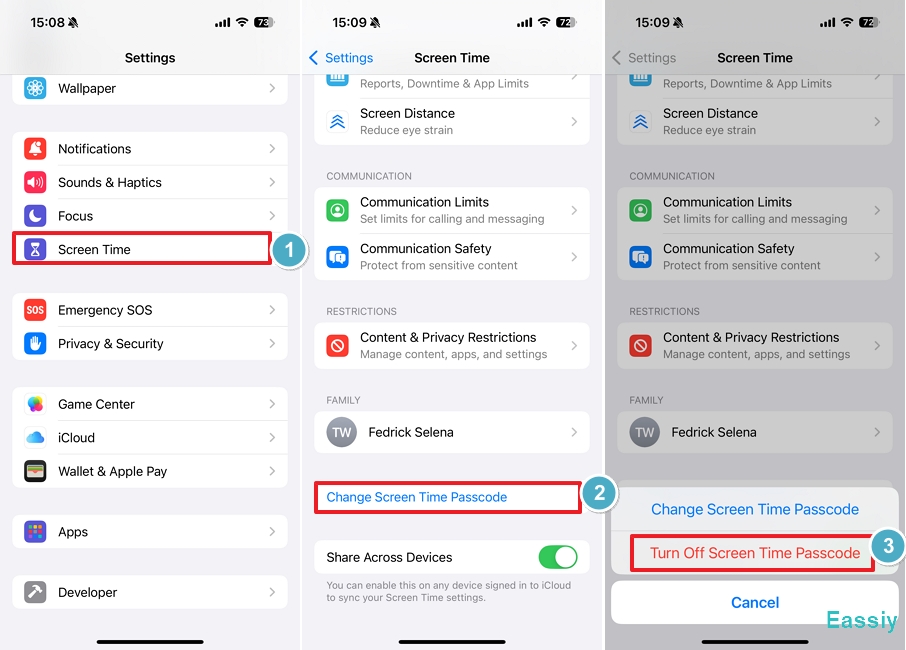
1. Open Settings and tap Screen Time.
2. Scroll to the very bottom of the page and tap Change Screen Time Passcode.
3. Tap Turn Off Screen Time Passcode.
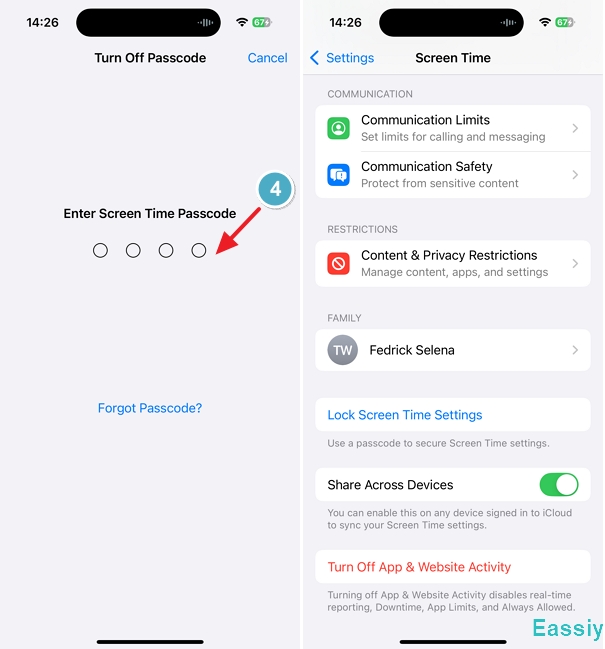
4. Enter your Screen Time passcode when prompted to confirm the action.
5. After that, the "Lock Screen Time Settings" option will replace "Change Screen Time Passcode."
6. Go back to the main Settings page. Your Apple ID banner should now be fully accessible, and the "Sign Out" button should be restored.
Method 3: Turn Off Screen Time via Apple ID (If you forgot the passcode)
What if it is your own phone, but you simply forgot the Screen Time passcode you set months ago? You must use Apple's native recovery option to turn the feature off completely.
Note: Changing the passcode to a new one will not fix the Sign Out button error.
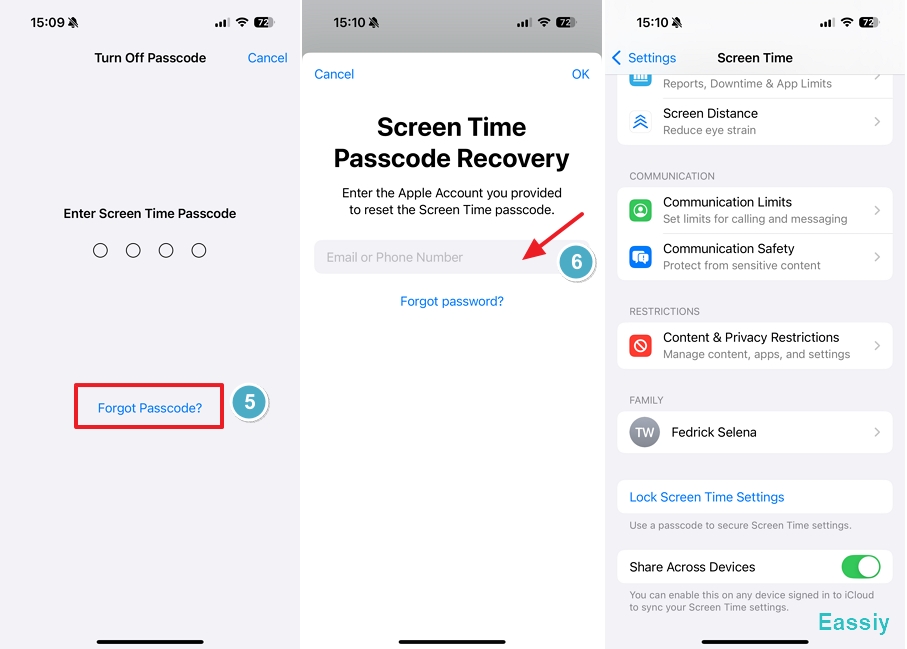
1. Open Settings > Screen Time and tap Turn Off Screen Time Passcode.
2. When prompted to enter the current passcode, tap the "Forgot Passcode?" option at the bottom.
3. Enter the Apple ID and password you originally used to set up the Screen Time passcode.
4. Once authenticated, the Screen Time restriction will be disabled entirely, and your Sign Out button will become active again.
Method 4: Use Eassiy iPhone Access
If the "Forgot Passcode?" option does not appear, or if the device is crippled by an corporate MDM profile, native Apple settings cannot help you. In this scenario, a dedicated utility like Eassiy iPhone Access tool is required to extract and clear the restriction payloads without wiping your hard drive.
In our lab testing covering architectures up to the latest iOS 26, Eassiy successfully bypassed localized Screen Time passcodes and MDM supervision profiles.
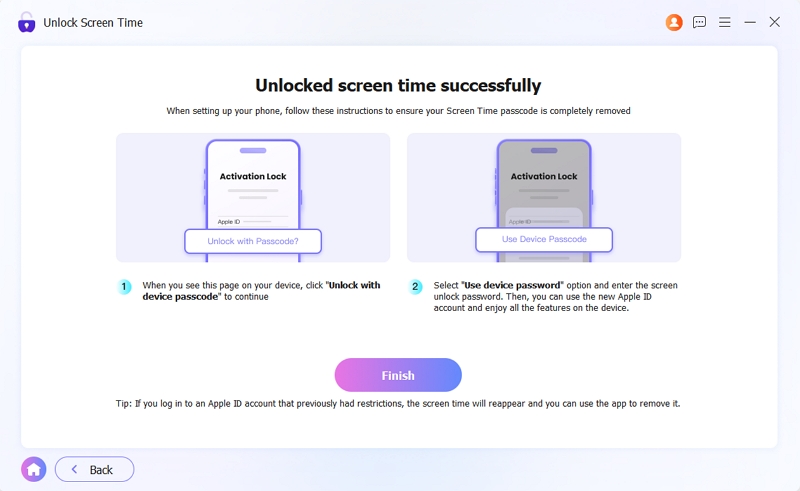
Here's how to remove Screen Time Passcode using Eassiy:
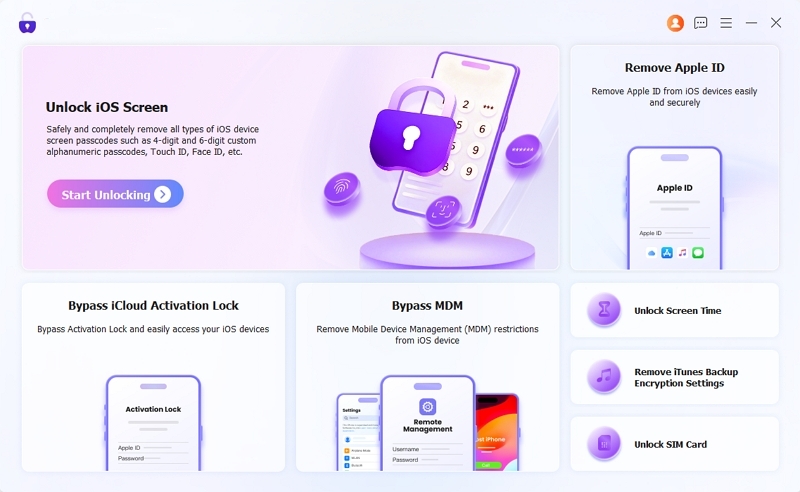
1. Download and launch Eassiy iPhone Access on your Mac or Windows PC.
2. Select the Unlock Screen Time (or Bypass MDM) module from the main dashboard.
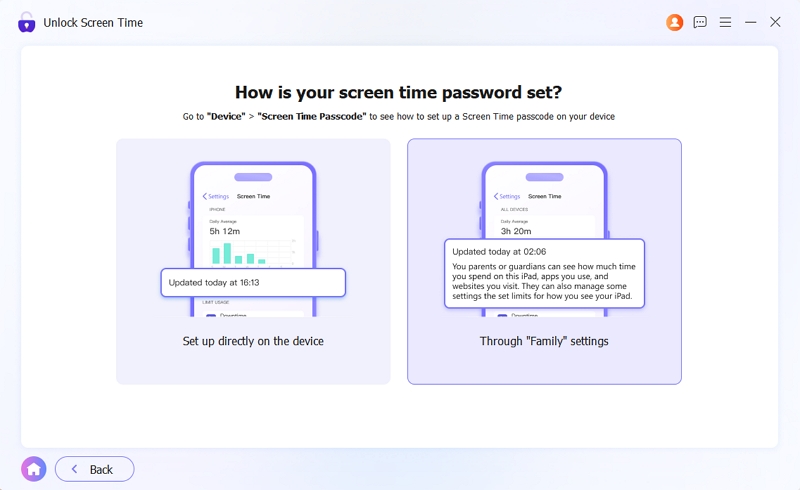
3. Choose how Screen Time is set up on your device, then select the option that matches your current setup.
4. Connect your restricted iPhone to the computer using a reliable USB cable and ensure you tap "Trust This Computer" on the device screen. Click Start Now.
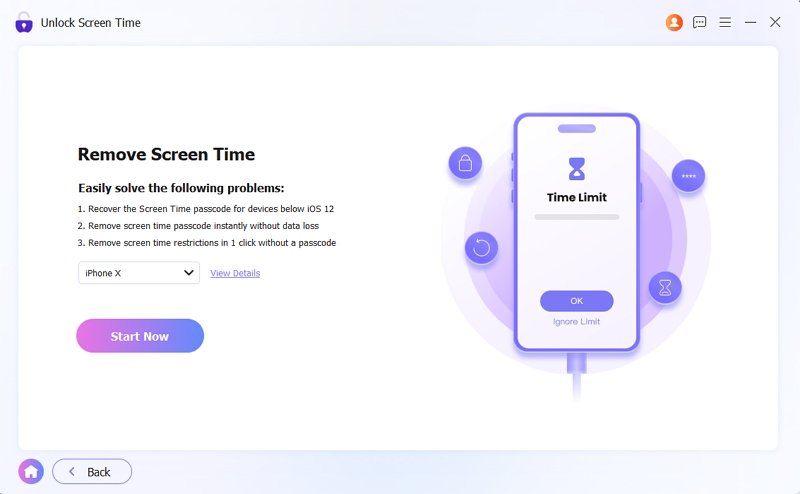
5. The software will safely analyze your iOS architecture and instantly strip the restriction protocols in a matter of seconds. Once your iPhone reboots, the Screen Time passcode will be gone, allowing you to sign out of your Apple ID freely.
To Conclude
Encountering the “Sign Out is Not Available Due to Restrictions” barrier is a common defense mechanism tied to Apple's Screen Time, Family Sharing, or internal MDM security protocols. For most users, navigating to the Content & Privacy Restrictions menu to allow "Account Changes" will instantly resolve the deadlock.
However, if you are trapped by a forgotten Screen Time PIN or an outdated MDM configuration, you do not need to risk erasing your valuable files. Using a verified desktop utility like Eassiy iPhone Access provides a swift, data-safe exit strategy to clear the restrictions and restore full control over your Apple ID settings.