Help Center

Updated on 2026-07-07
views
5min read
If the “Forgot Screen Time Passcode?” option is missing, it can completely block your access to your own settings. You might be facing frustrating usage restrictions, and following multiple online guides only to realize the recovery button simply does not exist on your screen.
In many cases, you cannot change restrictions, reset limits, or regain access until you understand why the option is hidden in the first place. In this guide, we will explore the root causes of the "no option for forgot screen time passcode" issue and explain how to fix it through official parental controls. We will also cover what to do if you are locked out of the parent account, and other technical reasons for the missing button.
Key Takeaways
- The missing “Forgot Screen Time Passcode” option usually occurs when the iPhone or iPad is using an Apple ID created as a Child’s Account under Family Sharing.
- For security reasons, Apple completely hides the recovery option from the child’s device.
- The Screen Time passcode can typically only be reset using the Parent or Family Organizer’s Apple ID and device.
- Outdated iOS builds, MDM profiles, or offline network statuses can also cause the recovery option to disappear.
- If official recovery is impossible, professional tools like Eassiy iPhone Access can help you bypass the restrictions, but you must take precautions to protect your data.
The Core Reason: You’re on a Child’s Device in Family Sharing
When the recovery option is invisible, the most common culprit is that your current Apple ID was created as a Child’s Account under Apple Family Sharing. Apple intentionally restricts passcode recovery on child accounts to prevent them from bypassing parental controls.
Based on our extensive lab testing, we uncovered exactly how Apple’s system enforces this, even in unexpected scenarios:
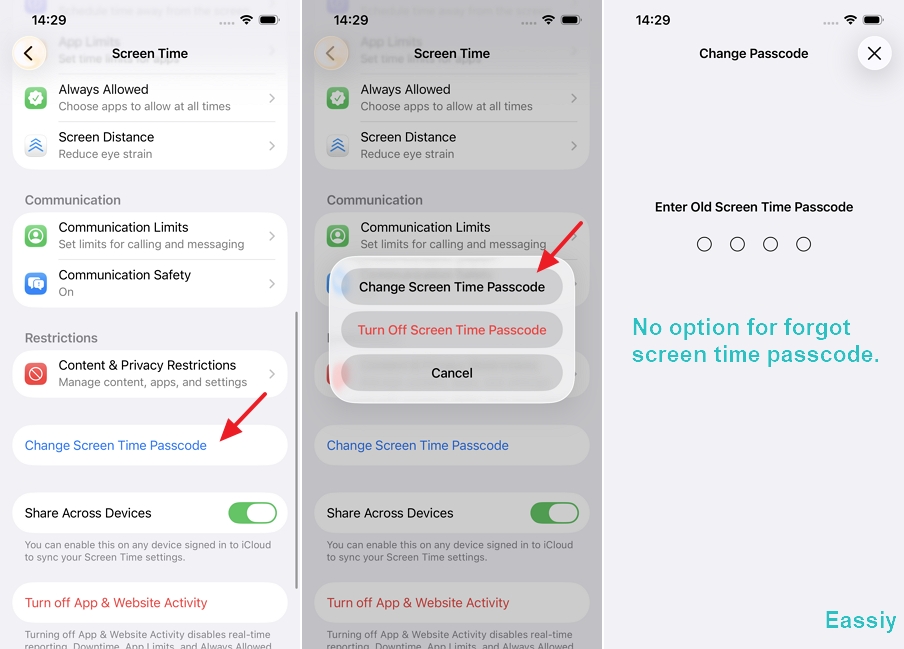
Scenario A: The Unmanaged Child Account
If your parents created your Apple ID via Family Sharing but do not actively manage or restrict your device through their Screen Time, you might assume you have full control. However, if you independently set up a Screen Time passcode on your own device, the system will not allow you to input your Apple ID and password as a recovery method.
Consequently, when you forget the PIN, there is absolutely no option for "Forgot Screen Time Passcode". According to Apple's official design, this is a hardcoded system limitation for all child accounts, regardless of active parental management.
Scenario B: The Actively Managed Child Account
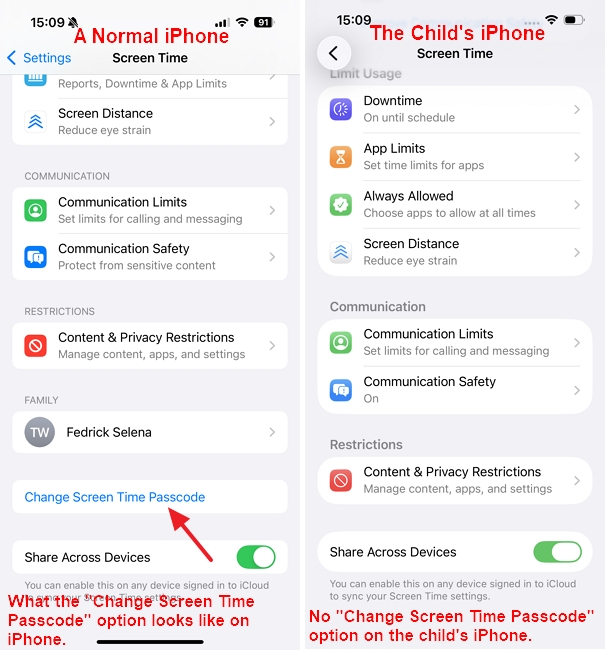
If a device is actively controlled via Family Sharing, Apple hides the recovery options directly from the child’s device. Even the “Change Screen Time Passcode” option, along with the “Forgot Passcode?” button, is completely hidden.
We tested this scenario thoroughly. If parents decide to completely stop managing the device through Family Sharing, the “Change Screen Time Passcode” option may eventually return to the child’s iPhone. However, the “Forgot Passcode?” option remains permanently unavailable.
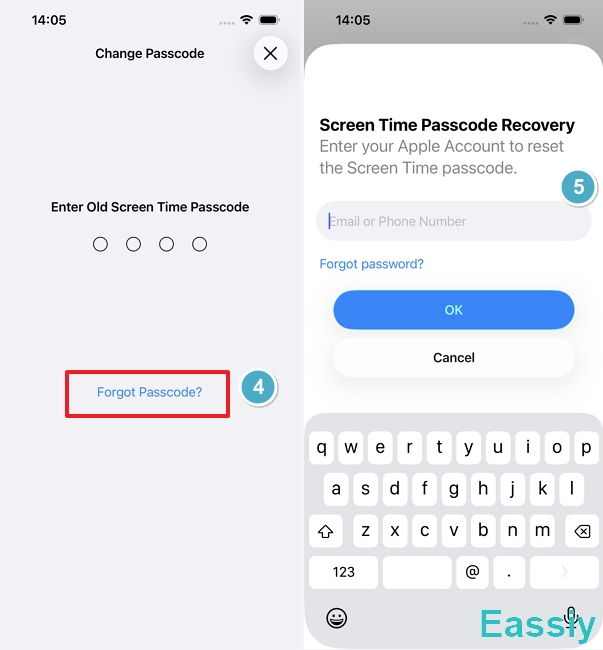
Many online forums incorrectly claim that the missing option happens because no Apple ID was linked during the initial device setup. Our tests prove otherwise. On a normal adult device, the “Forgot Passcode?” option still appears even if the Apple ID setup step was skipped initially. This confirms the missing button is specifically tied to Family Sharing restrictions, not a setup glitch.
How to Fix No Option for 'Forgot Screen Time Passcode' Officially?
If your device is trapped in the Family Sharing ecosystem, Apple only allows the Screen Time passcode to be reset through the Parent or Family Organizer’s device. Here is how to do it officially:
Reset via the Parent's iPhone or iPad:
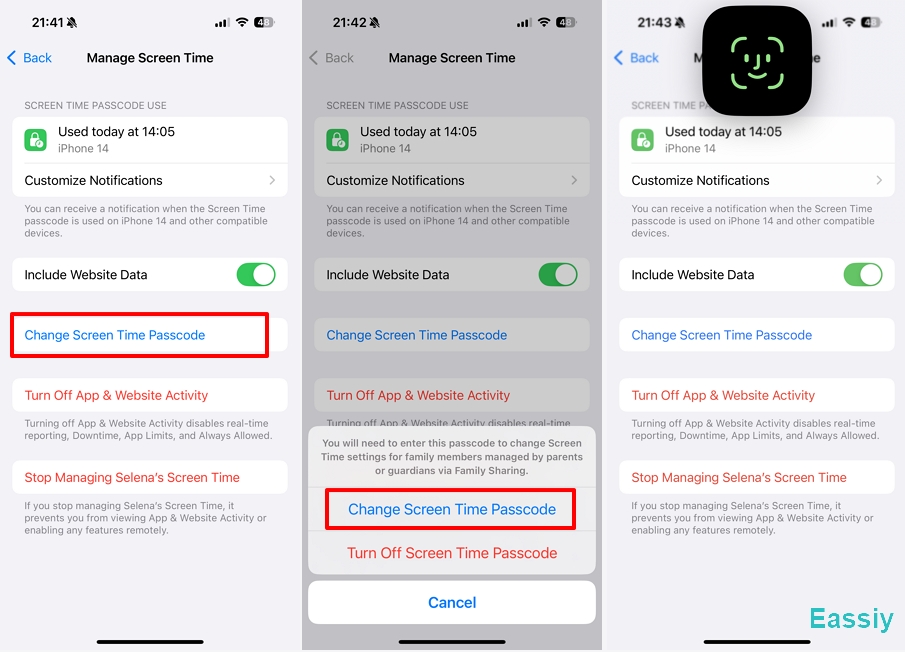
1. Navigate to Settings > Screen Time on the parent's device.
2. Tap the [Child's Name] > Manage Screen Time.
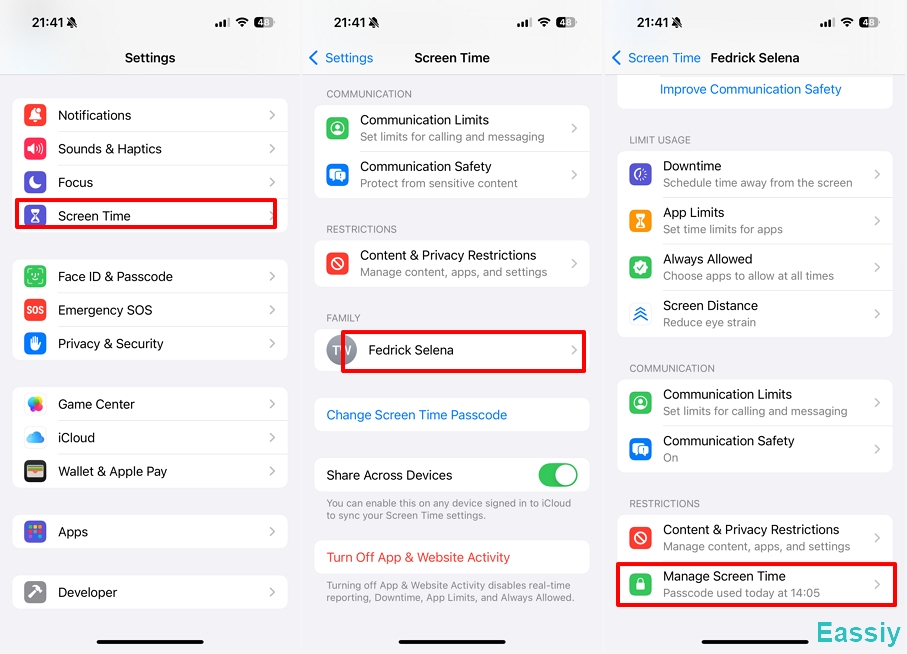
3. Hit Change Screen Time Passcode, and then tap Change Screen Time Passcode again.
4. Authenticate using the parent's Face ID or Apple ID credentials.
Reset via the Parent's Mac:
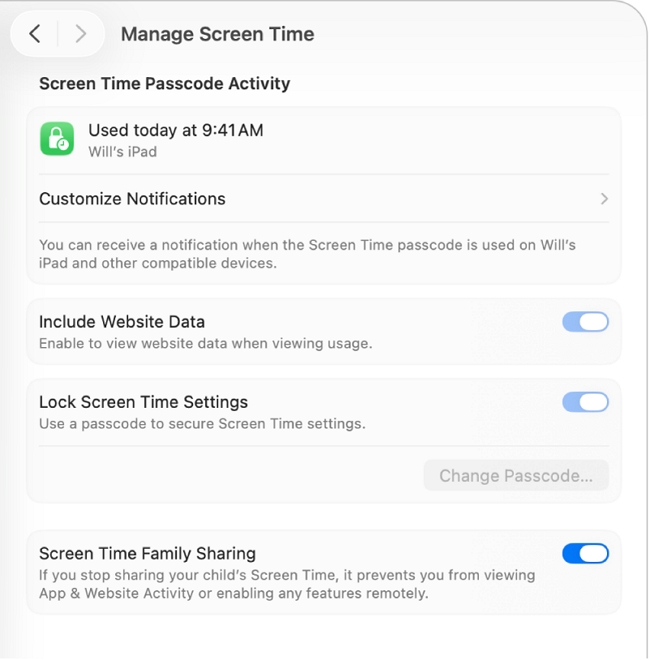
- Go to System Settings > Family (or System Preferences on older macOS).
- Click on the [Child's Name] > Manage Screen Time.
- Select the Change Passcode option and follow the on-screen prompts.
How to Remove Screen Time Passcode When Official Methods Fail
There is no Apple-approved method to fix this issue if you have lost contact with the Family Organizer or if the parent's Apple ID credentials are forgotten. Under these circumstances, you are permanently locked out of the Screen Time settings.
When you are completely stuck, a professional bypass tool like Eassiy iPhone Access becomes necessary. It removes the need for the "Forgot Passcode" option altogether, allowing you to remove Screen Time passcode and regain full control of your device.
Here's how to use Eassiy iPhone Access:
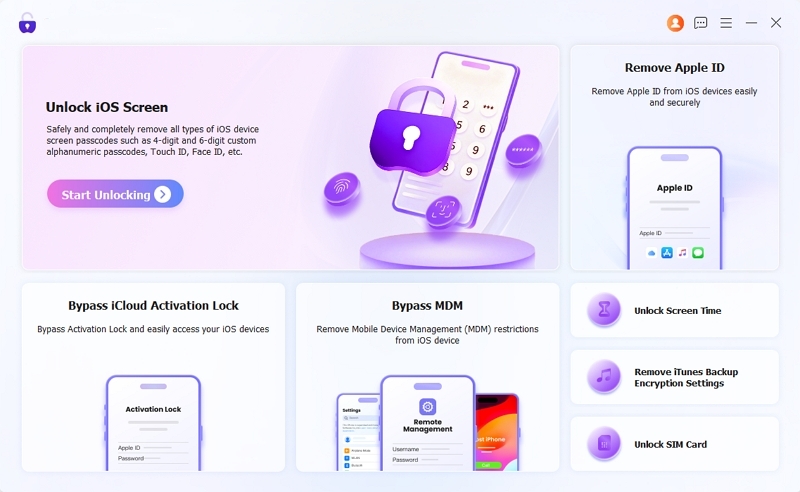
1. Install Eassiy iPhone Access on your Mac or PC and select the Unlock Screen Time mode from the main interface.
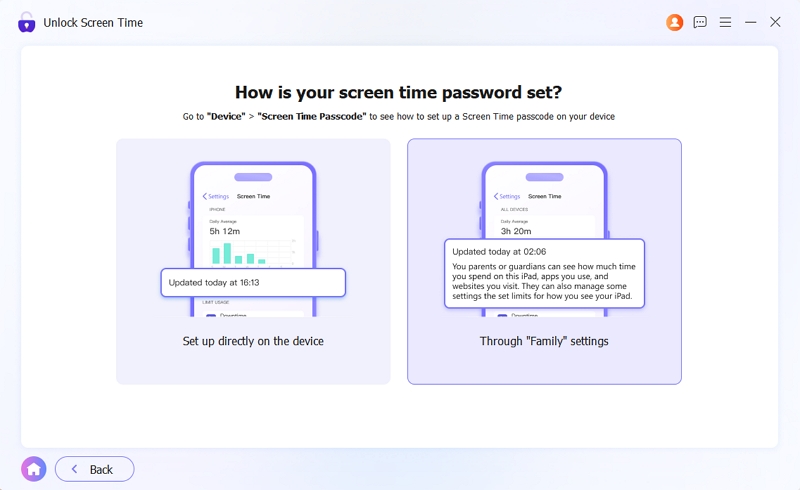
2. Select the option that matches your setup: choose Set it directly on the device, or Through Family Settings if the device is currently managed by a parent.
3. Use a USB cable to connect your iPhone or iPad to the computer. Tap "Start Now" to proceed.
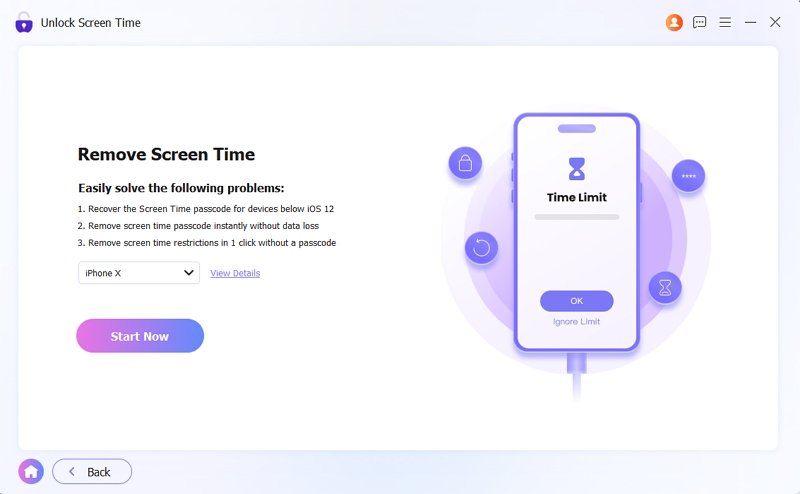
4. The software will begin analyzing your device to safely remove the Screen Time passcode.
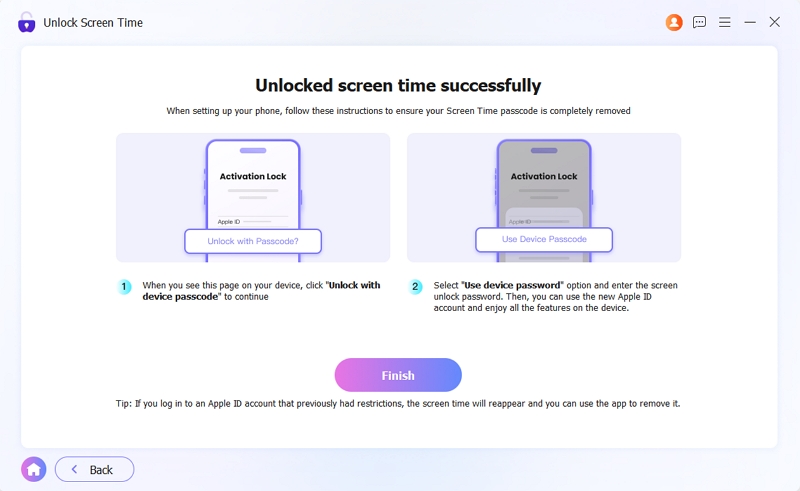
Once the process is complete and your device restarts, carefully follow the specific on-screen setup instructions provided by Eassiy on your computer to ensure the old passcode isn't accidentally restored.
Advanced Capabilities of Eassiy iPhone Access:
- Efficiently removes Screen Time passcode.
- Unlocks iPhone screen locks (Face ID, Touch ID, or PINs).
- Removes Apple ID without needing the original password.
- Bypasses iCloud Activation Lock and MDM restrictions.
Data Note: In deeply restricted Family Sharing cases, Apple's security prevents passcode removal unless the parent's account is used. Because of this, using Eassiy iPhone Access software to break the lock may require a device reset, which removes existing data. Before proceeding, always back up your data to protect them.
Other Technical Reasons the Option for Forgot Screen Time Passcode Might Hide
If you are absolutely certain your Apple ID is not a Child Account, the missing button could be caused by other system-level configurations:
- MDM Profiles (Work/School Devices): A school- or company-managed iPhone usually includes a Mobile Device Management (MDM) profile. IT administrators can disable Screen Time recovery options through internal policies, completely removing the “Forgot Passcode?” feature.
- Outdated iOS Version: The Screen Time recovery feature was introduced in iOS 13.4. If your device is running an older iOS version, the system simply does not support the recovery option, and it will never appear.
- Network Disconnection: Screen Time recovery requires communication with Apple’s authentication servers. If your device is in Airplane Mode or lacks an active Wi-Fi/Cellular connection, the recovery option may be temporarily hidden.
FAQs
Q1: Can Apple Support reset my Screen Time passcode remotely?
No. Due to strict privacy restrictions, Apple Support cannot reset, view, or bypass Screen Time passcodes. The passcode is end-to-end encrypted and stored locally on the device, meaning even Apple engineers cannot access it.
Q2: Will signing out of iCloud force the "Forgot Passcode" option to appear?
Absolutely not—in fact, you usually cannot even try this. If your device has active Screen Time restrictions, iOS will completely block you from signing out of iCloud. The option in your settings will be greyed out, accompanied by the standard system reminder: "Sign Out is not available due to restrictions."
Q3: How long does it take for a parent's passcode change to sync to the child's device?
If both devices have a strong internet connection, a parent’s Screen Time passcode update typically syncs via iCloud almost instantly. However, if there are network delays or Apple server lags, it may take a few minutes. Restarting the child's device can help force the sync.
Q4: Can I use a factory reset as a failsafe to remove the Screen Time passcode?
Yes, a factory reset (via Mac or iTunes/PC) is your absolute last resort. This restores the device to its default factory condition, wiping away the locally stored Screen Time passcode along with everything else.
After resetting the device, you must avoid logging into the same Apple ID if that account was created under Family Sharing. The moment you sign back into a managed child account, Apple's cloud servers will automatically push the existing parental controls and Screen Time restrictions right back onto your iPhone. To truly start fresh, you would need to set up the device with a standard, unrestricted Apple ID instead.
To Conclude
The missing “Forgot Screen Time Passcode” option primarily stems from Apple’s strict privacy and security architecture. Rather than being a simple system bug, its visibility is directly dictated by your Family Sharing configuration, MDM profiles, or your current iOS version. Understanding these underlying constraints is the first step to avoiding frustration and choosing the right fix.
Ultimately, if you find yourself with no option for forgot screen time passcode, your path forward relies on parent-authorized system settings, Apple ID recovery, or—when official methods fail—professional tools and careful device resets.