Help Center

Updated on 2026-07-07
views
5min read
If the dreaded security lockout message appears on your screen, your iPhone is completely locked down. You are instantly cut off from your photos, apps, contacts, and other crucial data. This defensive barrier is triggered by too many consecutive incorrect passcode entries, often causing immediate panic about permanent data loss.
The good news is that you are not entirely trapped—even if your screen currently reads “Security Lockout” or “iPhone Unavailable.” In this expert guide, we will explain exactly what the iPhone security lockout means, how your data is protected, and the precise timing of the lockout penalty system. More importantly, we will provide three proven methods to bypass the lock screen and safely regain access to your iOS device.
Key Takeaways
- “Security Lockout” and “iPhone Unavailable” completely replaced the legacy “iPhone is Disabled” screen starting in iOS 15.2 and higher.
- Without the correct passcode, lifting the security restriction requires erasing the device, but your data can be fully restored via iCloud or computer backups.
- Devices running modern iOS versions allow you to wipe and reset the phone directly from the lock screen over Wi-Fi or cellular data.
- If the built-in on-screen recovery buttons fail to appear due to network or account errors, a desktop computer or Eassiy iPhone Access tool will successfully resolve the lockout.
What Does Security Lockout Mean on iPhone?
iPhone security lockout is an essential Apple security protocol designed to protect your personal information from brute-force hacking attempts. When the system detects multiple failed passcode attempts, it assumes an unauthorized user is trying to guess your PIN and systematically restricts access.
Before vs. After iOS 15.2
- Before iOS 15.2: Repeated incorrect entries forced the device into the rigid “iPhone is Disabled, connect to iTunes” state. This archaic method strictly mandated connecting to an external computer to flash the operating system.
- After iOS 15.2: Apple completely overhauled the recovery infrastructure, officially phasing out the old "Disabled" terminology. Today, the system dynamically displays “iPhone Unavailable” or “Security Lockout” to indicate the restriction, and introduces a local cloud-based reset feature (the "Forgot Passcode?" button) directly on the lock screen.
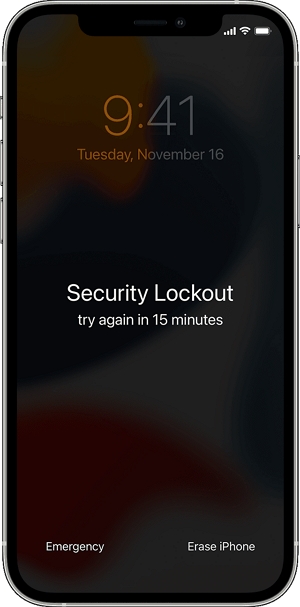
iPhone Unavailable vs. Security Lockout: What's the Difference?
Because Apple does not officially document the exact UI triggers for these two warnings, you will find a lot of conflicting information online. Based on our continuous lab testing up to the latest iOS architectures, here is the reality:
Both "iPhone Unavailable" and "Security Lockout" represent the exact same escalating security restriction. You might see either phrase depending on your specific iOS version, cellular status, or how rapidly the incorrect passcodes were entered.
The text on the screen matters less than what is in the bottom right corner:
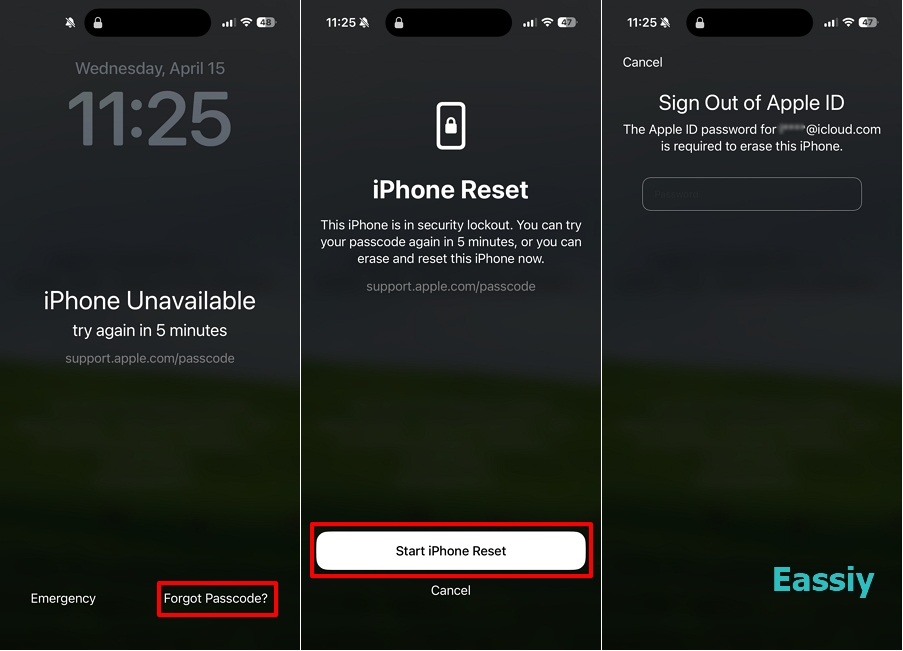
- If you see "Forgot Passcode?" or "Erase iPhone" in the corner, your device is successfully connected to Apple's servers, and you can initiate a cloud-based factory reset immediately.
- If the bottom corner is completely blank without "Forgot Passcode?" or "Erase iPhone" button, your device is completely locked out of network communications, and you will need to use a computer or a tool like Eassiy iPhone Access to regain access.
Will I Lose My Data When My iPhone Is in Security Lockout?
If you cannot remember your passcode, the hard reality is that the iPhone must be completely wiped to clear the security restriction. This is a fundamental cryptographic rule enforced by Apple: passcode encryption keys are bound tightly to the local hardware storage. No authentic software or technical method can extract or clear the lock screen passcode without wiping the local storage drive.
However, a factory reset does not mean your digital life is gone forever. If you have automated iCloud backups running in the background, or if you regularly sync your device to a Mac or PC, you can effortlessly restore all your photos, text messages, applications, and account preferences during the initial post-reset configuration screen.
How Long Does a Security Lockout Last on iPhone?
Apple employs an escalating penalty timer to slow down automated passcode guessing attempts. As you continue to type in wrong combinations, the duration of the lockout exponentially multiplies. Here is exactly how the security penalty matrix scales:
- 1 to 4 Wrong Attempts: Standard entry errors. The lock screen will simply shake and prompt you to try again without any penalty timer.
- 5 Consecutive Failures: iPhone Unavailable — Try again in 1 minute.
- 6 Consecutive Failures: iPhone Unavailable — Try again in 5 minutes.
- 7 Consecutive Failures: iPhone Unavailable OR Security Lockout — Try again in 15 minutes.
- 8 & 9 Consecutive Failures: iPhone Unavailable OR Security Lockout — Try again in 1 hour.
- 10 Consecutive Failures: iPhone Unavailable OR Security Lockout — Try again in 3 hours.
- 11 Consecutive Failures: Permanent lockout with no timer. The device is fundamentally bricked and will not accept further inputs; a complete system wipe is mandatory.
Note: The timer only counts down while the iPhone remains powered on. Restarting the phone will not reset or bypass the security lockout timer. Furthermore, if you previously enabled the "Erase Data" security feature in your settings, your iPhone will automatically factory reset itself immediately after the 10th failed attempt.
How to Get iPhone Out of Security Lockout?
When encountering the Security Lockout screen, maintaining an organized approach prevents worsening the timer penalties. The optimal path to recovery depends directly on your internet status, Apple ID credentials, and access to an external computer.
Method 1: Safely Test Your Passcode via Another Apple Device Without Triggering Lockouts
If you have a few guessed passcodes in mind but are terrified of triggering the permanent Security Lockout screen, there is a brilliant workaround. You can use iCloud's End-to-End Encryption sync feature as a "sandbox" to safely test your guesses on a completely different Apple device.
When you sign into a secondary Apple device, iCloud requires the passcode of your other trusted devices to sync encrypted data. Any incorrect guesses made on this secondary device will not trigger the penalty timer on your actually locked iPhone.
Lab-Verified Note: While this workaround relies on specific iCloud prompts and may not appear in every single setup, we successfully replicated and tested this method using an iPhone 6s and an iPhone 14.
Here are the step-by-step instructions to perform this safe test:
1. Grab a secondary Apple device (like a spare iPhone 6s or an iPad) that is currently signed out. Open the Settings app.
2. At the top of the menu, tap “Sign in to your [Device]” and log into the exact same Apple ID used on your locked iPhone.
3. If prompted for Two-Factor Authentication (2FA), retrieve the verification code from your Mac, iPad, or linked phone number to proceed.
4. Follow the on-screen prompts. You may be asked to create or enter a local screen passcode for the current secondary device you are holding.
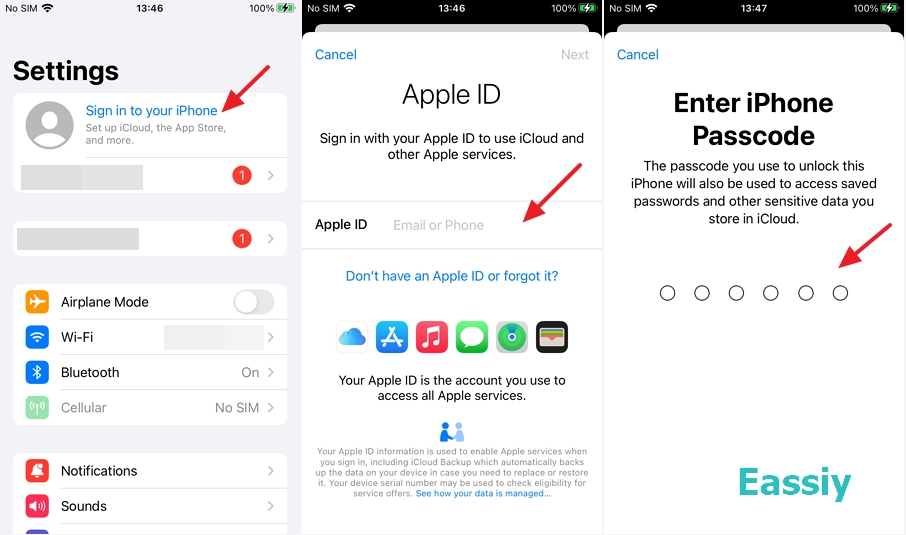
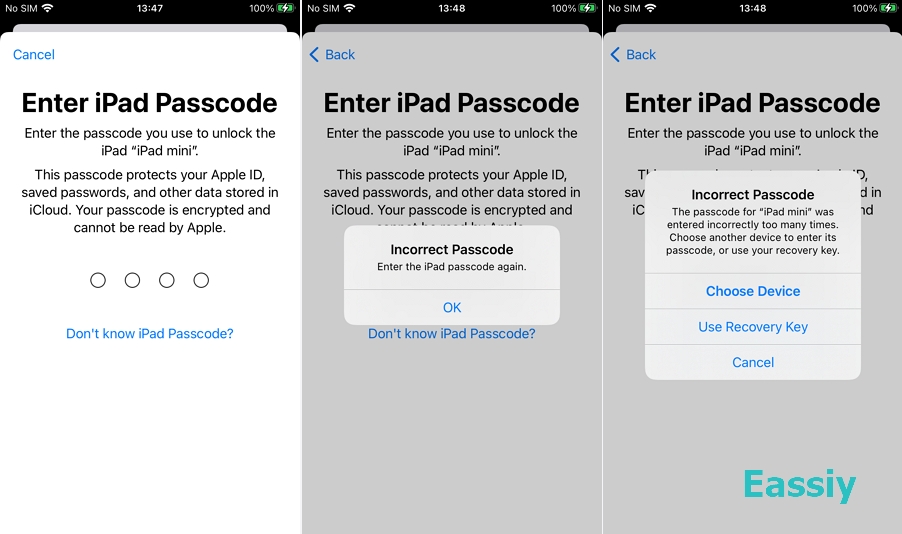
5. Next, iCloud will ask you to enter the passcode of other devices sharing this Apple account to sync your secure data. It should prompt you for the passcode of your locked iPhone.
This is your opportunity to test your potential passcodes. Because you are entering it on a secondary device's iCloud verification screen, guessing incorrectly here will not trigger an "Unavailable" or "Security Lockout" state on your actual locked device. If the screen rejects your guess, simply back out or try another combination.
Once the system accepts your input, you have successfully verified the correct PIN! You can now confidently pick up your locked iPhone, enter that exact passcode, and regain access without risking data loss.
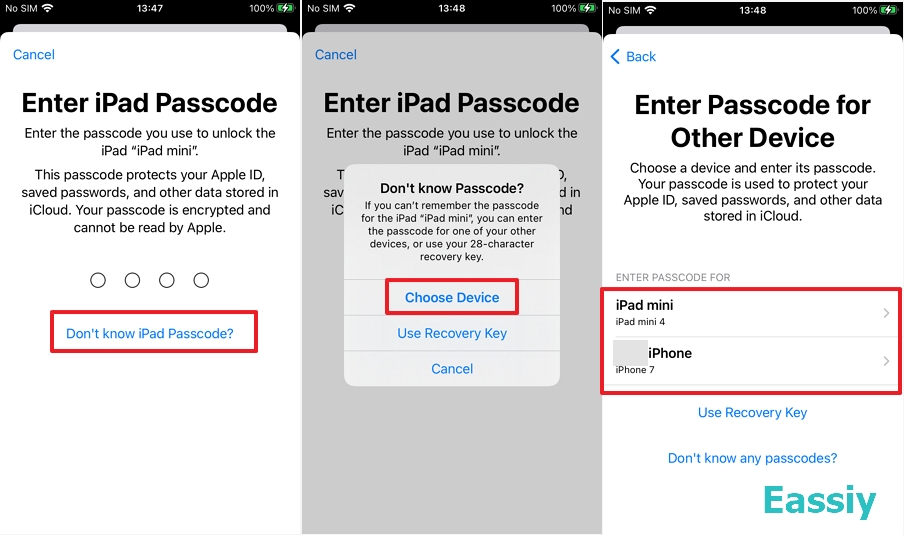
Important: If the screen asks for the passcode of a different Apple device instead, tap "Don't know [Device] Passcode?" > Choose Device, and manually select your locked iPhone from the list.
Method 2: Use the Built-In "Erase iPhone" or "Forgot Passcode?" Option
If your device meets Apple's network prerequisites, you can execute a cloud-based factory reset straight from the lock screen without linking up to a computer.
Core Requirements:
- The device must be running iOS 15.2 or later.
- An active internet connection (Wi-Fi or Cellular data) must be active.
- The "Find My" feature must be toggled on inside your iCloud settings.
- You must know the exact Apple ID password tied to the locked device.
UI Layout Differences Across iOS Generations:
- For iOS 15.2 to iOS 16: Look for the “Erase iPhone” button sitting quietly at the bottom center or left of the screen.
- For iOS 17 to iOS 26: Apple moved this feature under the “Forgot Passcode?” option positioned at the bottom right corner. Pressing it immediately redirects you to the “Start iPhone Reset” control center.
Steps:
1. Tap the Erase iPhone or Forgot Passcode? button on the lock screen.
2. On the warning screen, tap it again to confirm that you wish to clear all settings and data.
3. Input your linked Apple ID password to sign out your profile and deactivate Activation Lock tracking.
4. Tap Erase to initialize the script. The device will automatically reboot, cycle through the Apple logo loading bar, and load back up to the factory "Hello" welcome screen for setup.
Method 3: What to Do When the "Erase iPhone" Button Does Not Appear?
In many real-world scenarios, the on-screen reset path remains unavailable. This typically occurs if the device is running completely offline, if Find My was never activated, or if the Security Lockout mechanism has completely broken the cellular data configuration profile. When left without an on-screen route, you must transition to external options.
Solution A: Deploy Eassiy iPhone Access (The Fastest Automated Option)
When native Apple buttons fail to populate or you cannot retrieve your security account credentials, a specialized utilities application like Eassiy iPhone Access safely bypasses the restriction protocols without jumping through complex iTunes loops.
Key Highlights:
- Instantly overrides localized screen restrictions, Face ID failures, and complex PIN codes.
- Operates perfectly even when the device is fully disconnected from Wi-Fi or Cellular networks.
- Bypasses secondary iOS locks like MDM profiles, remote supervision locks, and iCloud Activation Locks.
- Extensively verified inside our testing labs to successfully navigate high-level iOS 26 frameworks.
Here's the step-by-step guide to unlock iPhone Security lockout:
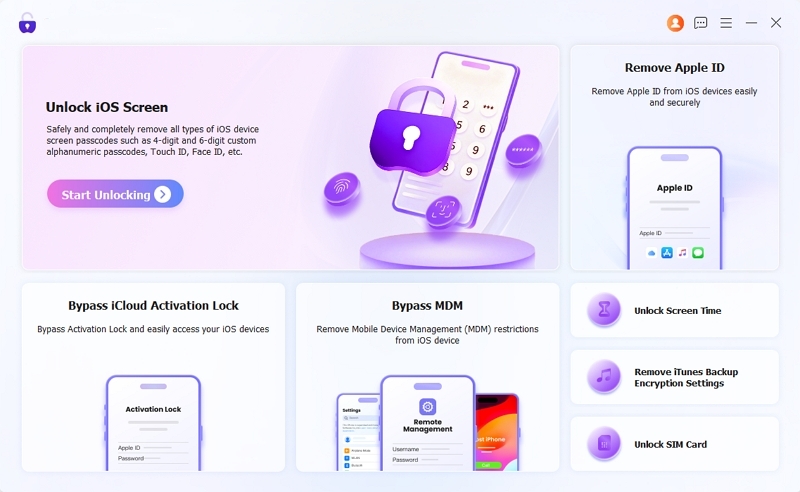
1. Download, install, and open Eassiy iPhone Access on your Mac or Windows PC.
2. From the clean master tile menu, click Unlock iOS Screen and tap the Start Unlocking button.
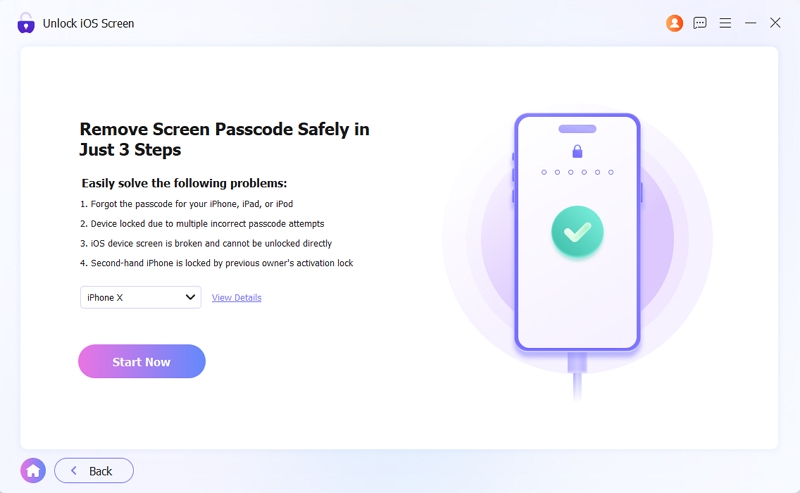
3. Connect your locked iPhone to the desktop tower using a reliable, high-spec USB data cable. The program will scan the device hardware, displaying your specific model generation, hardware ID, and current operating firmware version automatically. Verify these specs and hit Start Now.
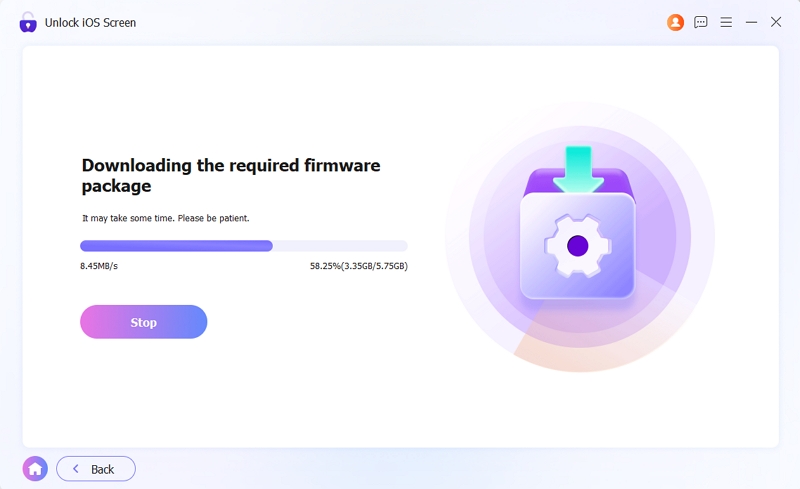
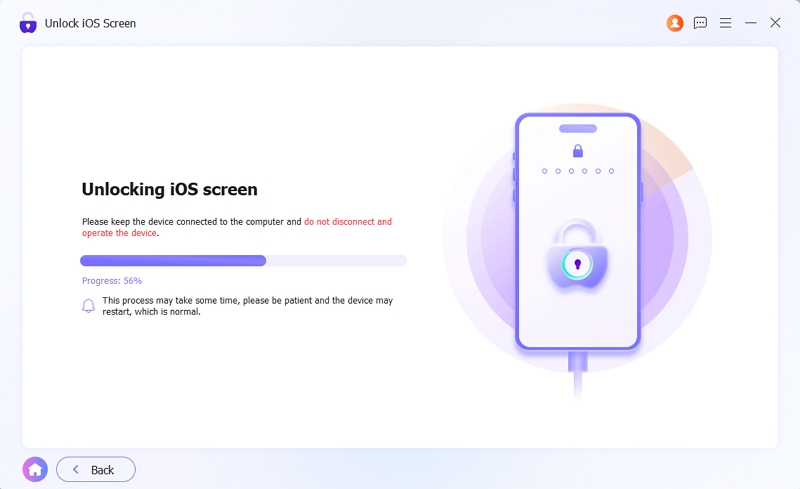
4. Eassiy will securely fetch the corresponding factory firmware package directly from the server. Allow the progress bar to complete the download.
5. Click Start Removing to execute the script. Keep the physical cable strictly connected during the extraction. Once finished, the Security Lockout restriction is lifted, allowing you to configure the system anew.
Solution B: Restore via Hardware Recovery Mode (The Manual Desktop Path)
If you prefer an official manual layout, you can leverage a desktop machine running Apple's official system recovery tools to rebuild the phone. This requires a Mac running Finder or a Windows system loaded with the latest iTunes iteration.
Steps:
1. Open Finder or launch iTunes on your desktop computer, then connect your iPhone via USB.
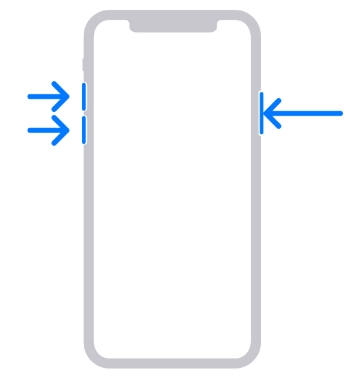
2. Force your iPhone into Recovery Mode by executing the dedicated physical key sequence: Press and instantly release Volume Up, press and instantly release Volume Down, then press and continuously hold the Side Power Button. Do not release this button even when the Apple logo appears; keep holding until the physical computer cable graphics and recovery interface materialize on your phone screen.
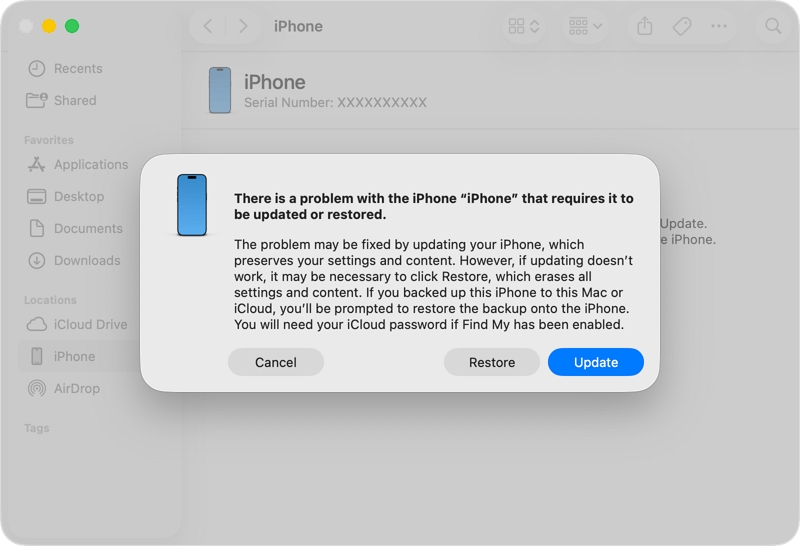
3. A prompt will immediately slide into view on your desktop stating: "There is a problem with the iPhone that requires it to be updated or restored."
4. Click the Restore command. Your desktop will fetch clean OS firmware files from Apple's central distribution database and overwrite the locked system storage.
To Conclude
While encountering an iPhone Security Lockout screen is undeniably stressful, remember that it represents Apple’s absolute highest layer of cryptographic shield protecting your digital life. If your device retains a healthy web link, using the built-in "Forgot Passcode?" or "Erase iPhone" buttons offers the fastest resolution. For offline emergencies or missing credentials, utilizing desktop methods like Recovery Mode or the highly reliable Eassiy iPhone Access will successfully restore your smartphone to pristine working order. Keep your automated iCloud sync configurations active to shield your files from unforeseen locks down the road.