Help Center

Updated on 2026-07-07
views
5min read
Seeing the phrase “Turn on Downtime Until Schedule” pop up unexpectedly inside your iPhone's Screen Time settings can be confusing. For many users, finding their apps suddenly dimmed with hourglass icons makes it feel like their iPhone is glitching or restricting them for no reason.
The good news is that this isn't a bug. It is simply a manual control feature for Apple's digital well-being system. Once you understand how this option works, it becomes an incredibly powerful tool for managing your focus.
In this article, we’ll explore what this button actually does, why your apps suddenly become restricted, and what “Ignore Downtime Until Schedule” means. We’ll also cover why these options might go missing and what to do if you are locked out by a forgotten passcode.
Key Takeaways
- The options “Turn On Downtime Until Schedule” and “Ignore Downtime Until Schedule” act as manual "Start" and "Stop" buttons for your app restrictions under Screen Time settings.
- These buttons are dynamic; your iPhone will only show one at a time depending on whether Downtime is currently active or inactive.
- When managing a child’s device remotely via Family Sharing, Apple's servers can sometimes lag. If you have clicked the buttons, settings don't take effect immediately, wait a few seconds, and tap the Scheduled toggle to force a sync.
What is Downtime on iPhone?
Before diving into the manual overrides, it helps to clearly understand what is downtime on iPhone. Downtime is a core feature within Apple’s Screen Time suite designed to encourage healthier digital habits.
When scheduled (for example, from 10 PM to 7 AM), it acts as a digital “bedtime” for your device. During this active window, most of your apps are blocked, and only core functions like phone calls, text messages, and specific apps you've added to your “Always Allowed” list remain accessible.
What Does "Turn On Downtime Until Schedule" Mean?
"Turn On Downtime Until Schedule" is simply a manual override button. It instantly triggers your Downtime restrictions right now, regardless of when your automated schedule was actually supposed to begin.
Apple makes these settings dynamic, meaning the button only appears when it makes sense. To find it:
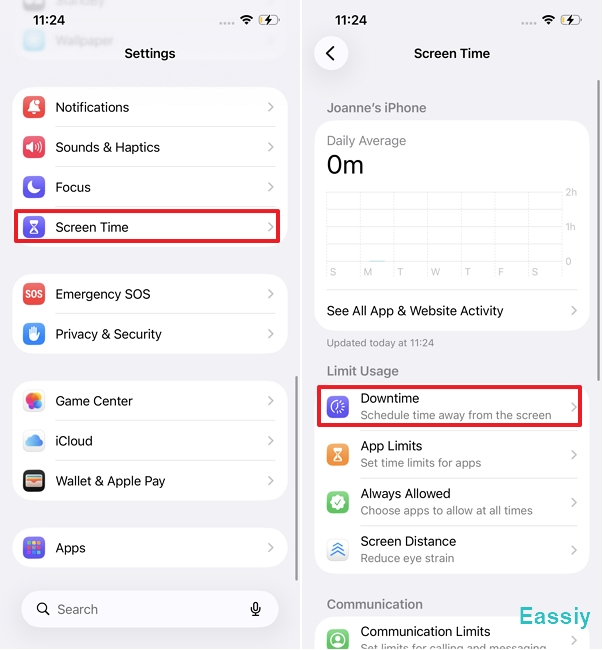
- Open the Settings app and tap Screen Time.
- Tap on your kid's name, if you are using Family sharing to manage your kid's iPhone.
- Tap on Downtime (Enter your Screen Time passcode if prompted).
- Ensure the Scheduled toggle is turned ON.
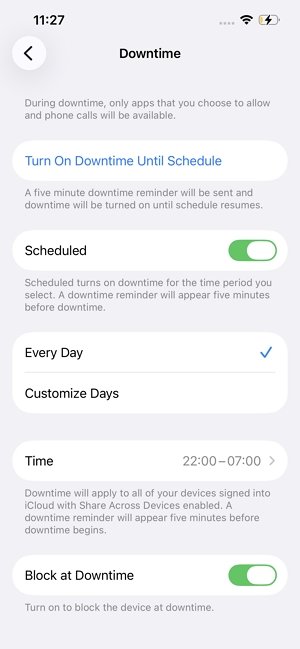
- If your apps are currently normal (meaning your scheduled downtime hasn't started yet), look just below the time schedule. You will see the blue clickable text: Turn On Downtime Until Schedule.
For example, if your Downtime is scheduled to start at 10 PM, but you need to study and avoid distractions at 3 PM, tapping this button will lock your apps immediately. The restrictions will stay enabled until your next regularly scheduled cycle ends (usually the following morning).
What Happens When You Turn On Downtime Until Schedule?
When this manual trigger is pressed, its behavior depends heavily on how your iPhone is configured:
On Your Own iPhone:
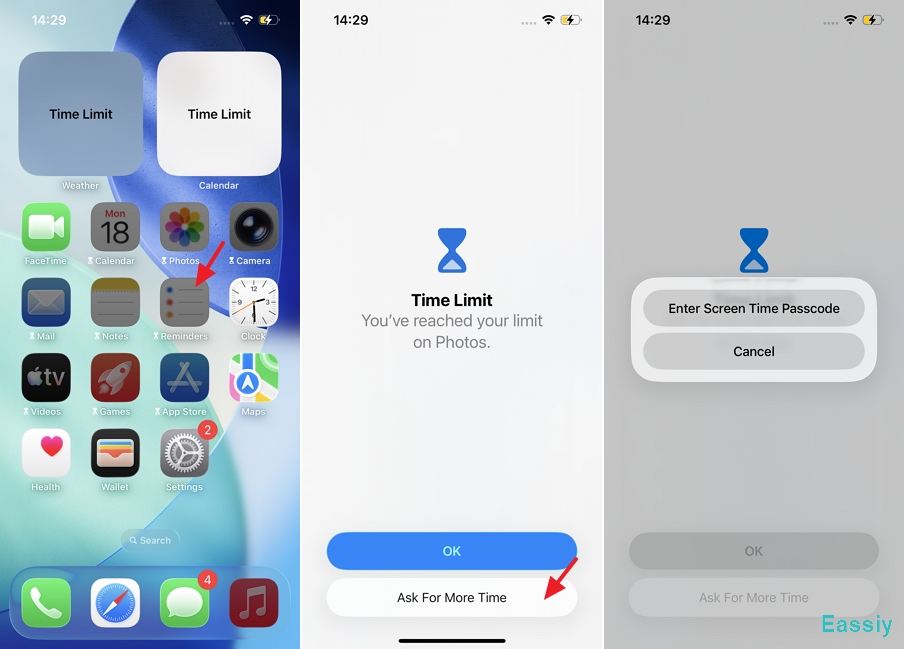
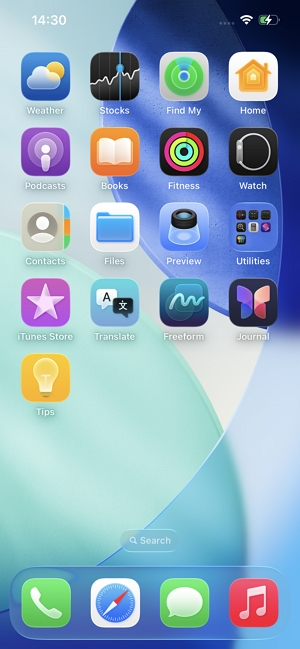
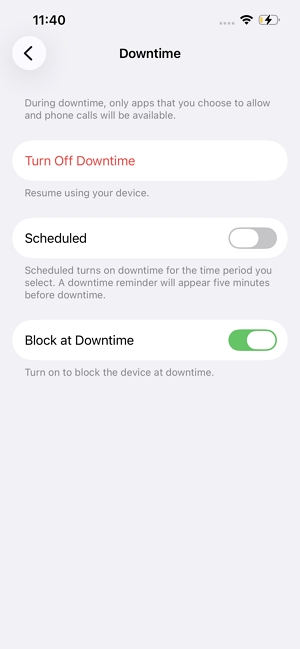
During downtime, only apps that you choose to allow and phone calls will be available. All non-essential apps will dim, and an hourglass icon will appear next to them. If you try to open one, you will see a “Time Limit” screen. If you haven't tied it to a passcode, you can easily bypass this by tapping “Ignore Limit.” However, if the "Block at Downtime" toggle is enabled with a passcode, you are strictly locked out.
On a Child's iPhone via Family Sharing:
Based on our testing, the restriction isn't entirely instantaneous. First, the child's phone will receive a warning banner stating "5 minutes remaining until downtime," giving them a brief window to save their files or game data. After those 5 minutes expire, trying to open a restricted app will display a “Time Limit” screen.
If the parent hasn't enforced a strict lock, the child can easily bypass this by tapping “Ignore Limit.” However, if the "Block at Downtime" toggle is enabled with a passcode, they are strictly locked out. They can tap “Ask for More Time,” but the Screen Time passcode is absolutely required to approve an additional 15 minutes, 1 hour, or full-day access.
Note: If the child tries to guess this Screen Time PIN to bypass the block, what will happen? Read our guide on what happens after 10 failed Screen Time passcode attempts to understand the exact lockout penalties.
What Does "Ignore Downtime Until Schedule" Mean?
"Ignore Downtime Until Schedule" is the exact opposite. This option acts as a temporary "Pause" button to cancel your current restrictions.
Because Apple's menus are dynamic, this option only appears when Downtime is already actively running. If you find your apps locked and want to take a break:
- Go back to Settings > Screen Time.
- Tap on your kid's name, if you are using Family sharing to manage your kid's iPhone.
- Tap on Downtime.
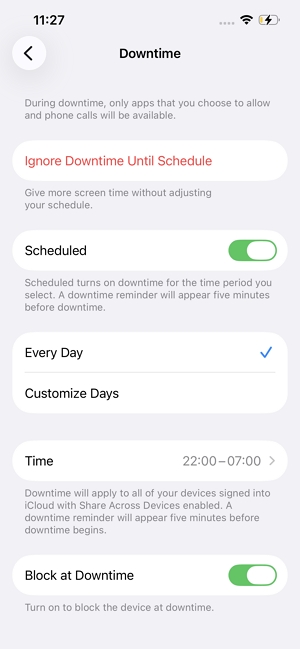
- Look below your schedule settings. The previous "Turn On" button will be gone, seamlessly replaced by the blue Ignore Downtime Until Schedule text.
By tapping this, you instantly cancel the restrictions and restore full, normal access to all your apps. This override lasts for the rest of the day, and your normal restrictions won't kick in again until your next scheduled Downtime period begins tomorrow.
What Happens When You Ignore It?
On Your Own iPhone:
The hourglass icons vanish, and you regain full, unrestricted access to your device for the rest of the day, exactly as if Downtime was never turned on.
On Your Child's iPhone:
If the parent taps the “Ignore Downtime Until Schedule” option for the child’s device, the child’s phone becomes fully accessible until the next scheduled cycle.
Troubleshooting: Turn On Downtime Until Schedule Not Working?
Sometimes, you might open the menu and find that neither of these blue buttons exists, or the option doesn't work as expected. This usually happens for two reasons:
Why Are These Buttons Missing?
If the main Schedule toggle is disabled, the automation doesn't exist. Since there is no active schedule, manual controls like “Turn On Downtime Until Schedule” or “Ignore Downtime Until Schedule” have nothing to anchor to, so iOS hides them.
Buttons Clicked, But Settings Don't Take Effect Immediately
During our hands-on testing, we encountered another frustrating glitch on both personal devices and children's iPhones: you tap “Turn On” or “Ignore,” but the apps do not lock or unlock right away.
- For your own iPhone: Do not panic and avoid repeatedly tapping the button. Simply wait for about 5 to 10 minutes. The iOS system sometimes experiences a slight local delay in executing the command, but it usually takes effect shortly after.
- For a child's iPhone (Family Sharing): This is almost always caused by an iCloud sync delay. First, try toggling the main Scheduled switch OFF and then back ON to force a network refresh. If that doesn't work, restart the child's iPhone entirely.
What If You Forgot the Screen Time Passcode?
Here is the biggest roadblock: if you forgot Screen Time passcode on iPhone, you are completely trapped. Without that 4-digit PIN, you cannot change your schedules, you cannot press "Ignore Downtime," and you cannot approve extra time for your kids.
Before panicking, your first step should always be to try the official Apple recovery method. Go to Settings > Screen Time > Change Screen Time Passcode, and follow the prompts to reset it using your Apple ID credentials.
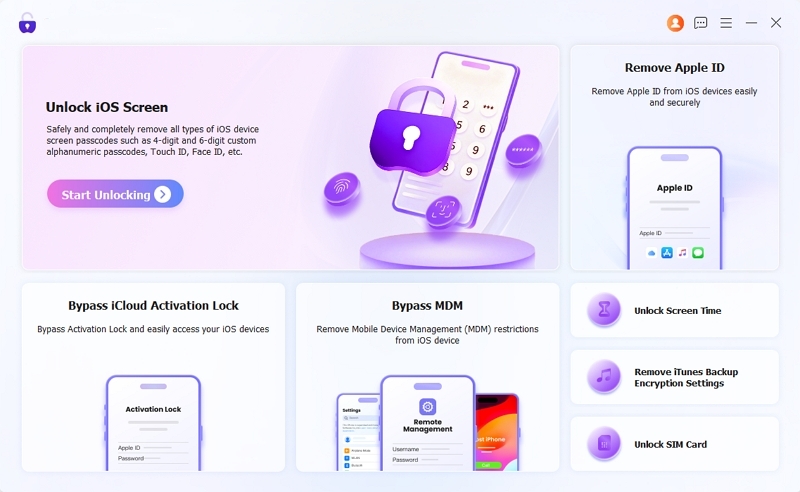
But what if you can't remember your Apple ID password either, or the recovery option simply isn't showing up? When faced with this frustrating loop, some users resort to extreme measures.The smartest and safest solution in this situation is to use a professional iOS unlock tool like Eassiy iPhone Access to remove the passcode without losing a single byte of data.
We extensively tested Eassiy's capabilities in our labs, pushing it up through modern iOS 26 environments. The tool's ability to safely target and remove just the Screen Time passcode without harming the device is exceptional.
Within minutes, the software successfully bypassed the forgotten Screen Time passcode. Once the old lock is safely wiped away, you can jump right back into your settings and set a brand-new Screen Time passcode from scratch.
Frequently Asked Questions
Q1. Does Downtime block incoming calls?
No. By default, Downtime does not block incoming phone calls. Even when your apps are locked and dimmed, you can still receive and make standard cellular calls normally. Calling functionality is only restricted if you specifically go into the Communication Limits menu and manually block certain contacts.
Q2. Can I turn off Downtime permanently?
Yes. If you are tired of the restrictions, simply go to Settings > Screen Time > Downtime and toggle the Scheduled switch to the OFF (grey) position. Once disabled, the automation will stop, and your apps will never be restricted again.
To Conclude
Understanding the "Turn On Downtime Until Schedule" feature gives you complete mastery over your iPhone's Screen Time. Instead of waiting for the clock to hit your scheduled bedtime, this button allows you to instantly trigger a distraction-free environment whenever you need to focus. It is a simple, flexible, and powerful way to maintain your digital balance on demand.