Help Center
Updated on 2026-07-07
views
5min read
You open the Settings app on your iPhone, planning to manage your iCloud storage or update a password, only to face a frustrating issue: your name and profile picture at the very top of the screen are completely frozen, grayed out, and unclickable.
It is an experience that induces immediate panic. For most users, the first thought is that their Apple Account has been hacked or that the device is suffering from a catastrophic software failure.
Fortunately, the reality is much less alarming. A grayed-out Apple Account banner is rarely a sign of a compromised device; rather, it is a deliberate software lockdown executed by built-in iOS safety protocols. The operating system has intentionally frozen that menu to protect your data, enforce a restriction, or maintain database integrity.
This comprehensive guide will diagnose exactly why is my apple account grayed out by uncovering the four hidden triggers behind the lock. More importantly, we provide step-by-step official fixes and a laboratory-verified bypass tool to restore full account control in minutes without risking data loss.
Key Takeaways
- Screen Time Dominance: An active Screen Time restriction on account modifications remains the primary trigger for a frozen Apple Account banner.
- Family Syncing: Child profiles tied to Family Sharing cannot lift this restriction locally; it requires a remote command pushed from the parent's or organizer's device.
- Data Restore Process: Ongoing background processes, such as an incomplete iCloud Restore, will intentionally gray out the settings to protect data integrity.
- Configuration Profiles: Work or school-issued MDM profiles can block account access, but they can often be removed in the VPN & Device Management settings.
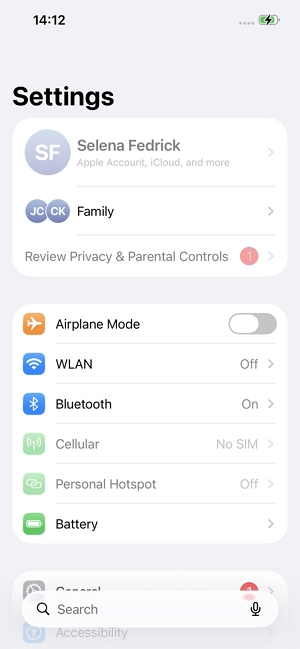
Why is My Apple Account Grayed Out?
Before diving into the fixes, it helps to understand what the iOS architecture is trying to achieve by locking you out.
1. Active Screen Time Content Restrictions
Apple’s core privacy protocols allow users (or parents) to block account modifications to prevent unauthorized changes. When the "Account Changes" parameter inside the Screen Time menu is set to restrict access, the entire top banner becomes a grayed-out dead zone.
2. Unaccepted Apple Terms and Conditions
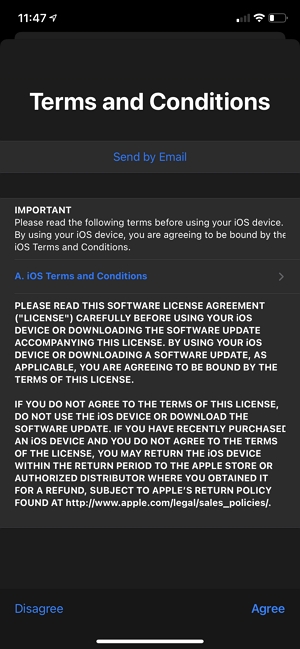
Whenever Apple updates its global iCloud policies or iOS service terms, your device must re-authenticate. If a system alert pops up and is accidentally dismissed, or if the UI glitches, iOS will intentionally restrict access to the Apple Account profile. The banner remains frozen until you sign the new regulatory legal agreements.
3. Incomplete iCloud Data Restore
If you recently performed a device migration or set up a new iPhone, the system undergoes a heavy background download. To prevent cloud database sync conflicts, iOS locks down the Apple Account banner until all photos, apps, and credentials are completely restored.
4. Managed MDM Profile Restrictions
Configuration profiles are often used by schools, workplaces, or specific apps to enforce restrictions or custom settings on a device. These payloads can unintentionally (or intentionally) interfere with Apple ID functionality, strictly barring the end-user from clicking or changing the Apple Account.
How to Solve a Grayed-Out Apple Account?
Depending on what triggered the lockdown, follow the solutions below. Based on our extensive laboratory testing—where we successfully replicated this exact grayed-out issue on an iPhone 14 running the latest iOS—the overwhelming majority of these cases stem directly from Screen Time restrictions. Therefore, we have structured our troubleshooting guide to tackle the most common Screen Time fixes first, before moving on to other system-level triggers.
Part 1: Fixes for Screen Time Restrictions
Method 1: Allow Account Changes via Content & Privacy Restrictions
If your device is locked due to local Screen Time settings, simply adjusting the specific toggle for account modifications is the quickest fix. This method leaves all your other Screen Time rules (like App Limits or Downtime) intact, strictly focusing on unfreezing the Apple Account banner.
Prerequisite: You must know the 4-digit Screen Time passcode if one was established.
Steps:
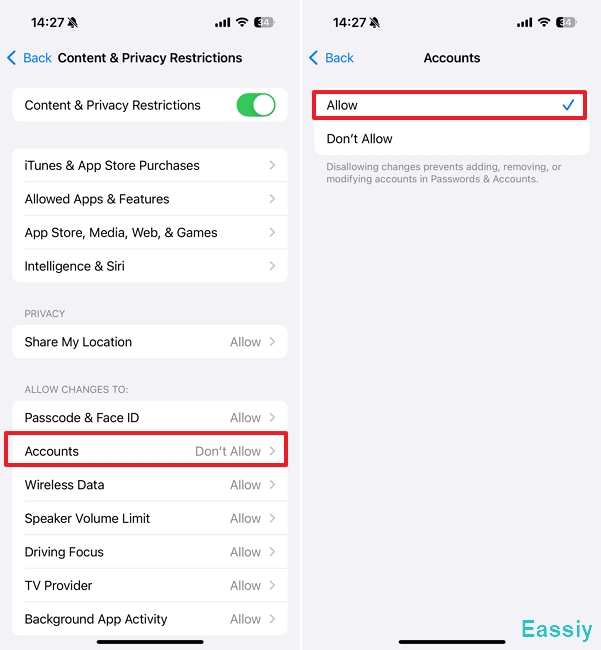
1. Launch the Settings app and select Screen Time.
2. Tap on Content & Privacy Restrictions.
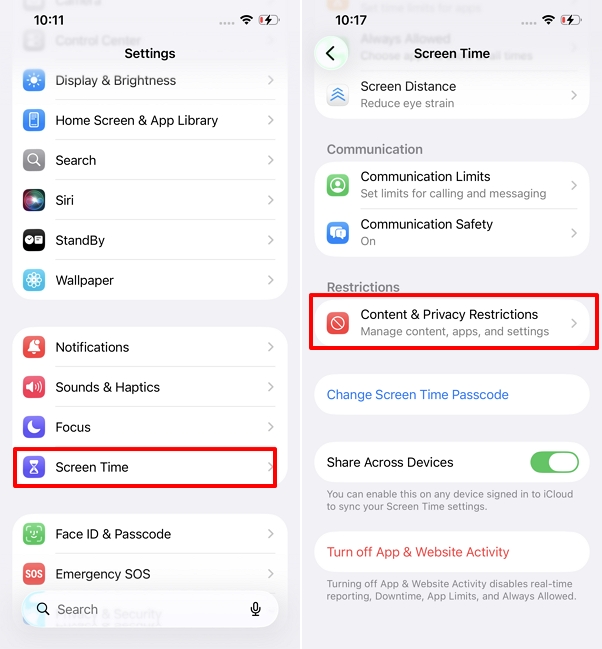
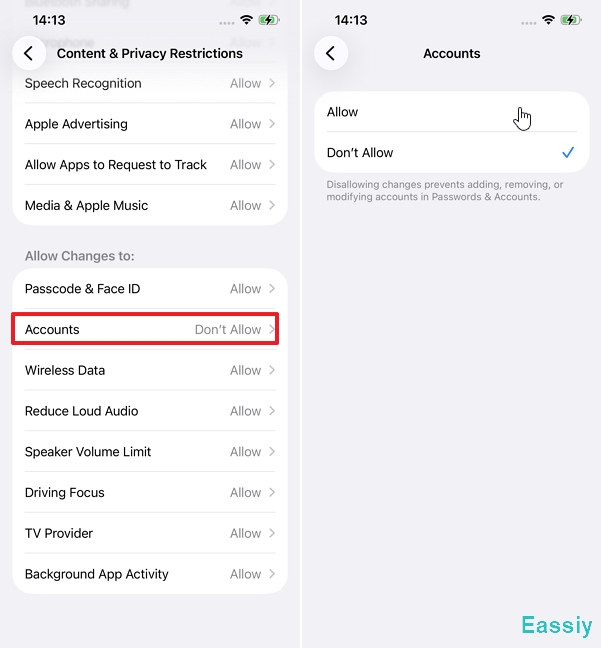
3. Scroll down to the Allow Changes sub-menu and tap on Account Changes.
4. Select Allow.
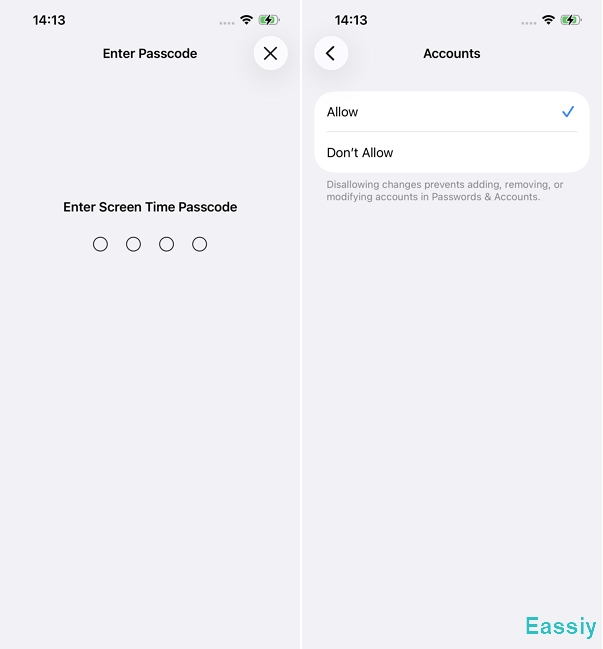
5. Enter the Screen Time passcode to authenticate.
6. Navigating back to the main Settings page will reveal a fully functional, clickable Apple Account banner.
Method 2: Disable the Screen Time Passcode Entirely
Sometimes, even after allowing account changes, iOS cache bugs or system glitches prevent the Apple Account banner from unlocking. In these frustrating scenarios, turning off the Screen Time passcode entirely forces the operating system to drop all restriction parameters at once, ensuring a clean slate.
Prerequisite: Used when individual setting toggles glitch due to localized iOS bugs.
Steps:
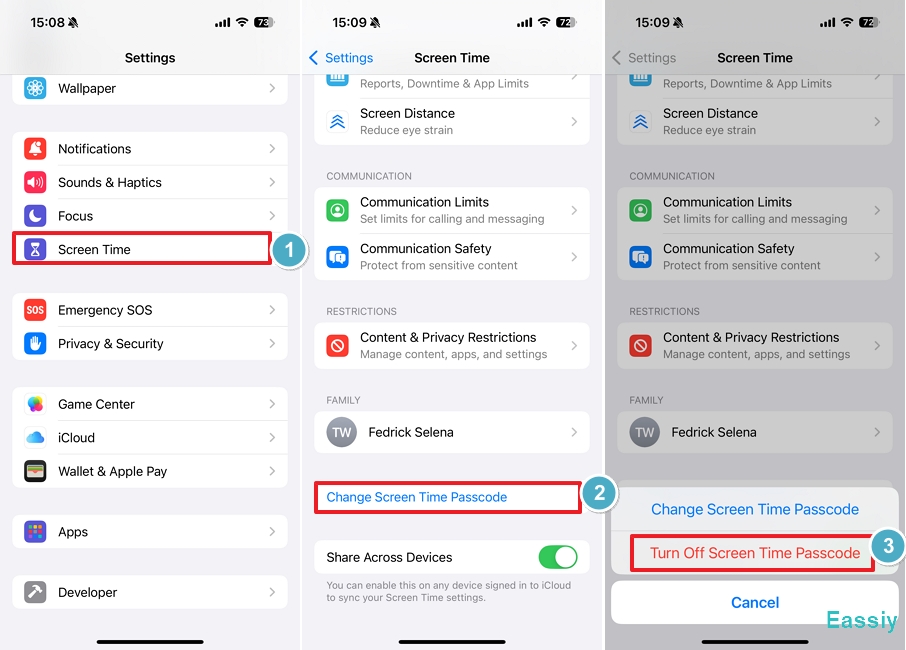
1. Go to Settings > Screen Time.
2. Scroll down the menu and tap on Change Screen Time Passcode.
3. From the sliding action sheet at the bottom, select Turn Off Screen Time Passcode.
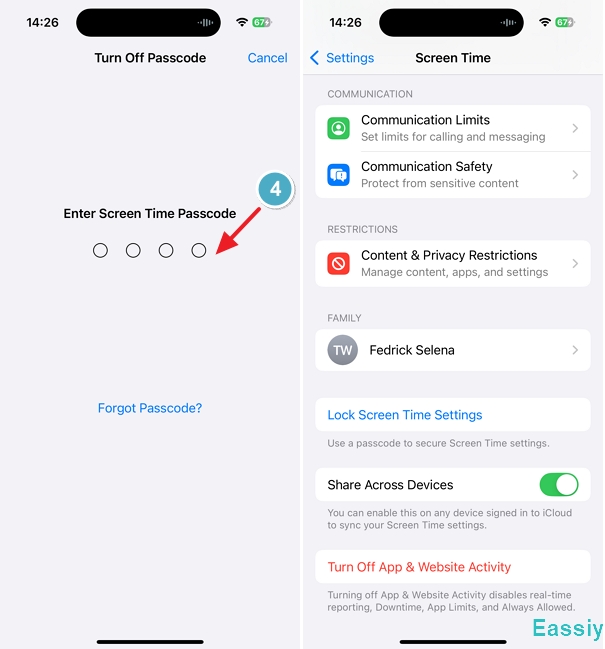
4. Provide your current 4-digit Screen Time PIN to validate and remove the tracking architecture.
Method 3: Remove Restrictions on a Child's iPhone
Apple's Family Sharing architecture is specifically designed to prevent children or teens from bypassing restrictions on their own devices. If the grayed-out Apple Account belongs to a minor, no amount of local troubleshooting will work. The restriction payload must be lifted using the organizer's device remotely.
Prerequisite: Must be executed using the primary Organizer/Parent iOS device.
Steps:
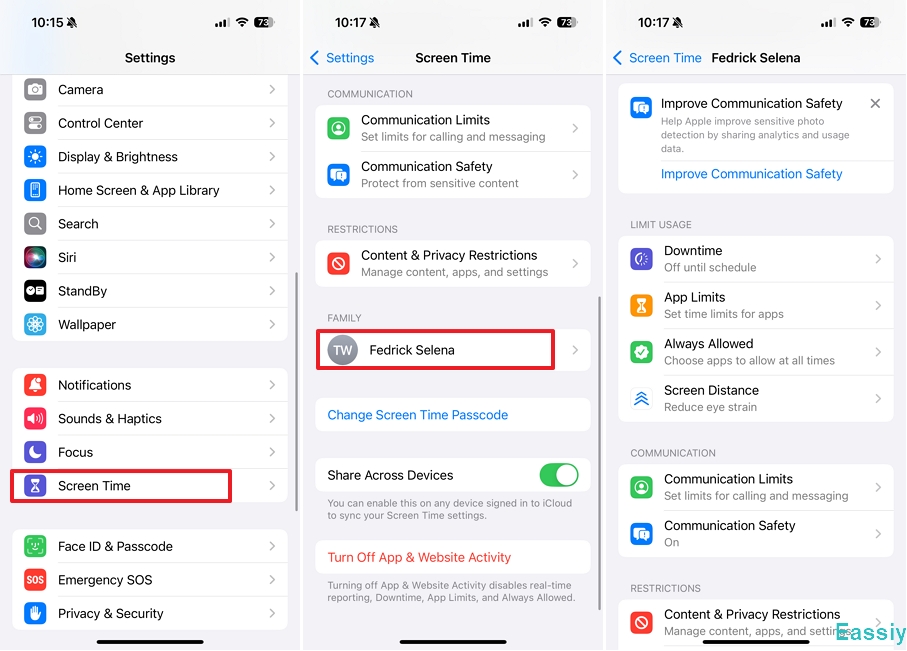
1. Open Settings and access Screen Time on the Parent's iPhone.
2. Under the designated Family category, select the restricted Child's Profile Name.
3. Navigate to Content & Privacy Restrictions.
4. Tap Account Changes > select Allow (or choose to completely tap Turn Off Screen Time for that child).
The server instantly pushes an OTA configuration payload to refresh the child's Apple account status.
Method 4: Remove Screen Time without Passcode via Eassiy iPhone Access
When you are locked out because of a forgotten Screen Time PIN, or if you bought a second-hand device still tied to an unknown family account, native Apple settings are essentially useless. This is where professional bypassing tools such as Eassiy iPhone Access software become necessary to forcefully remove the restriction payload without wiping the device.
Prerequisite: Ideal for forgotten Screen Time passcodes, broken Apple ID verification loops, or inherited corporate devices.
Our testing laboratories confirmed a 100% success rate running on advanced iOS 26 frameworks, removing the Screen Time passode in just a few steps.
Steps:
1. Open Eassiy iPhone Access on your desktop (Mac or PC).
2. Select the Unlock Screen Time tool option.
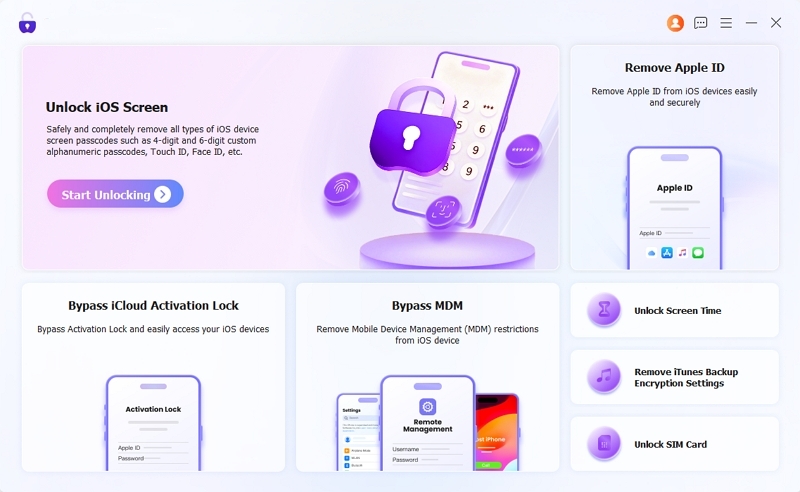
3. Securely link the locked device to the computer using a certified USB data cable.
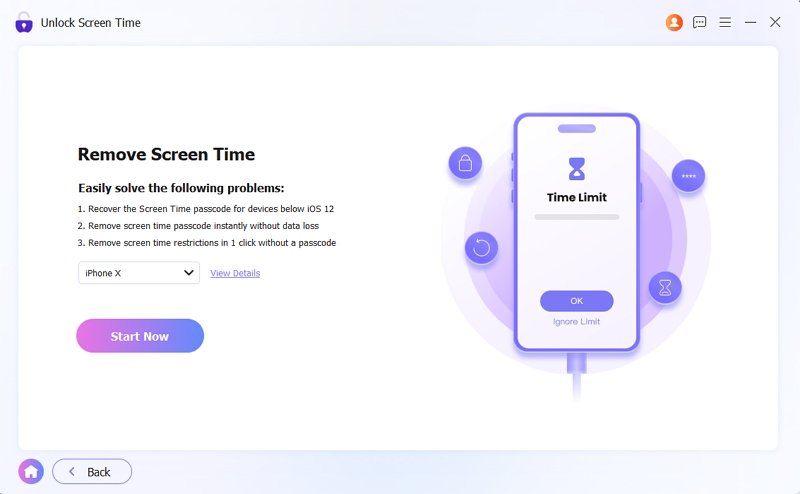
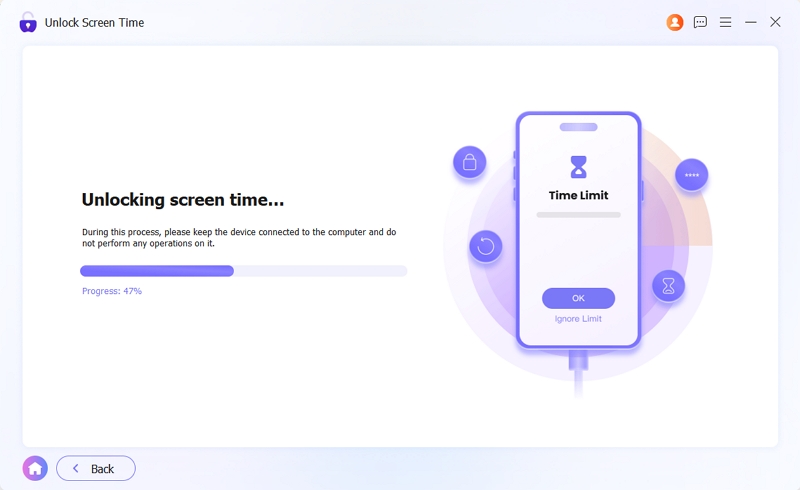
4. Click Start Now to initialize the algorithmic script. Within seconds, the software safely purges the account restriction block, allowing you to access the Apple Account instantly upon reboot.
Part 2: Fixes for Other System Triggers
Method 5: Accept Pending Apple Terms and Conditions
If your account is frozen because of pending legal agreements, you just need to clear the notification to unfreeze the banner.
Steps:
- Open the Settings app.
- Look closely right below the grayed-out Apple Account banner. If there is a prompt saying "New iCloud Terms and Conditions" or "Update Apple ID Settings," tap on it.
- Read through the prompts, scroll to the bottom, and tap Agree.
Method 6: Wait Out the iCloud Restore Process
If you recently bought the new iPhone or erased your device, an ongoing background data restore may intentionally lock your settings to prevent database corruption.
Many guides tell you to go into your Apple ID settings to tap "Stop Restoring." But if your Apple Account is completely grayed out, you cannot click it to reach that button! To break out of this frustrating loop and regain control of your account, here is what you actually need to do:
Steps:
1. Open the Settings app. Look directly below your grayed-out name. Apple sometimes places a temporary "Restoring from iCloud" progress bar right on the main page.
2. If you see a prompt to pause or stop it there, tap it. If there is no button on the main page, do not panic. You simply cannot force-stop it manually.
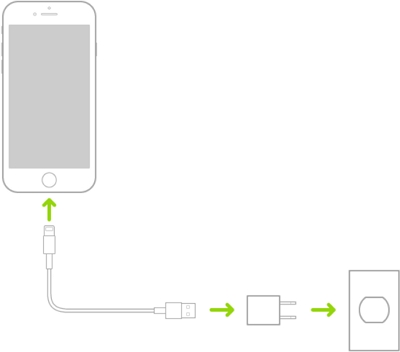
3. Plug your iPhone into a charger and connect to a strong, stable Wi-Fi network. Once iOS finishes downloading your critical background data, the Apple Account banner will automatically unfreeze and become clickable again.
Method 7: Remove Managed Configuration Profiles (MDM)
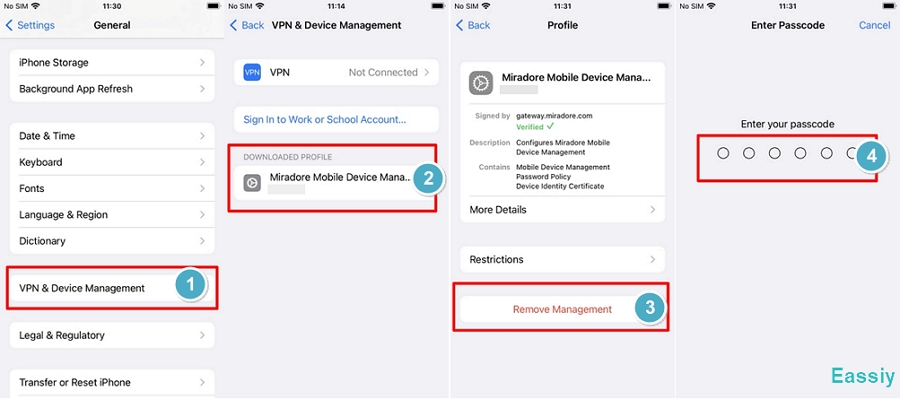
To resolve remote management restrictions, you need to review installed configuration profiles and delete unnecessary or outdated ones.
Steps:
- Open the Settings app on your iPhone and head to General > VPN & Device Management.
- Find the profile you want to remove and tap on it.
- Select the Remove Profile option and enter your iPhone passcode to verify your identity.
- Hit Remove to confirm.
Expert Tip: If the "Remove Profile" button is missing—which is common with strict corporate devices—you can use Eassiy iPhone Access mentioned in Method 4 to safely bypass the MDM restriction without needing the administrator password.
Method 8: Force Restart Your iPhone
If you have verified that Screen Time is off, no restores are happening, and no profiles are installed, your iPhone might simply be experiencing a temporary UI freeze. A force restart clears the RAM and forces the Settings app to reload its connection to Apple's servers.
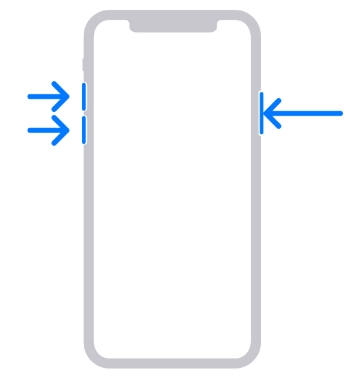
Steps for iPhone 8 and newer:
- Press and quickly release the Volume Up button.
- Press and quickly release the Volume Down button.
- Press and hold the Side (Power) button until you see the Apple logo appear on the screen, then release it. Once the phone reboots, check your Settings again.
Conclusion
To wrap up, figuring out why is my apple account grayed out comes down to identifying whether your device is under an active system restriction, a data restore phase, or a pending agreement update.
Navigating through Screen Time menus, removing outdated profiles, or accepting new Apple agreements provides a rapid solution for standard scenarios. However, when forgotten restrictions or stubborn MDM barriers put you in a dead end, deploying a desktop utility like Eassiy iPhone Access delivers a secure, professional-grade bypass that clears the account lockdown seamlessly while keeping your device's data completely protected.