Help Center

Updated on 2026-07-07
views
5min read
Apple does not provide a simple "delete" button for Screen Time history of individual apps. Because the feature is designed as a strict, system-level monitoring tool, managing its data requires a firm understanding of how iOS logs and syncs information.
If you want to clear your Screen Time data—whether to reset a cluttered log or protect your privacy—you must clear the entire database simultaneously. In this lab-tested guide, we break down exactly how to wipe your Screen Time history on the latest iOS 26 environment, how to handle Family Sharing restrictions, and what to do if you are locked out without the Screen Time passcode.
Key Takeaways
- The "All-or-Nothing" Rule: You cannot delete Screen Time history for one specific app or website. The operating system requires you to clear the entire log simultaneously.
- Modern iOS UI Changes: On newer Apple devices (iOS 17 through iOS 26), toggling off "App & Website Activity" is the most direct way to wipe your history without losing your custom app limits and downtime schedules.
- Child Accounts: If a device is managed under Apple Family Sharing, local hacks will not work. The history can only be cleared remotely from the Parent/Organizer's device.
- The Ultimate Bypass: If you forgot the passcode and native Apple ID recovery fails, professional desktop tools like Eassiy iPhone Access can safely erase the restrictions. (Note: This process retains all your data for personal devices, but requires a full device wipe for devices managed under Family Sharing).
What You Must Know Before Deleting Screen Time History
Before tapping any buttons, you must understand how Apple's ecosystem handles your data. Failing to account for these three truths usually results in the deleted history instantly reappearing.
Truth 1: You Cannot Delete Individual App Data
Screen Time history is not stored as a list of independent text files; it is a compiled, encrypted package. You cannot selectively delete the 4 hours you spent on TikTok while preserving the usage data for your productivity apps. When you trigger a deletion, the entire database goes back to zero.
Truth 2: The "Share Across Devices" Pitfall
This is the most common oversight. If you have the Share Across Devices toggle turned ON, your Screen Time data is actively syncing with iCloud. If you clear the history on your iPhone but leave this toggle on, iCloud will simply pull the existing history from your linked iPad or Mac and push it right back to your phone within minutes. You must toggle this off before attempting a wipe.
Truth 3: The "Turn Off Screen Time" Myth
Many outdated guides claim that completely turning off Screen Time will wipe your data. Our recent lab tests on modern iOS architectures (including iOS 26) confirm this is no longer true. To successfully purge the history database today, you must specifically target and turn off the "App & Website Activity" feature.
How to Delete Screen Time History on Your Own Device
If you are the administrator of your own iPhone or iPad, the process is straightforward but requires proper authentication. The methods below are designed for adult users who want to reset their own Screen Time history. To successfully execute these steps, you will need either your current Screen Time passcode or the Apple ID credentials used to set it up. Once confirmed, these actions will instantly purge the local logging database on your device.
Method 1: Turn Off "App & Website Activity" with Passcode
This is the optimal method for newer iOS versions. It instantly clears the bar charts and usage history, but perfectly preserves previously set App Limits, Downtime, and Content Restrictions.
Steps:
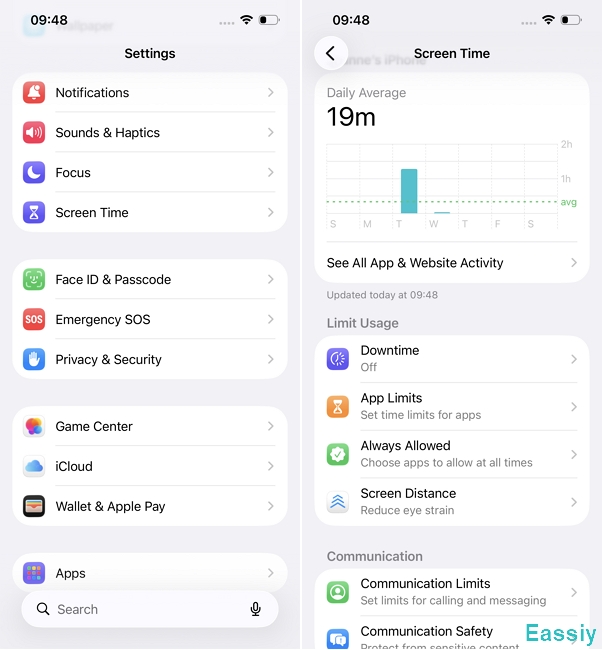
1. Open the Settings app and tap Screen Time.
2. Scroll down to the bottom of the main graph and tap Turn Off App & Website Activity.
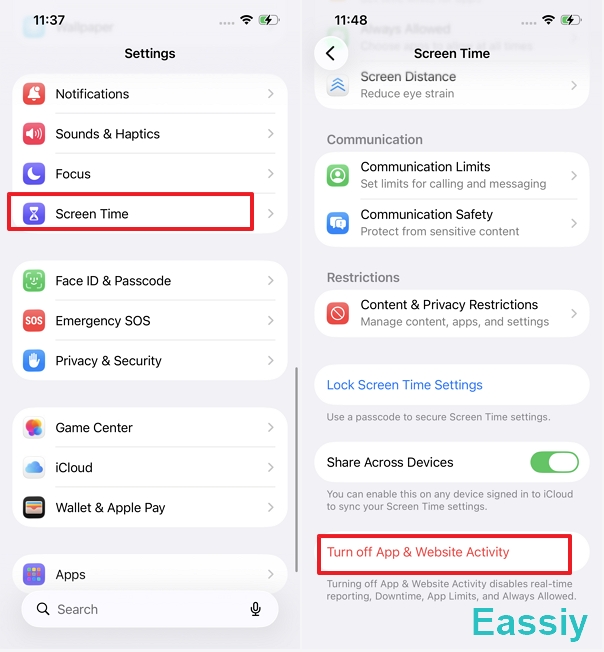
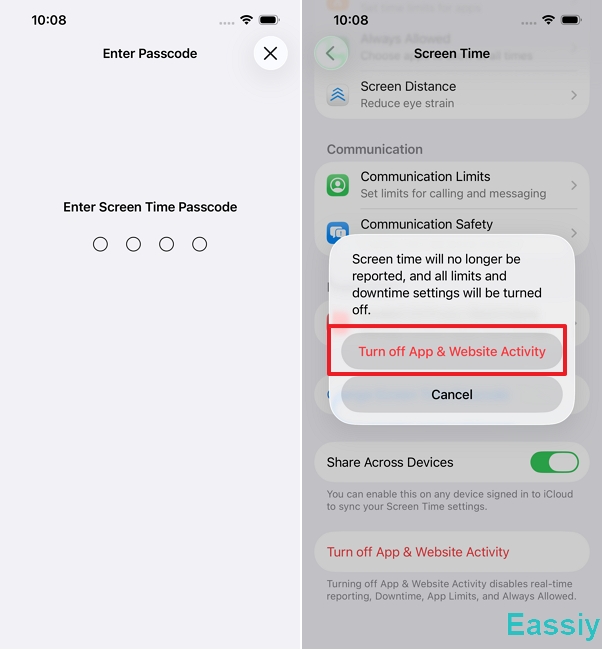
3. Enter your Screen Time passcode to authorize the action.
4. Tap Turn Off App & Website Activity again to confirm. The history is immediately wiped. (Note: You can instantly tap "Turn On" again to start a fresh, blank log).
Method 2: Turn Off "App & Website Activity" Without Passcode
If you own the device but forgot the Screen Time passcode you set months ago, you cannot bypass the toggle directly. You will need to reset your Screen Time passcode first using your Apple ID, and then turn off the activity tracking.
Steps:
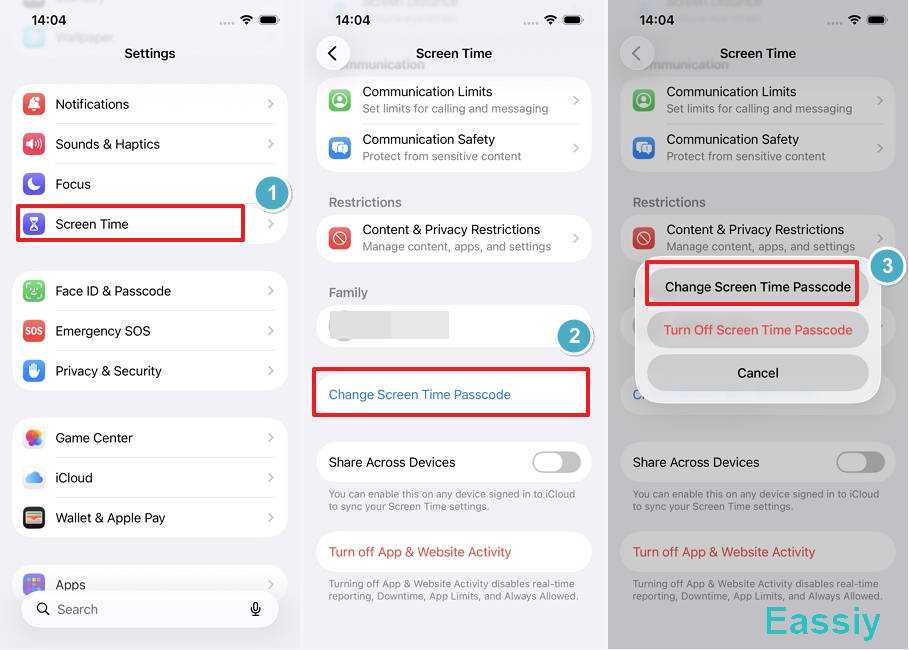
1. Navigate to Settings > Screen Time.
2. Scroll to the very bottom of the menu, and tap Change Screen Time Passcode.
3. Tap Change Screen Time Passcode again on the pop-up menu.
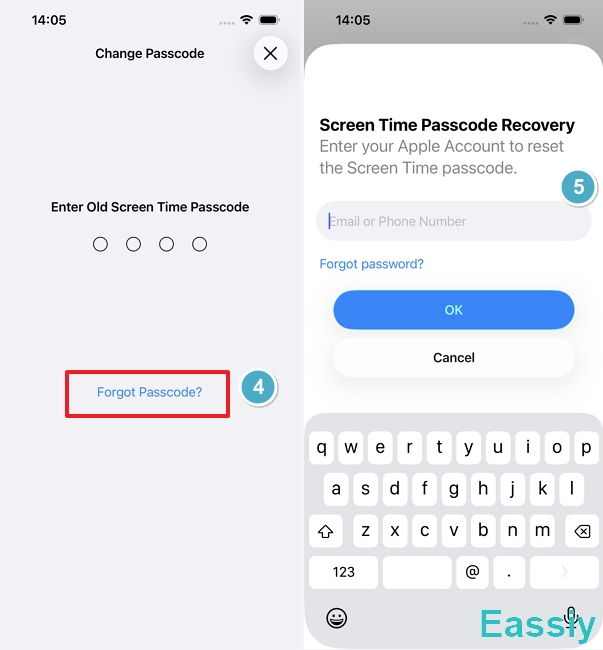
4. Tap the "Forgot Passcode?" link located at the bottom of the number pad screen.
5. Authenticate by entering the Apple ID and password that was originally used to set up the Screen Time passcode.
6. Enter a new Screen Time passcode and verify it.
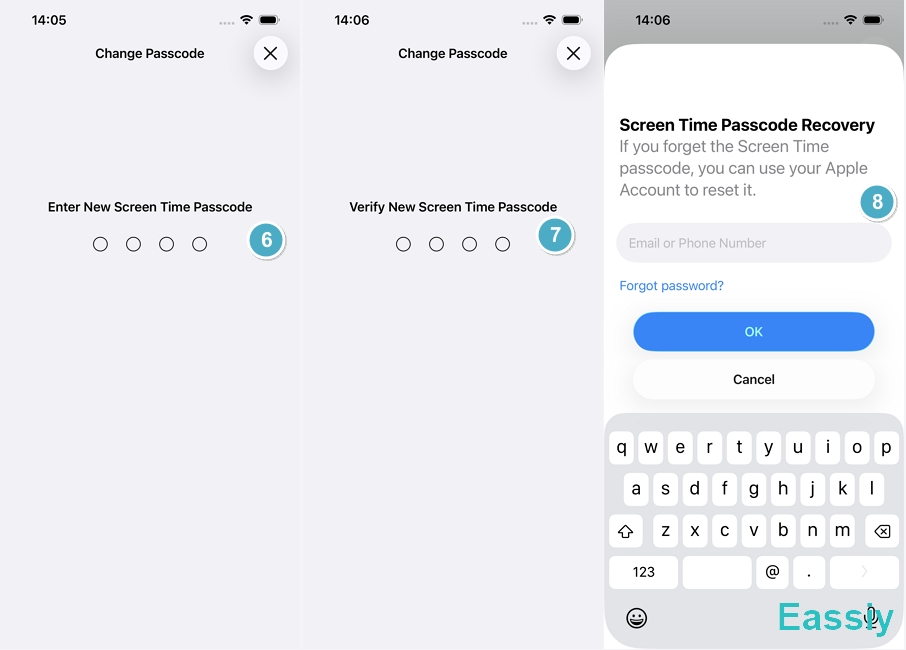
7. Now that you have a working passcode, scroll back to the App & Website Activity section and tap Turn Off App & Website Activity (following the steps in Method 1) to clear the history.
How to Delete Screen Time History on a Child's Device
Apple's Family Sharing ecosystem is specifically designed to prevent children from bypassing parental controls locally. Therefore, trying to delete the history directly on the child's iPhone—even if you know their screen unlock passcode—will not work. The Screen Time database is securely locked to the parent's device.
Method 3: Clear Data from the Parent's Organizer Device
To successfully clear a child's Screen Time history while keeping existing app limits active, you must trigger a server-side wipe directly from the Parent's Organizer device. Local workarounds on the child's device—like changing the time zone, turning off Wi-Fi, or deleting apps—will not permanently erase the history. The system strictly requires this cloud-level push from the parent.
Steps:
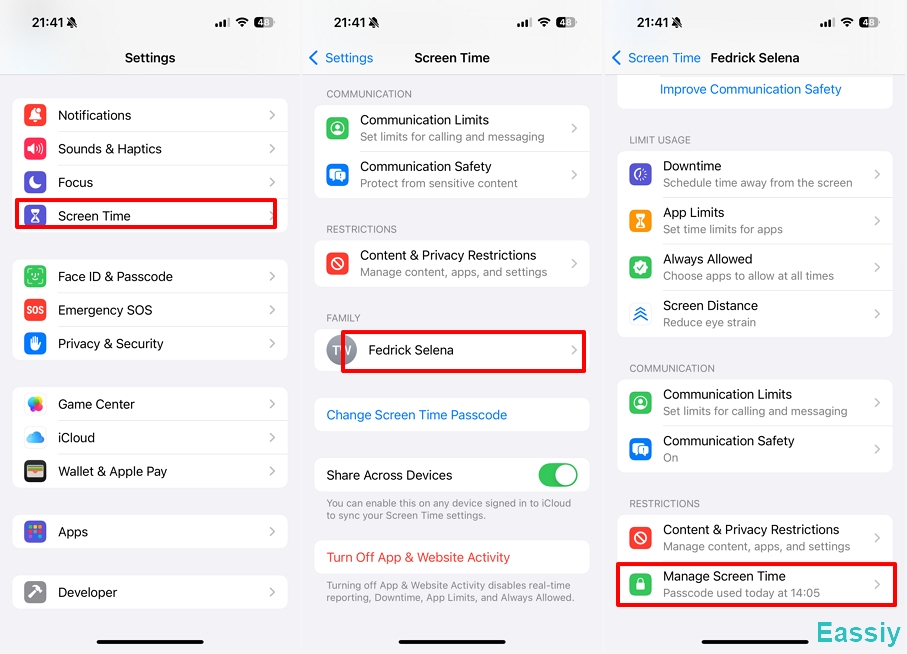
1. On the parent's iPhone or iPad, open Settings > Screen Time.
2. Scroll down to the Family section and tap the [Child's Name].
3. Scroll down and tap Manage Screen Time.
4. Tap Turn Off App & Website Activity.
5. Enter the Screen Time passcode.
6. Tap Turn Off App & Website Activity to confirm.
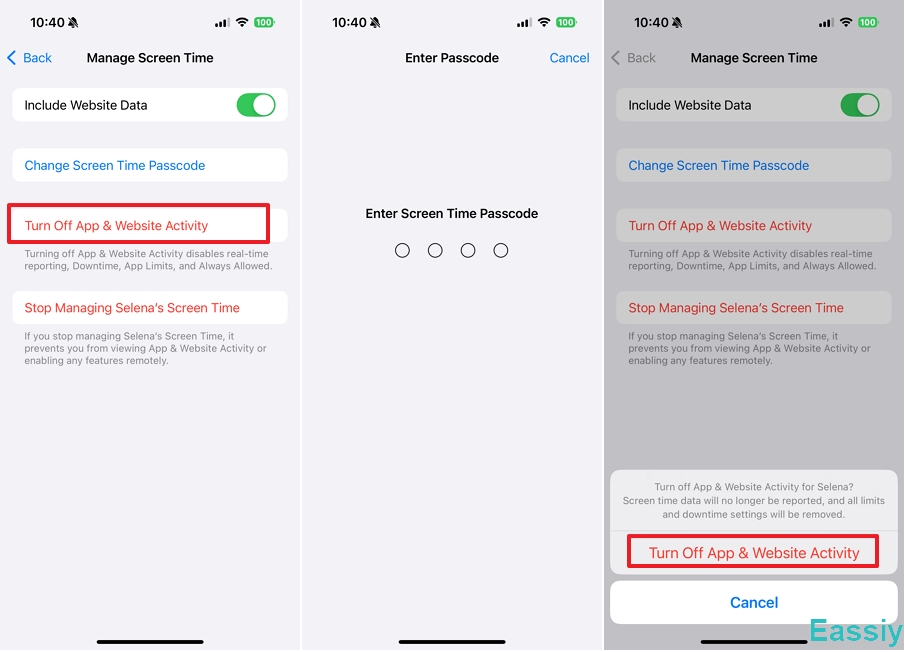
Once the parent confirms this, Apple's iCloud servers immediately push a profile update to the child's device, wiping the history graphs remotely.
Method 4: Stop Managing the Child's Screen Time Completely
If you no longer need to monitor or restrict the child's device at all, you can completely sever the Family Sharing Screen Time connection. This action removes all limits and instantly deletes the entire Screen Time history log.
Steps:
1. On the parent's iPhone or iPad, open Settings > Screen Time.
2. Scroll down to the Family section and tap the [Child's Name].
3. Tap Manage Screen Time.
4. Tap Stop Managing [Child's Name]'s Screen Time.
5. A prompt will appear. Tap Stop Managing [Child's Name]'s Screen Time again to confirm your decision, and authenticate with your passcode if prompted.
![Stop Managing [Child's Name]'s Screen Time](https://www.eassiy.com/uploads/images/stop-managing-childs-screen-time.jpg)
All-In-One Solution When Official Methods Fail
Even with official Apple methods available, you might find yourself in a scenario where native recovery loops fail. You might have forgotten the Screen Time passcode, the "Forgot Passcode?" prompt might be completely missing, or you might need to force-remove a restriction.
In these locked-out situations, you need a method that bypasses the standard iOS environment entirely. However, depending on how the restriction was originally set, this advanced approach comes with specific data-retention conditions.
Method 5: Use Eassiy iPhone Access to Remove Screen Time Safely
When native options hit a dead end, professional unlocking tools like Eassiy iPhone Access are the safest way to remove Screen Time Passcode and delete the Screen Time history.
Features:
- Conditional Zero Data Loss: If the Screen Time passcode was set locally on a personal device, Eassiy surgically removes the restriction without deleting your data.
- Family Sharing Caveat: If the device's Screen Time is actively managed by a parent under Apple's Family Sharing network, bypassing this cloud-level lock requires the software to perform a complete device wipe.
- High Compatibility: Successfully lab-tested on the latest iOS versions, up through iOS 26.
Steps:
1. Download and install Eassiy iPhone Access on your PC or Mac.
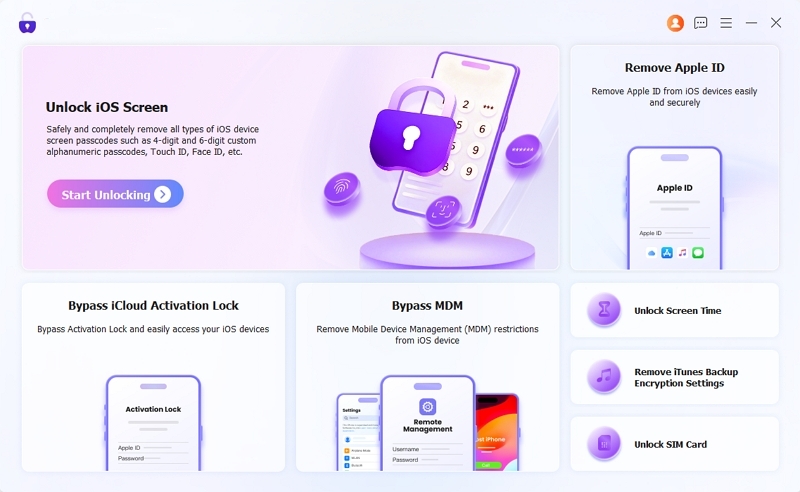
2. Launch the software and select the Unlock Screen Time module.
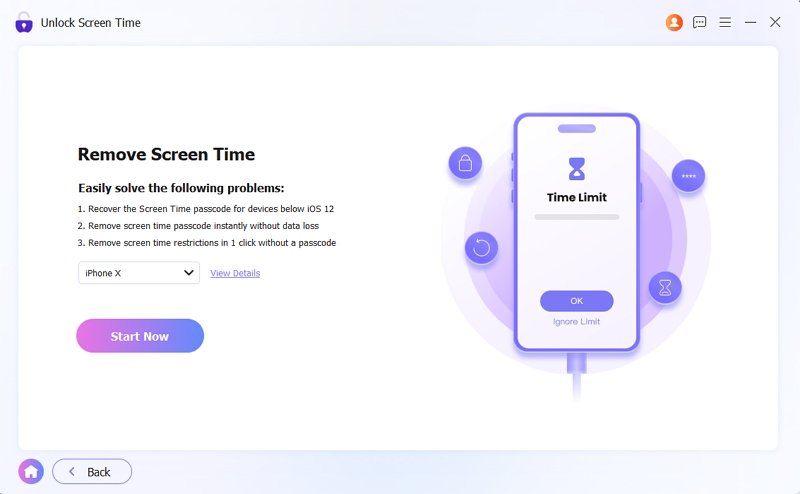
3. Connect the locked iPhone to the computer using a certified USB cable, and click Start Now.
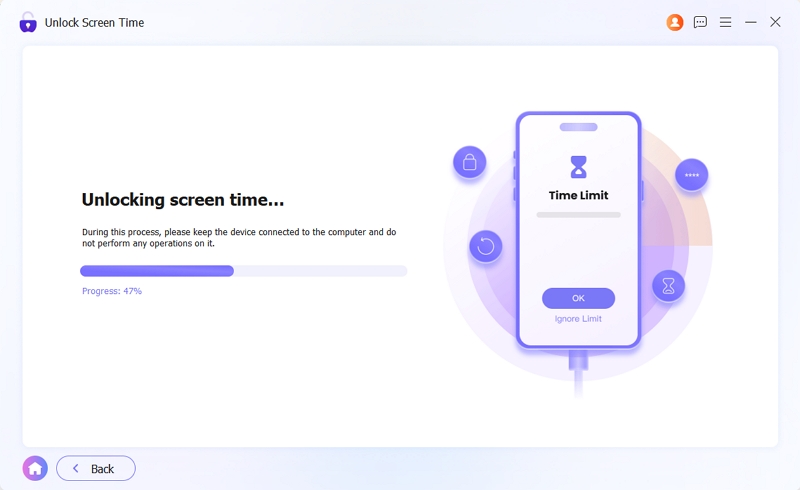
4. Within seconds, the software bypasses the restriction protocols. If it is a personal device, your iPhone will restart with your data completely intact. If it is a Family Sharing device, it will restart as a clean slate with the Screen Time history and tracking permanently cleared.
Frequently Asked Questions
Q1: Does clearing Safari history delete Screen Time history?
No. Clearing your browser cache only removes the local logs from the Safari app. Screen Time operates at the root system level; it will still accurately display the total duration spent on websites, even if Safari's internal history is empty.
Q2: Will turning off Screen Time notify my parents?
Yes. If your device is part of a Family Sharing setup, you cannot turn it off without their passcode anyway. However, if you manage to bypass it, the parent's device will immediately reflect that tracking has been disabled, and your usage graph will show up as completely blank on their end. The only exception is if you remove the restriction and sign in with a brand new Apple ID, which permanently severs the tie to your parents' Family Sharing network.
Q3: How long does Screen Time keep history?
Apple’s Screen Time retains detailed usage data, app breakdowns, and graphs for a maximum of 4 weeks (30 days). Data older than 30 days is automatically overwritten by the system.
Conclusion
Deleting your Screen Time history requires a firm understanding of iOS mechanisms. You cannot micro-manage the data—you must clear the entire log by either disabling "App & Website Activity" or turning off the feature entirely.
For personal devices, utilizing your known passcode or the native Apple ID recovery link provides the fastest fix. For child devices, remember that all modifications must flow through the parent's organizer device to be permanent.
However, when native options hit a dead end, relying on a verified desktop utility like Eassiy iPhone Access is your best safety net. It ensures the restrictions and history are wiped cleanly—safeguarding all your personal data for local accounts, while providing a necessary hard-reset path for devices locked under Family Sharing.