Help Center

Updated on 2026-06-15
views
5min read
Note: “Reset frozen iPhone” can refer to two different actions: a hard reset (force restart) or a factory reset. If you mean a force restart, you can go here. If you want to restore your iPhone to factory settings, please go directly to this section.
You are right in the middle of a video or maybe just swiping through a text, but the screen freezes suddenly. You tap the glass and nothing happens. This is the classic frozen iPhone issue. It can happen for many reasons. Sometimes a newly installed app is the culprit. Other times, the problem could appear after an iOS update.
The good news is that a frozen iPhone can be fixed with a force restart (hard reset) or a simpler solution. And that’s what this guide will discuss. We’ll show you several ways and tricks to reset(force restart) frozen iPhone, no matter which iPhone model or iOS version you are using.
Note: Hard Reset vs Factory Reset
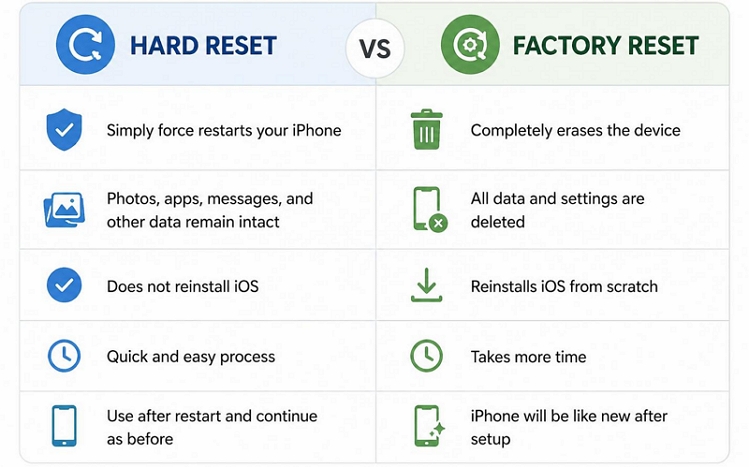
Many online guides use “Hard Reset” and “Factory Reset” interchangeably. However, they are not the same thing.
- A hard reset simply means force restarting your iPhone. Your photos, apps, messages, and other data will remain intact in this case. And once the restart is complete, you can continue using the iPhone like before.
- A factory reset completely erases the device and reinstalls iOS from scratch. However, you do not need to perform a factory reset to resolve most stuck iPhone issues.
Don’t worry, we will walk you through safe methods to hard reset a frozen iPhone. And we will also discuss when you might have to do a factory reset (which is relatively rare) and show the exact steps to do so.
How to Reset (Force Restart) Frozen iPhone
Now let's go through all the ways to force restart a frozen iPhone. You can go through all the methods in order. One of these methods will work for most users, regardless of their iPhone model, iOS version or the reason the device became unresponsive in the first place.
Just remember that a force restart will only make the iPhone respond again. Make sure to address the underlying problem afterward as well. For instance, if the issue started after the low-storage warning, make sure to clear out storage after it restarts. Otherwise, the problem will return.
That said, let's start with the quickest reset methods.
Reset Frozen iPhone with Power Buttons
A frozen iPhone does not always behave the same way.
Sometimes the display is completely unresponsive. In that case, the physical buttons can force a restart. You can try the button combinations to reset the iPhone. Here’s how it works.
When the iPhone is completely dead to your touch, the physical buttons are your best friend. In fact, this is the first method Apple recommends for most freezes. The reason it works so often is that the Volume and Power buttons communicate directly with the iPhone's hardware. So they can bypass the frozen interface and clear any temporary issues during the restart. After that, it will restart the device back to normal without deleting any data.
However, Apple has changed its hardware over the years. Because of that, the exact button combination depends on how old your iPhone model is. Use the matching button combination depending on your model.
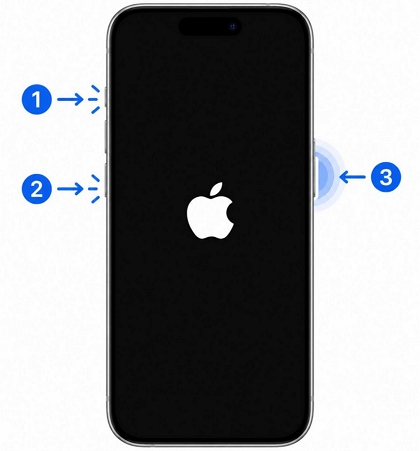
iPhone 8, iPhone X, and newer models
- Quickly press and release the Volume Up button.
- Quickly press and release the Volume Down button.
- Immediately press and hold the Side button. And release it only when the Apple logo appears.
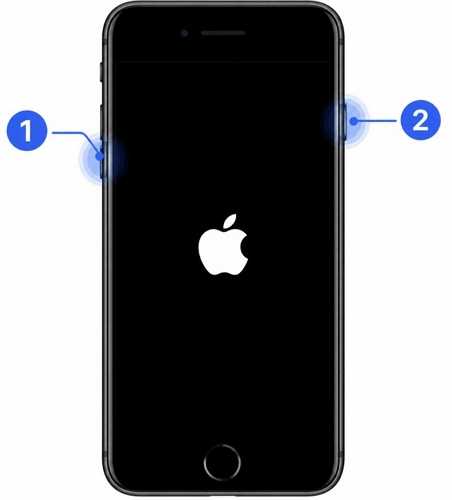
For iPhone 7 and iPhone 7 Plus
- Press and hold the Volume Down and Power buttons on the right at the same time.
- Keep holding both buttons together. The Apple logo will appear (after about 10 seconds), then release them.
For iPhone 6s, iPhone SE (1st generation), and older models
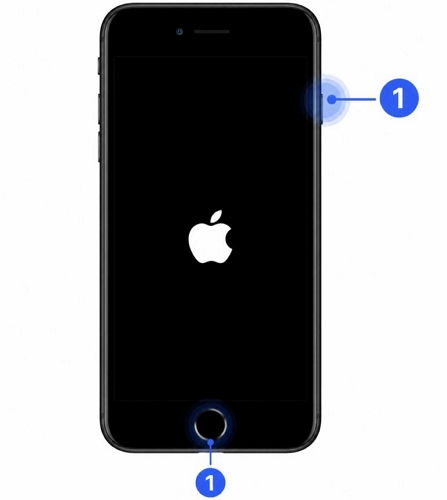
- Press the Home and Power buttons together.
- Keep holding both buttons until the Apple logo appears.
Reset Frozen iPhone Without Power Buttons or Touchscreen
The button combinations are the quickest fix for a frozen iPhone, but they aren't always useful. For instance, your Side button could be damaged. Occasionally, the iPhone remains stuck no matter how many times you repeat the button sequence. In such cases, you can try these two methods below.
Way 1. Force Reboot iPhone with Siri
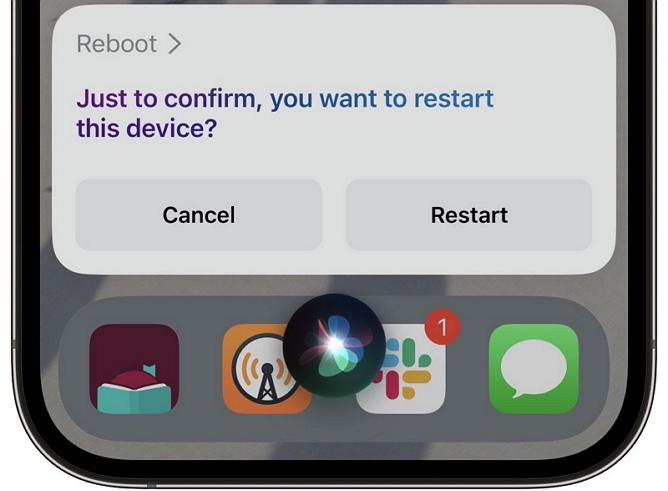
Even when the screen is frozen, the iOS system can still be responsive and listen for voice commands. Starting with iOS 16, Siri gained the ability to restart an iPhone. So if the button sequence is stuck, you can use this workaround.
You just have to say: "Hey Siri, restart my phone." It will ask for confirmation. Simply reply: "Yes." The iPhone will immediately power down and then boot up. However, if Siri never responds, it means the iOS system is likely frozen as well. In that case, skip to the next method.
Way 2. Force Restart iPhone with iTunes/Finder
Sometimes the iPhone will refuse to respond to the usual force restart sequence. Oddly enough, many users have found that plugging the device into a computer can change that. Once connected to a computer, the exact same button combination will suddenly work and the iPhone will reboot. You can use a Mac with Finder here. A Windows PC with iTunes or the Apple Devices app can work as well.
Keep in mind that this is not about charging the iPhone with the computer. The important part is having Finder, iTunes, or Apple Devices detect the connected iPhone. In some situations, that connection is sufficient to help the device respond to the same force-restart sequence shown earlier.
So connect the iPhone to the computer first. Then force restart the frozen iPhone with button combinations. If the Apple logo appears, the restart was successful and the temporary freeze should be cleared.
Can't Reset(Force Restart) Frozen iPhone
The force restart methods above solve most frozen iPhone problems. Still, there are times when nothing happens. The fixes below take a little more effort, which is why we didn't start with them.
We will first discuss a few simple tricks. And if none of them work, we will move on to the final, heavy-duty software fixes. Some of those methods come with their own risks, but we will inform you of everything before showing you the steps.
Tricks to Fix Frozen iPhone Force Restart Not Working
Some community members have found that these workarounds have allowed them to revive their iPhones that refused to respond to repeated force-restart attempts. They’re low-risk and won’t erase your photos and any other data from your iPhone.
1. Reinstall SIM Card
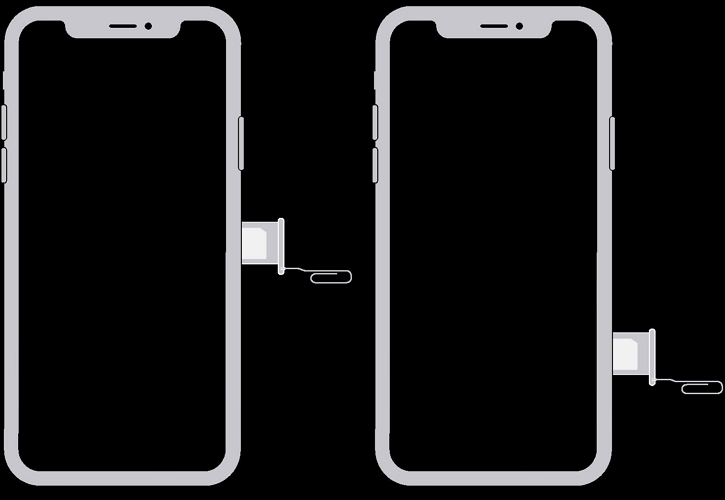
This trick comes from Apple Community discussions. You just have to remove and reinsert the SIM card. This will force the operating system to abruptly disconnect from its cellular connection. The system is forced to pause whatever frozen loop it is stuck in to process the fact that the network has vanished.
This will only work if your iPhone has a physical SIM tray. For most users, that won’t be a problem. The main exception is the U.S. versions of the iPhone 14, 15, 16, and 17 series, which rely entirely on eSIM.
So if your iPhone has a SIM slot, here’s what you have to do:
- Remove the SIM card from the iPhone. If this works, the iPhone will become responsive immediately.
- Then, unlock it and enable Airplane mode.
- Remove any recently installed apps if you think they've triggered the freezing issue.
- Reinsert the SIM. You can use it without any problems.
2. Drain iPhone Battery
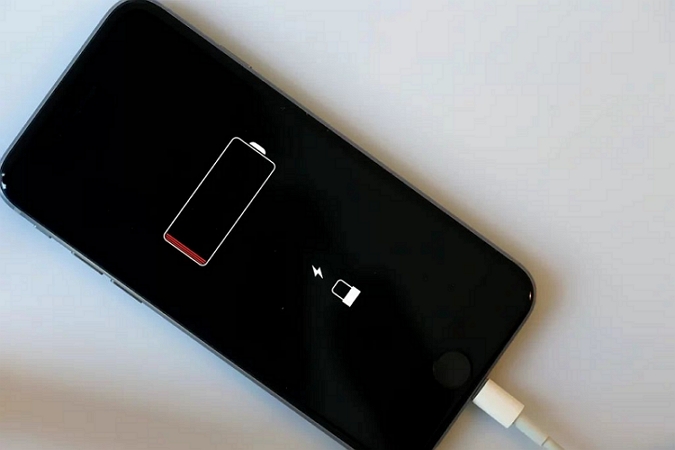
This trick requires patience. The theory is straightforward: once the remaining power is exhausted, the device is forced to shut down completely.
So what you have to do:
- Just do not charge the iPhone and allow the battery to drain naturallly.
- Once it is dead, you can plug it into a wall charger.
Your iPhone will not instantly boot up. So leave it charging for 30 minutes and then try to power it on again.
Turn Off Accessibility
If your iPhone screen appears frozen but it can still detect touches, you might have triggered Accessibility features unknowingly. You’ll just have to use the right gesture to restore it to normal.
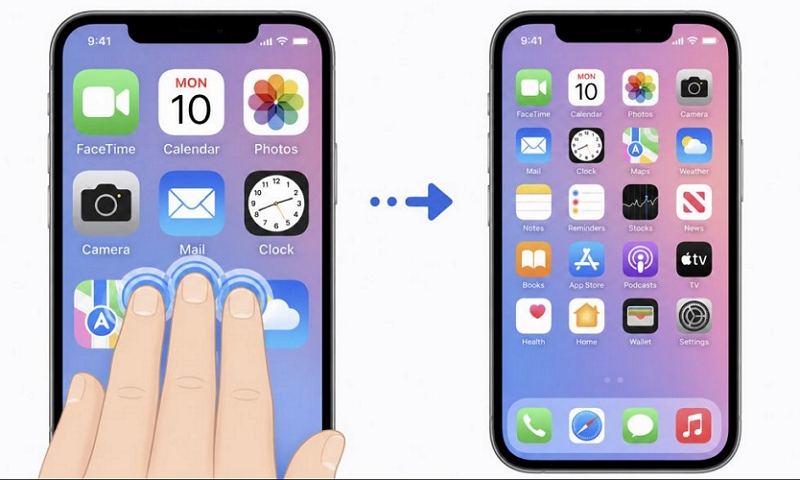
Accessibility zoom can be enabled mistakenly, as it relies on gestures. And when that happens, the display can magnify by up to 500%. So everything on the iPhone screen will become enormous. For instance, if you're zoomed in on a white area, the display will appear frozen, showing only a white screen. At that time, normal navigation is difficult at higher zoom levels, so you will just think the iPhone is not responding.
Accessibility Zoom remains active even after a force restart. So even if you followed the previous method correctly, the screen will still look exactly the same afterward. And you might think the above force restart failed, but the real problem is that the iPhone is still zoomed in.
Here is how you fix the Zoom glitch:
Take three fingers (index finger, middle finger and ring finger) and double-tap the screen firmly at the exact same time.
If Accessibility Zoom was enabled, the display will immediately shrink back to its normal size. Your iPhone was never actually frozen. It was simply zoomed in.
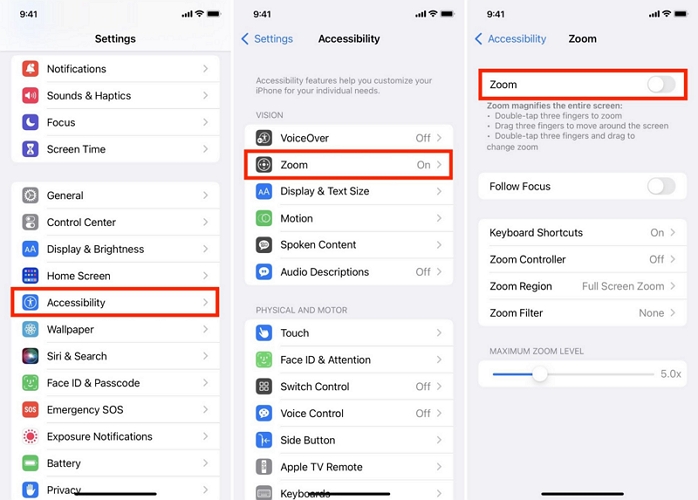
And if you want to stop this from happening again or prevent your kids from triggering it accidentally, you can turn the feature off completely.
1. Open Settings > Accessibility > Zoom.
2. Turn the Zoom toggle off.
After that, accidental three-finger gestures will do nothing and you won't run into this issue again.
Fixes to Fix Frozen iPhone Not Responding to Force Restart
If all the above methods have failed, the problem could be deeper than a screen freeze. Here are the final two fixes you must try. You’ll need access to a Windows or Mac computer to follow these methods. And depending on your setup, you’ll have to use Finder, Apple Devices, or iTunes (make sure it’s updated). Plus, you should follow these fixes in sequential order: try Fix 1 first because it protects your data. If that fails, you will have to move on to Fix 2.
Fix 1. Update the iPhone Through Finder or iTunes
An iOS update through Finder or iTunes attempts to reinstall the iOS while keeping all your data intact. In many cases, this is enough to repair damaged system files that caused the frozen iPhone issue in the first place.
Here’s what to do:
Step 1. Connect the frozen iPhone to a Mac or Windows PC using a USB cable.
Step 2. Open Finder, iTunes, or Apple Devices.
Step 3. Now place the iPhone into Recovery Mode using the button combination that matches your model by following the steps here.
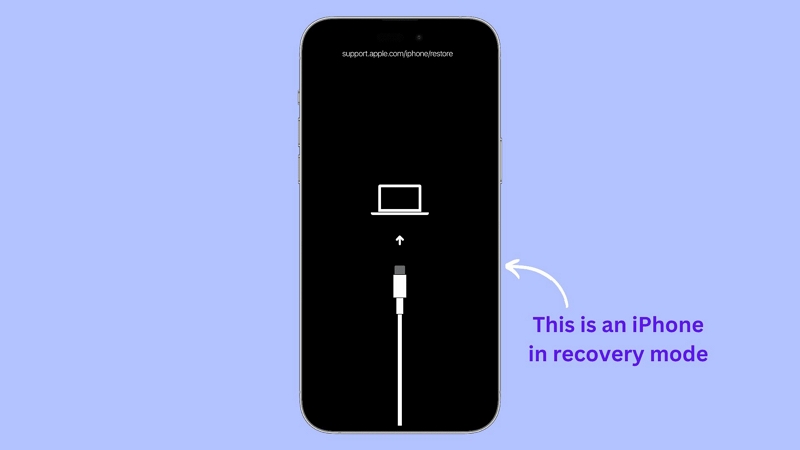
Step 4. The computer will detect the connected iPhone and will show two options: Update or Restore. Select Update.
Step 5. Allow the download and installation process to finish.
If the update completes successfully, your iPhone will restart normally with all your data intact.
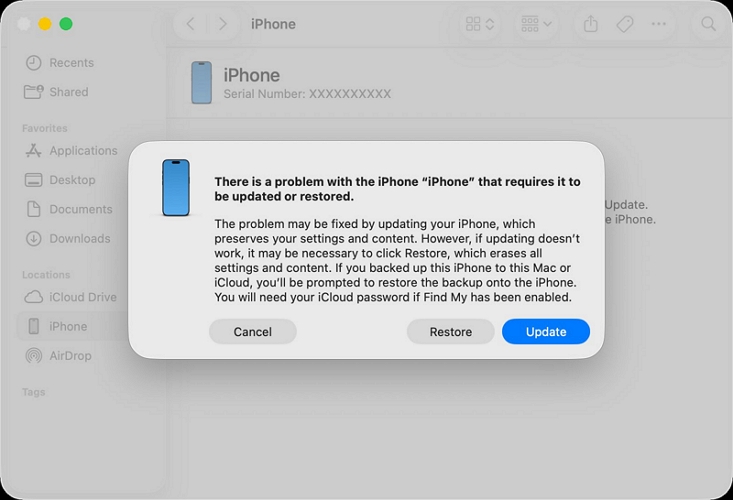
Fix 2. Factory Reset Frozen iPhone
If the update fails, the next option is a full restore. Unlike the update, this will completely erase the iPhone, meaning that all your apps, photos, messages, and other data, stored on the iPhone, will be lost. After the restore is finished and the latest iOS is installed, you will be able to set up the iPhone from scratch.
Although erasing the device might not sound ideal, a full restore is your last option when a frozen iPhone refuses to respond to every other fix, Here’s what to do:
- Reconnect the iPhone to the computer if you've disconnected it.
- Put the device back into Recovery Mode again.
- When the recovery prompt appears, select Restore this time.
- Confirm the action. Wait for the software to erase the device and reinstall iOS. The iPhone will restart and display the setup screen.
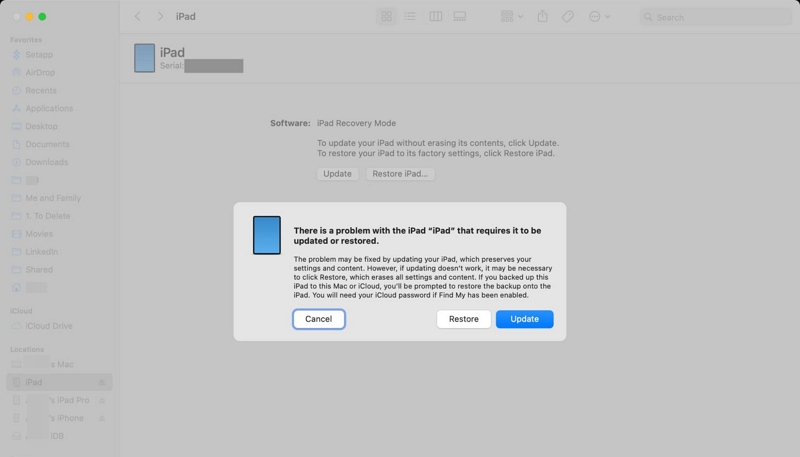
Note: You can restore from iCloud or a computer if you created a backup.
If Find My iPhone was enabled beforehand, you’ll have to use your Apple ID and password previously linked to the device.
Alternative to iTunes/Finder to Reset Frozen iPhone
Finder or iTunes require more manual effort. Even then, it’s a bit of trial and error.
A simpler method to restore a frozen iPhone is to use Eassiy iPhone Access. Eassiy can reset your iPhone with minimal input from you. It works on both Windows and Mac and guides you through the reset process. With its help, you can erase your iPhone within a few clicks and without recovery mode(based on how severe the freeze is). Whether the iPhone is frozen or stuck on a system screen, Eassiy can help you regain access to it. You can also use Eassiy when you have forgotten your screen passcode or cannot bypass the iCloud Activation screen.
Key Features
- Works with all iPhone and iPad models, including iOS 26.
- Handles forgotten screen passcodes, Screen Time restrictions, Apple ID locks and Activation Lock scenarios.
- Downloads the correct firmware package automatically.
- Simple step-by-step workflow for beginners.
Final Words
That's how you can reset a frozen iPhone. In most cases, a force restart is enough to get the device working again. When it is not, we have covered several other tricks and workarounds that can help bring the iPhone back to normal.
The final option is to restore the iPhone. The easiest approach is to use Eassiy iPhone Access. It is designed to easily address a wide range of iPhone lock and system issues. After that, you can set up the device like new and use your iPhone without any issues.