Help Center

Updated on 2026-06-10
views
5min read
Turning off the Face ID requirement for Messages takes only a few seconds when Face ID is responding as usual. If Face ID is unavailable or failing to recognize you, it will take a few more steps. But yes, it is still possible too.
This guide will show you how to turn off Face ID for Messages, whether Face ID is working normally or not. So you can get back to opening the Messages app without dealing with the Face ID lock.
How to Turn Off Face ID for Messages Without Face ID
Turning off the Face ID requirement for Messages without Face ID sounds complicated. But depending on those settings, you can remove the Face ID requirement in two ways. You can try to use the screen passcode first. And when that isn't possible, you will have to reset the iPhone. Now, let's look at both approaches. You can pick the one that best fits your situation.
Way 1. Enter Screen Passcode
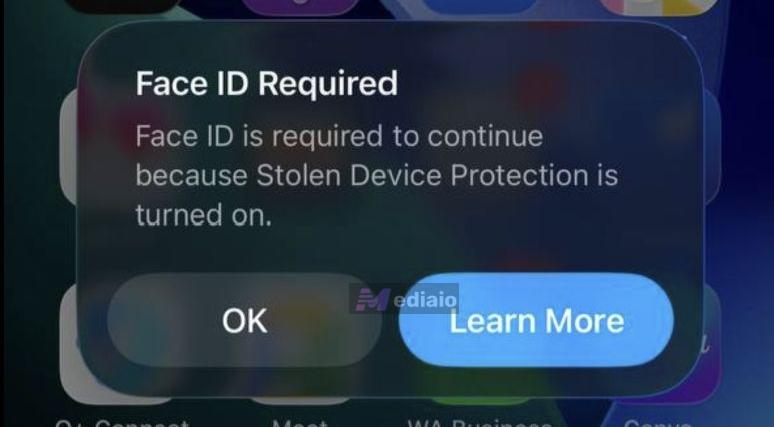
Normally, the screen passcode is the ultimate fallback on an iPhone. Whenever Face ID failed on Messages, iOS would simply offer an Enter Passcode option. But that changed with Stolen Device Protection which is a security setting that is tightly integrated with Face ID. When it is enabled, iPhone will stop you from using screen passcode instead of Face ID for certain actions, which includes removing Face ID from Messages.
In all, whether you can use the screen passcode will depend on your Stolen Device Protection settings. So check whether the feature is enabled on your iPhone first:
- Open Settings and go to Face ID & Passcode.
- Enter your device passcode.
- Then scroll down and select Stolen Device Protection.
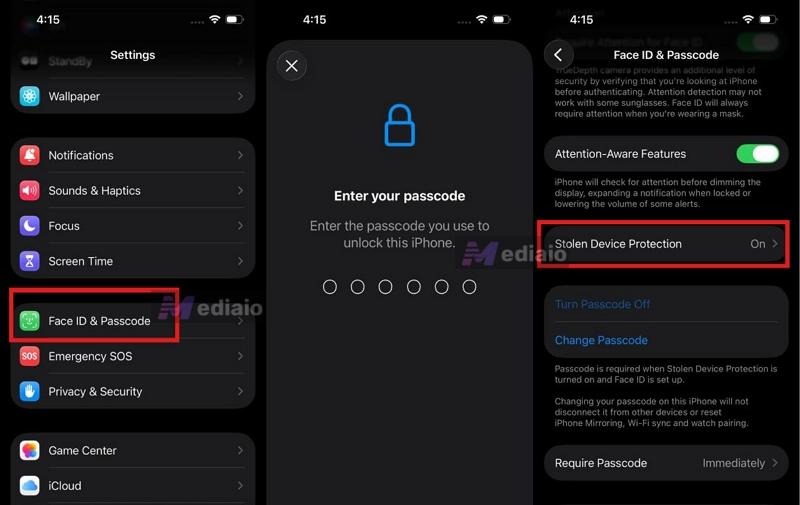
Check its status:
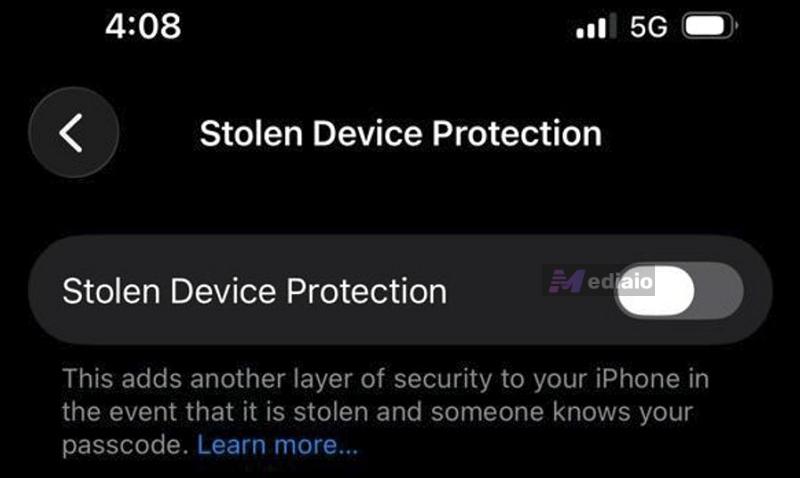
- If Stolen Device Protection is turned OFF, follow Case 1.
- If Stolen Device Protection is turned ON, follow Case 2.
Case 1. With Stolen Device Protection Disabled
In this case, you can directly use the iPhone passcode to remove the Face ID lock from the Messages app. Here are the steps.
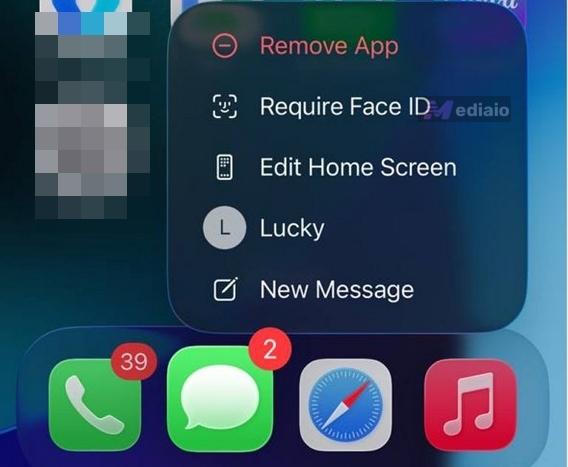
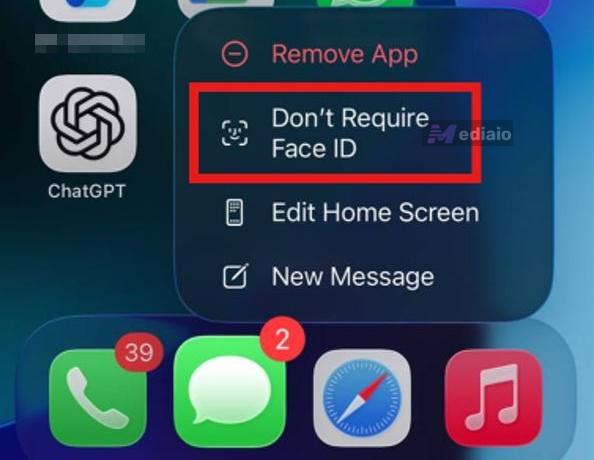
Step 1. Long-press the Messages icon. Tap Don't Require Face ID from the menu options.
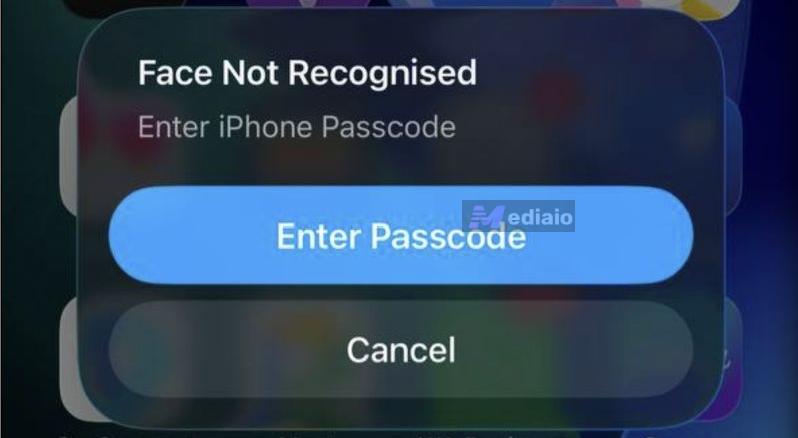
Step 2. The iPhone will first scan with Face ID. But since the TrueDepth Camera is failing to verify your identity, you'll see the "Face Not Recognized" prompt.
Step 3. Tap Try Face ID Again.
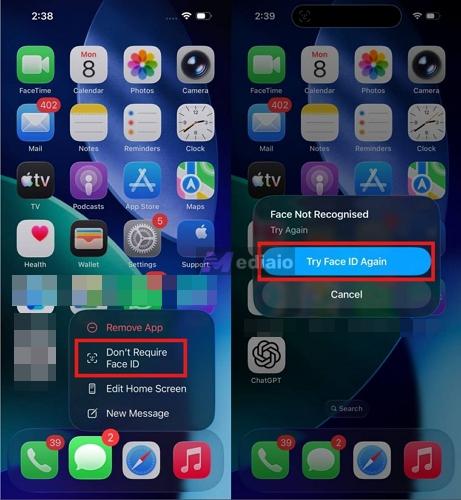
Step 4. The scan will fail one more time. But this time, the Enter Passcode button will appear on the screen. Tap Enter Passcode. The iPhone passcode keypad will appear. Simply enter your device passcode.
That's it. Messages will be unlocked without requiring Face ID every time from now.
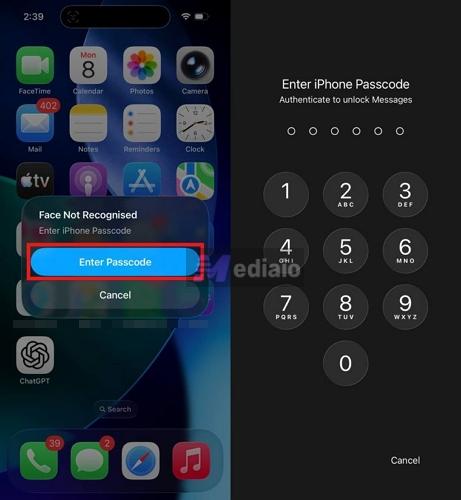
To verify that it worked, press and hold the Messages app icon once again. The menu option will now switch back to Require Face ID. That confirms the Face ID lock has been removed.
Case 2. With Stolen Device Protection Enabled
Things will become a little more complicated when Stolen Device Protection is enabled. But that doesn't automatically mean you're stuck. First, return to the Stolen Device Protection menu and check how it is configured. Pay attention to the option selected under Security Delay.
- If it is set to Away from Familiar Locations, you can still use the same method discussed above.
Make sure you're in a familiar location first. There is no exact rule for this. It simply has to be a place that Apple recognizes as familiar, such as your home or workplace.
Then simply tap Try Face ID Again until the iPhone offers the Enter Passcode option. Finally, enter your device passcode and remove the Face ID requirement from Messages.
- The situation changes when Stolen Device Protection is set to Always.
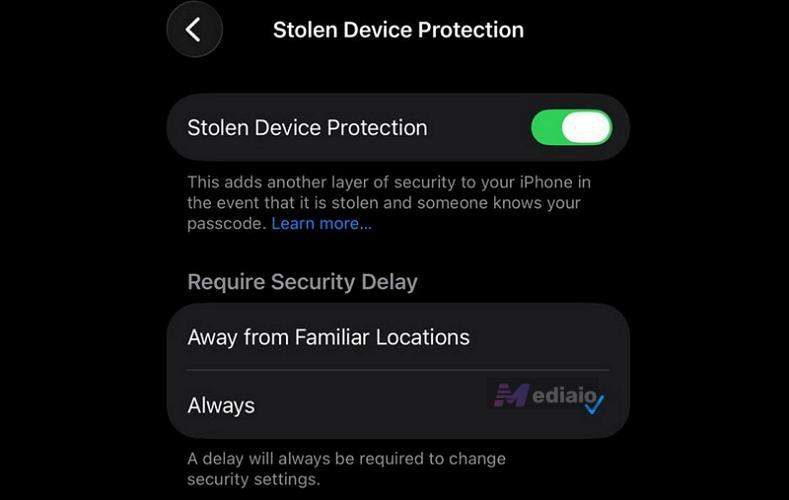
In that case, tapping Try Face ID Again will usually lead to a dead end. iPhone will never show you the Enter Passcode option. Face ID is necessary for the action, even if you're sitting at home.
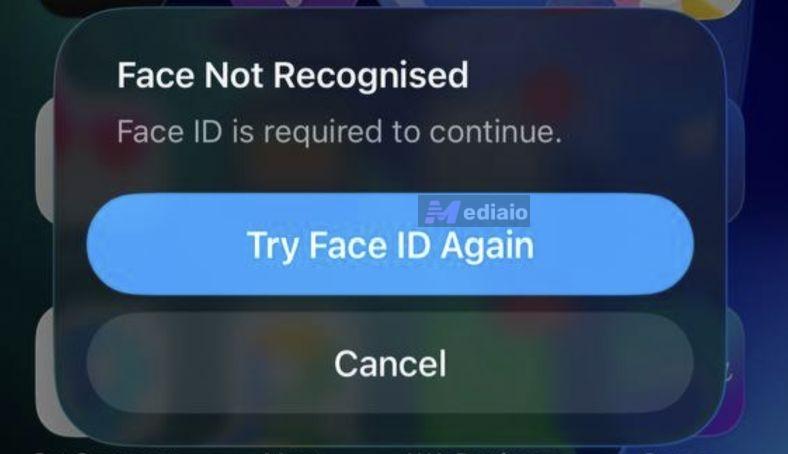
At that time, the Face ID requirement of Messages cannot be lifted with the passcode. It will remain locked. Plus, you won't be able to view message contents through notifications, previews, or Spotlight search.
In that case, you can first try turning off Stolen Device Protection without Face ID. Doing so will remove the strict Face ID requirement and the iPhone will fall back to the screen passcode by default. If that isn't available to you, you'll have to move on to Way 2.
Way 2. Restore iPhone to Default Settings
If you cannot remove the Face ID requirement due to Stolen Device Protection, try fixing Face ID first. For instance:
- If the TrueDepth camera hardware is damaged, take the iPhone to a repair shop.
- If Face ID has suddenly stopped working, clean the camera area. Then, remove the screen protector. Now, test Face ID again.
If you don’t want to repair the iPhone immediately, the last option is to restore it. Note that all data, settings including Face ID configuration will be erased. After that, the Face ID requirement for Messages will be removed, but the content of Messages will be gone too.
However, messages can be recovered if you have a backup. Here is what to expect during a restore:
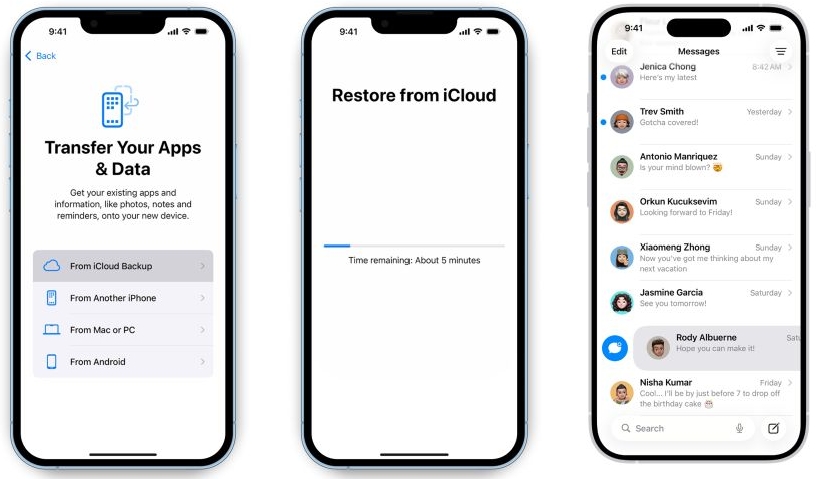
- “Messages in iCloud” enabled: Your conversations are synced to Apple’s servers. So once you sign back in to your Apple ID on the iPhone, your messages will automatically reappear.
- With an iCloud or Computer Backup: You can restore it during setup. This will return your iPhone to the state it was in when the backup was made, including your messages and other data. But you cannot restore messages separately. Note that you need to restore a backup that was created before Stolen Device Protection was enabled.
- Without a Backup: Your messages will be permanently gone. Still, you can use a data recovery tool like Eassiy iPhone Data Recovery to recover the lost messages.
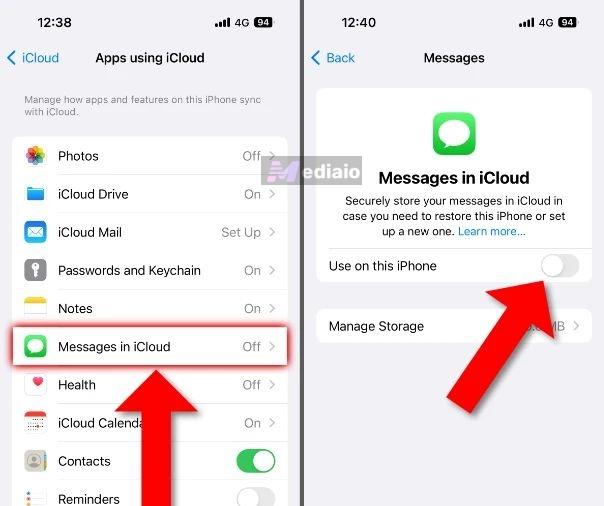
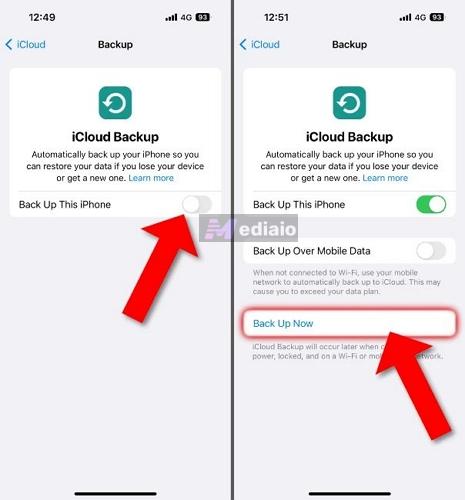
Once you understand the outcomes, proceed with one of these options to restore your iPhone and remove the Face ID requirement in Messages.
Option 1. Use Eassiy iPhone Access
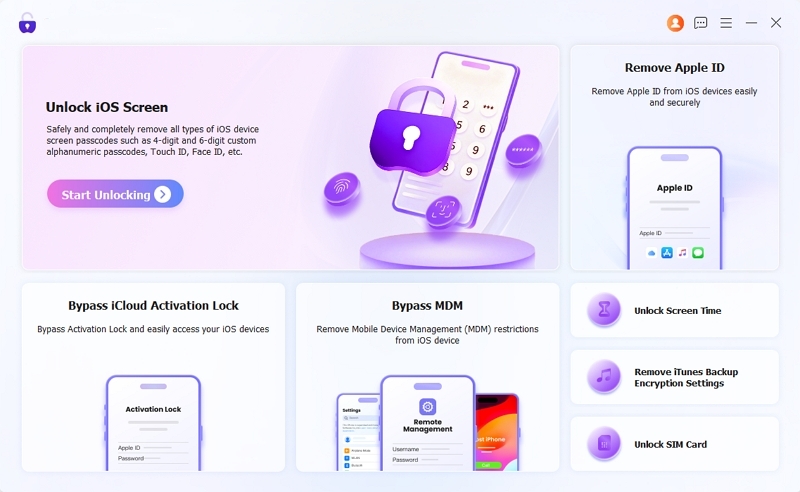
Eassiy iPhone Access is a dedicated iPhone unlocker designed to remove different types of locks from an iPhone. So if Face ID is no longer working and thus you cannot remove the Face ID requirement from the Messages app, you can use its Unlock iOS Screen feature to reset the iPhone and remove the existing biometric setup. After that, you can set up the iPhone again and simply skip Face ID. This will let you use the iPhone without Face ID or dealing with the Face ID lock on the Messages app. Eassiy also comes to help when you need to unlock iPhone with broken or unresponsive screen.
Using Eassiy is straightforward too. The on-screen instructions let you remove Face ID requirements from your iPhone in just a few steps. This way, you can remove all restrictions from your iPhone and use it the way you want.
Key Features:
- Supports up to iOS 26.
- Removes all types of iPhone screen locks, including 4/6-digit, custom alphanumeric passcodes, Face ID, and Touch ID, etc.
- Unlocks forgotten Screen Time passcode without data loss.
- Bypasses MDM restrictions placed by schools or workplaces.
- Removes the inaccessible Apple ID from iOS devices.
- Handles forgotten iCloud Activation Lock and keeps the device usable in more situations.
Steps to Use Eassiy iPhone Access to Remove Face ID for Messages App
Step 1. Open Eassiy iPhone Access on your Windows PC or Mac. Then select Unlock iOS Screen.
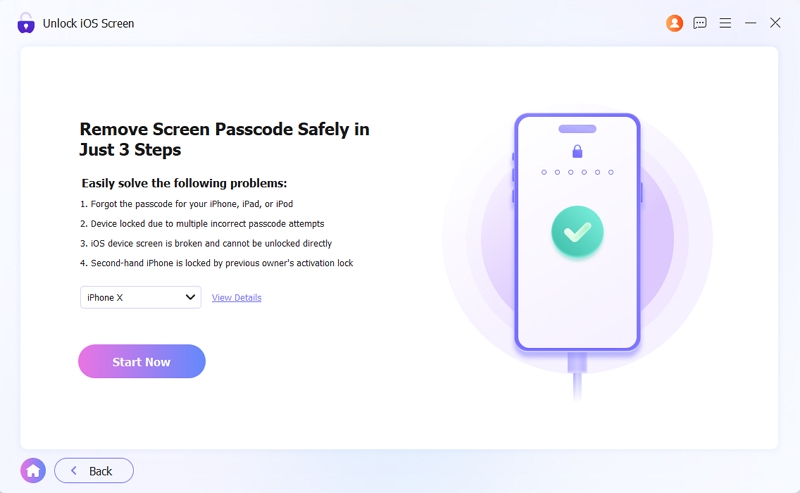
Step 2. Connect the iPhone. Click Start Now after verifying the device information. Eassiy will start downloading the correct firmware for your model.
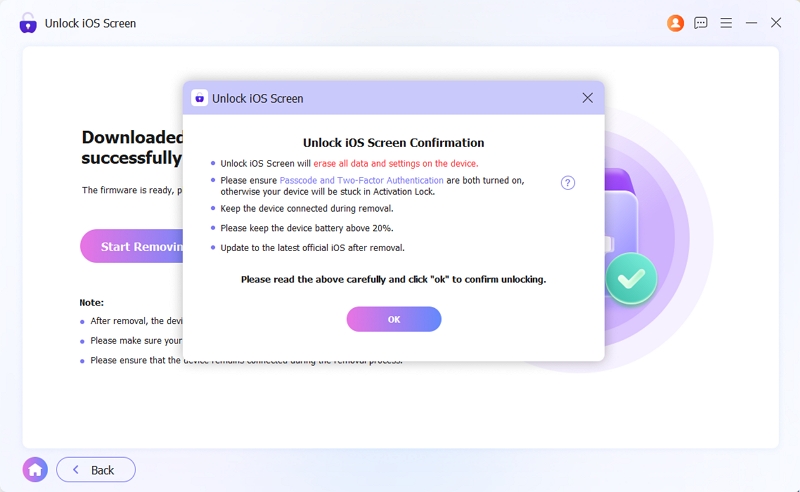
Step 3. Click Start Removing. A confirmation window will appear. Review the information and then click OK > Confirm Again.
Step 4. Wait for Eassiy to remove the Face ID and other restrictions from your iPhone. Click Finish when you see Unlocked iOS Screen Successfully.
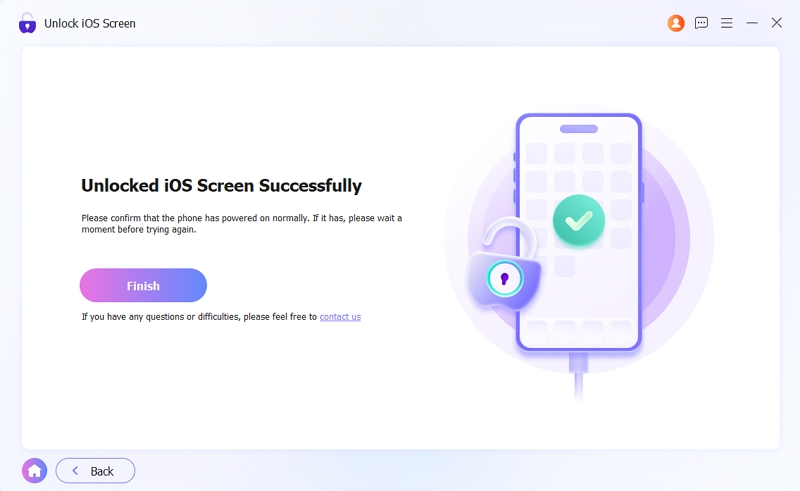
You can disconnect the iPhone from Eassiy and go through the setup. And if you have a backup, your Messages data will come back.
Option 2. Use iCloud Remote Erase
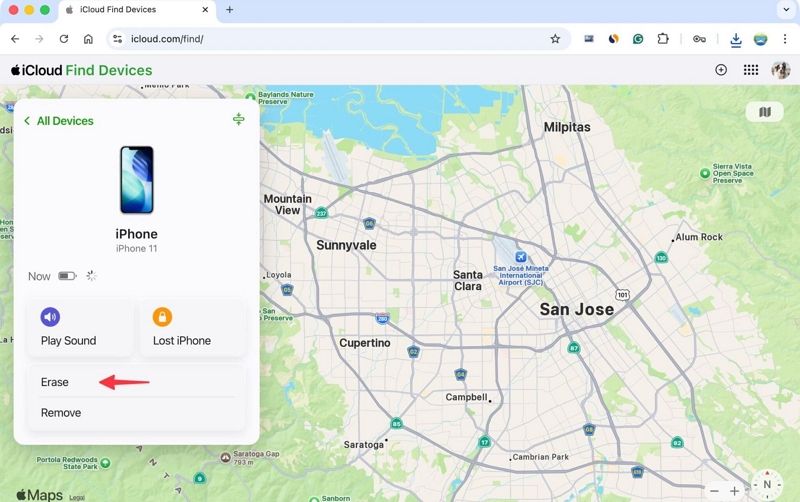
iCloud’s Find My service allows you to remotely erase the iPhone and restore default settings. For this, you will need access to an additional device, Wi-Fi enabled on the iPhone with stuck Messages app and Apple ID credentials.
Here's how the entire process works:
Step 1. Go to iCloud Find My. Sign in with your Apple ID.
Step 2. Select the iPhone. Then choose Erase and confirm the request. Make sure the iPhone is connected to the internet during this step.
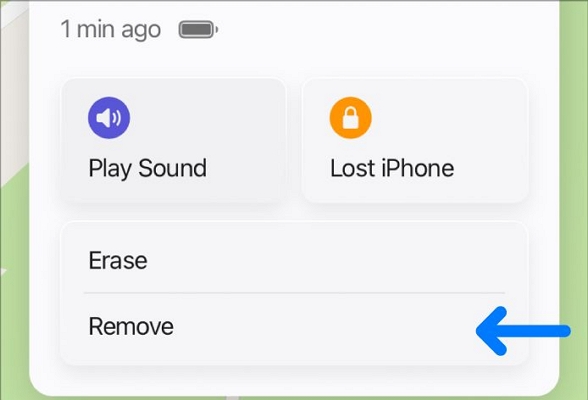
Step 3. After erasing, return to the devices panel in Find My. This time, select the Remove option.
Now, you can start setting up the iPhone again. You can also restore your message backup if available.
How to Turn Off Face ID for Messages with Face ID
If Face ID is working or repaired, you can remove the Messages Face ID requirement in just a few seconds by following these steps:
Step 1. Long-press the Messages app until quick actions appear.
Step 2. Tap Don’t Require Face ID.
Step 3. Let Face ID scan your face.
Once Face ID verification passes, restrictions will be removed. Now, you can open Messages without Face ID or passcode.
Conclusion
So there you go. We've shown both sides of it. When Face ID is working, removing the Face ID requirement from Messages takes only a few seconds. And even when Face ID is unavailable, broken, or blocked by Stolen Device Protection settings, there are still ways to get around it. In many cases, the passcode workaround is all you need.
And when that isn't an option, you can use Eassiy iPhone Access to reset the iPhone and remove all restrictions in one go. Either way, you'll be able to remove the Face ID requirement and get back to opening Messages normally again.