Help Center
Updated on 2026-07-20
views
5min read
Find My alert doesn't usually appear on its own. So if it starts ringing in the middle of the night or randomly appears during a meeting, it’s natural to wonder: “Why did my Find My iPhone alert went off by itself? Did this mean my Apple account has been compromised?”
Next, we will help you identify the possible reasons for the unexpected Find My alert. Besides, we will show you how to stop them and what steps to take to make sure your iPhone and Apple account haven't been compromised.
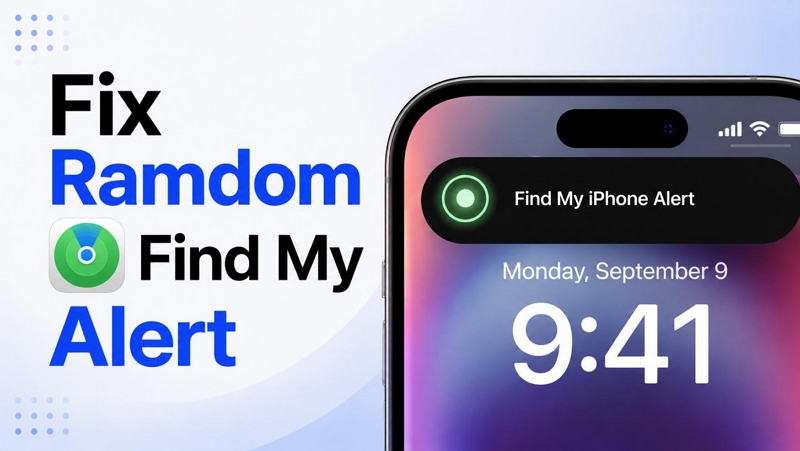
What Find My iPhone Alert Means and How It Works
Find My iPhone Alert is part of Apple's Find My network, which helps you locate a lost or misplaced nearby iPhone with sound.
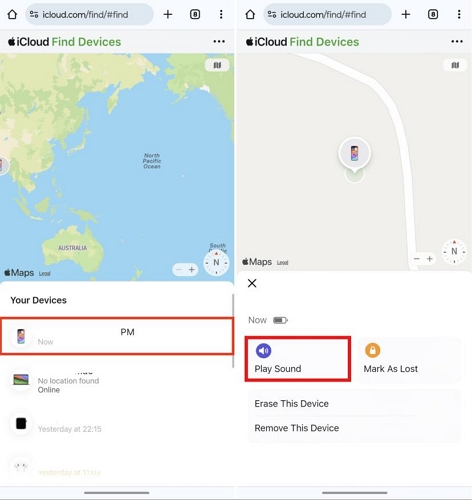
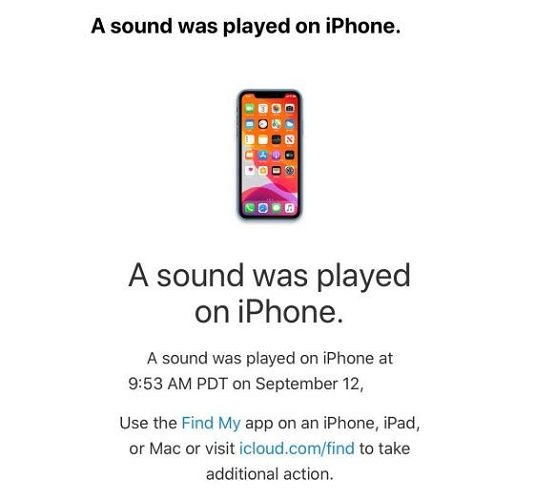
Simply put, when you send a Play Sound request to your iPhone in Find My, it will play the distinctive Find My alert tone that gradually increases in volume. This sound is also different from a normal ringtone or notification.
Also, the Find My alert can even override Silent Mode or Do Not Disturb (Focus) settings.
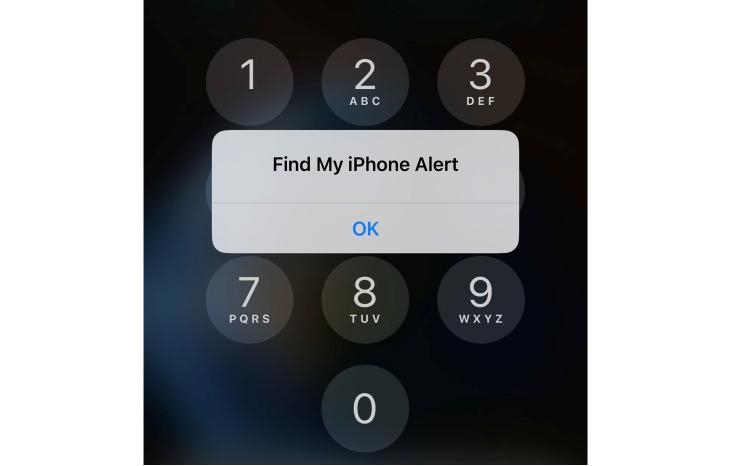
After the sound plays, you’ll also receive a confirmation email sent to your registered Apple Account email. It will stop on its own in a while. Or, you can dismiss the Find My alert manually.
Note: Apple added the Precision Finding feature on some recent iPhone models (eg, iPhone 15, iPhone 17). These features let your friends and family find you via Find My. So when they use this feature, you’ll usually see a Find My alert notification.
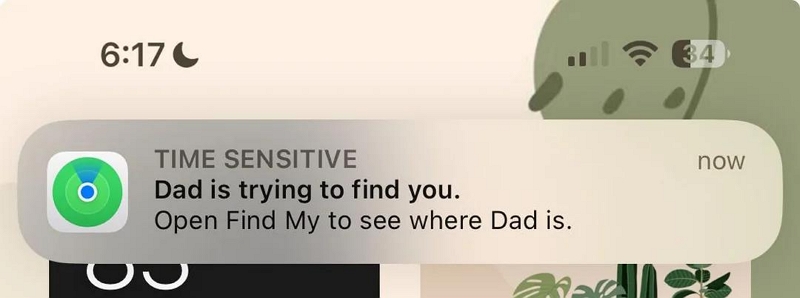
However, this is different than the Find My’s Play Sound alert. One easy way to tell the difference between a random alert and a Precising Finding is that the latter will show you exactly who is trying to locate you. So if you are seeing the Find My alert with a contact's name (eg: Dad is trying to find you), it simply means that person sent the request. In this case, the Find My alert didn’t go off by itself and there’s no need to worry.
Why Is Find My iPhone Alert Went Off by Itself
You've now seen what normal Find My behavior looks like. But some users report different behaviors:
- They see the Find My alert text on the screen, but hear a normal alarm sound.
- The Find My alert sound goes off at 3 a.m., even when no one triggers it.
- Some don’t receive the confirmation email that typically accompanies a Play Sound request. Or the email shows up much later.
Compared to the normal Find My alert behavior, such incidents raise one question: who triggered the Find My alert? Unfortunately, Apple Support can’t answer that. They'll usually tell you that the alert occurred, but they can't see how the request was initiated or who sent it.
The good news is that most cases can be traced back to a handful of common causes.
Reason 1. Someone else activated the alert
This is the most common explanation. For instance, you may be part of a Family Sharing group or another device may still be signed in to your Apple Account. In either case, someone else could have triggered the Find My request.
Sometimes it's intentional. A family member may use the alert to get your attention when you're not answering calls or your iPhone is in Do Not Disturb mode. Other times, they simply meant to locate a different device and selected yours by mistake.
You should also think about older devices. Maybe you sold an iPhone without signing out, traded one in, or logged into a borrowed device and forgot to remove your account. So your iPhone will appear in All Devices list and they will be able to activate Play Sound feature.
Reason 2. There are iOS glitches
Sometimes, the issue is purely digital confusion. There are plenty of reports from users who heard the sound hours or even days after the original request was sent.
For example, you might have tried to ping your iPhone from your Apple Watch on Tuesday. Nothing happens on that day and you assume the request failed. Then, completely out of nowhere, the alert will blast at 4 a.m. on Thursday. But this is not a glitch. This is the usual Find My alert behavior. Apple delays the Find My alert request when it cannot communicate with the iPhone at the time the request was made.
However, sometimes a software glitch can cause unusual Find My alert behavior. And such unusual behavior is easy to identify, too. For instance:
- You will see the Find My alert texts, but hear the normal alarm sound (not the distinctive Find My tone).
- Sometimes, you don’t receive the email afterward.
Don’t worry, these cases are usually easy to fix. A restart, force restart or software update will fix the problem.
Reason 3. Unauthorized Access to Your Apple Account
This is less common and it's the one you shouldn't ignore. If you don’t have any other Apple devices, don't use Family Sharing, or don't share devices, and still end up receiving unexplained Find My alerts, then treat it as a potential security warning.
Keep in mind that iCloud.com/find doesn’t always need Two-Factor Authentication. So if someone gained access to your Apple Account credentials (Apple ID and password), they can use Find My to check whether your iPhone is online through these alerts. They can even attempt other malicious actions (e.g., erase the Device remotely, remove Activation Lock, etc.).
In such cases, you should change your Apple account password and sign out of all devices signed into your account.
How to Fix Find My iPhone Alert Went Off by Itself Randamly
The first step when you see a random Find My iPhone alert is to contact Apple Support. Yes, they will not reveal how the alert got triggered, but they can help check for any security issues or other unusual activity. And if alerts keep appearing or you don’t want to contact Apple, here’s how you can fix the problem.
Fix 1. Review Family Sharing and Location Permissions
As mentioned earlier, a family member or another person could also trigger the alert. So you can check who has such permissions and ask them not to do it. Or, you can even stop sharing your location manually, so they cannot trigger the Find My alert at all.
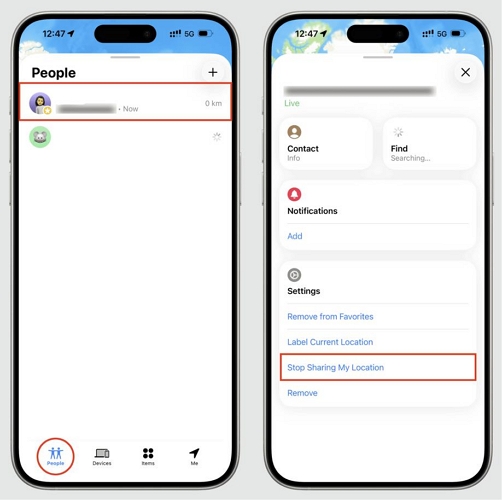
Step 1. Open the Find My app.
Step 2. Tap People. You will now see everyone who can see your location and everyone whose location you can see.
Step 3. Tap the person's name.
Step 4. Select Stop Sharing My Location.
Don't worry. If you ever want to share your location with them again, you can add them later.
Fix 2. Check Your All Device List
Your Apple Account could be signed in on a different iPhone or iDevice (like an old iPhone you gave away or on a computer in the office). So it is better to check for unrecognized devices and remove them. Here’s how you can do that:
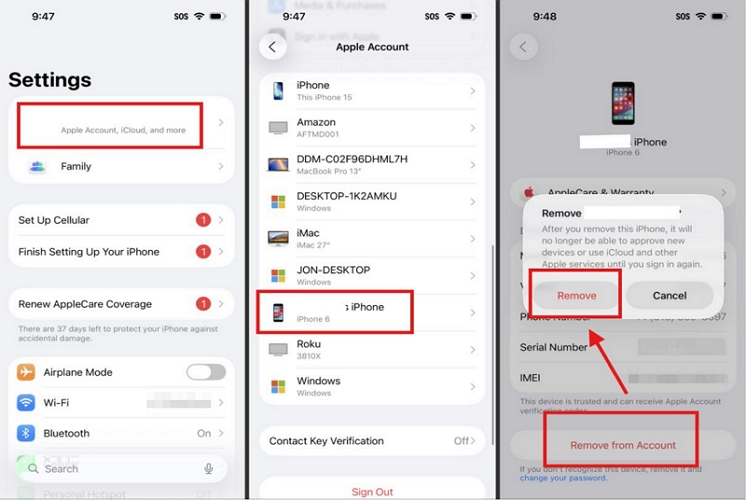
Step 1. Open the Settings app. Tap your name at the very top.
Step 2. Scroll all the way down past your subscriptions and Family Sharing tabs. You will see a list of physical devices (iPhones, iPads, Macs, Apple Watches, or even Windows PCs) tied to your account.
Step 3. Review this list meticulously. Look for devices you no longer own, no longer use, or don't recognize.
Step 4. Tap the device name. Then, tap the red Remove from Account button and confirm.
This will immediately revoke its access to your iCloud and stop someone else from sending alerts.
Fix 3. Change Apple ID Password and Log Out of All Devices
If you aren't using Family Sharing and just checked your device list to find it completely clean, treat the ghost Find My alerts as an active security breach. You should immediately change your Account password. It's one of the most effective ways to rule out unauthorized account access.
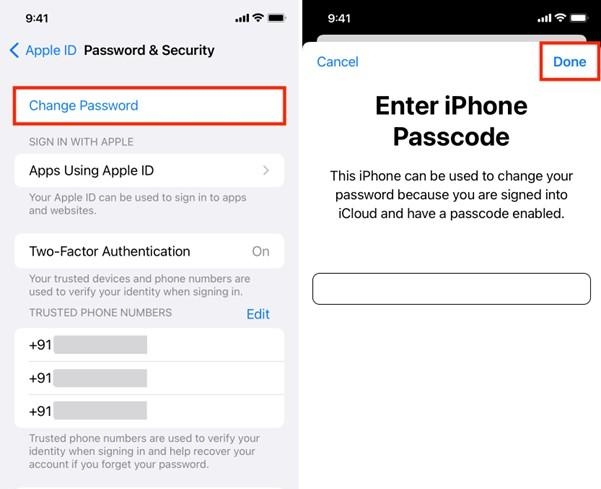
Step 1. Open Settings. Tap your Apple ID Profile Name right at the top of the screen.
Step 2. Select Sign-In & Security (this is called Password & Security on older iOS versions).
Step 3. Tap Change Password.
Step 4. Enter the current lock screen passcode.
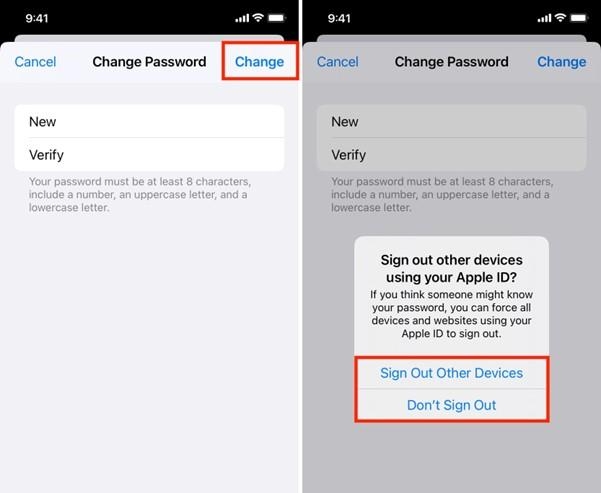
Step 5. Type in a new password for your Apple Account.
Step 6. When you hit Save, the system will ask if you want to sign out of other active sessions.
You must select Sign Out of Other Devices. This is the most crucial action you can take—it will forcefully log out anyone currently logged in to your iCloud via a remote web browser or an unauthorized device.
Tip: Turn On Stolen Device Protection
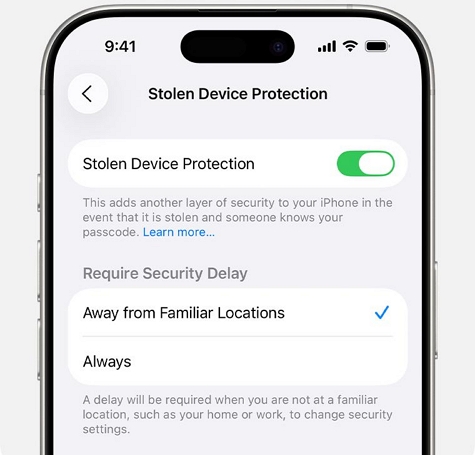
If you haven’t already, consider enabling Stolen Device Protection (available on iOS 17.3 or later). This feature will force you to authenticate via Face ID or Touch ID before you can make critical changes. After this, the iPhone will require a biometric and security delay before you can change your Apple Account settings, including Find My or access saved passwords.
To enable it, so:
1. Enter the Face ID & Passcode in Settings.
2. Scroll down and tap Stolen Device Protection.
3. Turn on Stolen Device Protection.
That’s it. If the unexpected Find My alerts were caused by unauthorized access to your Apple Account, this is one of the best ways to help protect the account going forward.
Fix 4. Hard Reset iPhone
Some users reported an unusual Find My alert that activates three times in a row. Others reported hearing the Find My sound, but no corresponding notification appeared or noticed the behavior shortly after changing their Apple Account password.
These behaviors are generally considered software anomalies. And in many cases, performing a hard reboot will resolve the issue by refreshing the system services responsible for Find My functionality.
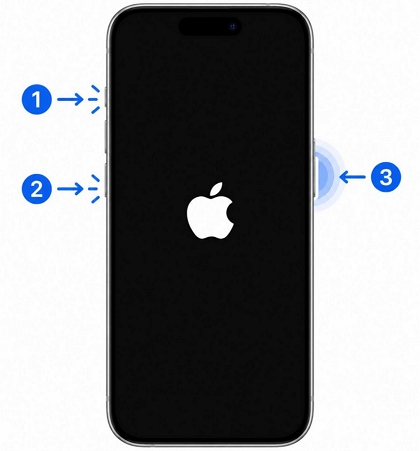
Here's how to hard reset an iPhone 8 or later:
Step 1. Press and quickly release the Volume Up button.
Step 2. Press and quickly release the Volume Down button.
Step 3. Press and hold the Side button.
Step 4. Release the button when the Apple logo appears.
After the iPhone restarts, the random Find My alerts will be gone.
Fix 5(Optional). Factory Reset iPhone
Try this solution if the Find My iPhone alert won't go away, even after all other troubleshooting steps. As uncommon, continuous, unusual Find My alerts are usually caused by persistent or corrupted syncing settings, you can factory reset the iPhone. This will remove all corrupted settings and system configurations and install a clean copy of iOS. However, this process will permanently erase your personal data.
Important Note: Back up your important data to iCloud or a computer before proceeding.
Steps to Factory Reset an iPhone
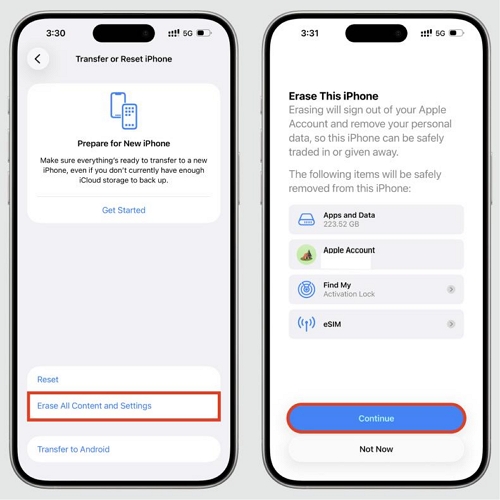
Step 1. Open Settings and tap General.
Step 2. Select Transfer or Reset iPhone.
Step 3. Tap Erase All Content and Settings.
Step 4. Review the information on the screen. Then tap Continue.
Step 5. Enter your passcode. Wait for the reset process to finish.
After setup, you can use the iPhone without random Find My alerts.
How to Turn Off Find My iPhone Alert
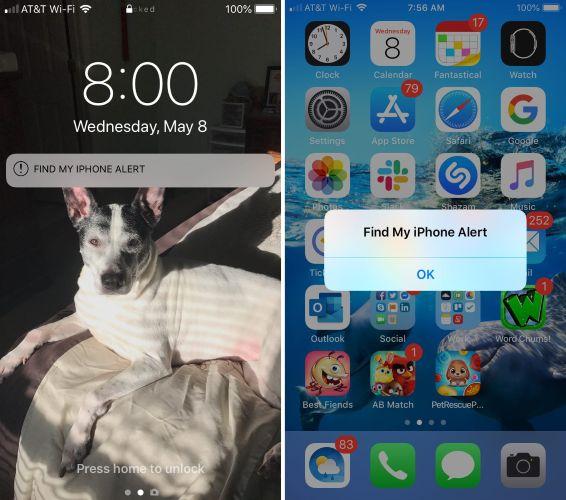
If the alert is currently playing on your iPhone, stopping it is very simple.
Way 1. Directly Turn off Find My iPhone Alert
Step 1. Unlock your iPhone.
Step 2. When the Find My alert appears, tap OK.
Step 3. Open the Find My app.
Step 4. Make sure there is no active Play Sound request still pending for the device.
That's it. The alert will stop immediately.
Way 2. Disable Find My iPhone
Turning off the Find My iPhone feature is recommended only when you’re selling, trading in, gifting, or transferring the iPhone to someone else. Still, you can even consider turning it off if phantom Find My alerts keep returning.
But keep in mind that Find My is not just a location-tracking feature. It is also responsible for Activation Lock. So disabling Find My will turn off Activation Lock as well.
Still, if your iPhone rarely leaves your home or office and the alerts have become a nuisance, then turning Find My off makes sense.
Steps to Disable Find My iPhone Alert Completely
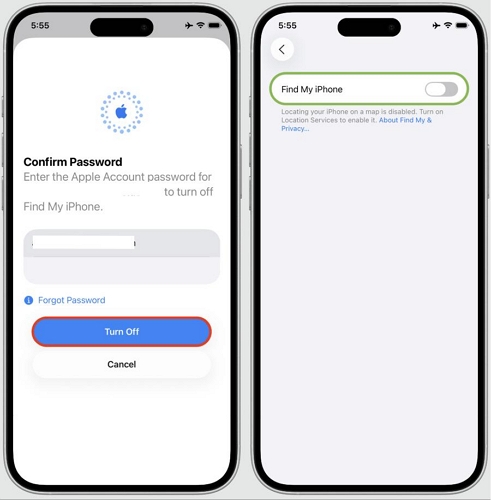
Step 1. Open Settings. Tap your name at the top.
Step 2. Select Find My.
Step 3. Tap Find My iPhone.
Step 4. Turn off Find My iPhone.
Step 5. Enter your Apple Account password to confirm.
After that, Find My alerts and Activation Lock will all be disabled on that iPhone.
Can't Turn Off Find My Because of Forgetting Apple ID Password
Sometimes, you can't turn Find My off because you no longer know the Apple Account password. This often happens with a second-hand iPhone or an old Apple Account you can no longer access. In such cases, you can use Eassiy iPhone Access.
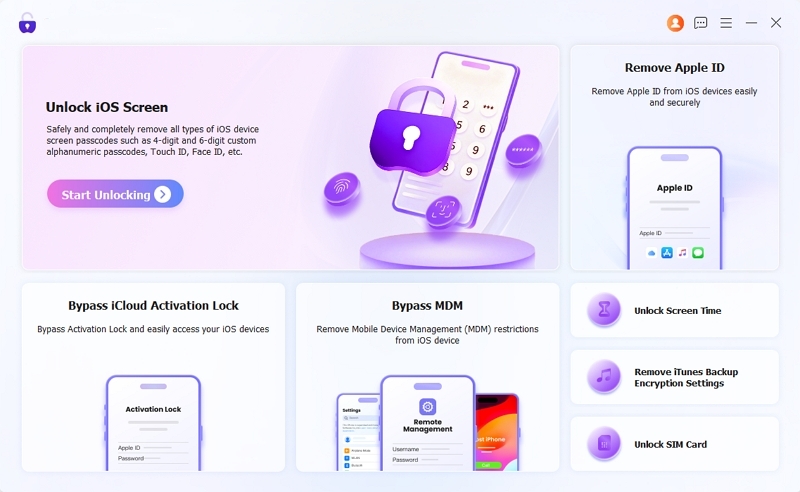
Eassiy’s Remove Apple ID feature can remove the account from iPhone without requiring the original password. This process will also remove the Find My connection linked to that account. Finally, Find My is completely off and you won’t be disturbed by the randam Find My alert.
Key Features
- Removes Apple Account from iPhone with 99% success rate.
- Removes other common iPhone locks: forgotten screen passcodes, Screen Time restrictions, Activation Lock, MDM locks, etc.
- No jailbreaking is required when using the Remove Apple ID feature.
- Support latest iOS and iPhone models.
Steps to Remove Apple ID with Eassiy iPhone Access
Step 1. Launch Eassiy iPhone Access on your computer. Select Remove Apple ID.
Step 2. Connect your iPhone to the computer using a USB cable. Eassiy will automatically identify your iPhone. Verify and then click Start Now.
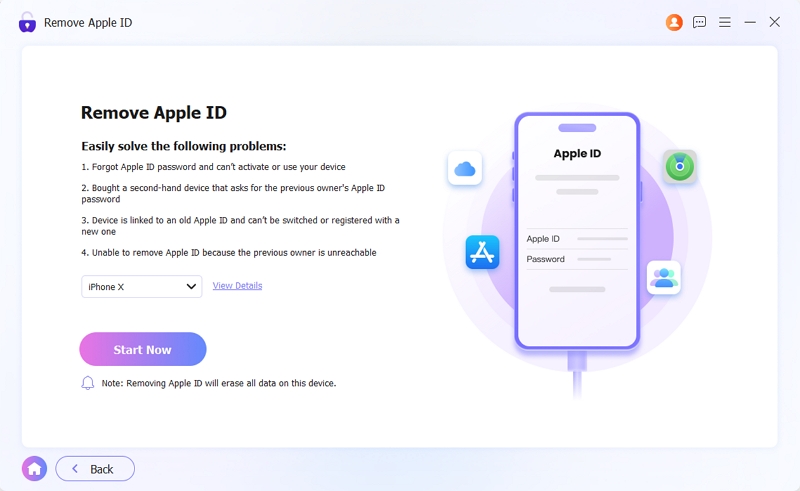
Step 3. On iOS 11.4 or later, make sure screen passcode and Two-Factor Authentication (2FA) is enabled. If 2FA is not enabled, follow the on-screen instructions to turn it on easily. Then click Confirm.
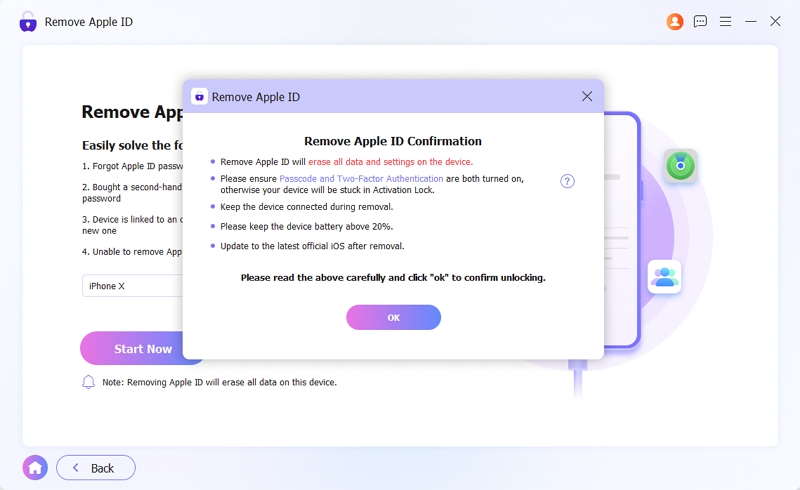
That’s it! Eassiy will remove the Apple Account in minutes. Keep the iPhone connected until the process is complete.
Once finished, the Apple Account linked and Find My connection tied to the account will be removed.
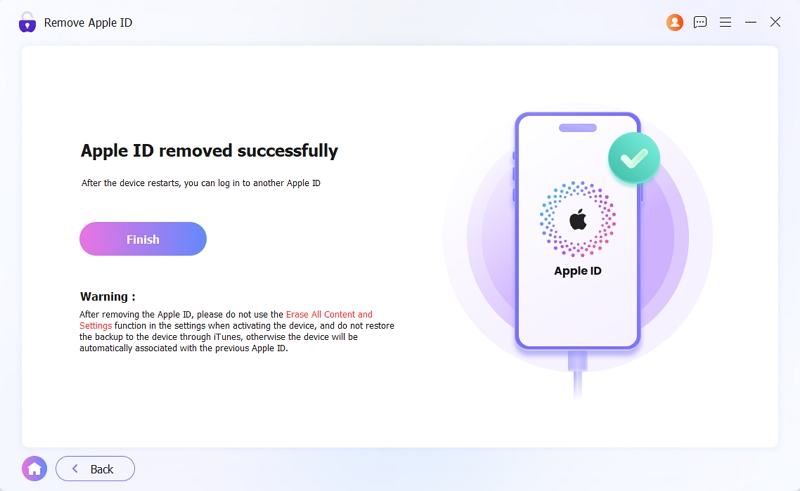
You can then sign in with a different Apple ID and use your iPhone without any random Find My alerts.
Final Words
That's how you can fix a Find My iPhone alert that went off by itself. You just have to identify the issue, whether it's a delayed request or an iOS glitch, to stop random Find My alerts.
And if you decide to turn off Find My, the process is simple as long as you have the Apple Account password. However, you will hit a dead stop if you’ve forgotten it. You can use Eassiy iPhone Access in that case. It will successfully remove the Apple ID and disable the Find My feature tied to that account.