Help Center

Updated on 2026-07-31
views
5min read
There are a handful of times when turning off Find My iPhone from a computer makes more sense than doing it from the iPhone itself. Maybe it's being sold or handed off. Or maybe the phone screen is broken and can’t respond to touch. .
Whatever the reason, there are ways to manage Find My from Windows PC or Mac. Unlike doing it on your phone, the official desktop method will disable Find My on iPhone via device removal process rather than providing a direct Find My switch. Now, let's move on to the details.
How to Turn Off Find My iPhone from Computer with Apple ID
Have your Apple ID and password? Good, you're already halfway there. Windows users can manage Find My through iCloud in any browser, while macOS users can do the same using the operating system’s native Find My app. However, this method only works when your iPhone is offline. It only removes the device from Find My and disables Activation Lock temporarily. If the iPhone comes back online while still signed in to the same Apple ID, it will reappear in Find My and Activation Lock will be reenabled.
Turn Off Find My iPhone from Windows PC
No app is needed on Windows. You can use iCloud.com in Chrome, Firefox, etc, to manage your iPhone and begin Apple's device removal process. But unlike the iPhone's Settings app, you won’t see a simple switch for turning Find My off - iCloud doesn't have one. Instead, Apple guides you through its device removal workflow to do the same job.
Step 1: First, open your favorite browser and go to iCloud.com/find. Then sign in with the iPhone’s Apple Account.

If two-factor authentication sends a verification code to the iPhone, just tap Didn't get a verification code at the sign-in screen and choose to receive it via a trusted phone number instead. Or select the Find Devices button at the bottom screen to sign in without 2FA code.
Step 2: Once you’re signed in, go to Devices at the top left of the screen and choose the iPhone from the list you see.
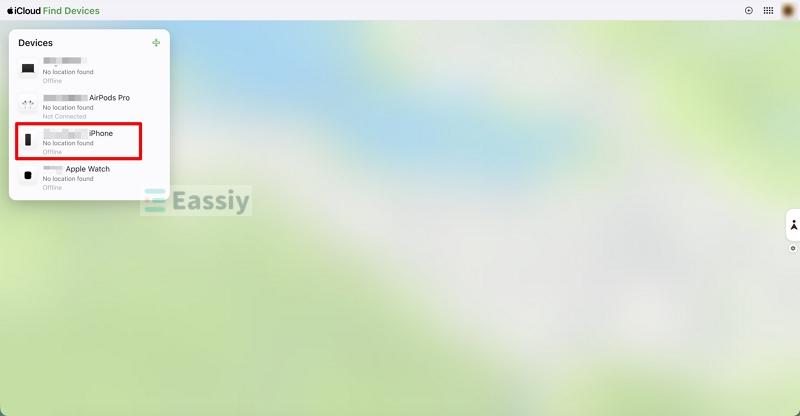
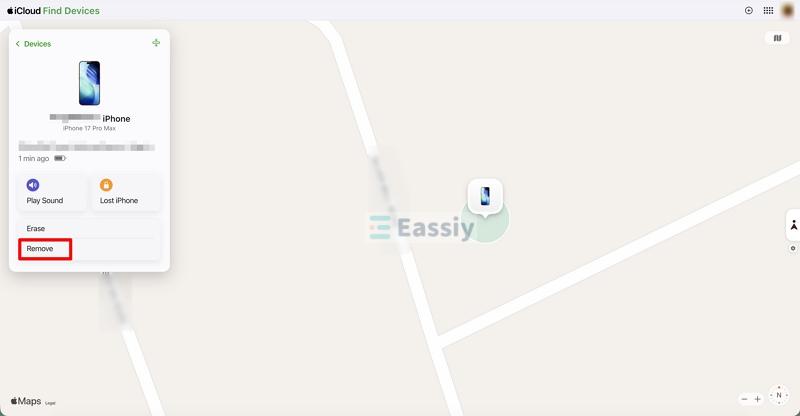
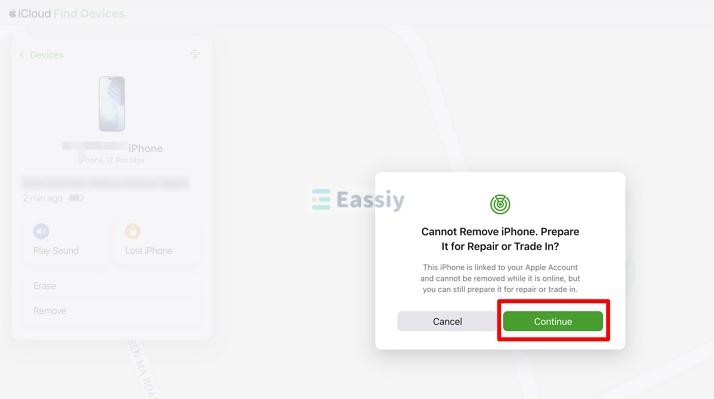
Step 3: A panel will appear. Select Remove.
Step 4: Apple will then display a final confirmation explaining what removing the device does before asking you to confirm the action. Click on Remove to proceed.
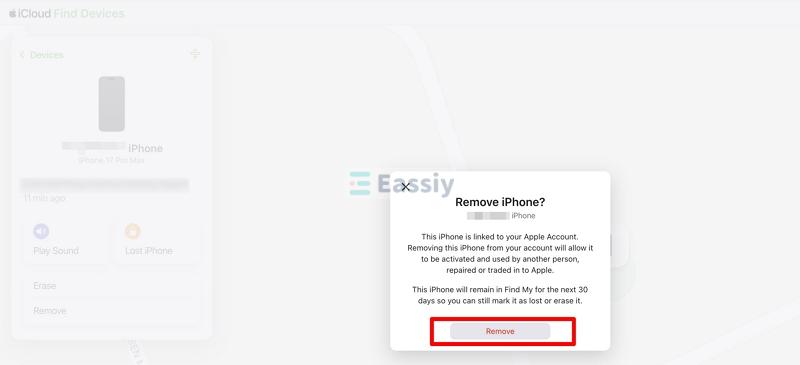
Note: If you remove the online iPhone from the Apple ID, then it’s meant for repairs, trade-ins, or the transfer of ownership. But if you just want to turn off Find My while keeping the phone signed in to your Apple ID, you’ll have to do that in the iPhone’s settings app.
Turn Off Find My iPhone from Mac
The Find My app comes preinstalled on macOS and iOS and shows all Apple devices linked to the Apple ID on a map. It's a bit more visual than the browser method.
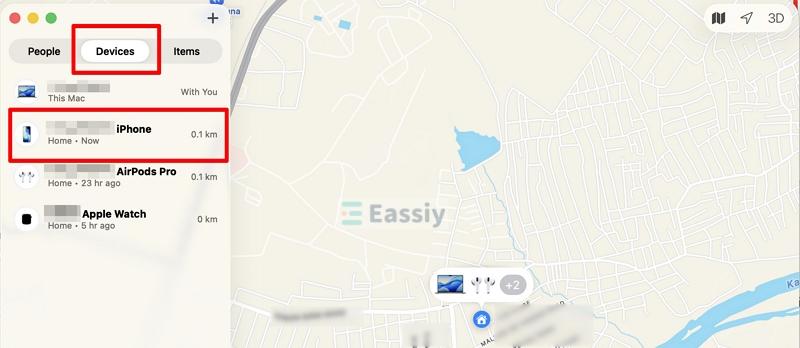
- Open the Find My app on the Mac. It can be found in the Applications folder or by searching in Spotlight.
- Select Devices in the left sidebar. Then click the offline iPhone in the list.
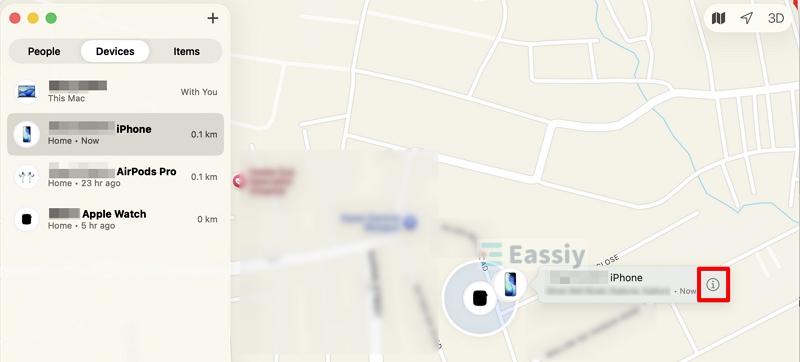
- Click the Info button (the small circle with an i) next to the device name.
- Choose Remove. Confirm when prompted. This removes the device from your Apple ID and turn off Find My temporarily on your iPhone.
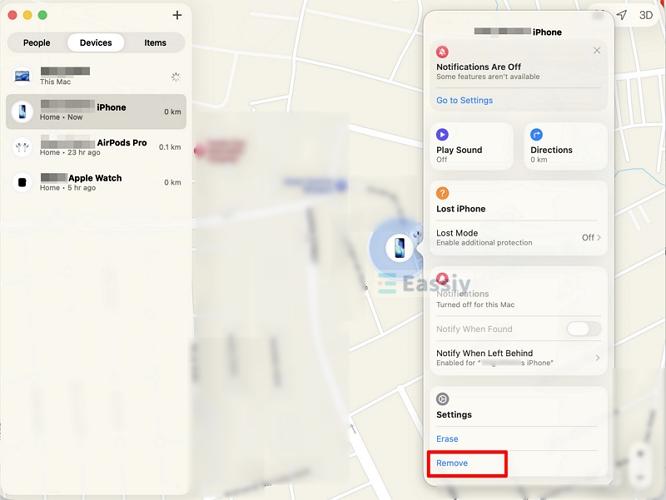
Note: If you want to permanently turn off Find My iPhone with iCloud Find My or Find My app, you have to erase the iPhone before removing it.
How to Turn Off Find My iPhone from Computer Without Apple ID
Forgotten the Apple ID password? Or dealing with a device that's still signed into someone else's account? Neither iCloud.com nor the Find My app will help without those credentials. But there's another way - using Eassiy iPhone Access. Eassiy connects to the iPhone via USB and removes the Apple ID directly from the device, which takes Find My with it.
One of the main things that sets Eassiy apart from other software offering similar functions is its ease of use. Turning off Find My is as easy as connecting your iPhone to a computer and running Eassiy iPhone Access.
Key Features:
- Sign out of any Apple ID on the device without needing the original password, including disabling Find My in the process.
- Remove any screen lock like Face and screen passcode from a locked or disabled iPhone without iTunes.
- Bypass iCloud Activation Lock for iPhone/iPad restricted by an Apple ID.
- Lets you clear Screen Time restrictions and MDM profiles without losing data.
How to Turn Off Find My iPhone Without Password
Note: The process below erases the iPhone, so don’t forget to back up your iPhone beforehand.
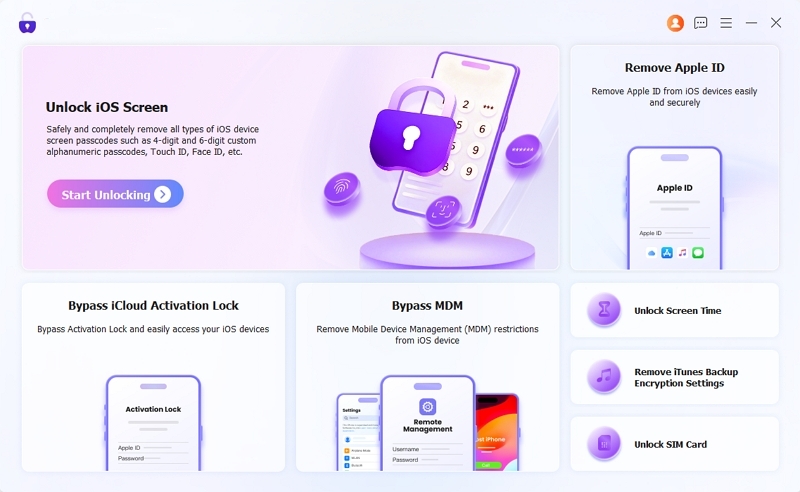
Step 1: Download and install Eassiy iPhone Access on Windows or macOS and open it. From the first interface, select Remove Apple ID.
Step 2: Connect a certified USB cable from the iPhone to the computer while Eassiy is still open. It will detect the phone. Also, unlock the device if you’re prompted to do so.
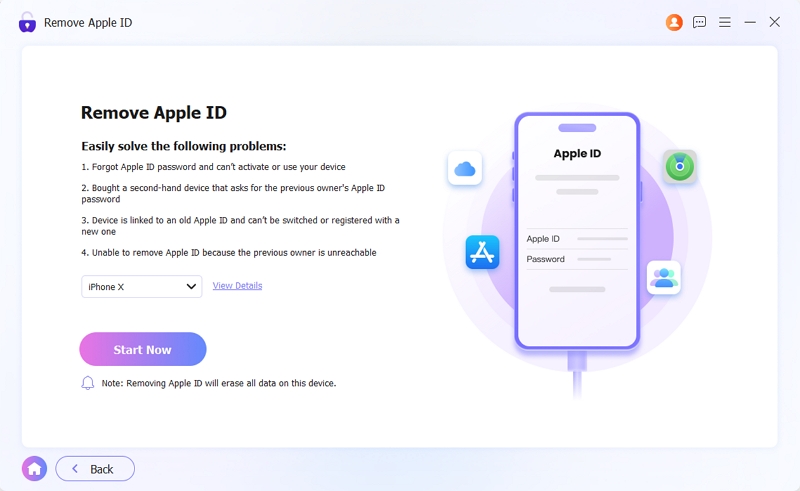
Step 3: Click Start Now. Read the prompt carefully before continuing.
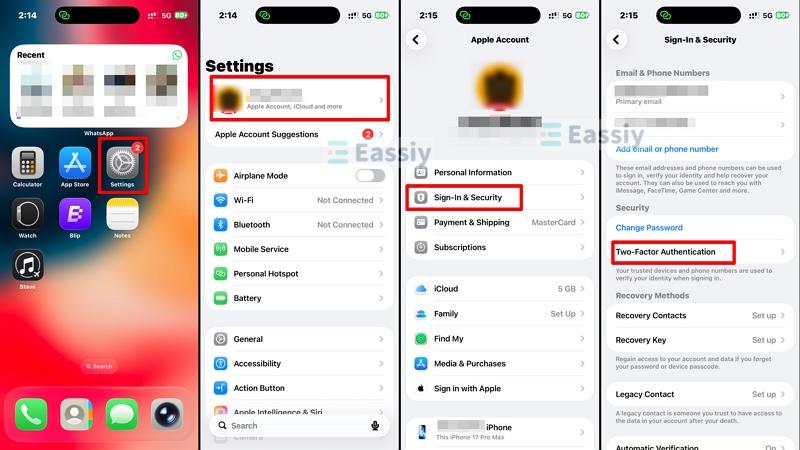
If the iPhone runs iOS 11.4 or later, make sure Two-Factor Authentication (2FA) is enabled before going further. To check or enable it, go to Settings on the iPhone, tap the Apple ID name at the top, then choose Sign-In and Security, then Two-Factor Authentication.
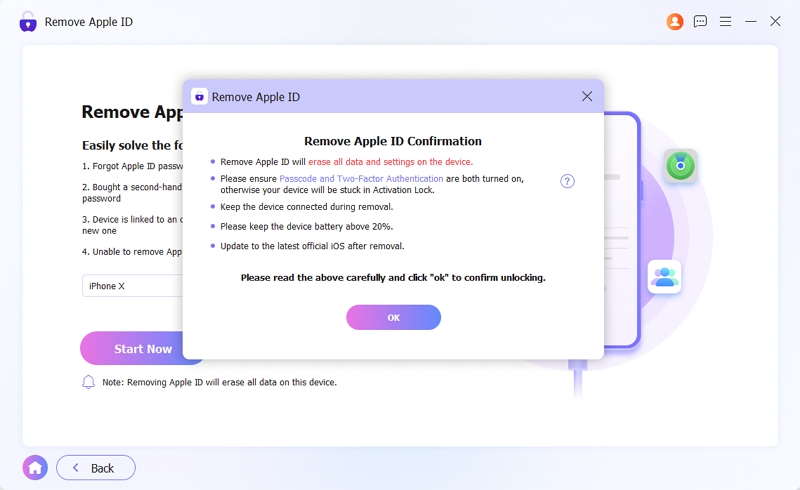
Step 4: Once that's confirmed, click OK in the prompt and then Confirm Again.
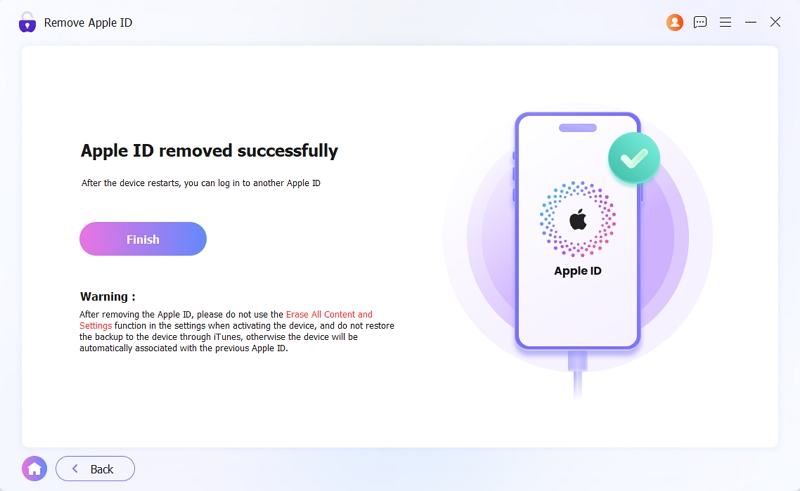
Step 5: Eassiy will remove the Apple ID and disable Find My within a few minutes. What happens next depends on whether Find My was on or off before starting:
- Find My was on: Use the device's screen passcode to clear the iCloud Activation Lock, then set up with a new Apple ID.
- Find My was off: Sign straight into the device with a new Apple ID and carry on from there.
Tip: How to Turn Off Find My iPhone When Phone Is Broken Without Computer
Here's a less obvious scenario: the iPhone needs Find My turned off, but the screen is broken and a computer isn't available. A wired USB keyboard can handle the task, as long as the phone is powered on and hasn't been restarted recently.
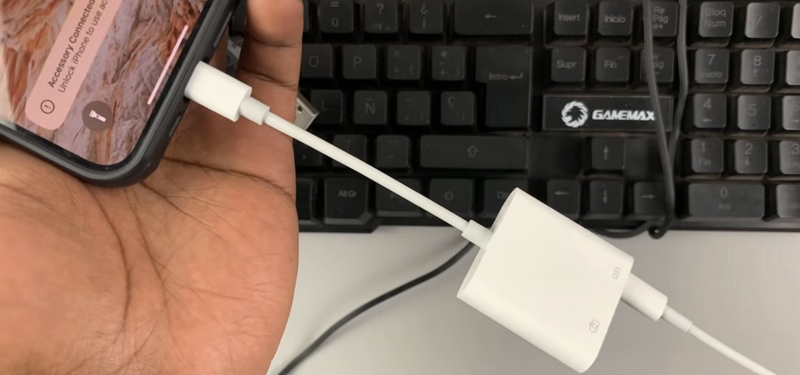
Connect a standard wired USB keyboard to your iPhone using a Lightning-to-USB adapter (such as Apple's Lightning to USB Camera Adapter) or, on iPhone 15 and later, a USB-C adapter.Once the keyboard is recognized, use it to navigate to Settings and turn off Find My from there without touching the screen at all.
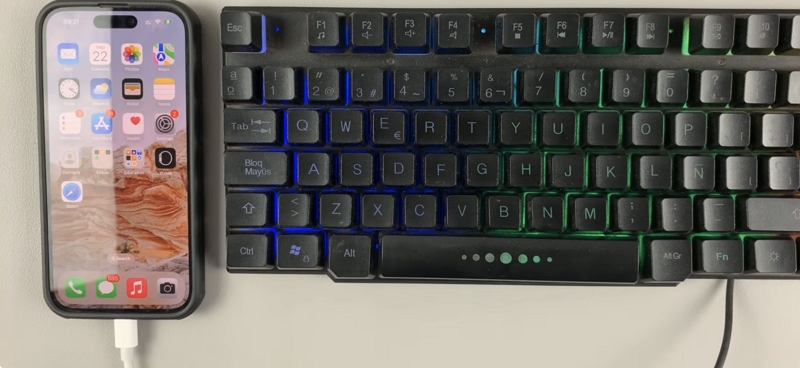
And it’s best for you to use a simple wired keyboard rather than a gaming one or a keyboard with RGB lighting. The latter keyboards draw more power through the adapter and, as such, sometimes fail to be recognized. A basic, no-frills USB keyboard is the safest pick for this.
Steps to Turn Off Find My Using a USB Keyboard
- Connect a wired USB keyboard to the iPhone through a Lightning-to-USB Camera Adapter or a USB-C adapter for iPhone 15 and later.
- Press any key on the keyboard to wake the lock screen, then type the passcode using the number keys to unlock the phone.
- Navigate to Settings by pressing the key for the first letter of the app name or use the arrow keys to move to it. Open it with Return.
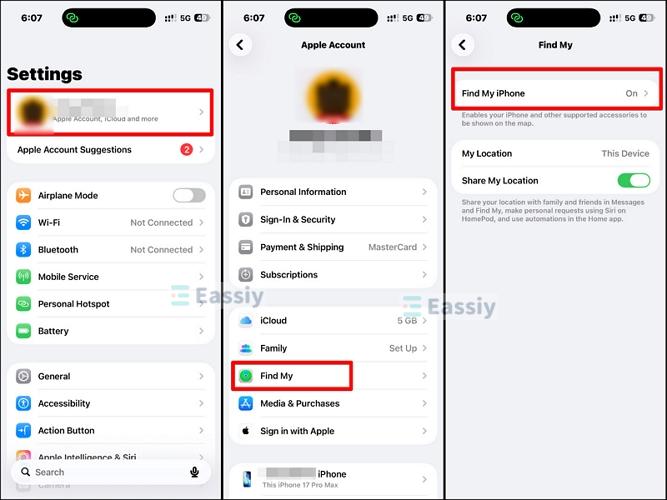
- Go to the Apple ID name at the top of Settings, select Find My, then Find My iPhone, and toggle it off.
This won't work if you recently re-started the iPhone or it ran out of battery. When an iPhone is rebooted, it enters a "Before First Unlock" state where it won’t see any USB accessories until you enter first enter the passcode. Since the screen is broken, make sure you only try this on your iPhone if it has been on and running continuously.
Conclusion
Turning off Find My from a computer comes down to what's available. Got the Apple ID and a Windows PC? iCloud.com lets you temporarily disable Find My with a Apple Removal from a browser. On a Mac? The Find My app is already there. No Apple ID? Eassiy iPhone Access removes it through a USB connection, though the phone gets wiped in the process. And for the unusual case where the screen is broken and a computer isn't an option, a wired USB keyboard connected through an adapter can turn off Find My directly from Settings without relying on the touchscreen.