Help Center
Updated on 2026-05-28
views
5min read
If you log into iCloud.com expecting to find a simple "Select All" and "Delete" button for your text messages, you are going to hit a frustrating dead end. That button does not exist.
This is the biggest misunderstanding about Apple's ecosystem: iCloud Messages operates on a strict synchronization model, not a traditional file-hosting model.
Because of this sync mechanism, there are two distinct ways to tackle the problem. You must either sever and wipe the cloud database directly from your Apple settings (Server-Side), or delete messages locally on your iPhone so the cloud instantly mirrors your actions (Local-Side).
In this lab-tested guide, we have categorized the exact methods for iOS 26 into these two approaches, explaining the exact consequences of each action so you do not accidentally wipe critical forensic data.
Key Takeaways
- The Mirror Effect: If "Sync this iPhone" is turned on, deleting a text on your phone deletes it from iCloud, your Mac, and your iPad simultaneously.
- Two Approaches: You can completely wipe the cloud database via iCloud Settings, or you can manage your storage locally (via the Messages app or iPhone Storage settings) to force the cloud to slim down.
- The 30-Day Trap: Clearing messages from your chat list is not enough. You must empty the "Recently Deleted" folder, or iCloud will continue holding that data for 30 days.
How to Delete Messages from iCloud Directly
These methods are executed inside your Apple Account settings. They dictate how the iCloud server handles your entire message database, rather than targeting individual texts.
Method 1: Use "Turn Off & Delete" in iCloud Storage (The Ultimate Cloud Wipe)
This is the "nuclear option." It is the most direct, official way to wipe your entire Messages database directly from Apple's servers. This is highly recommended when your iCloud storage is completely full.
Steps:
1. Go to Settings > tap your [Apple Account Name] at the top.
2. Tap iCloud > Storage.
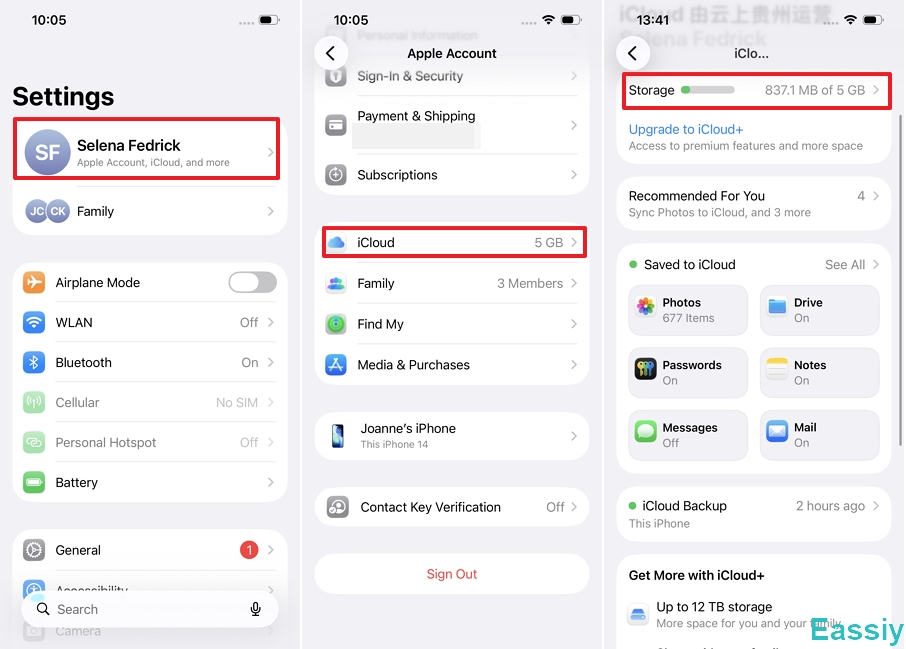
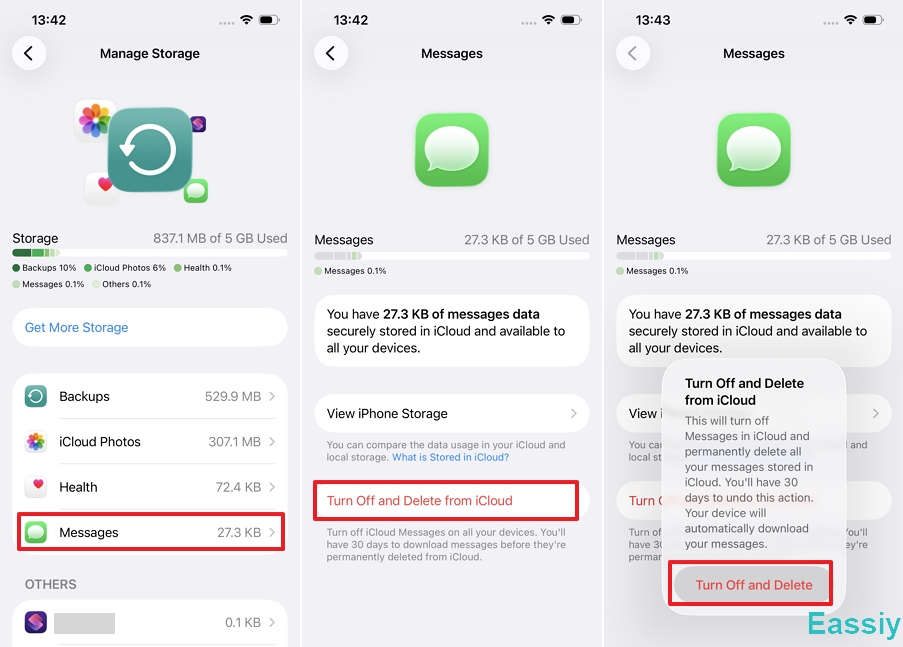
3. Scroll down the list of apps and select Messages.
4. Tap the red Turn Off and Delete from iCloud button.
5. Tap Turn Off and Delete to confirm.
The Consequence:
iCloud will immediately stop syncing messages across all your Apple devices. However, Apple initiates a strict 30-day grace period. During this time, your cloud data is pending deletion, and you can tap "Undo Delete" if you change your mind. After 30 days, the entire message database is permanently wiped from Apple's servers. (Note: Your local messages already downloaded to your iPhone hardware remain completely intact).
Method 2: Turn Off iCloud Sync for Messages (Stop Future Uploads)
This method does not delete existing cloud data, but it severs the connection. It is best for users who want to keep current messages archived on their old phone, but want to stop iCloud from moving them to a newly purchased device.
Steps:
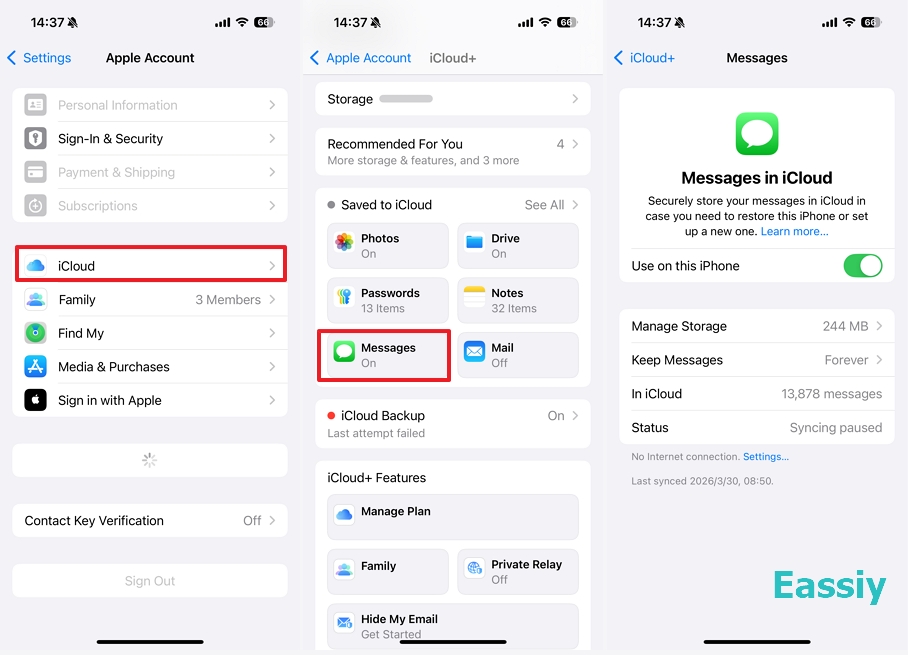
- Go to Settings > [Apple Account Name] > iCloud.
- Under Saved to iCloud, tap Messages.
- Toggle off Use on this iPhone.
The Consequence:
A prompt will ask if you want to Disable and Download Messages. If you decline, iCloud stops syncing. When you log into a new iPhone with the same Apple Account, none of your previous text history will transfer over.
How to Delete Messages on iPhone Locally
Because your iPhone is strictly mirrored to iCloud, taking action locally is the most natural way to slim down your cloud storage. Any deletion made in this section will instantly trigger the cloud to delete the exact same data.
Method 3: Delete via the Local Messages App & Empty "Recently Deleted"
This is the most fundamental and standard way to manually delete texts from your screen. If you only have a few old threads to clear, start here.
Steps:
1. Open the Messages app.
2. Swipe left on any conversation and tap the red trash can icon to delete it.
3. Click Delete to confirm.
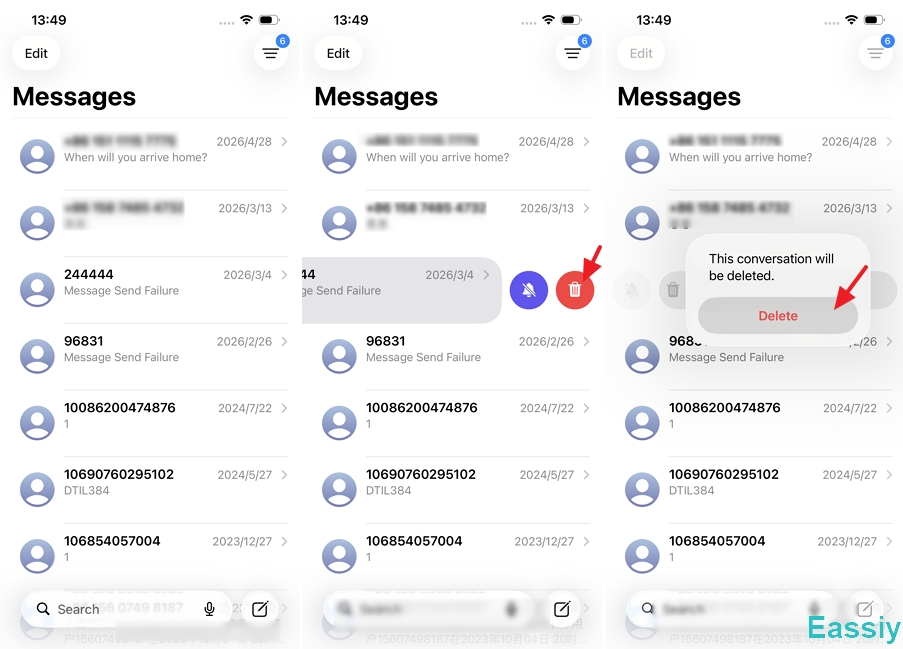
4. Tap the Edit or Filters button at the top of the main Messages screen, then select Recently Deleted.
5. Select the messages you just deleted and tap the Delete button in the bottom-left corner.
6. Tap Delete Messages to confirm.
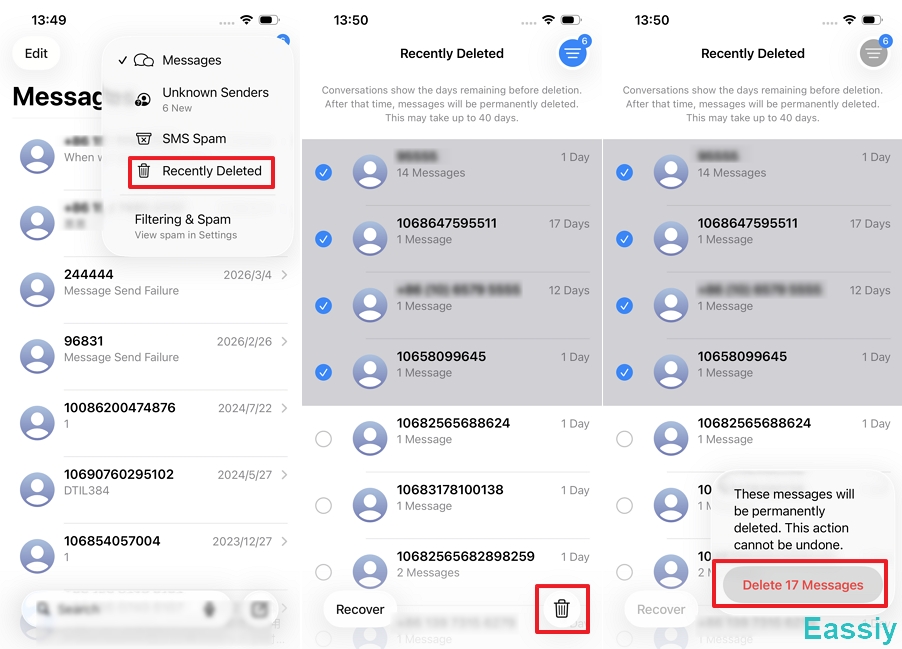
The Consequence:
Deleting the messages locally and instantly clearing the trash bin forces iCloud to permanently erase those exact messages from the server and from any other iPads or Macs logged into your Apple Account.
Method 4: Delete Top Conversations of Messages
If deleting entire conversations (as shown in Method 3) is too extreme, you do not have to wipe your chat history to save space. The biggest cloud storage hogs are usually 4K videos and high-res photos. You can surgically target and delete these local attachments, which immediately frees up mirrored iCloud space.
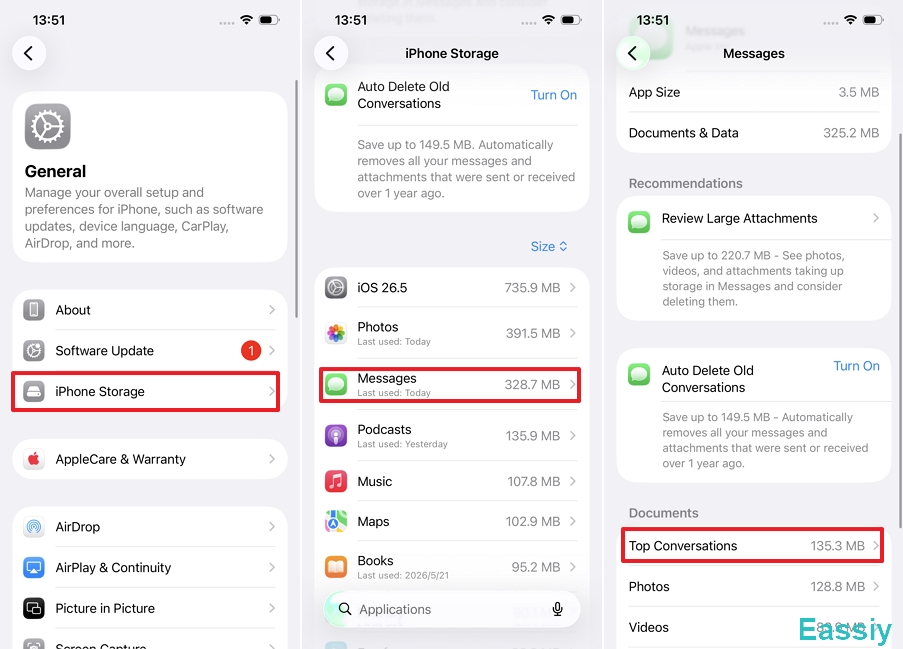
Steps:
1. Go to Settings > General > iPhone Storage.
2. Scroll down the app list and tap Messages.
3. Tap Top Conversations.
4. You will see a list of your heaviest chat threads or attachments sorted by size.
5. Select the messages you want to delete and tap the Delete button in the top right corner.
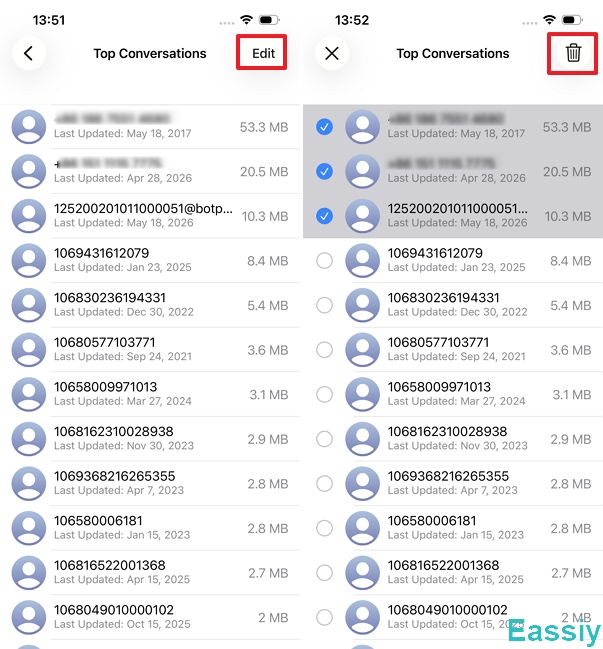
The Consequence:
The heavy media files are instantly wiped from your iPhone's local storage. Because iCloud sync is active, a command is sent to the server to permanently erase those exact heavy attachments from the cloud and all other synced devices, without deleting your actual text conversations.
Method 5: Set "Keep Messages" to 30 Days (Automated Cleanup)
Instead of manually deleting threads, this setting forces your iPhone to automatically erase messages older than 30 days from its local storage. iCloud will then detect this local wipe and sync the deletion to clear your cloud space.
Steps:
- Go to Settings > Messages.
- Scroll down to the Message History section and tap Keep Messages.
- Change the setting from Forever to 30 Days.
- A prompt will warn you that older messages will be deleted. Tap Delete to confirm.
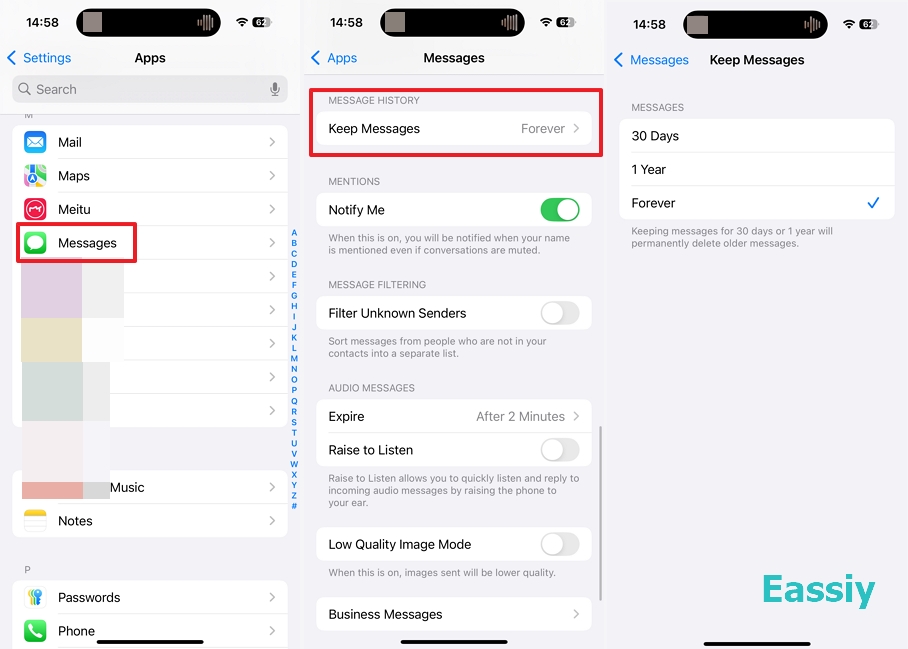
The Consequence:
The iOS architecture will immediately and permanently delete text messages and attachments older than 30 days from your local iPhone. Because the sync feature is active, iCloud will instantly mirror this local deletion, wiping the corresponding data from the cloud and all other connected Apple devices.
Frequently Asked Questions
Q1: Does deleting messages on my iPhone also delete them from my Mac or iPad?
Yes. If the "Sync this iPhone/Mac/iPad" toggle is enabled across your Apple ecosystem, deleting a message or thread on your iPhone sends an immediate signal to iCloud. iCloud will then mirror that action and permanently erase the exact same messages from your synced iPad, Mac, and Apple Watch.
Q2: Why does iCloud still show Messages taking up space after I deleted them?
There are two common reasons for this delay. First, you likely forgot to empty the "Recently Deleted" folder inside your local Messages app (Method 3). Second, if you used the massive "Disable & Delete" function (Method 1), Apple's cloud servers often take up to 24-48 hours to fully process the deletion and recalculate your new available storage quota.
Q3: Can I recover iCloud messages after they are permanently deleted?
Officially, once messages are cleared from the "Recently Deleted" folder or the 30-day "Disable & Delete" grace period expires, they are permanently wiped from Apple's servers with no official cloud recovery route. However, if you act quickly before the physical storage sectors on your iPhone are overwritten, professional forensic software like Eassiy iPhone Data Recovery can scan your device's local memory to extract and restore the deleted text data directly from the hardware.
Q4: Will deleting my "iCloud Backup" delete my messages?
No. Many users try to delete their entire iPhone iCloud Backup, hoping it will wipe their heavy message attachments. If you have the "Sync this iPhone" toggle turned ON for Messages, your texts are stored in a separate synchronized server silo. They are not included in your general daily iCloud Backup. Deleting the backup does absolutely nothing to your iCloud messages.
Conclusion
Mastering your iCloud storage requires a fundamental understanding of Apple's synchronization mechanism. Once you realize that your cloud database strictly mirrors your local actions, taking control becomes much easier.
If you want to clear space without losing the texts on your phone, you must attack the cloud database directly using "Disable & Delete" (Server-Side). But if your goal is to clean up everything, managing your heavy attachments locally via Top Conversations or utilizing the 30-Day automated rule ensures your storage never gets bloated.
Commercial Tip: Before executing any permanent cloud wipes or automated deletions, it is highly recommended to secure your critical conversations. You can utilize a professional desktop utility like Eassiy iPhone Data Recovery to safely extract and back up your crucial forensic text data locally to a PC or Mac, ensuring you have an offline archive that Apple's cloud synchronization cannot touch.