Help Center
Updated on 2026-05-28
views
5min read
When an iPhone user decides to delete a previous iCloud backup, the motivation usually falls into one of three distinct categories: optimizing cloud storage, enforcing data privacy, or resolving system corruption.
You might be trying to silence a relentless "Storage Full" notification, preparing to sell a retired device and wanting zero forensic traces left on Apple's servers, or trying to break a frustrating loop caused by a glitched backup file that refuses to update.
In this guide, we break down exactly how Apple’s cloud architecture works, what actually gets wiped, and how to safely delete previous iCloud backups across all modern iOS platforms—up through iOS 26—without losing your actively synced data.
Key Takeaways
- The Sync vs. Backup Rule: Deleting an iCloud backup removes the static "snapshot" of your device. It does not delete data that is actively synced to Apple's servers (such as your iCloud Photos, Contacts, and Messages).
- Target Ghost Backups: Removing older backups from retired devices (like an old iPhone 12 you no longer own) is the fastest way to instantly reclaim storage.
- The "Turn Off" Catch: When you delete the backup for the iPhone you are currently using, iOS automatically disables future daily backups for that specific device until you manually toggle the feature back on.
When Should You Delete Previous iCloud Backups?
Understanding when to purge these files comes down to identifying your immediate goal: optimizing storage, protecting privacy, or fixing a system bug.
Save Space: You are constantly hitting the 5GB free tier limit and refuse to pay for a subscription. If you look closely at your storage breakdown, you likely have massive "ghost backups" from older iPhones or iPads you haven't touched in years. Deleting them is the single most efficient storage hack.
Privacy & Security: You are selling, trading in, or giving away an old iPhone. Before handing over the hardware, you want to ensure there are zero forensic traces of your localized app data left on Apple's servers linked to that specific physical device. Alternatively, you may be switching to a new Apple Account and need to sever ties with the old cloud database.
Corrupted Backup: Occasionally, your current iPhone will refuse to complete a new daily backup due to a corrupted or glitched file from a previous upload. Deleting the existing, broken backup forces the iCloud server to accept a fresh, clean payload from your device.
What Happens When You Delete an iCloud Backup?
When you delete an iCloud backup, you are permanently erasing a specific device's static "snapshot" from Apple's servers. This action immediately wipes your third-party app data (such as offline game saves), home screen folder layouts, local device settings (like saved Wi-Fi passwords), and any files saved strictly to the phone's internal storage.
However, deleting a backup does not mean you will automatically lose your iCloud photos, contacts, or texts. This is where you must understand the difference between a backup and a sync.
If you have features like "iCloud Photos" or "Messages in iCloud" toggled ON in your settings, those files live in a separate, continuously synchronized cloud database. Because they exist independently of your daily device backup, your synced photos and messages are completely unaffected when you delete a backup package.
Warning: When you navigate to delete a backup, you will notice the official Apple button reads "Turn Off & Delete from iCloud". This phrasing is critical. If you delete the backup of your current iPhone just to temporarily free up space, your phone will instantly stop backing up every night. You will be running without a safety net. If you do this, you must remember to manually go back and toggle "Back Up This iPhone" back ON, or you risk total data loss if your hardware fails.
Important: Do This BEFORE You Delete Your Only Backup
If you are deleting the backup of your current daily-driver phone simply because you don't want to pay for an iCloud+ upgrade, you must create a local physical backup first. Operating an iPhone without any backup is a recipe for disaster.
Here's how to create a local computer backup: Connect your iPhone to a computer via a certified USB cable. Use Finder (on a Mac) or iTunes/Apple Devices App (on Windows) to create a full, encrypted backup directly to your local hard drive. This costs zero cloud storage space and ensures you have an exact, offline clone of your device if it is ever lost, stolen, or damaged.
How to Delete Previous iCloud Backups
Apple allows you to manage your cloud storage from any trusted device. Here are the precise UI paths verified for modern iOS architectures.
Note: You cannot delete device backups directly from the iCloud.com web portal. It must be done through the native settings of an Apple device or the official Windows application.
Method 1: Delete Backups Directly from Your iPhone or iPad (iOS 26)
If you have your device right in your hand, managing your storage directly through the native iOS Settings app is the fastest and most intuitive approach. Here are the detailed steps with screenshots showing how to delete an iCloud backup on an iPhone 14 running iOS 26.
1. Open the Settings app and tap your [Apple Account Name] at the very top.
2. Tap iCloud, then select iCloud Backup.
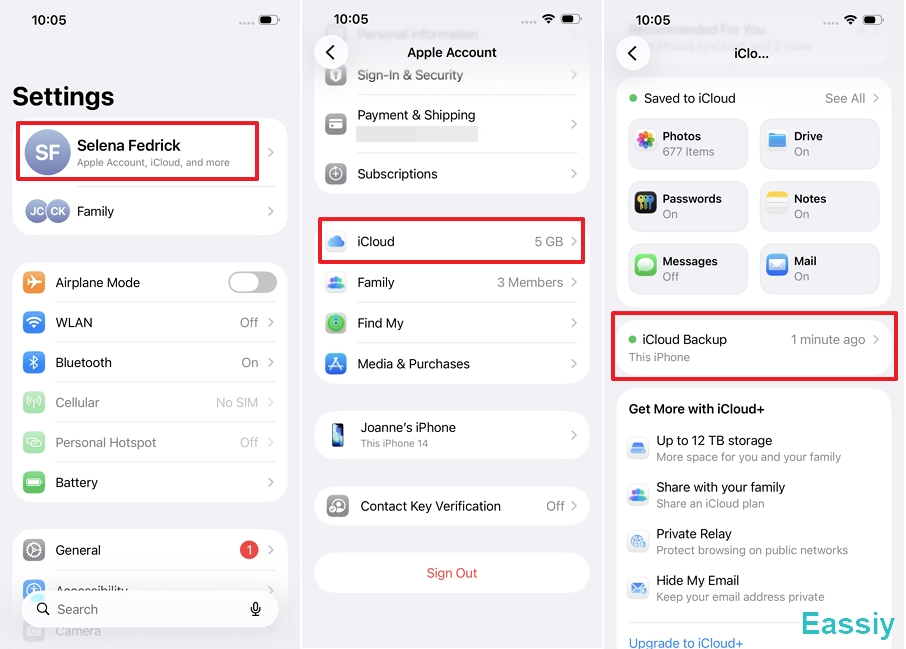
3. Review the All Device Backups list and choose the specific backup you want to delete. (Pay close attention to the device name here. Ensure you are targeting a retired device like "Joanne's Old iPhone" rather than "This iPhone" unless intentional).
4. Tap the red Turn Off & Delete from iCloud button.
5. A confirmation prompt will appear at the bottom of the screen. Tap Turn Off & Delete again.
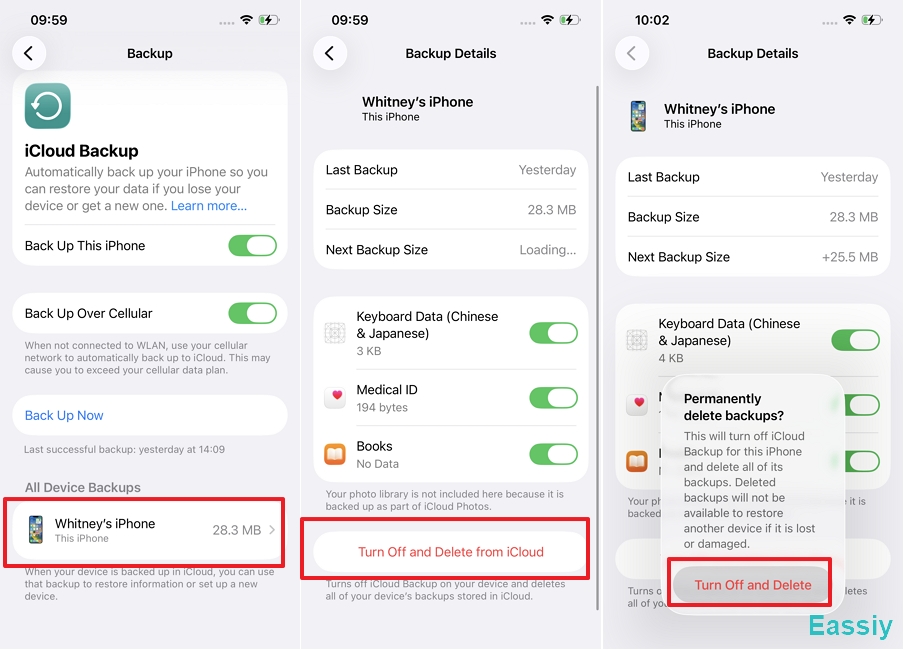
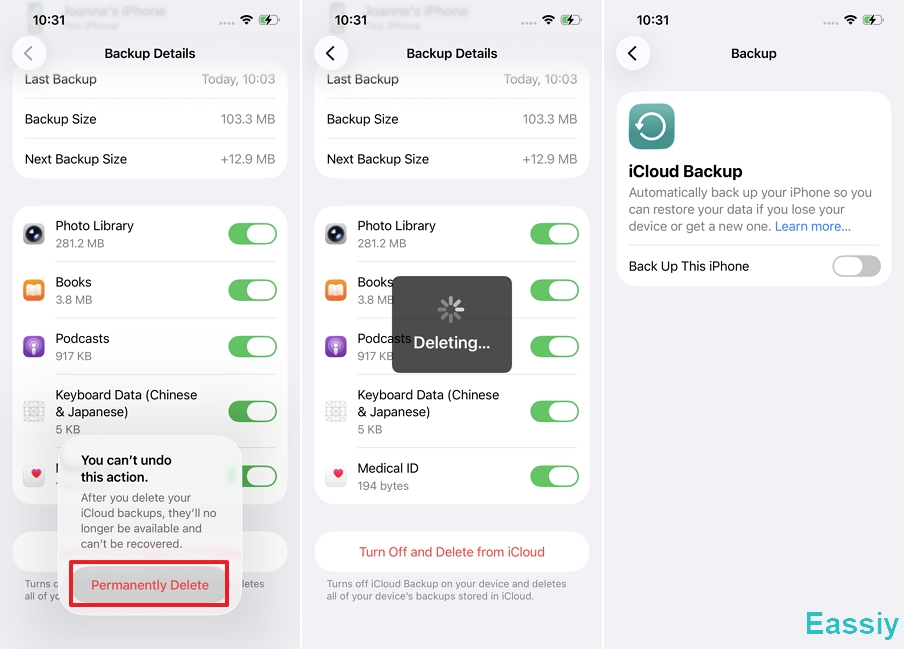
6. A warning prompt will appear reminding you that you cannot undo this action. Tap Permanently Delete to confirm your decision.
7. The system will immediately start deleting the iCloud backup. Once the deletion is complete, the backup feature for that specific device will automatically be turned off.
If you deleted the backup of your current phone (for example, to clear a corrupted file) and want to resume your daily cloud protection, you must manually toggle the Back Up This iPhone switch back ON.
Method 2: Delete iCloud Backups from a Mac
If your iPhone is broken, lost, or simply not with you, you can easily manage and delete your cloud backups remotely using any Mac signed into your Apple Account.
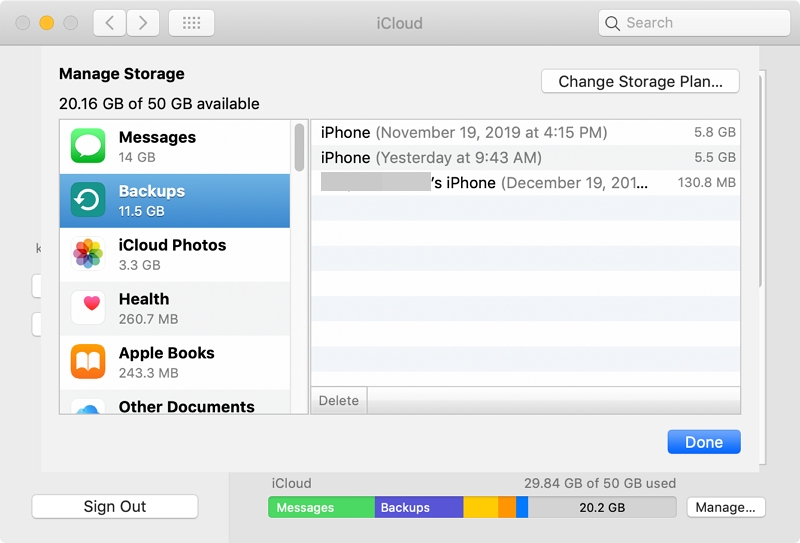
- Open System Settings (or System Preferences).
- Click your [Apple Account Name] at the top of the sidebar.
- Click iCloud, then select Manage next to Account Storage.
- Click on Backups in the left column.
- Select the backup package you want to remove and click the minus (-) button or hit Delete.
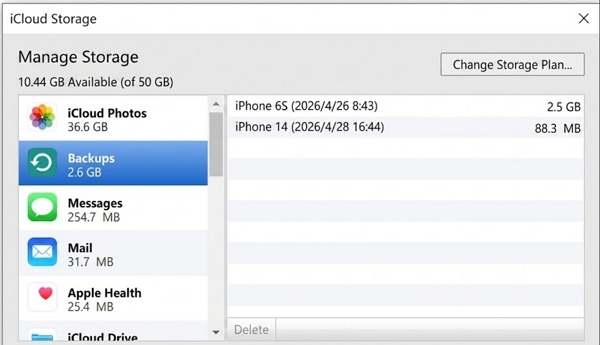
Method 3: Delete iCloud Backups via Windows PC
If you are away from your phone and operate within a PC ecosystem, Windows users can still purge old Apple backups remotely using the official desktop application.
- Open the iCloud for Windows app.
- Click the Storage button.
- Select Backups from the left-hand menu.
- Choose the target backup and click Delete.
Frequently Asked Questions
Q1: Will deleting my iCloud backup delete my iCloud photos?
No, provided that "iCloud Photos" is actively toggled ON in your settings. Synced photos exist independently of your device backups. You can verify this by logging into iCloud.com; if your photos are visible there, they will survive the backup deletion.
Q2: Why can't I delete my iCloud backup?
This is almost always caused by a network timeout, or because Apple servers are actively in the middle of trying to overwrite or update that specific backup package. Restart your phone, connect to a strong Wi-Fi network, and try the process again.
Q3: Can I recover data if I accidentally deleted my iCloud backup?
Officially, no. Once you tap "Turn Off & Delete," that specific cloud backup package is permanently wiped from Apple's servers. However, if you lost important files because you didn't have a backup to restore from, the original data might still physically exist on your iPhone's internal memory chips. You can use professional forensic software like Eassiy iPhone Data Recovery to scan your device's local storage and extract deleted photos, messages, or app data directly from the hardware.
Conclusion
Deleting an iCloud backup is a safe, highly effective way to manage your cloud storage and protect your privacy—provided you understand the distinct difference between actively synced data (which remains safe) and static backup data (which gets wiped).
Before you start deleting, always check the "Backups" list for old, retired devices first; these ghost backups are the biggest unnecessary storage hogs. If you ultimately choose to delete your current phone's cloud backup to save money, always maintain a routine local backup on your computer. And if the worst happens, remember that specialized local data recovery tools are your absolute last line of defense.