Help Center
Updated on 2026-07-29
views
5min read
Some Instagram Stories contain information you'll want to keep, from travel plans to event updates and helpful tips. Screen recording lets you save a personal copy before the content expires. At the same time, you may be wondering, if I screen record someone's Instagram Story, will they know? Many users are uncertain about Instagram's notification policy. The confusion often comes from Instagram sending notifications for some types of content but not others.
Instead of relying on assumptions, it's helpful to understand how Instagram currently handles screen recordings. This guide explains its notification policy and shows how to screen record Stories on Windows, Mac, iPhone, and Android. Plus, it outlines your options if a Story has already expired.
If I Screen Record Someone's Instagram Story, Will They Know?
No. Instagram currently doesn't alert creators when their regular Stories are screenshotted or screen recorded. Your capture remains private. However, not all Instagram content follows save notification rules. The table below summarizes when Instagram sends screenshot or screen recording notifications, helping you quickly identify the only situations where the other person will be alerted.
| Instagram Content | Screenshot Notification | Screen Recording Notification |
|---|---|---|
| Story | No | No |
| Feed Post (Photos, Videos, and Carousels) | No | No |
| Reel (Both in-feed and in the Reels tab) | No | No |
| Highlight | No | No |
| Regular Direct Message Chat (Permanent text, photos, and links) | No | No |
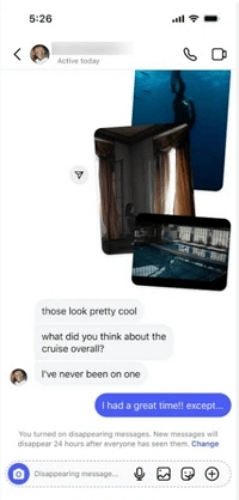
| Disappearing Photos/Videos in Direct Messages (View Once/Allow Replay) | Yes | Yes |
| Vanish Mode Content (Messages and Media) | Yes | Yes |
Can You Screen Record Someone Else's Instagram Story?
Yes. In most cases, screen recording someone else's Instagram Story for personal use is generally permitted under the law. Instagram allows users to record regular Stories without restriction. It also doesn't notify the Story creator when the Story is captured.
However, a screen recording gives you a copy of the Story, but not the rights to use it freely. Before reposting, editing, distributing, or using the content commercially, obtain the creator's consent.
Notification settings and copyright are separate considerations. Although Instagram doesn't notify creators when you record a regular Story, you should obtain their permission before reposting or sharing the recording with others.
How to Screen Record Someone's Instagram Story
There are two practical ways to screen record an Instagram Story. Your device's built-in screen recorder is ideal for occasional use, while a dedicated screen recorder offers additional features for longer recordings, better control, and built-in editing.
Way 1. Use Built-in Screen Recorder
You don't need additional software to record an Instagram Story occasionally. Windows, Mac, iPhone, and Android all include built-in screen recording features, though the recording process differs slightly by device.
On Windows
Windows 11 includes Snipping Tool, Microsoft's built-in utility for taking screenshots and recording your screen without installing additional software. It's a practical option for recording Instagram Stories, with support for full-screen or selected-region recording. Recordings are saved locally, allowing you to access and manage them easily after recording.
Before you begin, review its recording capabilities below.
| Aspects | Details |
|---|---|
| Audio Support | System audio (supported on compatible Windows 11 versions). |
| Output Format | MP4 |
| Recording Mode | Full screen or selected region |
| Built-in Editing | Preview only. Only basic editing tools are available. |
Steps to Record an Instagram Story Using Snipping Tool on Windows
1. Open Instagram on your computer. And bring up the Story you want to save locally.
2. Open Snipping Tool and tap Record to enable video recording. Then, click + New and drag to select the Instagram Story area.
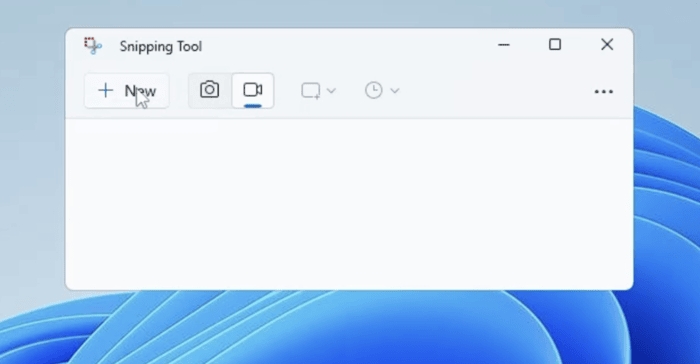
3. Click Start in Snipping Tool. Then, play the Story.
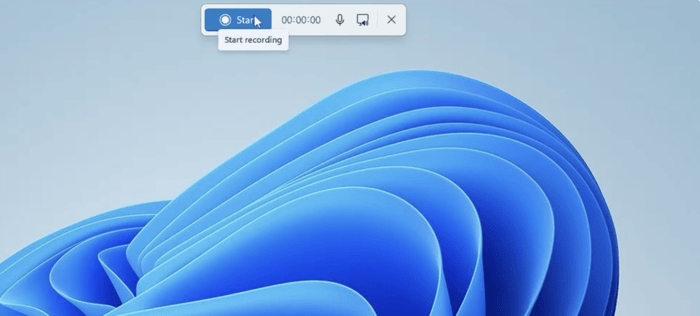
4. When the Story finishes, click Stop in Snipping Tool.
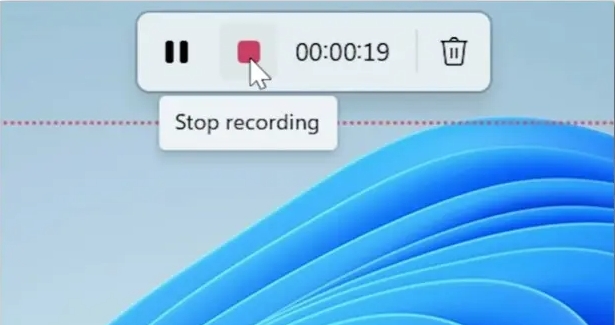
5. Preview the recording, then click Save to store it on your computer.
On Mac
Mac users can record Instagram Stories directly from the Screenshot toolbar without switching between multiple applications. Moreover, shortcuts are supported, meaning that you can complete the Stories recording conveniently.
| Aspects | Details |
|---|---|
| Audio Support | Supports microphone audio. System audio recording isn't available through the built-in Screenshot toolbar alone. |
| Output Format | MOV |
| Recording Mode | Full screen or selected portion |
| Built-in Editing | Basic preview and trimming through Quick Look/QuickTime. Supports basic trimming only. |
Steps to Record an Instagram Story Using Screenshot Toolbar on Mac
1. Open Instagram and navigate to the Story you want to record. Then pause on it before starting the screen recorder.
2. Press Shift + Command + 5 and the Screenshot toolbar will appear.
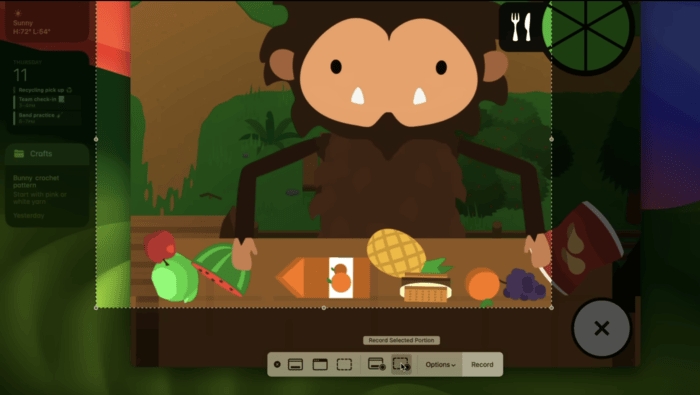
3. Select Record Entire Screen or Record Selected Portion.
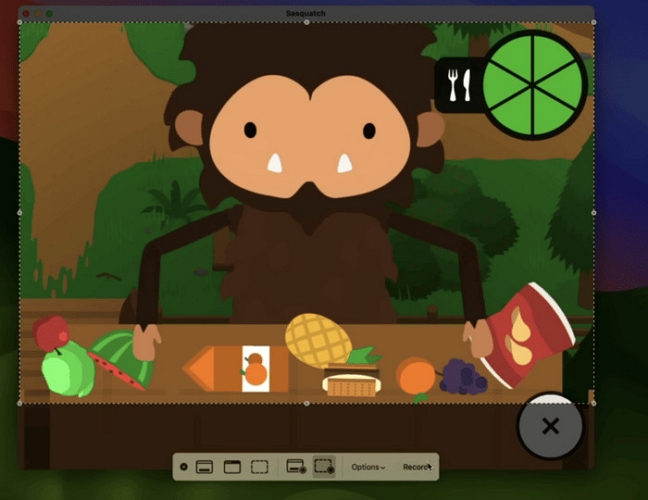
4. Click Record, then play the Instagram Story.
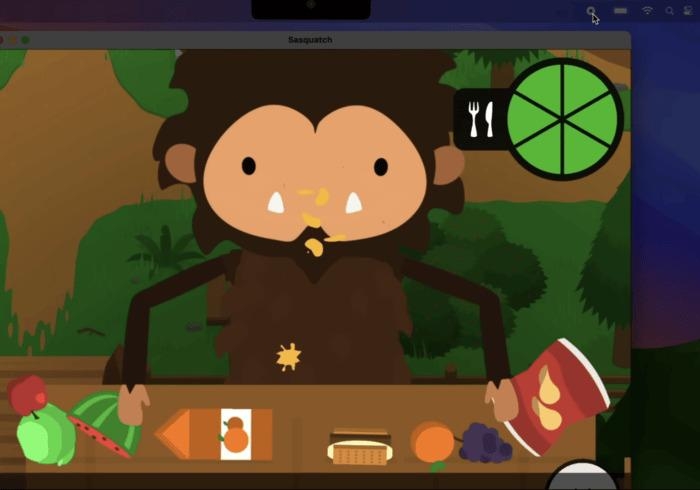
5. Click Stop in the menu bar after the Story finishes.
6. The recording is saved automatically.
Note: macOS saves recordings to the desktop by default, although you can specify another destination from the Screenshot toolbar.
On iPhone
iPhone offers a built-in Screen Recording feature that provides the simplest way to save Instagram Stories while keeping the entire process on one device. Every recording is saved automatically to the Photos app for quick access. Microphone recording is also available whenever your recording requires external audio.
| Aspects | Details |
|---|---|
| Audio Support | Supports microphone audio. Internal app audio may be recorded depending on the app and iOS permissions. |
| Output Format | MP4 (H.264) |
| Recording Mode | Full screen |
| Built-in Editing | Basic trimming and editing in the Photos app. |
Steps to Record an Instagram Story Using Screen Recording Tool on iPhone
1. Open Instagram and get to the Story you need to save.
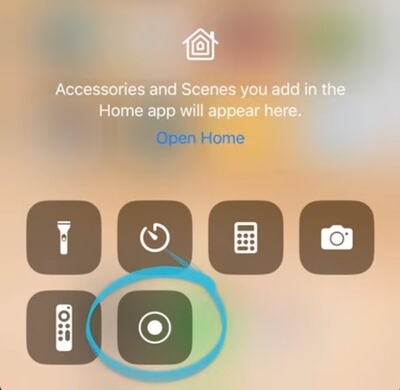
2. Open Control Center by swiping down from top right corner.
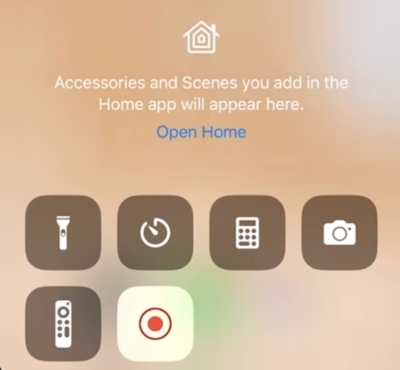
3. Select the Screen Recording button and allow the countdown to complete before returning to Instagram.
4. Return to Instagram and play the Story.
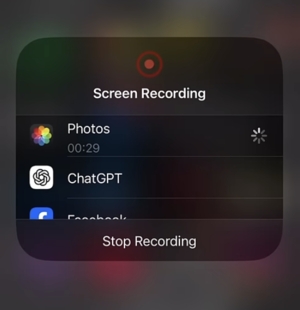
5. Tap the red recording indicator, then select Stop after the Story ends.
6. Go to the Photos app to view your completed screen recording.
Note: Add the Screen Recording control from Settings > Control Center if it isn't already available.
On Android
Android records Instagram Stories through its native Screen Recorder, making it easy to capture both on-screen video and audio in one recording. Depending on your device, you can record device audio, microphone audio, or both. Recording options and interface may vary by manufacturer and Android version.
| Aspects | Details |
|---|---|
| Audio Support | Supports device audio, microphone audio, or both on compatible Android devices. Available options vary by manufacturer and Android version. |
| Output Format | MP4 (on most Android devices) |
| Recording Mode | Full screen |
| Built-in Editing | Basic trimming on supported devices through the Gallery or Photos app. |
Steps to Record an Instagram Story Using Screen Recording Tool on Android
1. Open Instagram and find the Story for recording.
2. Swipe down twice to display Quick Settings, then choose Screen Record.
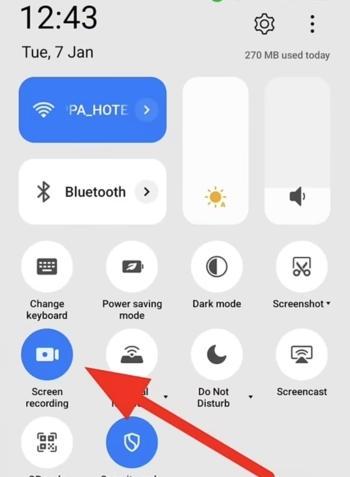
3. Choose your preferred audio option if your device prompts you before recording.
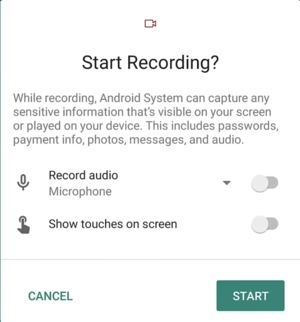
4. Tap Start to begin the recording. Then play the Instagram Story.
5.Pull down the notification shade and tap Stop when the Story finishes.
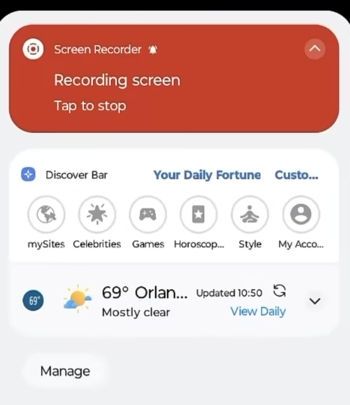
6. Open your Gallery or Photos app to access the recording.
Way 2. Use Professional Screen Recorder
Built-in screen recording tools are suitable for occasional use. However, if you record Instagram Stories regularly, dedicated software provides more flexibility for recording, audio management, and editing in one application.
Eassiy Screen Recorder Ultimate is a screen recording solution for Windows and Mac that integrates recording, mobile screen mirroring, and basic editing into a single workflow. You can record Instagram Stories, while keeping the original audio. Once recorded, you can edit or convert the video without using additional software.
In addition to high-quality recording, Eassiy supports multiple output formats for easier playback and editing. It also provides more advanced recording controls than built-in screen recording tools, making it suitable for frequent Instagram Story recording.
| Aspects | Details |
|---|---|
| Audio Support | Supports system audio and microphone recording simultaneously or separately. |
| Output Format | MP4, MOV, WMV, AVI, F4V, TS, GIF, and more. |
| Recording Mode | Full screen, custom region, specific window, webcam, audio-only, game recorder, and phone screen recording. |
| Built-in Editing | Supports real-time annotation, video trimming, and format conversion after recording. |
Key Features
- Record Instagram Stories in up to 4K resolution with adjustable recording quality and frame rate.
- Record the entire screen or select a custom recording region to capture only the Instagram Story, keeping the final recording focused on the content you want to save.
- Automatically start or stop recordings at a specified time, helping you capture live content and long recording sessions with less manual effort.
- Lock the recording to a specific application window, allowing you to switch to other programs without affecting the recording.
Steps to Record an Instagram Story with Eassiy Screen Recorder Ultimate
1. Download and launch Eassiy Screen Recorder Ultimate and select Screen Recorder.
2. Open the Instagram Story you want to record and pause it on the first frame. Then, adjust the recording area so that it captures only the Story before starting the recording.
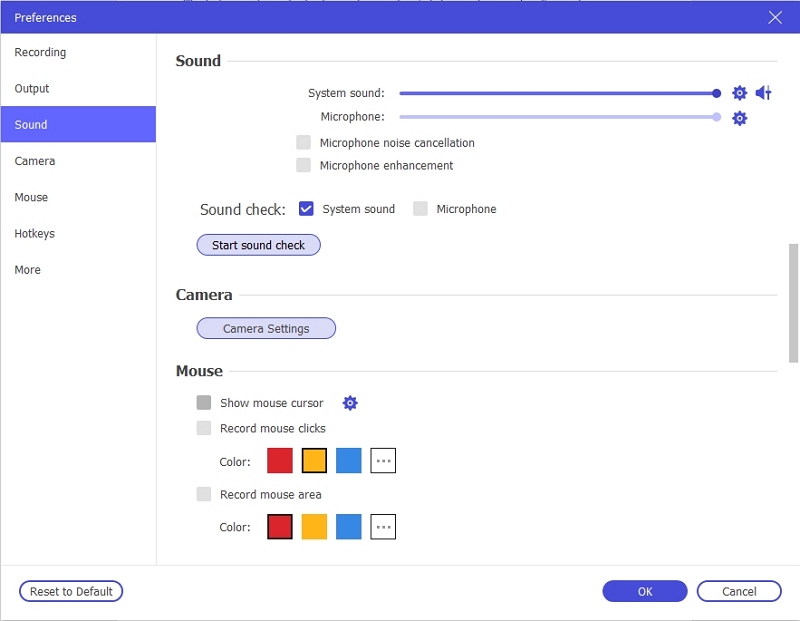
3. Configure your recording settings. Turn on System Sound to preserve the Story's original audio, then adjust the recording quality, output format, and other preferences to match your needs before clicking REC.
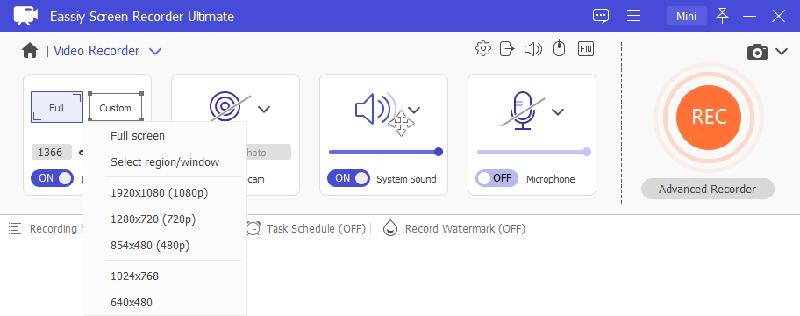
4. Click REC. Then play the Instagram Story. During recording, you can monitor the recording in real time and stop it as soon as the Story finishes playing.
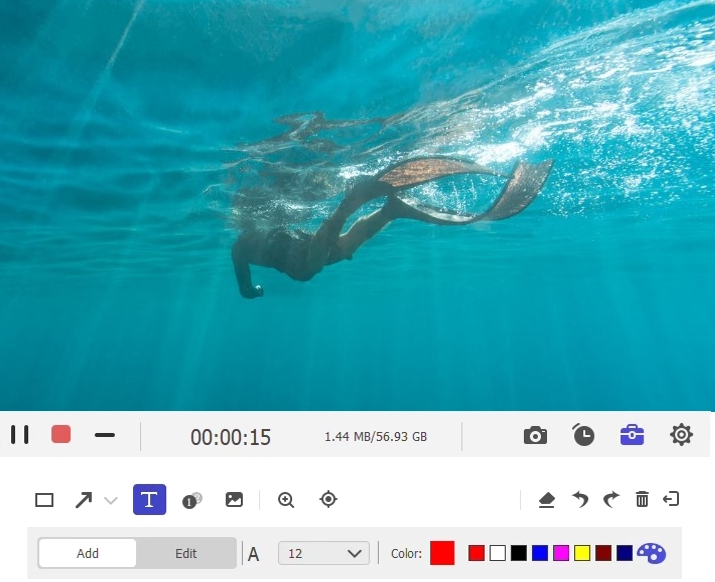
5. Click Stop after the Story finishes playing. Preview the recording to confirm it was captured successfully, trim the beginning or end if necessary. Finally, save the video.
How to View Someone's Instagram Story After 24 Hours Without Screen Recording
Missing the chance to screen record an Instagram Story isn't always the end of the road. Even after the standard 24-hour period, it’s still possible to access the Stories. The creator may have saved it as a Highlight or can send you the original media directly.
Way 1. Locate Stories in Highlights
Many Instagram users save memorable or important Stories as Highlights. Doing so allows the content to stay on their profile beyond 24 hours.
Steps to Find Disappeared Instagram Stories
- Access the creator's Instagram profile.
- Look below their bio for the Highlights section.
- Check each Highlight, as the creator may have saved the Story there.
- If the creator hasn't removed the Highlight, the Story will remain accessible for repeated viewing.
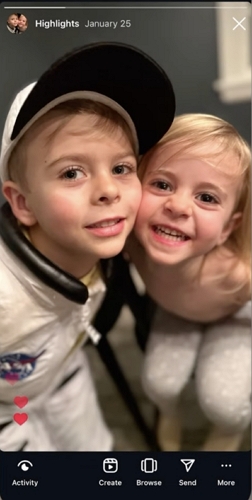
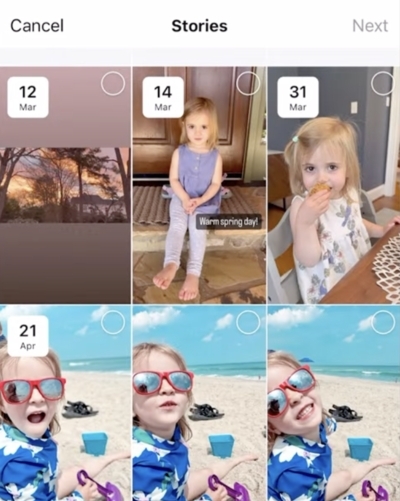
Remember: Since creators organize Highlights by theme, the Story may be under categories such as Travel, Events, Food, or Daily Life instead of by date.
Way 2. Contact Story Creator to Request Original Video
Stories vanish from public view after they expire, but creators can often access the original photo or video from their device or Instagram Archive. So, if you really need or like the Story, you can try contacting the person who posted it to get a copy.
Steps to Request Original Videos from Instagram Creators
1. Open your conversation with the creator or start a new Direct Message.
2. Politely tell the creator which Story you're looking for, including any relevant details.
3. Request the original content directly, provided the creator is willing to share it.
If they agree, they'll typically send it through Instagram Direct Messages or another platform.
Final Words
Knowing the answer to "if there are notifications when I screen record someone's Instagram Story" lets you record Stories without worry. While regular Stories can be screen recorded without alerts, disappearing Direct Message content follows different rules. For higher-quality screen recordings and extra features for Instagram Stories, Eassiy Screen Recorder Ultimate is a great alternative to built-in tools. Always use recorded content responsibly.