Help Center
Updated on 2026-07-29
views
5min read
There are plenty of reasons to record a phone call. You might want to keep it as a personal memory, keep proof of what someone said, or replay a meeting to note the details later.
In this guide, we will show you how to record a call on Android without an app by using your phone's built-in dialer. We’ll walk you through the steps for Samsung, Pixel, Motorola, Vivo, OnePlus, etc. You’ll also find how to record a call manually or auto-record every call. And if your Android doesn’t offer native recording or the feature isn’t available in your region, we will cover third-party options that let you record both phone calls and VoIP calls.
Is It Legal to Record a Call on Android Without Announcement?
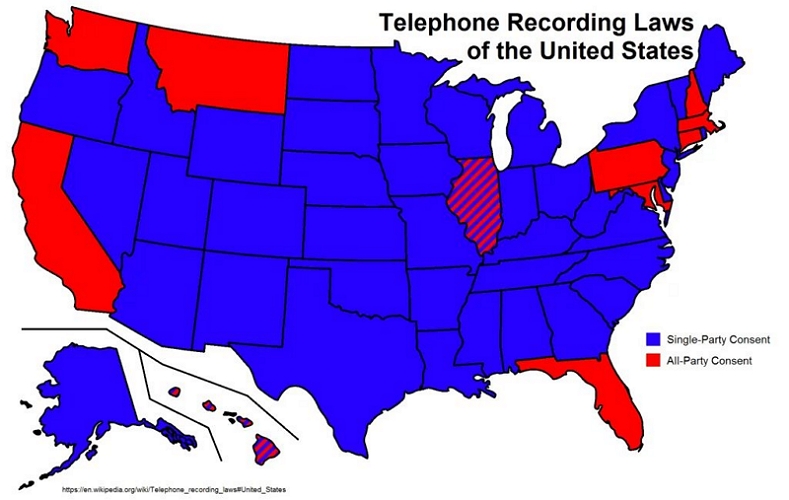
Recording a phone call without the other person's knowledge isn't legal everywhere. Laws generally split into two categories:
- One-party consent. As long as you're on the call, you can record the phone conversation.
- Two-party consent (or all-party consent). Everyone on the call has to give their explicit consent to being recorded.
Here's an example of how the state-by-state rules apply in the USA.
How to Record a Call in Android Without App for Free
The exact steps to record a call will depend on your phone's Android skin. Samsung's One UI, Pixel's own interface, Color OS — each handles call recording differently. However, you'll also find two modes almost everywhere: manual recording and automatic recording. So let's break that down and see exactly how this works, phone by phone. You can jump straight to your brand below if you already know which one you're using.
Record a Call on Samsung
Samsung's Phone app, the one with the green icon that comes pre-installed on Galaxy devices, already has a built-in recorder. It is free and works at the system level. It can capture both sides of the conversation with crisp clarity. On newer One UI versions, it even comes with automatic transcription features (powered by AI).
Earlier, the “call recording” feature was only available in selected regions. However, after the One UI 7 update, native call recording has become available in more regions, extending its support to North America and EU regions.
That said, regional restrictions apply. For instance, automatic call recording is unavailable in the one-party consent countries. So, whether you get manual recording, auto recording, an audio announcement, or AI transcription features will depend on your phone model and the local laws.
Here’s what your device offers.
Manual Call Recording on Samsung Phones
This is the option that applies to most of you, because in certain regions, like the US, local wiretapping laws often require consent. To accommodate this, Samsung phones come with a hard-coded manual recording button, which proceeds with an audio warning saying you are on a call and being recorded. So you can only enable manual recording in these places.
Although this is a manual option, you do not need any pre-configured settings. Here are the steps.
Note: Your Samsung phone must be running on One UI 7 or later. Plus, this is only available in selected regions even now.
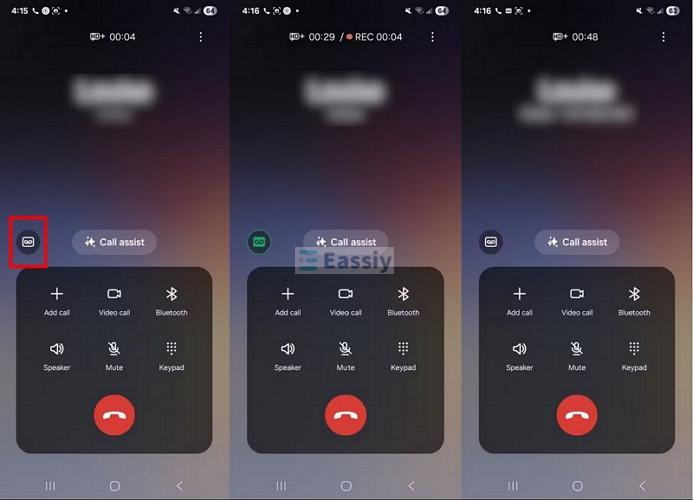
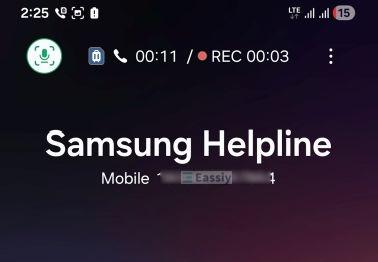
1. During the call, you will see a Record call icon above the call menus. The recording icon will turn green. You will also see a red REC dot next to the call timer at the very top.
2. To end the recording, tap that green record button again. Or simply end the call. The recording will save to your internal storage.
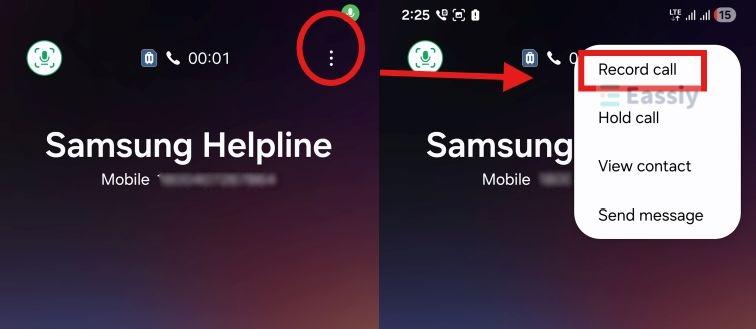
Note: On older Samsung phone models, One UI versions, or depending on your region, this manual record icon is hidden. So follow these steps to record an ongoing call:
- Tap the three vertical dots at the top right during the active call itself.
- Then select Record call. The recording will start the same way.
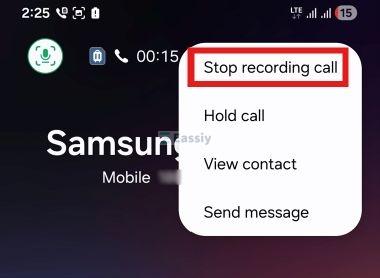
- Tap the three dots again.
- Choose Stop recording or end the call.
Auto Recording Calls on Samsung
In most regions where local laws allow it — one-party consent states, for instance, in countries like India, Thailand, and Vietnam, Samsung allows auto call recording.
You can set it up so you do not have to press any buttons. Plus, in these cases, there is no audio announcement warning the other person. If you want to inform them, it is better to do that from your own side.
Auto-recording also gives you a little control. You can ask your handset to record every call or only some numbers.
Here is how that works:
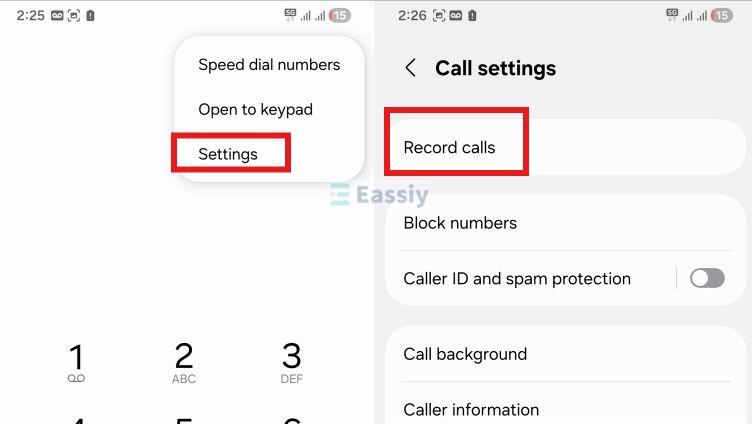
- Open the Samsung Phone app.
- Tap the three dots at the top right.
- Choose Settings.
- Select Record calls.
- Then toggle Auto record calls to on.
Now you will see granular controls: All calls, Calls with unsaved numbers,Calls with specific numbers or All calls except specific numbers. Choose the one based on your needs.
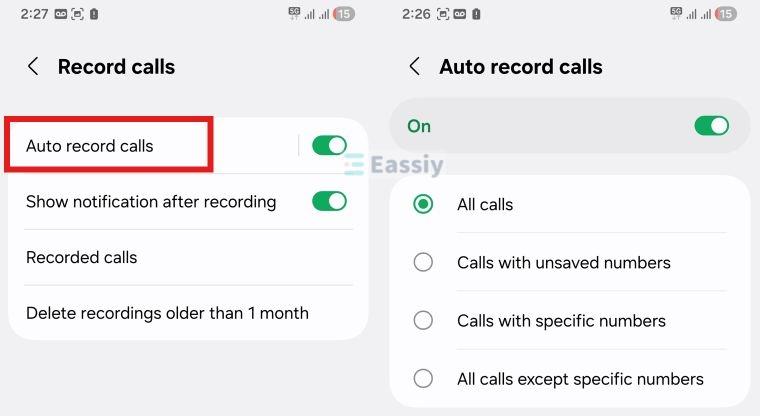
That is it. From now on, every qualifying call gets captured automatically in the background.
How to Find Your Call Recordings on Samsung
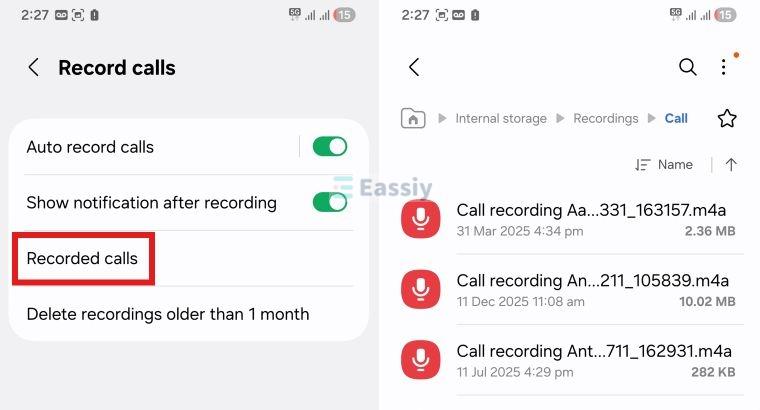
Whether you have recorded the call manually or automatically on your Samsung phone, here is how to find them.
The simplest way on all models:
- Go to Internal Storage.
- Open the Recordings folder.
- Look for Call.
The files sit there in m4a format, high quality with crisp audio.
You can also access them through the Phone app itself:
- Go to Call Settings.
- Open the Record Calls menu.
- And tap Recorded Calls.
This will show you every recording, complete with contact names and timestamps.
Record a Call on Motorola/Pixel
The Google Phone app — the blue one that comes pre-installed on Android devices, also has a built-in recording option. The app allows manual recording and auto-recording. However, it comes with many requirements:
- Google Pixel: Native call recording is available on Pixel 6 and later models. It should be running Android 14 or later.
- Non-Pixel devices (including Motorola): Google’s Phone app should be pre-installed on your phone, like Motorola. Your phone should be running Android 9 or later. So Samsung (and other phones having their own dialer) are excluded.
This feature is also region-dependent. Many online guides suggest it is available everywhere, but it is not. In some countries and regions, such as Germany, Israel, or Gulf countries, the Record button is simply not available for either manual or auto recording.
So if Google hasn’t introduced this feature in your region yet, you can try third-party options like Eassiy.
Note: Whether it is manual recording or auto recording, an audio message will notify everybody that the call is being recorded. So keep that in mind.
How to Record a Call Manually via Google Phone App
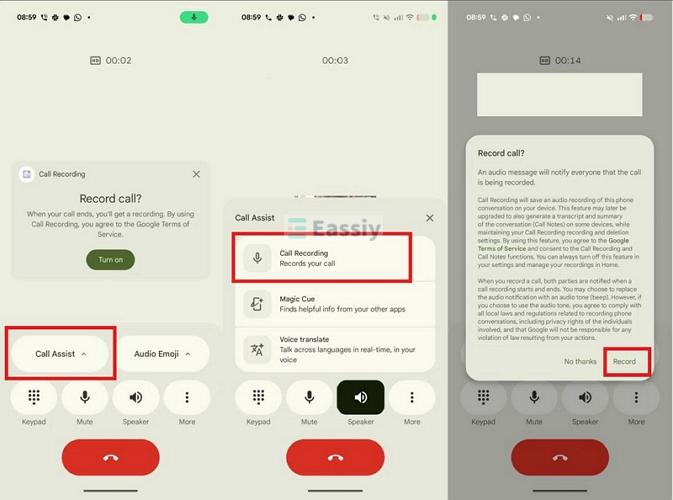
On Pixel Devices:
Step 1. Open the Phone app. Make or receive a call.
Step 2. During the call, tap the Call assist button.
Step 3. Tap Call Recording.
Step 4. Tap Record to start. A red REC dot will appear at the top.
Step 5. To stop the recording, tap Call assist again and hit Stop.
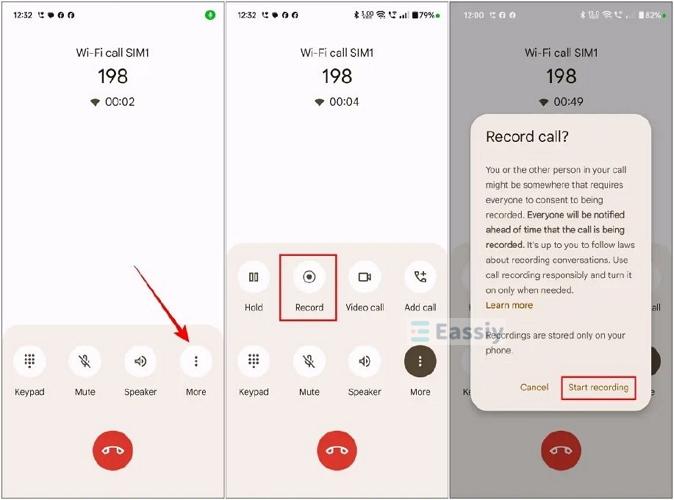
On Non-Pixel Devices:
Step 1. Open the Phone app and make or receive a call.
Step 2. To record your call, tap the Record icon. At times, it will be hidden inside the More options.
Step 3. Tap Start recording to begin, then Stop recording to end.
Note: Google Pixel and non-Pixel devices will not show the record button in some cases. For instance, when:
- The call is on hold.
- The other person has not yet answered the call.
- Or during a conference call.
How to Auto-Record Calls via Google Phone App
There is also the option of auto-recording calls, which you can enable from the settings in certain locations only. Even in this case, an audio announcement will be made, so the other person will always know. Here’s how to configure it:
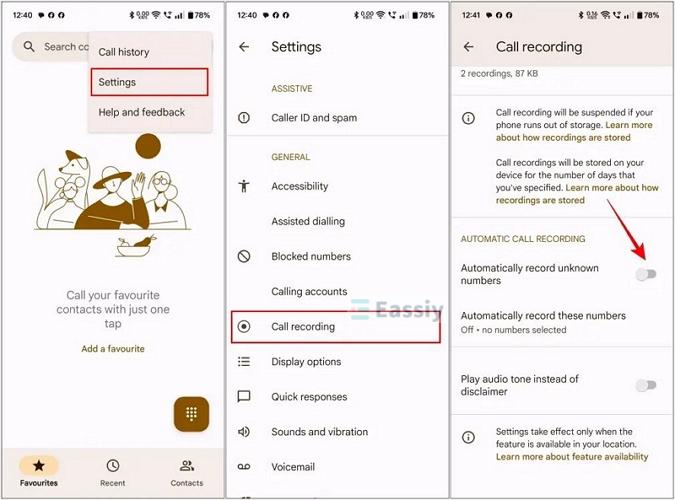
Step 1. Open the Phone app. At the top right, tap the More options and select Settings.
Step 2. Choose Call recording.
Step 3. Turn on the Call recording toggle.
Step 4. Move down to the Automatic call recording section.
- Turn on Numbers not in your contacts to record calls from unsaved numbers. Then tap Always record.
- You can also turn on Always record for selected contacts from the same menu. Next, select Automatically record calls with these numbers, turn it on, tap the plus icon at the top right and choose the contacts you want. Then tap Always record.
You can also turn on call recording for a particular contact via the contact card in the Contacts app.
How to Find Your Recorded Calls via Google Phone App
If you delete the call history in the Google Phone app, the call recording will also be deleted. So make sure you do not delete the call history.
Note: You can configure granular settings (like how long the recording should be kept) from theCall recordingmenu.
To Find Your Recordings on Pixel or Non-Pixel Phones:
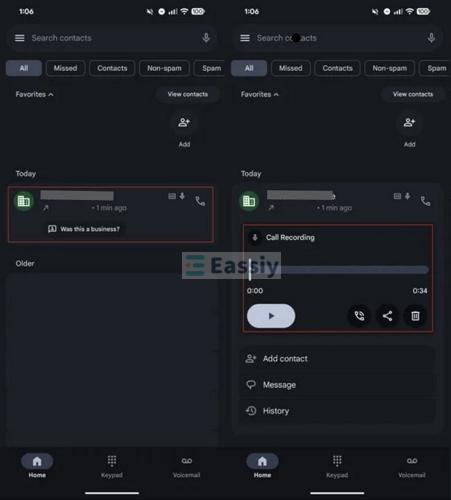
Step 1. Open the Phone app and tap Home.
Step 2. Look for the caller that was recorded. Tap on that caller. From here, you can play, share, or save the recording.
Record a Call on Oppo, Realme, and OnePlus
These phones run on ColorOS. They ship with the ODialer. It also gives you more Recording options and flexibility compared to Google and Samsung. For instance, they are available in more regions, etc.
To Record a Phone Call
Step 1. Simply make or receive a call.
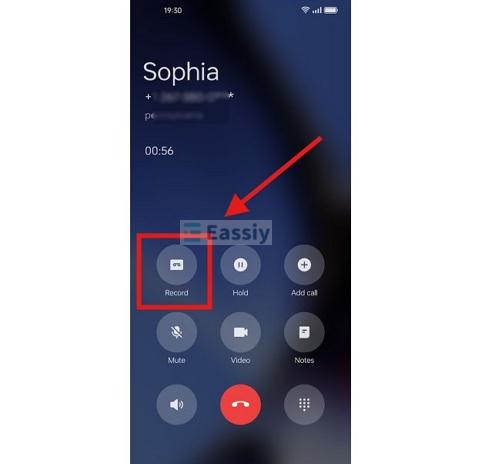
Step 2. During the ongoing call, you will see the Record button on the call screen. Tap it to start.
Step 3. Tap it again to stop.
Record a Call on Xiaomi, Redmi, and Poco
These phones come with the MIUI dialer. Here’s how you can record:
Step 1. On the call screen itself, you will see a Record button while the call is active.
Step 2. Tap it, and the recording begins.
Step 3. Tap it again to end.
Record a Call on Vivo and iQOO
Vivo and iQOO phones have their own dialer app either. Here’s how to record:
Step 1. You will see the same Record icon during a call. Tap it to capture the conversation.
Step 2. Disconnect the call. Or tap the Record button again.
Note: For the Android phone brands mentioned above, excluding Samsung and Motorola, you can use these steps to find their call recordings: open the call history and tap the entry. The recorded audio will show up with a playback bar ready to go.
How to Record a Call in Android with App
Even now, many phone manufacturers haven’t introduced the call recording feature. But sometimes, call recording is important. For instance, if there is a dispute with your landlord or city council that you need as proof. And sometimes, you want to record without the “call recording” in a one-party consent. There is another angle. You may want to record VoIP calls on WhatsApp, Telegram, Skype, or Teams. These apps do not offer recording themselves because of privacy compliance.
Whatever the legitimate need, if your phone does not offer native recording and local laws allow it, you can use a third-party application. The problem is that after Android 9, Google has restricted call recording on Android. And many applications in the Google Play Store or distributed as APK files, claim to record. However, they often only capture your voice while the other side stays silent.
We will introduce two options below. Both record phone calls and VoIP calls, but they work very differently.
Quick Comparison: Which Method to Use
| Method | Pros | Cons | Best for |
|---|---|---|---|
| Desktop Screen Recorder | • High-quality audio. • No phone storage is used. • Ignores Android OS restrictions. • Can record VoIP calls (audio and video) seamlessly from both sides. |
• Requires a PC connection to your phone during the call. | • Your phone lacks native call recording, but local laws allow it. • You are in a one-party consent jurisdiction and do not want the other person to know. • You want to record VoIP or video calls. |
| Mobile Recorder (Cube ACR) | • Records calls automatically. • No PC is required. |
• Very long setup process. • Because of Android 9+ restrictions, you will have to install additional apps. • You have to keep two apps running continuously, which drains the battery. • Certain calls might not record (Cube ACR acknowledges this). • Can be expensive. |
• Your device is compatible with Cube ACR. • You want calls to be recorded automatically. • You do not mind the longer setup process. |
Way 1. Use Desktop Call Recorder - Eassiy Screen Recorder Ultimate
Eassiy Screen Recorder Ultimate offers you the easiest way to record any call on your phone. It works with a normal phone call as well as VoIP calls like WhatsApp calls and Telegram calls.
Eassiy works across all phone brands and Android versions in the market. It will work flawlessly in all regions. It also supports call recording on iPhone, Windows, and Mac. So Eassiy stands out as a single solution for recording any type of call on every major device you own.
The audio quality is also always crisp. You can export in all the major audio formats — MP4, MP3, WAV, FLAC. And it does not make any audio announcements, so make sure to inform the other person if you are in a two-party conversation.
Key Features:
- Records video calls on mobile or desktop too.
- It can even record conference calls, group calls on WhatsApp, etc.
- Trim your recordings — remove sections or unwanted parts.
- Enhance audio and make quick edits without needing a separate editor.
- Customize quality settings.
- Scheduled recording for automatic capture.
How to Record a Live Conversation on Android with Eassiy
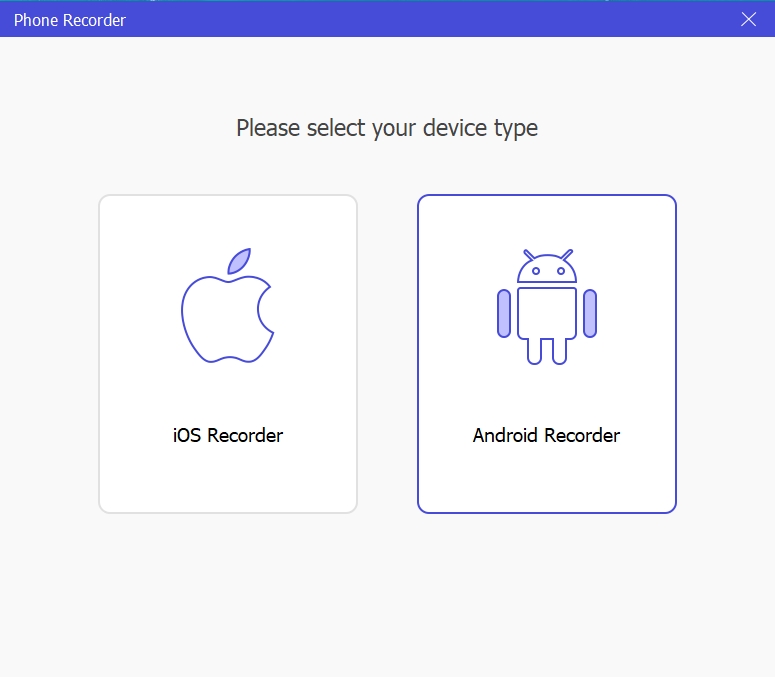
Step 1. Open Eassiy and select Phone Recorder from the interface.
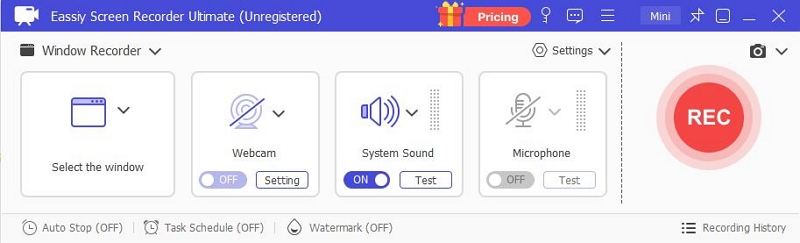
Step 2. Choose Android. Follow the on-screen instructions to connect your phone.
You will see your Android screen in the Eassiy interface.
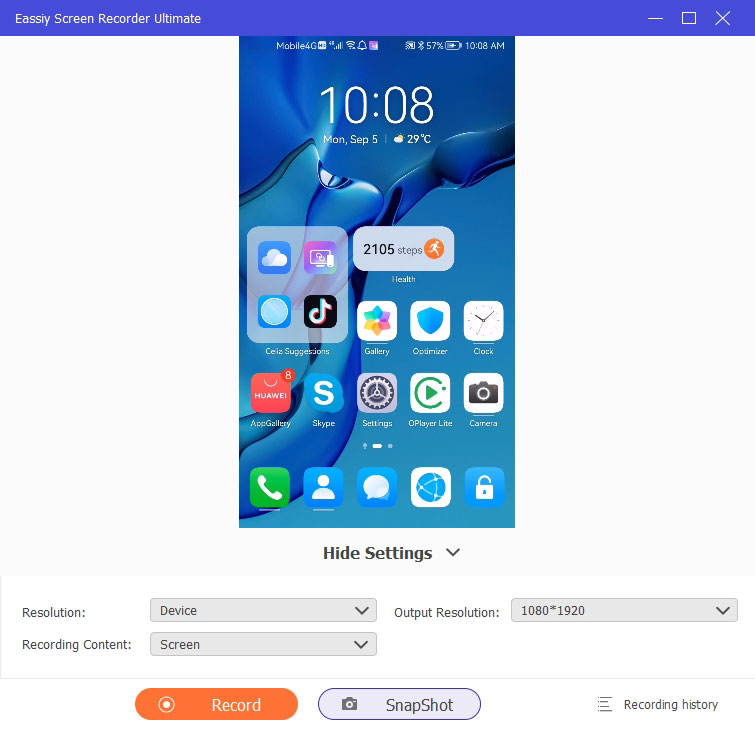
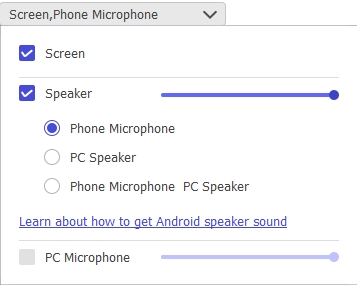
Step 3. Click Recording Content and check Phone Microphone under “Speaker”.
Step 4. Press the REC button in Eassiy and start your phone call. Eassiy will capture everything — the full conversation in high quality.
You can pause the recording during the call if you don’t want to record the entire conversation.
Step 5. Press the red record button to end the call recording.
You can trim the recording, apply edits or enhance the audio directly inside Eassiy.
After that, export the final file in your preferred format — MP4, MP3, etc. You can even transfer the file back to your phone.
Way 2. Use Mobile Call Recorder - Cube ACR
Cube ACR is another option. It calls recording behind a premium banner. So you will need a subscription to even use it. There is a three-day trial with a credit card, but after that you will have to pay.
As for its recording behavior and capabilities. It monitors all incoming and outcoming calls on your Android device and will record them automatically.
However, Cube ACR can miss a few calls, so that is something to watch for. If it misses an important call you were trying to capture, it negates the entire purpose. The good thing is Cube ACR acknowledges this openly.
How to Record Calls with Cube ACR
As for the setup, Cube ACR comes with an extensive process. Here’s what the setup will look like.
Step 1. Install Call Recorder — Cube ACR from the Play Store.
Step 2. Install the helper app from the provided link inside Cube ACR. You will need to install it via Chrome or another browser.
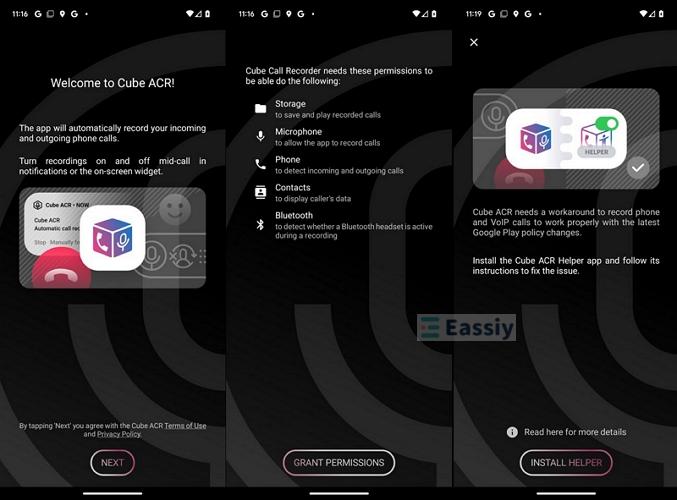
Step 3. Give the necessary permissions when prompted.
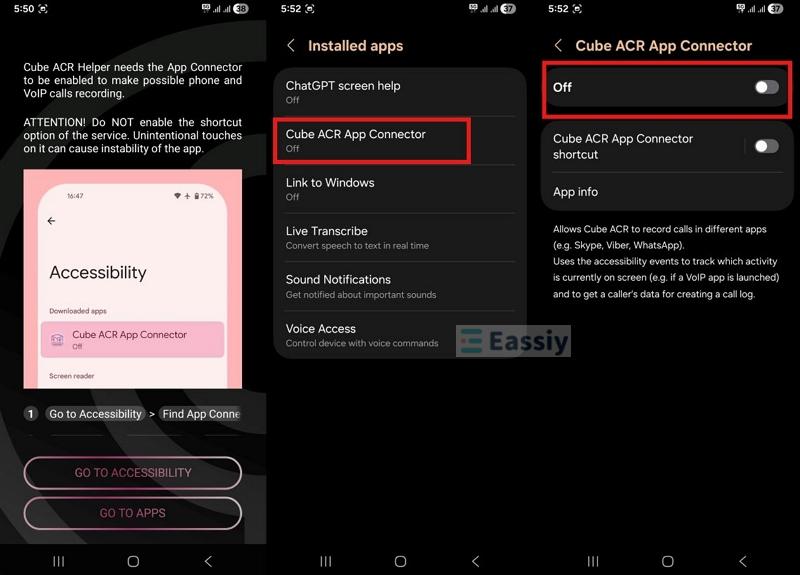
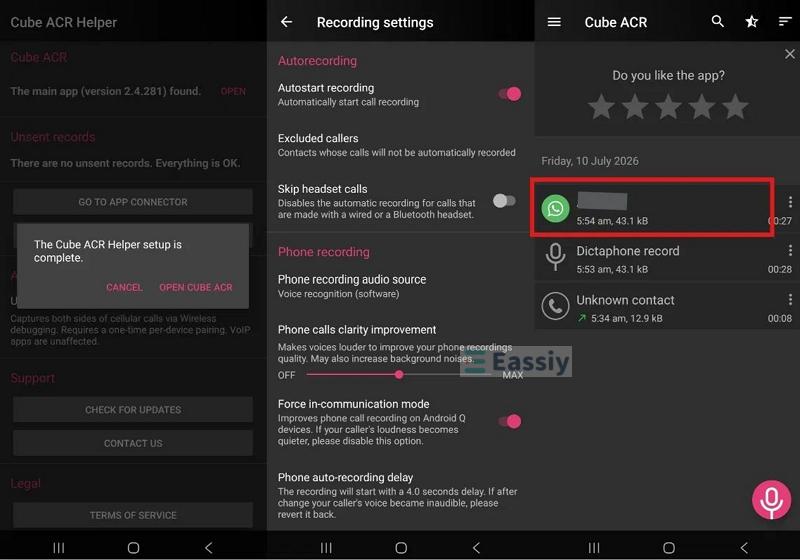
That is it. Whenever a call comes, Cube ACR will work in the background and record the call. You will see a notification that call recording has started.
Your recordings sit inside the Cube ACR menu. Open the app, find your file, and export it to external storage from there.
Record Calls on Android With or Without App: Which Method Is Better?
Not sure which call recorder is right for you? Android's built-in option looks like the obvious answer, as it's already there and free.
But when you weigh it against a dedicated call recording app, you can find out what's suitable for your needs. So, below is a side-by-side of all three types of call recording options you have on Android.
🖐Swipe right to view the full table.
| Method | Best Use | Setup | Quality | Both Voices | VoIP Apps | Battery |
|---|---|---|---|---|---|---|
| Phone's Built-In Recorder | Everyday calls Supports only phone calls |
Ready to use | Excellent | Yes | No | Not Aggressive |
| Desktop Software (Eassiy) | Calls & online meetings Scheduled Recordings Record calls on computer, iPhone, any Android device |
Install on PC or Mac. Multiple recording options with one setup. |
Crisp Audio Quality in multiple audio formats | Yes | Yes | None on phone — records via computer |
| Third-Party App (Cube ACR) | Automatic recording | Extra apps + excessive permissions | Good | Varies | Yes, for most conversations | Aggressively consumed |
Conclusion
Whatever Android phone model you own, you now know how to record a call on it.
If default options are not available or not sufficient for your needs, you can use Eassiy Screen Recorder Ultimate. It can record both phone calls and VoIP on any Android device you own. Plus, it is the only app that ensures you can record every call without failing.