Help Center
Updated on 2026-09-02
views
5min read
You installed OBS to record your gameplay, but when you try to use Game Capture, all you see is a black screen. Even if you’ve used OBS for years, this can still happen with new games like Counter-Strike 2. There are a few reasons why this might happen. For instance, the Game Capture settings aren’t set up right or another app is interfering with OBS.
No matter the cause, this guide will help you fix the OBS Game Capture black screen problem. We’ll also share a reliable alternative, Eassiy Screen Recorder Ultimate, which can record any game without these issues.
OBS Game Capture Not Working: Pick the Fixes for Your Game
Sometimes, OBS shows a black screen when you try to record any game. But a more common situation is that OBS works perfectly with most games and shows a black screen only with one particular game. And when that happens, the problem is often specific to that game or the way it interacts with OBS. So the OBS community itself has actually traced specific games back to specific causes and recommended the fixes. Here's what they found.
| If you play... | Try this |
|---|---|
| Valorant, Call of Duty, Genshin Impact, Honkai: Star Rail, or Zenless Zone Zero | These all need OBS running as an admin (Fix 1) |
| Counter-Strike 2, Destiny 2, Roblox, GTA: San Andreas, or San Andreas Multiplayer | These won't let Game Capture in at all — switch to Window Capture instead (Fix 7) |
| Anything else, or the black-screen shows up in all OBS recordings | Start with Fix 1 and Fix 2 below, then work down the list |
Pro tip: If you are looking for a better alternative to OBS Game Capture, you can use Eassiy Screen Recorder Ultimate. Its Game Recorder comes with advanced recording options and lets you record without any black screen issues.
How to Fix OBS Game Capture Not Working on Windows
The table above only covers solutions for a few documented, specific issues with a few games. But OBS black screen issues while using Game Capture mode can also come from something else entirely—an FPS overlay tool running in the background, a driver quirk, or hardware specific to your setup.
That is why we’ve included the fixes that will help you troubleshoot any issue. You can either jump to the specific solution or work through them in order.
Fix 1. Run OBS as An Admin
OBS doesn't normally need administrative access to record your screen. All its recording modes (including Game Capture), microphone, and webcam capture work fine without admin privileges. But some games, like Call of Duty or Genshin Impact, come with strict anti-cheat protections and run with higher administrative privileges on Windows. OBS can still record these games using other modes, like Window Capture. But when you switch to Game Capture mode, you'll get a blank output.
The reason is simple. Game Capture mode doesn't just record your screen like normal capture modes. Instead, it connects directly to the game and records its frames. But when the game is running as Administrator and OBS is running normally, Windows will block OBS from accessing the game. That’s why the recording shows a black screen.
The fix here is simple: give OBS admin status, so it can access the game. You can do this temporarily for games that need it or set OBS to always run as Administrator if you regularly play these titles.
Run OBS as Administrator (Temporarily)
If OBS is already open, close it first. Then follow these steps:
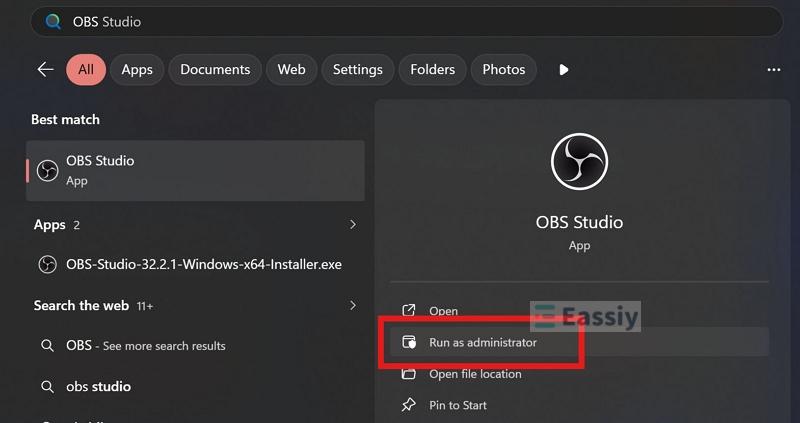
Step 1. Right-click the OBS Studio shortcut and select Run as Administrator.
Step 2. A UAC prompt will ask you to confirm. Click Yes.
Step 3. Start your game like normal.
Make OBS Always Run as Administrator
OBS is a trusted application built and developed by an active community. So, running it with admin privileges is considered safe. However, using third-party plugins could be a security risk. So, only install OBS plugins from sources you trust when running OBS with admin status.
That said, here's how to open OBS with admin privileges by default:
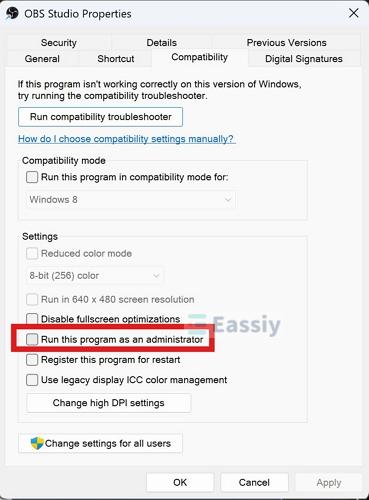
Step 1. Right-click your OBS Studio shortcut and select Properties.
Step 2. Open the Compatibility tab.
Step 3. Under Settings, check the box for Run this program as an administrator.
Step 4. Select Apply, then OK.
From here on, launching OBS will request admin permission on its own. However, you'll still see a UAC prompt every time you open it. Just click Yes to continue.
Fix 2. Set Graphic Preference as High Performance
Many laptops and PCs now come with two GPUs. One is integrated directly into the processor — this is the default even on gaming laptops, used to save battery. The other is a separate dedicated card built for actual gaming power.
Windows decides which app gets which GPU. So you don't normally have to intervene. But it doesn't always choose well. Sometimes it hands OBS to the weak battery-saving chip instead of your dedicated card. That chip is not strong enough to record a game in real time and that is exactly why you get a black or frozen preview while using game capture.
The fix is to tell Windows directly that OBS should always use the strong GPU. Here’s what to do:
Note: Close OBS before changing the setting.
Step 1. Press Windows + I to open Settings. Head to System, then Display.
Step 2. Scroll down to Graphics.
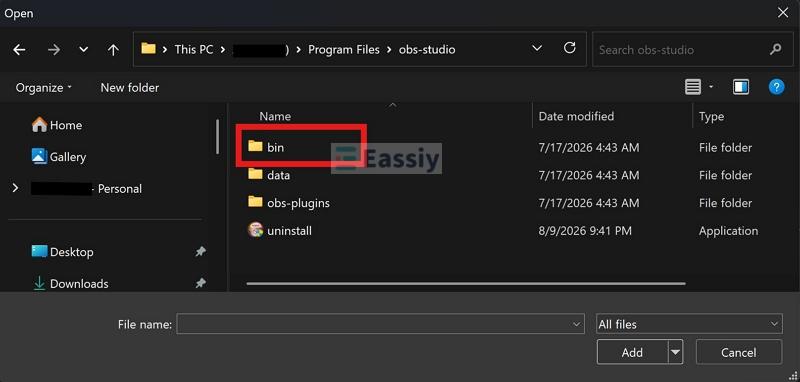
Step 3. Under Custom Options for Apps, click Add Desktop App. This will open File Explorer, already pointed to your C drive.
Step 4. Go to Program Files > obs-studio > bin > 64bit. Select obs64.exe and click Add.
Step 5. Once OBS shows up in the list, click the down arrow at the far end to expand its options.
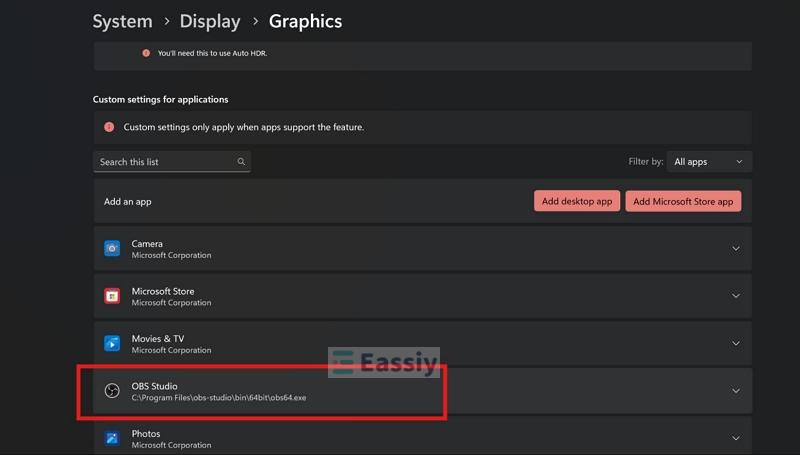
Step 6. Open the GPU Preference drop-down and switch it from Let Windows Decide to High Performance.
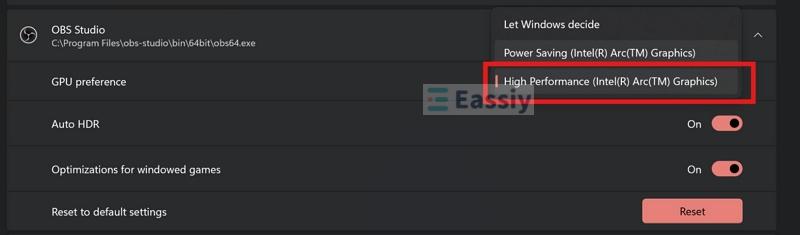
Windows will show you which card it's switching to — something like High Performance (NVIDIA GeForce RTX Laptop GPU), so you know the real card is now in use.
Note: While you're in this menu, it's also worth turning on Optimizations for windowed games right below it (more on that in Fix 4).
Step 7. Save the setting. Close Settings completely and reopen OBS.
Fix 3. Enable Microsoft Detours API Hooking
This fix only applies if you use MSI Afterburner with RTSS (RivaTuner Statistics Server). If you don’t use it, skip ahead to the next fix.
RTSS puts its own overlay inside the game to show FPS, GPU usage, temperature, and frame time. OBS game capture also needs to connect to the game to pull its frames. When both RTSS and game capture try to hook into the same game, they clash and the result is a black screen recording.
The simplest fix is to close MSI Afterburner before you record. But if you do not want to give up your FPS counter every time, RTSS has a built-in setting for this exact conflict. It is called Microsoft Detours API hooking, available in RTSS 7.3.2 or newer. Once enabled, the clashes will stop and you can record normally. Here's how to turn this option on:
Step 1. Open MSI Afterburner. Click the Settings gear icon.
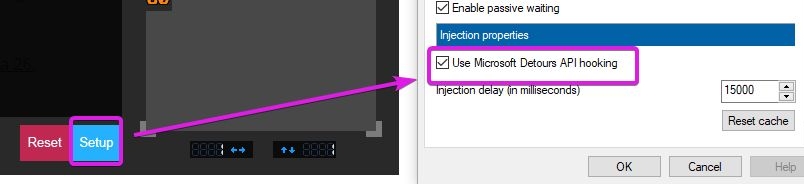
Step 2. Go to the Monitoring tab. Find and click Setup next to the On-Screen Display section.
Step 3. Check the box for Use Microsoft Detours API Hooking.
Step 4. Close MSI Afterburner. Also close OBS Studio.
Step 5. Restart MSI Afterburner, then RTSS, then OBS — in that order. This will let the new settings take effect.
Step 6. Launch your game. Use game capture mode in OBS. It will work without any black screen.
Fix 4. Turn On Optimization for Windowed Games
We already covered this fix back in Fix 2. If you enabled Optimizations for windowed games right after adding OBS to your graphics menu, you're already done with this fix and you can skip this one entirely. If you haven't, go back to System > Display > Graphics, and under OBS Studio's expanded options, turn that toggle on.
This setting helps Windows use the newer way of handling game frames when playing games in windowed and borderless mode. So with it turned on, OBS will find it easier to capture those frames correctly. Without it, Windows will fall back to its older, default method, and the OBS Game Capture mode will produce a black screen recording even after allowing it to use a stronger graphics card.
Fix 5. Change Game Capture Hook Rate to Fastest
This setting lives inside the Game Capture source itself, so you'll need to open OBS first. Follow these steps:
Step 1. Open OBS. In the Sources box at the bottom, add a Game Capture source if you haven't already. Set it to capture your game.
Step 2. Right-click Game Capture and select Properties.
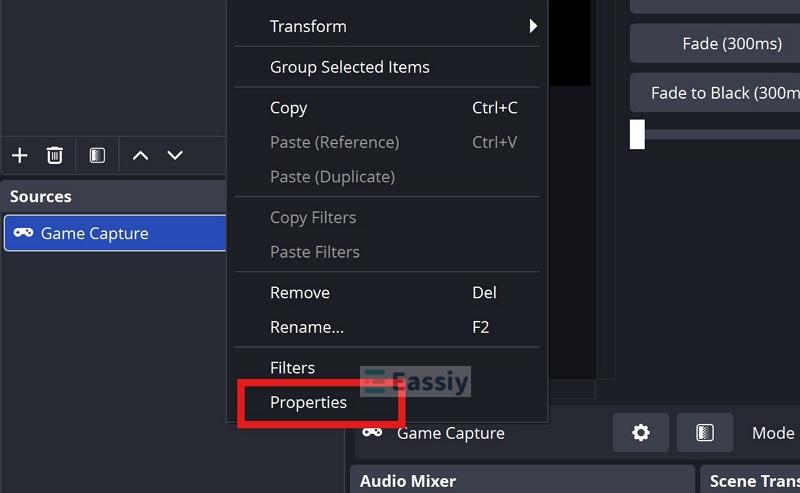
Step 3. In the Propertiesfor Game Capture window, scroll down to the Hook Rate drop-down. You'll see four options: Slow, Normal, Fast, and Fastest.
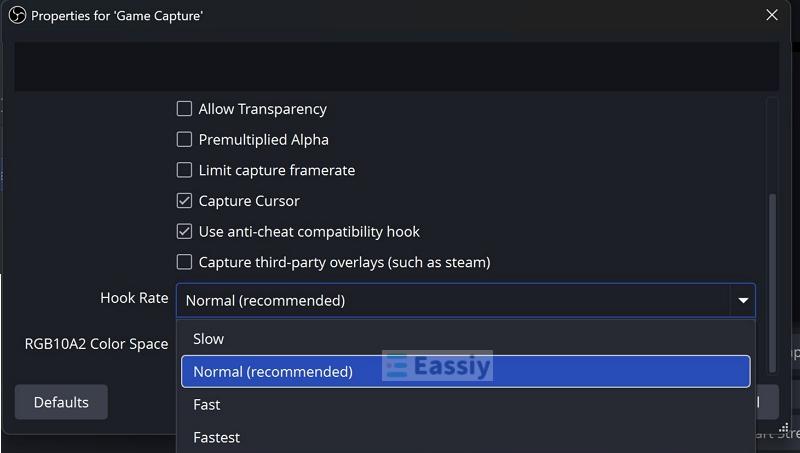
For most games, the default Normal option is all you need. But if you're seeing Game Capture stay black for the first few seconds, failing to capture the game right after it loads, or repeatedly losing the game during loading screens, switch the hook rate to Fastest.
Step 4. Select Fastest from the drop-down and click OK to save the changes. Then, start your game and test Game Capture again.
OBS will now record without the black screen.
Here's why this works. Hook Rate controls how often OBS checks for the game. So a faster rate will give OBS more chances to catch the game the moment it appears.
Keep in mind, though, Fastest isn't the best setting for every game. It will consume more CPU. Plus, in some games, it can cause OBS to capture the game before certain overlays have finished loading. So, an overlay could be missing from the recording.
Fix 6. Enable SLI/Crossfire Capture
Back in the day, running two graphics cards — SLI for NVIDIA and CrossFire for AMD, was one of the big things in PC gaming. These are multi-GPU setups, which are practically dead today.
However, OBS still includes an SLI/Crossfire Capture option for a reason. You can switch to the older recording methods and avoid a black screen.
Here's how to enable it:
Step 1. In OBS, find your Game Capture source under Sources.
Step 2. Right-click the source and select Properties.
Step 3. In the window that opens, find SLI/Crossfire Capture and check the box next to it.
Step 4. Click OK and test Game Capture again.
This option changes the way OBS gets the game's frames. Normally, Game Capture uses a fast method in Windows called shared texture capture. This lets OBS grab the game's frames directly from the GPU. However, some games or unusual hardware setups can prevent this method from working correctly.
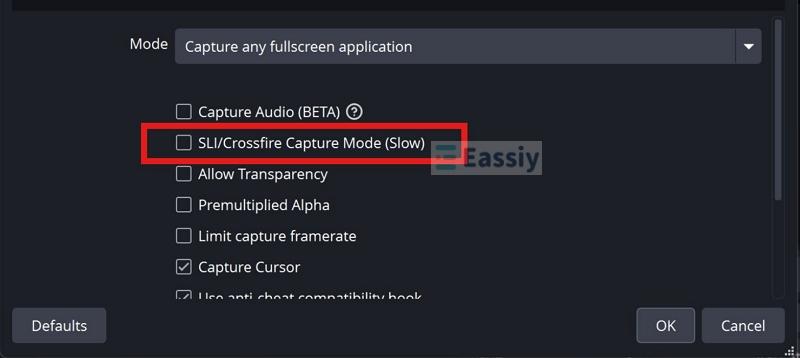
When you enable SLI/Crossfire Capture, OBS will switch to an older memory-capture method instead. It is less efficient and can slightly reduce game performance, you could also notice a small frame-rate drop or minor latency in the OBS preview window. However, it can make the difference when the normal Game Capture method simply produces a black screen.
Fix 7. Use Window Capture
Every fix so far has tried to make Game Capture itself work. However, you can also record games using Window Capture.
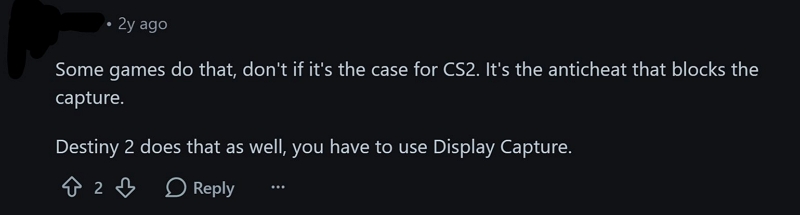
But even for all other games, Window Capture mode is a reliable fallback when Game Capture produces a black screen despite all the above fixes. It will work smoothly for capturing any game because it doesn’t try to hook into the game’s rendering process, which lets it bypass the conflicts that cause Game Capture to go black in the first place. Window Capture simply records whatever is visible inside the selected window. So if an overlay appears on top of your game, say, Discord notifications, the Steam overlay, the Nvidia overlay, it'll show up in your recording too.
Here's how to set it up:
Step 1. Start your game and switch it to windowed or borderless mode if needed.
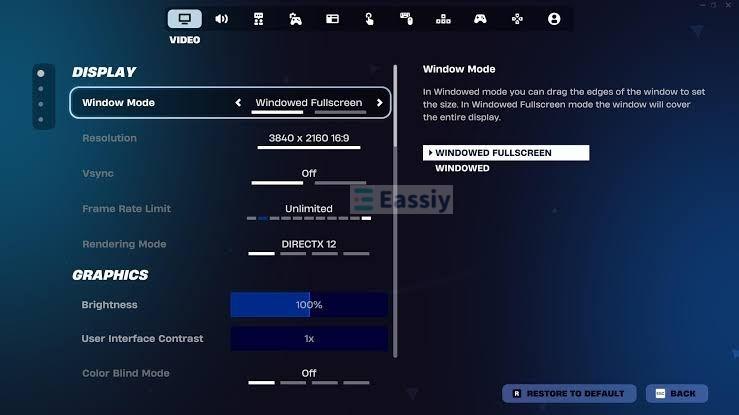
Note: Window Capture can't capture a game running in true full-screen mode. So, you’ll have to modify the display settings of the game. You'll need to change this Setting from inside the game. For example, in Fortnite, go to Settings > Video > Display, set Window Mode to Windowed Fullscreen or Windowed, and click Apply.
Other games usually have a similar option under Display Mode, Screen Mode, or Window Mode.
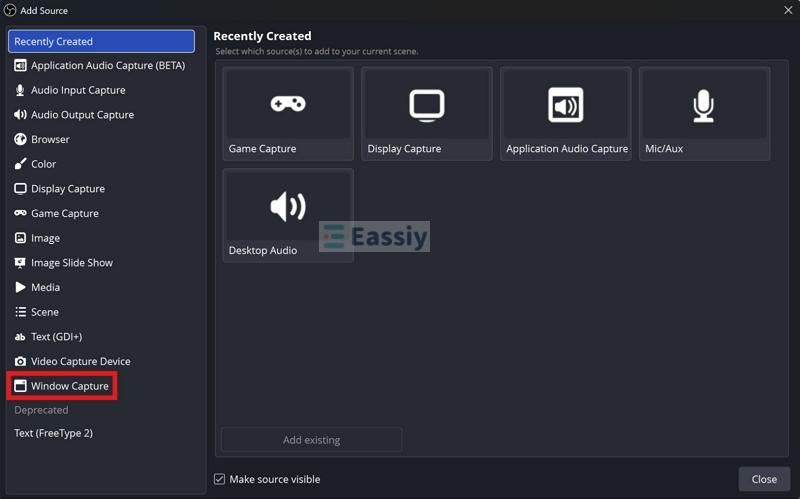
Step 2. Open OBS and click the + button under Sources.
Step 3. Select Window Capture, give the source a name like "Game Window," and click OK.
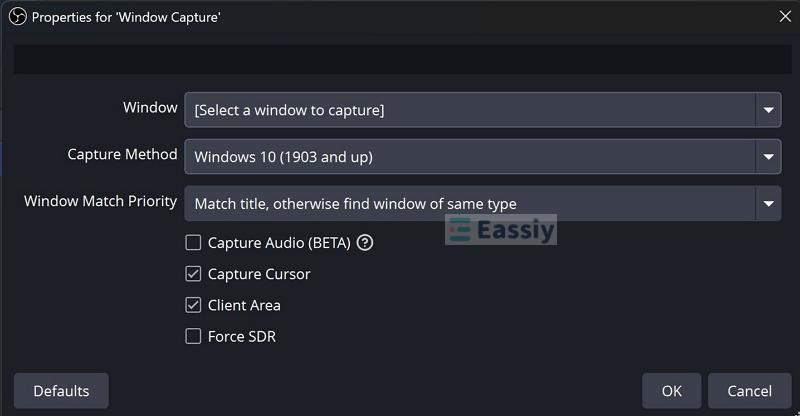
Step 4. Open the Window drop-down and select your game.
Step 5. Leave Capture Method set to Windows 10 (1903 and up).
Tip: Set Window Match Priority to Match title, otherwise find window of same type executable.
Step 6. Click OK. Your gameplay should now appear in the OBS preview.
Fix 8. Upload a Clean OBS Log File
If none of the fixes above have solved the black screen, you can ask for help from the OBS community. All you need to give them is your log file. It carries detailed information about your setup — capture source, rendering issues, and more. That’s often enough for community members and experienced users to spot what’s actually going wrong, even when it isn’t obvious on the surface.
Here’s a simple way to get that log file.
Step 1. Open OBS, add a Game Capture source, and record the same game that was producing the black screen. Let it run for about 30 seconds to reproduce the issue.
Step 2. Stop the recording.
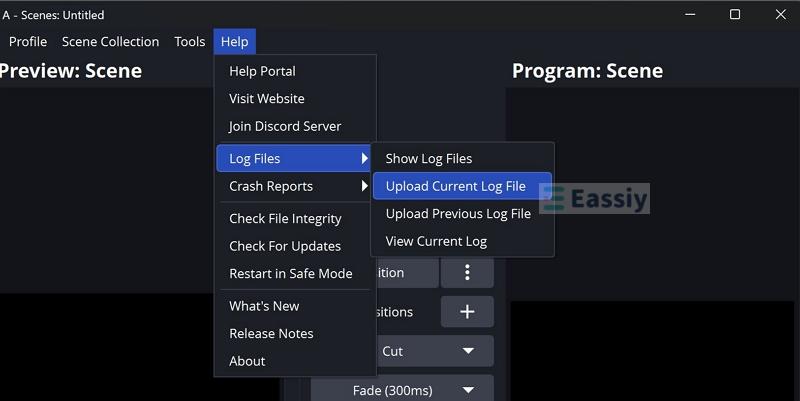
Step 3. Go to Help in the top menu, hover over Log Files, click Upload Current Log File.
This will generate a link automatically. You can share this link when asking for help and community members will usually respond with what’s actually going wrong in your setup and how to fix it.
How to Capture Gameplay Without OBS
You can also use Eassiy Screen Recorder Ultimate’s Game Recorder mode. It uses a different approach to game recording, so you don’t have to deal with any problems that are common with OBS’s Game Capture.
Eassiy’s Game Recorder can capture any game in high resolution and deliver crisp output without black screen issues. You can use it to record any games such as Counter-Strike 2, Destiny 2, Call of Duty, Fortnite, etc.
Eassiy can also record your microphone and webcam at the same time without hurting your game’s performance, allowing you to create professional-looking gameplay sessions that you can post on YouTube or Twitch. Once your gameplay is recorded, you can use the built-in editing tools in Eassiy. It lets you trim your recording and make it ready for online platforms or simply keep it as a memory.
Key Features:
- Real-time annotation tools, so you can highlight, mark up, or call out specific moments — useful if you’re making tutorials.
- Advanced recording modes, like Follow Mouse and Around Mouse.
- Multiple export formats — MP4, MOV, MKV, and more.
- Records mobile gameplay too, on both Android and iOS.
How to Smoothly Record Games with Audio
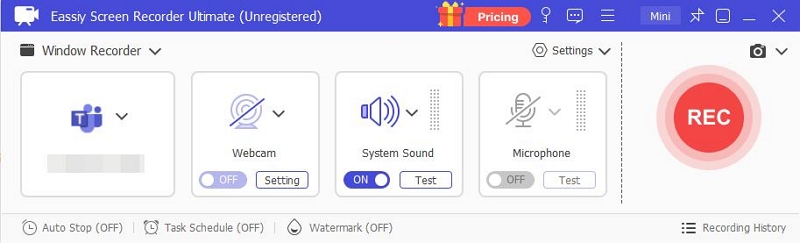
Step 1. Download and install Eassiy Screen Recorder Ultimate. Choose Game Recorder mode from the drop-down arrow.
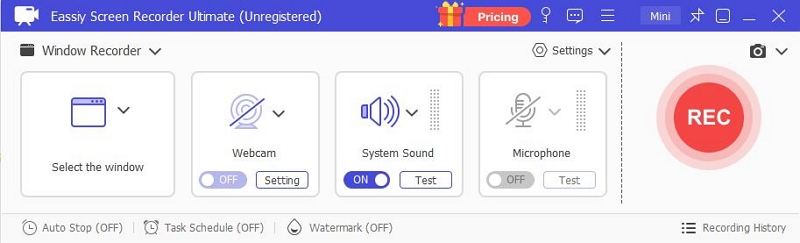
Step 2. Select the game you want to capture, such as Counter-Strike 2, Call of Duty, Fortnite, or any other. You can also adjust your sound settings.
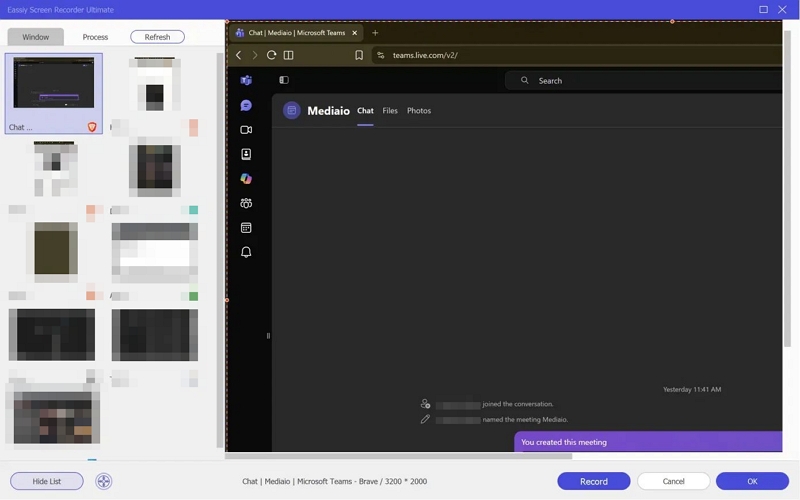
Tip: You can configure the microphone (even external ones on top of your game sounds) and manage its sound levels, so the voice sounds clean. There are even flexible webcam modes (rectangle, round, etc.).
Step 3. Click REC. Eassiy will start recording. You can use custom Shortcuts to manage the recordings — pause, use annotations, etc.
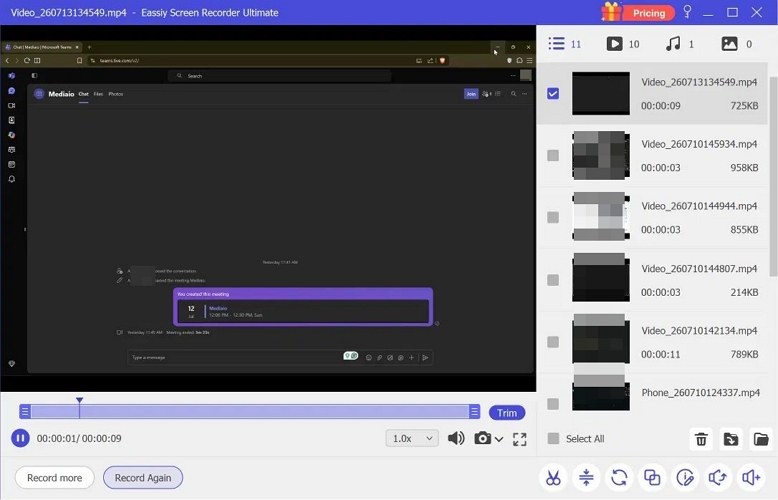
Press the Stop button to end the gameplay recording. Eassiy will end the recording and save the gameplay video so you can edit or share it.
Final Words
That covers all the possible fixes for troubleshooting the OBS black screen issues with Game Capture.
If you’re looking for a better alternative to OBS’s Game Capture, you can consider Eassiy Screen Recorder Ultimate. It can record any game and deliver crisp, high-quality, clean footage every time.