Help Center
Updated on 2026-07-14
views
5min read
Some Teams meetings carry too much information to catch with notes alone. That's when recording the meeting is worth it. The good thing is, Teams already comes with a built-in recorder for this. However, finding it isn't always simple, as the Start Recording button sits behind a few menus and whether you'll even see it depends on a few things.
This guide will clear all of that up. We'll walk through how to record a Teams meeting on the desktop and phone app. When you don't meet Teams' requirements to use the built-in recorder or the Teams recorder doesn’t work, we'll cover both fixes and external tools that can help you record.
Is It Legal to Record a Teams Meeting Without Notifying Everyone?
Before answering this question, let’s understand the recording notifications for Teams' built-in recording feature and third-party recording tools.
Teams' built-in recording feature notifies everyone the moment you hit record.
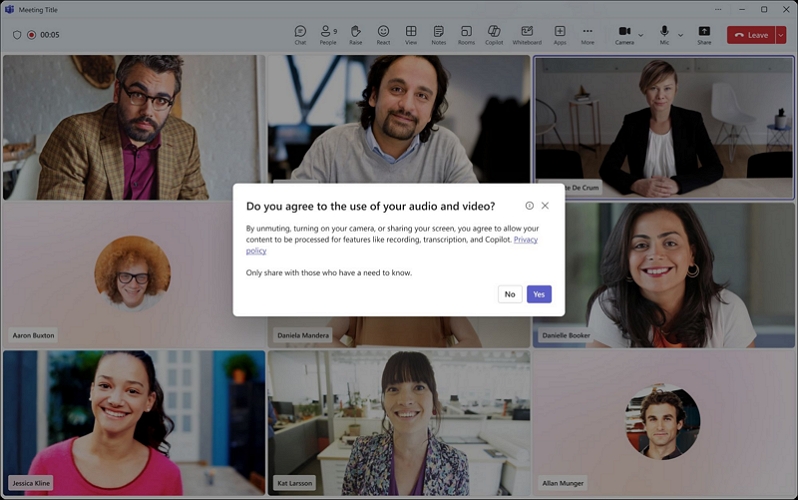
You'll see:
- A banner announcing the recording has started.
- A recording icon sitting in the meeting controls.
- A verbal announcement too, in many cases, if someone joins after recording is already running.
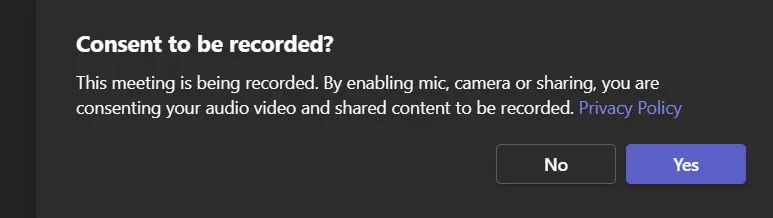
There's no way to turn off the notification or hide it. So that handles the legal part by making sure that every participant knows that they’re being recorded and they can choose to leave the meeting or turn off their camera.
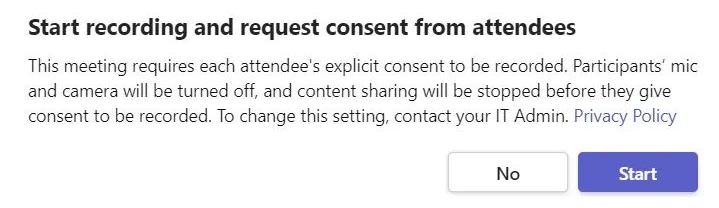
However, third-party Teams meeting recorders work differently. When using them, Teams has no way of knowing you're recording and no notification goes out to the other participants.
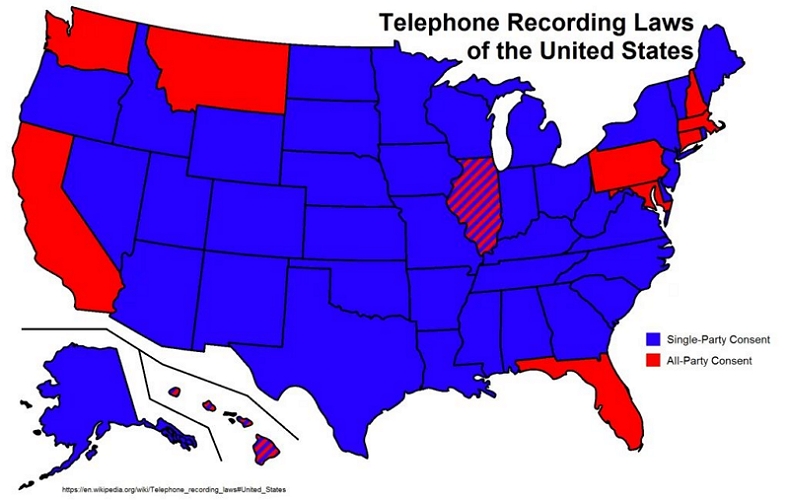
But that doesn’t mean it is legal to record without notifying others. In such cases, the legality of a recording comes down to consent laws and those vary by where you are.
- Most US states follow one-party consent. That is, recording is fine as long as you're part of the conversation.
- States like California follow two-party (or all-party) consent, so everyone involved needs to agree first.
Simplest way to stay safe: Just ask. Inform everyone in the meeting before you start recording. This way, anyone not comfortable with the recording can turn their camera off and you can proceed from there.
How to Record a Teams Meeting on Laptop or Mobile
As long as you have permission to record, you can start one from your laptop or your phone — the process barely changes between them. Still, we will discuss them one by one. And we'll also cover where the recording ends up once you're done.
Requirements for Recording a Teams Meeting
1. Available Teams plan
- For personal accounts, recording comes with a Microsoft 365 Personal, Family, or Premium subscription and your recordings stay in the cloud for up to 30 days.
- For work or school accounts, you need a proper license: Office 365 E1, E3, E5, A1, A3, A5, or a Microsoft 365 Business plan (Business, Business Premium, or Business Essentials).
The completely free version of Teams will not give you access to the Record button at all.
2. You have permission to record
When your account is managed by Teams for work or school, the administrator can enable or disable recording for everybody. So besides the right subscription, you need to obtain the permissions too.
- In most cases, the meeting organizer and the people from the same organization can record.
- Guests, anonymous participants and people joining from another organization cannot.
3. The meeting must not be end-to-end encrypted
Microsoft disables recording for meetings protected with end-to-end encryption.
4. Your device must have enough storage
The person starting the recording needs sufficient free space in OneDrive or SharePoint.
How to Record a Teams Meeting on Laptop
Whether you're on the Windows or Mac desktop app or running Teams in a browser, the steps stay the same. It also doesn't matter if it's a channel meeting or a non-channel one.
Step 1. Launch the meeting or join the one you want to record, with your mic and camera set the way you like.
Step 2. Move to the meeting controls toward the top right. Click More. Hover over Record and transcribe and select Start recording.
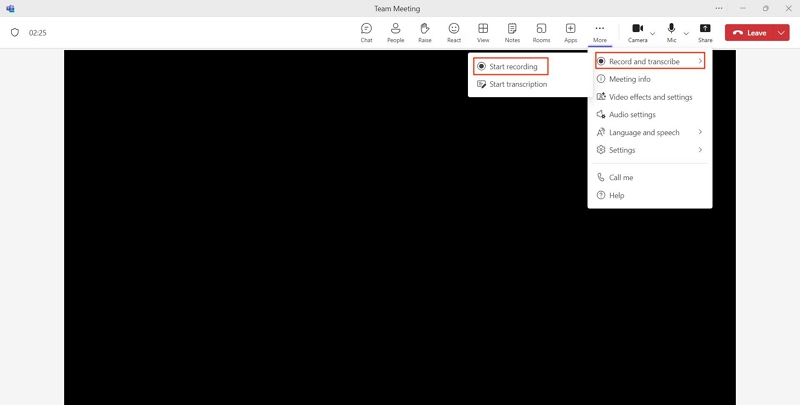
Step 3. A recording indicator will appear and everyone in the meeting will receive a banner indicating the meeting is being recorded. Participants who join later are informed too.
Now carry on with your meeting. Anything that happens in the meeting gets captured.
Note: Some content, such as Whiteboards, shared notes, certain app-shared content, and some PowerPoint Live animations, will not be captured.
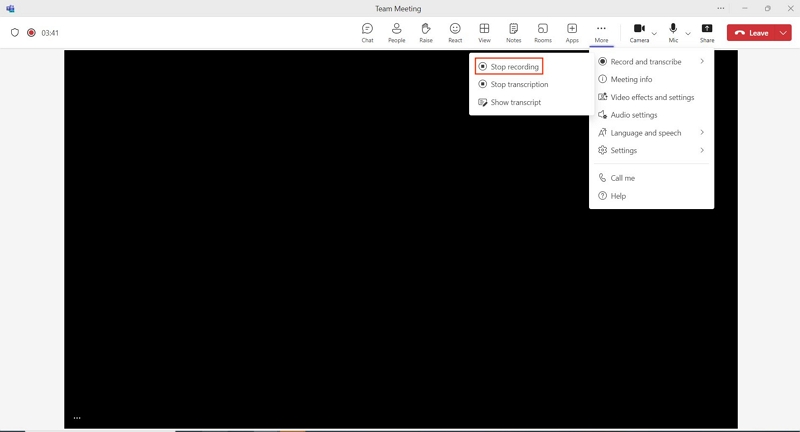
Step 4. The recording will stop on its own once the meeting ends. Or you can stop it yourself anytime by returning to More > Record and transcribe > Stop recording.
Locate and Save Teams Recording After Meeting on Windows/Mac
Once the meeting ends, the recording is saved automatically. However, Teams does not save the recording directly to your computer. Where it's saved after it’s recorded depends on the type of meeting.
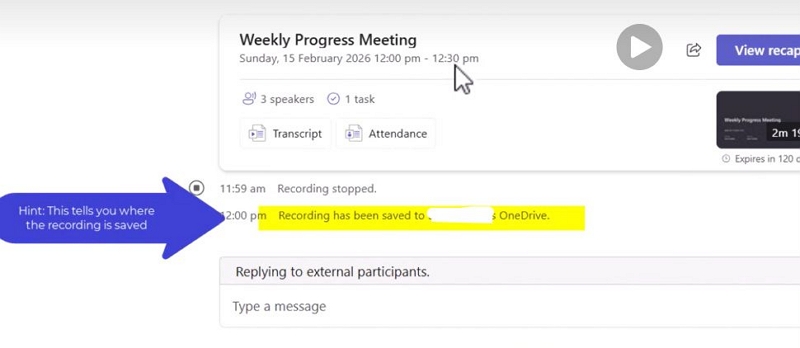
Here’s where you can usually locate a Teams recorded meeting:
| Location | What You'll Find There |
|---|---|
| Meeting chat | The recording card will appear right in the chat once it's ready. This one will work for every meeting type. |
| Teams Calendar | Open the meeting event to find its recording under the details. |
| Channel posts | For channel meetings, the recording usually sits in the channel conversation and its Files tab. |
| Recap | Organizations on supported plans get a full meeting Recap with the recording and transcript together. |
SharePoint(channel meeting recordings) or OneDrive(non-channel recordings) to find and save the recordings.
For channel meetings:
Step 1. Open the Teams app on your Windows or Mac computer.
Step 2. Select Teams from the side panel.
Step 3. Choose the team where the meeting happened and proceed to the channel that hosted it.
Step 4. Click the Files tab at the top. This will load the channel's folder from SharePoint.
Step 5. Open the Recordings folder.
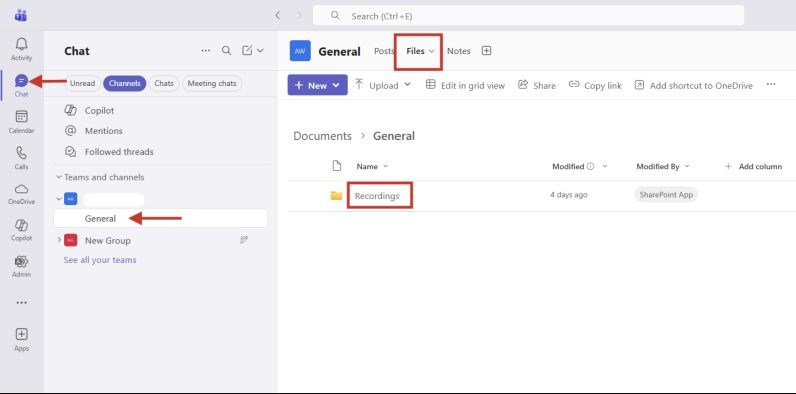
Every recording made in that channel will be here. You can share, download, or delete them, provided you have the permissions to do so.
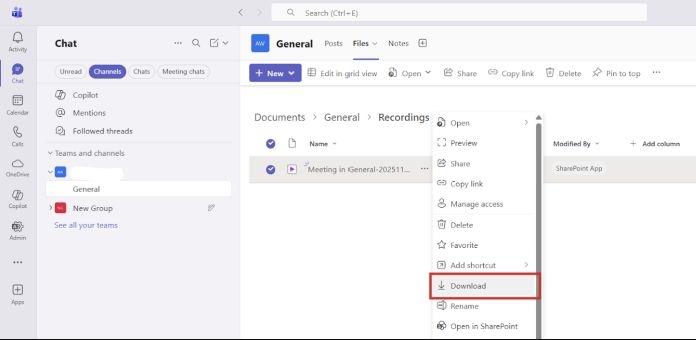
For non-channel meetings
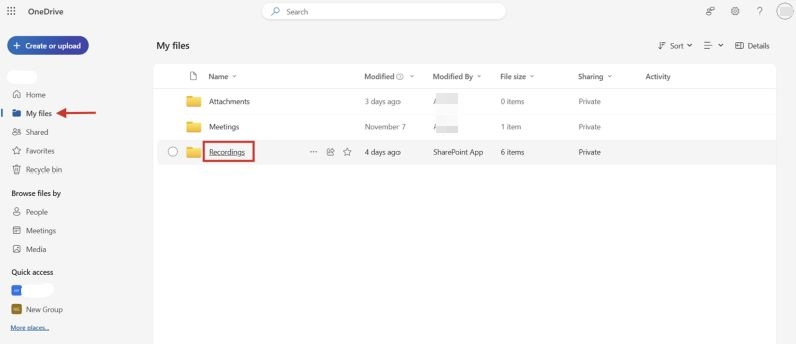
Non-channel meeting recordings, like the scheduled meetings, Meet Now meetings and one-to-one or group calls, are saved directly to the OneDrive for Business of the person who organized the meeting, inside a folder named Recordings. The meeting organizer will own the file, no matter who pressed the record button.
If you started the recording:
- Open OneDrive.
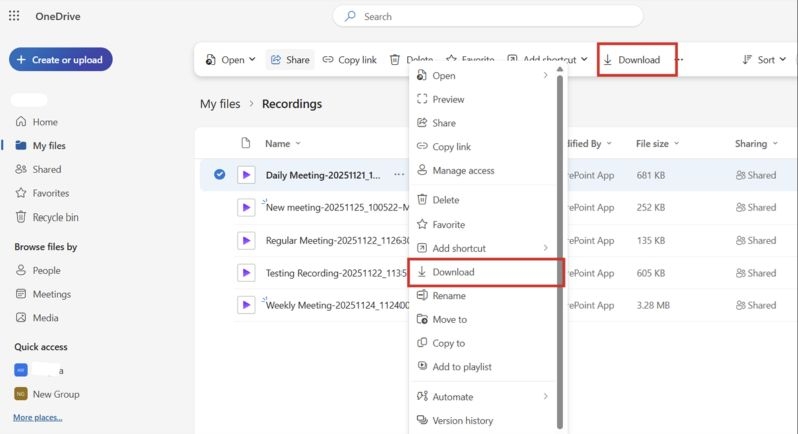
- Go to My files > Recordings.
- Click the three-dot icon on your meeting.
- And hit Download. You can even change the expiration date (Teams often defaults to 120 days now).
If you joined as a participant (same organization):
Step 1. Open Microsoft Teams. Head to the meeting chat — the group that Teams auto-creates with all the invitees.
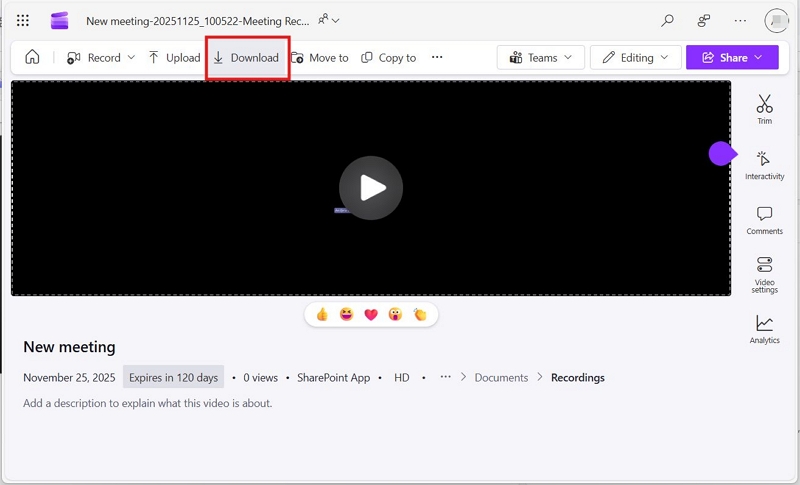
Step 2. Find the recording card in the chat. Click the recording to watch it.
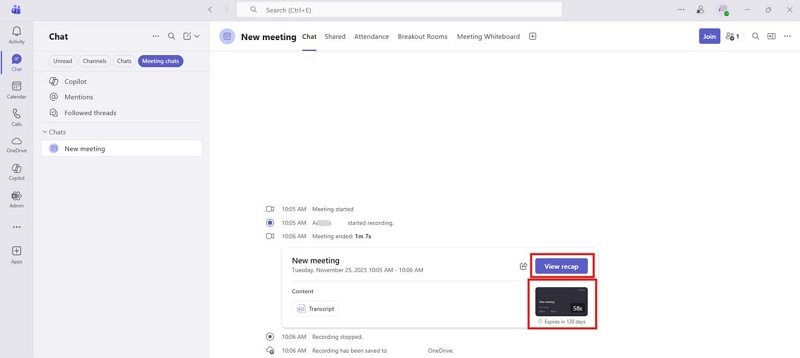
Step 3. Downloading will need the host's permission. If they've allowed it, the Download option will show up at the top.
How to Record a Teams Meeting on Phone
The mobile experience on iOS and Android mirrors the desktop environment. It relies on the same cloud-based processing, so your recordings get saved in SharePoint or OneDrive but not on your phone.
Plus, even the requirements are identical. That is, you’ll only see the Start Recording option if your plan, admin, and role allow it.
So yes, when you can't access your desktop, the Teams app on your phone can help you record the meeting. Here's how:
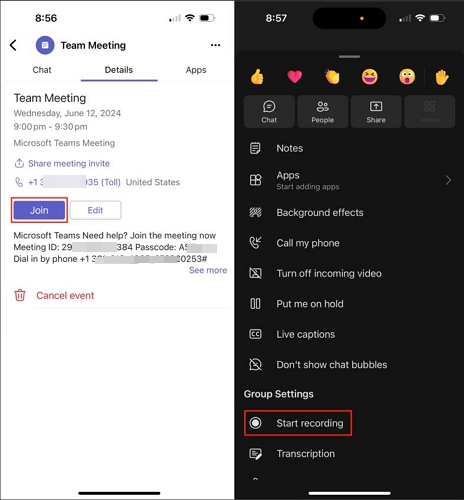
Step 1. Join the meeting from the Teams mobile app.
Step 2. Tap anywhere on the screen to bring up the meeting controls. Then, tap More option.
Step 3. Tap Start recording.
Step 4. The recording will stop on its own once the meeting ends. Or, you can return to the same menu and tap Stop recording whenever you want.
Find and Save Teams Recording After Meeting on iPhone/Android
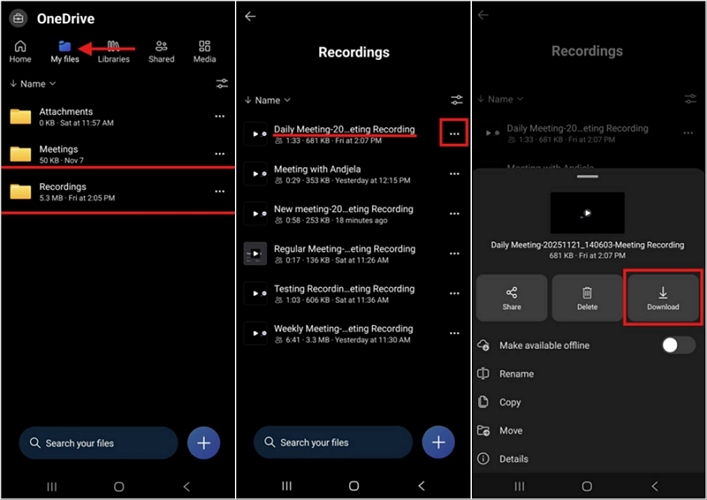
Step 1. Once the meeting ends and the recording is processed, return to the meeting chat — the chat history for that specific meeting.
Step 2. Tap the video thumbnail in the chat. It will open in the OneDrive mobile app or your mobile browser.
Step 3. Tap the menu icon and hit Download. The actual MP4 file will land in your iPhone's Files app or your Android's internal storage.
Tip: How to Record Teams Meeting as a Participant
As a plain attendee, you will find the Start recording option greys out on your screen. And when you’re joining as a guest, then it’s completely off-limits. At times, your IT administrator will lock it even when you’re an internal member. So you have two paths around this.
Option 1. Request Organizer Permissions
You can ask the meeting host to grant the recording permissions for you.
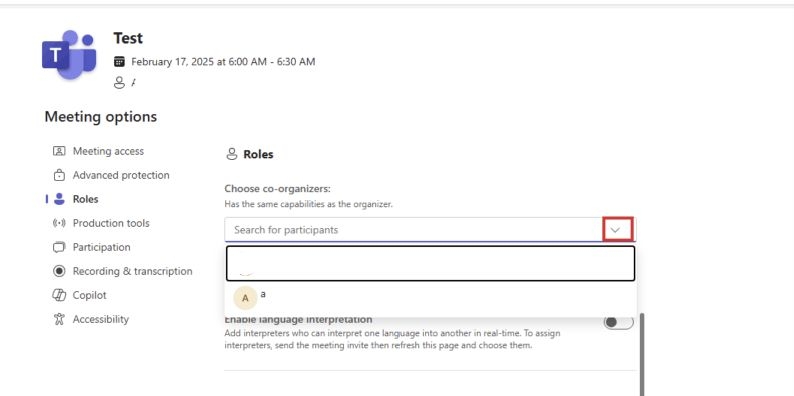
Or you can ask them to upgrade your role to co-organizer, which will unlock the Record button on your side. It takes them seconds:
- Ask the meeting organizer to make you a co-organizer.
- They can open the meeting in their Teams calendar.
- Select Meeting options > Roles.
- Choose your name under Co-organizers.
- Select Apply.
Option 2. Use Local Screen Recorder Like Eassiy
You can always use an external recorder. And this will need nothing from your IT administrator. You can record even if you cannot contact them immediately or lack a Teams Premium plan.
An external recorder tool like Eassiy Screen Recorder Ultimate can record the overall the Teams app. Plus, Eassiy also lets you capture in high quality with crisp audio. So you will get the same quality level as a native Teams recording. Finally, the file saves directly onto your computer, so there’s no expiry date or download needed at all.
One big difference, though: no one in the meeting will get notified that you're recording when using external tools like Eassiy. So always ask the group first.
Why Can't I Record My Teams Meeting
Sometimes, even when you meet every minimum requirement, you are still unable to record the Teams meeting. This problem shows up in different ways for different people.
Sometimes you can access the Record and transcribe menu, but the Start recording button stays locked with a message like:
- "Only people in this organization can start recording."
- "Unavailable for this meeting due to organization policy."
Other times, you don't see the Record button at all.
Common Reasons and Basic Fixes
Here are all the common roadblocks you’ll run into and how to fix them.
1. The Start Recording button is locked and displays a message.
You can open Record and transcribe, but the actual Start Recording shows a lock icon. In such cases, you’ll also see a tooltip explaining why the button isn’t working.
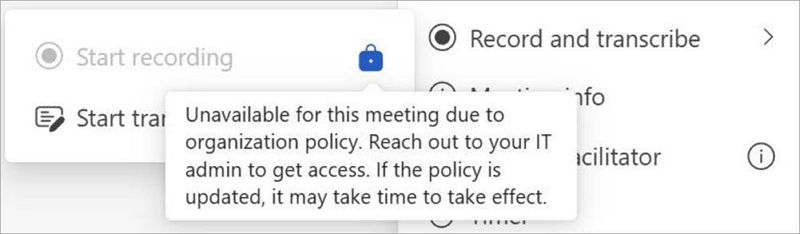
Fix: Follow the instructions in the Tooltip pop-up. Mostly, it requires contacting your organization's Teams administrator to remove the restrictions.
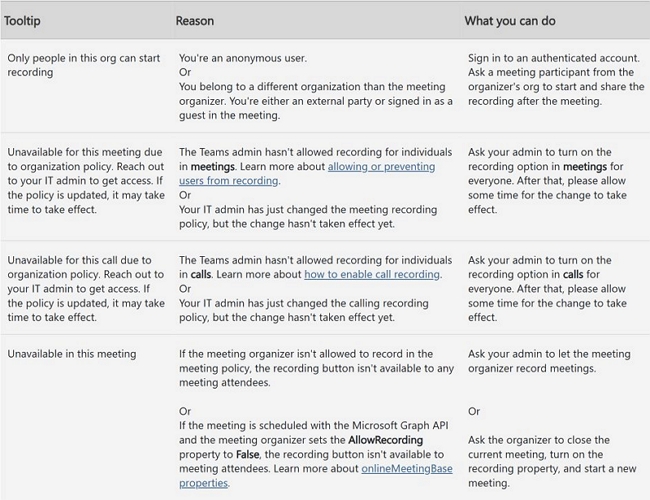
2. "Recording has already started", but nothing is recording
Once you press Start recording, Teams will take a few seconds to actually spin the recording up. There's nothing to fix here. Just wait for Teams to process it fully — the recording indicator will confirm once it's on.
3. The recording completed, but you can't find it
The recording could still be processing or you're looking in the wrong place. Check the locations we covered above: OneDrive for Business or SharePoint.
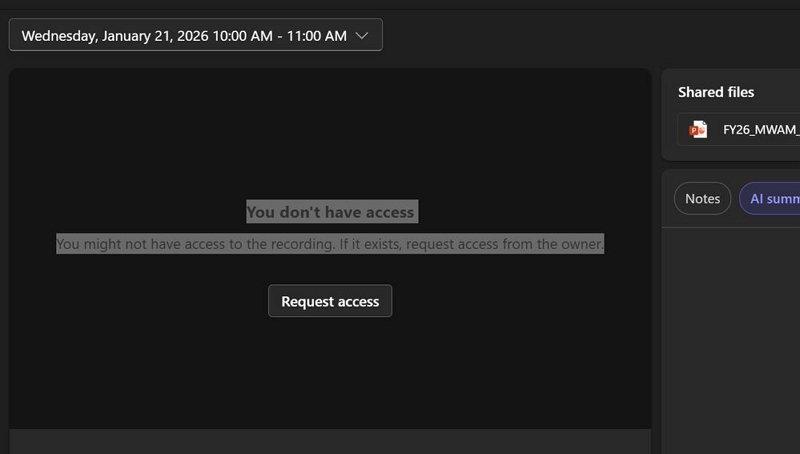
4. The recording plays, but there's no Download button
When the Download option at the top is missing, that's always a permissions gap. Use the methods above: reach the meeting organizer and have them upgrade your access. The Download button will appear the moment they do.
5. Cache or an outdated app build is the actual culprit
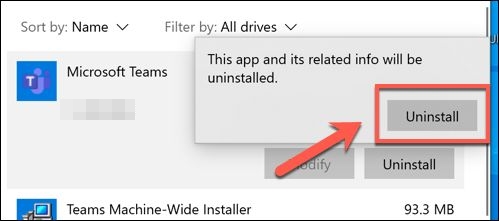
When none of the above fixes work and the Start Recording button is stubbornly grey, try reinstalling or updating the app. It will resolve the issue.
Ultimate Fix: Record Teams Meeting with Third-Party Screen Recorder
If you don’t have a premium Teams plan or cannot contact the Admin to take the recording permission, using a third-party Teams meeting recorder is the way to go.
One thing worth knowing before you pick one: none of these notify meeting participants that you’re recording. That responsibility is yours — let people know before you hit Record. Here’s how they compare:
| Tool | Supported OS | Key Features | Real User Feedback |
|---|---|---|---|
Eassiy Screen Recorder Ultimate  |
Windows, Mac, iOS, Android | • Records the Teams window, keeping its audio isolated from everything else • Connects to mobile for iOS and Android recording • Includes real-time annotations and mouse click highlights • Supports post-editing, trimming, and separate audio export |
There's enough flexibility here to record a meeting exactly the way you want it. Annotations let you flag key moments as they happen. Editing tools make it easy to pull just the audio afterward. Since only the meeting window gets captured, nothing else creeps into the frame. Hotkeys make starting and stopping effortless once set up. |
OBS Studio  |
Windows, Mac, Linux | • Records a specific Teams window or browser tab • Mixes internal audio and microphone input independently • Supports hotkeys for starting and stopping recordings • Exports in multiple formats |
Output quality is genuinely strong. Initial setup takes real time. There's no built-in annotation tool. Most users describe it as resource-heavy. |
VLC Media Player  |
Windows, Mac, Linux | • Records the full screen rather than a specific window | It isn't precise and definitely not the way to record a Teams meeting nowadays. It will capture other open tabs and background sounds. |
Snipping Tool  |
Windows 11 | • Records the Teams window specifically, not the full desktop • Lets you toggle system audio on or off independently |
It's already built into Windows 11, so there's nothing to install and no audio routing to configure. Genuinely simple to pick up. The trade-off shows up in longer meetings: it will tend to lag, freeze or crash past the one-hour mark. |
QuickTime  |
Mac | • Records the Teams window along with built-in mic or external headset audio • Includes mouse click highlights and built-in trimming |
Being pre-installed means zero setup. Output comes as a high-resolution MP4 while using minimal battery or CPU resources. It lacks the layout control. No live annotations like Eassiy offers. The real catch: it can't pick up other participants' voices on its own, as macOS blocks audio looping by default. So an additional virtual audio cable, such as BlackHole or Loopback, becomes necessary. |
Screen Recorder (Android)  |
Android | • Captures internal audio, including other participants' voices • Records your own voice at the same time • Lets you manage output file size on some models like Samsung One UI or Google Pixel |
Works well for shorter meetings. Longer sessions are where it falls apart — an incoming call or notification can halt the recording mid-meeting. The phone can overheat or lag on lower-spec devices. |
Screen Recording (iOS)  |
iPhone | • Starts directly from Control Center • Lets you toggle the microphone on or off • Works alongside Do Not Disturb or Focus mode |
Starting a recording takes seconds through Control Center. It can capture participants' video without issue, but not their voice. Plus, iOS doesn't allow third-party loopback tools the way macOS does. Choose only when you need video footage of the meeting. |
How to Record a Teams Meeting with Audio Using Eassiy
Eassiy Screen Recorder Ultimate handles Teams recording like Teams’ own recorder options. To start with, it isolates the Teams window, captures only the audio or conversions from that window and keeps everything else out of frame. But where it takes the edge is in the full-fledged annotation tools you can use during the meeting to highlight things. The output it delivers also looks and feels like an official Teams recording.
You can even schedule Eassiy to start and stop recording automatically, so you don’t have to touch anything during the Teams meeting.
Desktop Steps (Windows/Mac):
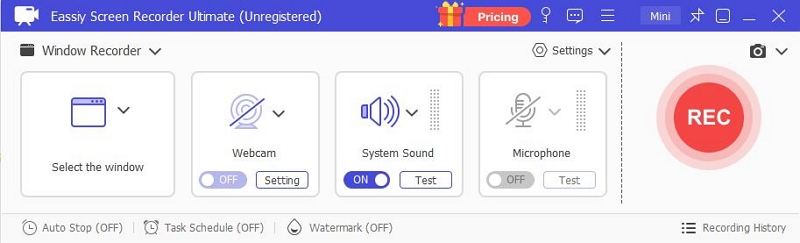
Step 1. Open Eassiy Screen Recorder Ultimate. From the left drop-down, select Window Recorder.
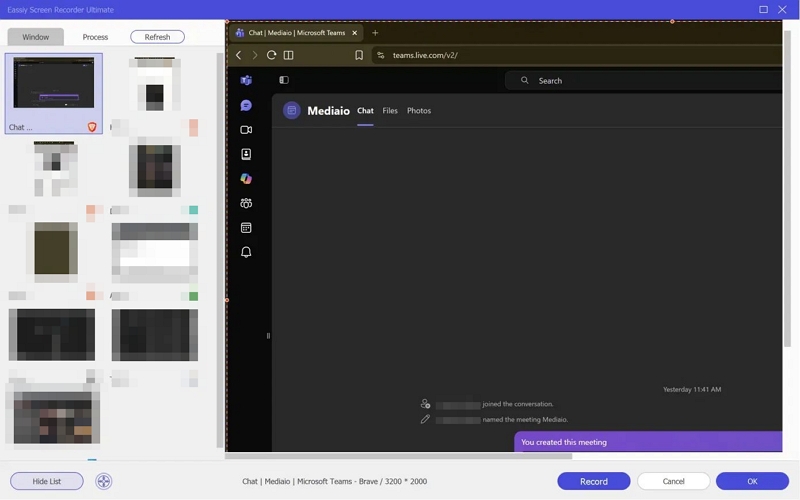
Step 2. A list of all open windows on your computer will appear. Select the Microsoft Teams window from the list. Click OK.
Step 3. Make sure System Sound is ON to capture meeting audio. Toggle Microphone ON if you want your own voice recorded. Besides, enable Webcam or not based on whether you want to be on camera.
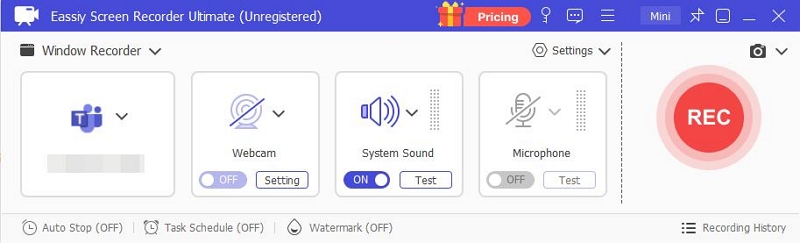
Step 4. Hit REC to start.
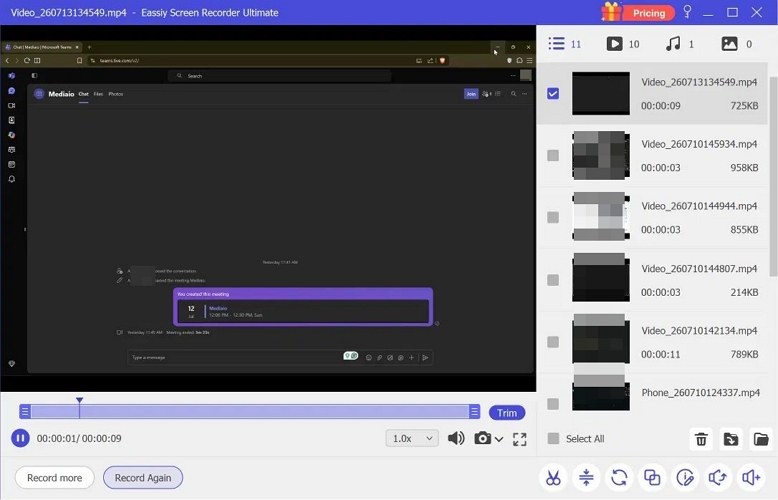
Step 5. When the meeting ends, click Stop. The recording opens in the preview window where you can trim it, boost the audio, or export it directly.
To schedule a recording, click the Schedule option before hitting REC and set the start and end time to match your meeting.
Mobile Steps (iOS/Android):
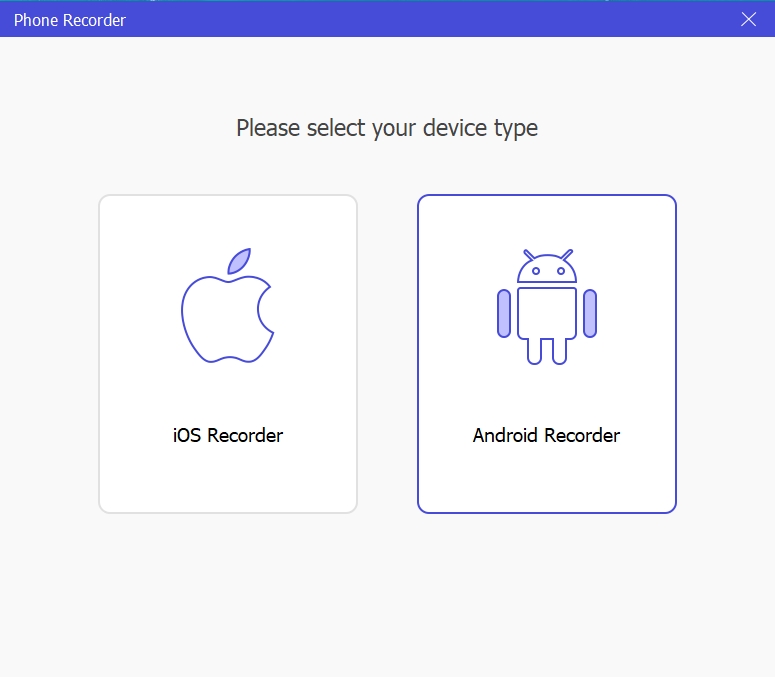
Step 1. Open Eassiy on your computer and select Phone Recorder from the main screen.
Step 2. Choose iOS Recorder or Android Recorder depending on your device.
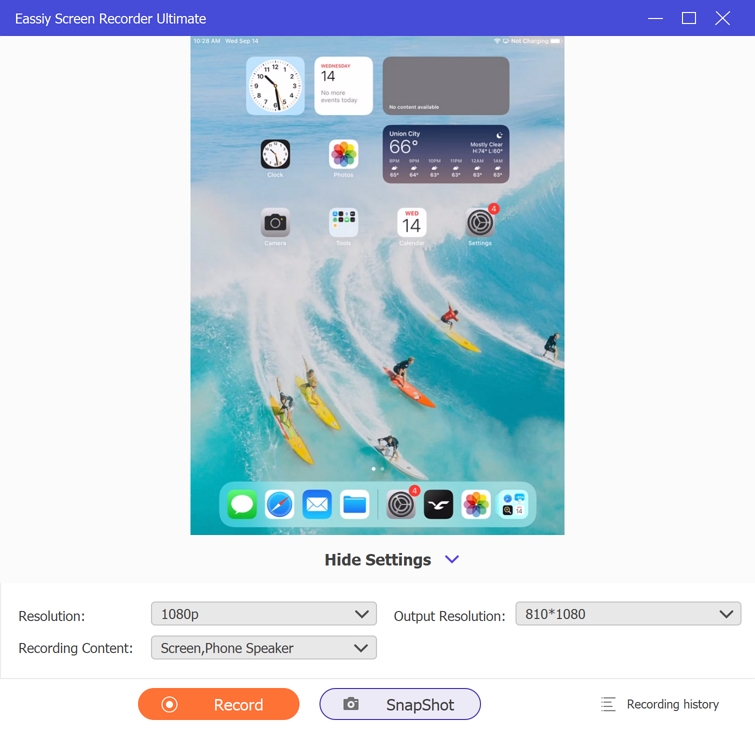
Step 3. Connect your phone to the computer by following the onscreen instructions.
Step 4. Open the Teams meeting on your phone. Hit REC in Eassiy on your computer to capture everything happening on your phone screen, including audio from all participants.
Step 5. Stop when done. The recording will save automatically to your computer.
FAQs
How to Record a Video in Teams Without a Meeting?
Sometimes you don't need an actual meeting but just a quick recording. Maybe it's a set of steps you want to send someone or a bug you need to show Microsoft directly. Teams lets you record your screen with just yourself in it.
Step 1. Open your Calendar and click Meet Now.
Step 2. Name the meeting and click Start Meeting. You'll be the only one in it, but you can still turn your camera and mic on if you want your face or voice included.
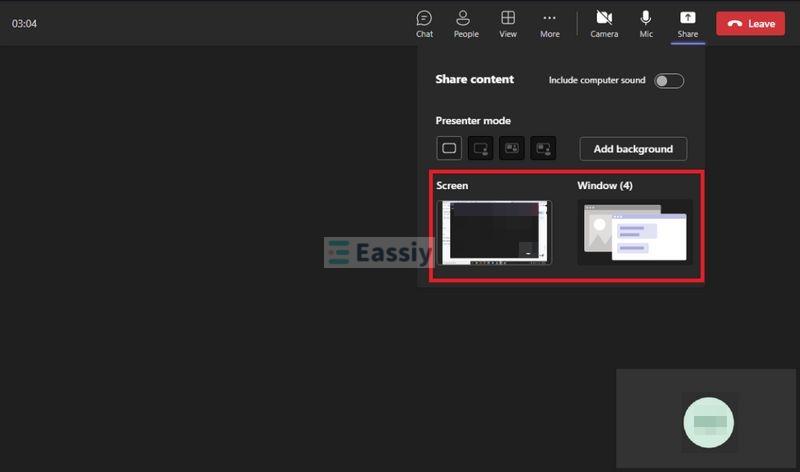
Step 3. Click Share Content and choose what to capture.
Select Screen to record everything or PowerPoint Live if you're presenting slides. You can even pick a specific window or whiteboard instead.
Step 4. Move your cursor over the window to bring up the menu at the bottom, click the three dots and select Start Recording.
Step 5. When you're finished, click the three dots again and select Stop Recording.
How to Record a Teams Meeting with Just Yourself?
This is different — you might be in a meeting with several people, but you want the recording focused on you specifically.
Step 1. Start the meeting as usual, with your camera and mic on.
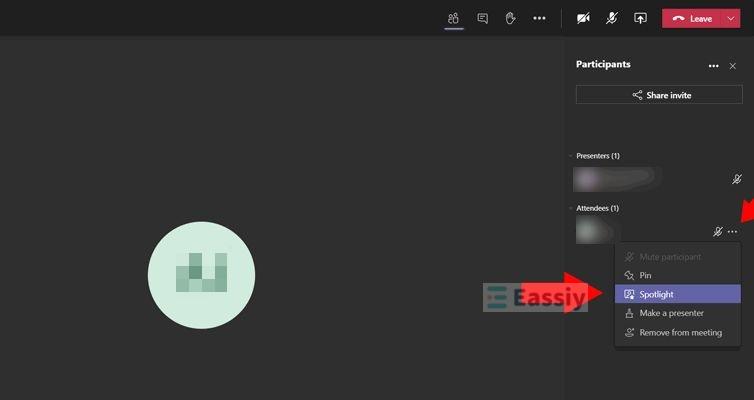
Step 2. Click Show Participants, find your name, and tap the three dots beside it. Select Pin or Spotlight — either one keeps your video fixed and enlarged throughout the recording.
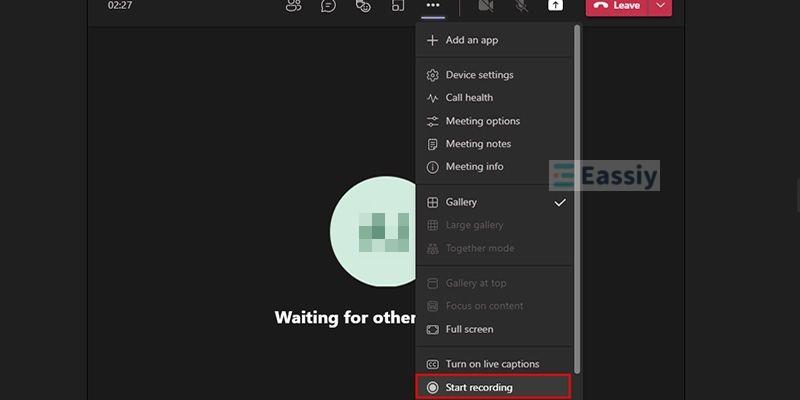
Step 3. Open the meeting menu, click the three dots, and select Start Recording.
Step 4. Click the same three dots once the meeting wraps up and select Stop Recording.
Final Words
Now you know how to record a Teams meeting on both desktop and mobile. Yes, it comes with its own list of requirements for plans, permissions and your role in the meeting, all of which we've walked through above.
If you don't have a premium plan or cannot contact the admin for recording permissions, you can use third-party tools to record the meeting with everyone’s consent. Eassiy Screen Recorder Ultimate is the best option for that, which lets you annotate while recording and produces a result close enough to Teams' own recorder.