Help Center
Updated on 2026-08-17
views
5min read
WhatsApp has become a full-fledged calling app. There are voice calls and video calls for one-to-one chats and group catch-ups. However, it gives you nothing to record these conversations. So if an important client discussion, a long-distance family call, or an interview happens on WhatsApp, you will need a call recorder of your own. That's what this guide brings. You will find the best WhatsApp call and video recorders, across desktop and mobile. Some tools even let you record your calls automatically.
Notify Others Before Recording WhatsApp Calls
Recording regular cellular calls has become quite common. WhatsApp offers no such feature for its VoIP calls, though we will show you ways to get around that. The law around recording VoIP calls is not clear everywhere. And in some countries, recording a WhatsApp (VoIP) call without the other party's permission is plainly illegal. However, as long as you have the consent of the other persons on the call, you can safely record in almost every country. So, before you use any of the methods below, tell the people on the call. To see exactly where your country stands, check this Wikipedia page on telephone call recording laws.
3 Best WhatsApp Call and Video Recorders
That said, here are the tools to record your WhatsApp voice and video calls.
Some, like Eassiy, allow you to record WhatsApp voice and video conversations across every device you own — Windows, Mac, Android, or iOS. However, some only work with WhatsApp Web or the WhatsApp app on your Windows or Mac computer. We’ve also included one that automatically records WhatsApp calls right on your phone. Go with the one that matches where your calls happen.
1. Eassiy Screen Recorder Ultimate
| Supported OS | Record Content | Pricing | Schedule |
|---|---|---|---|
| Windows and Mac. Records video and voice WhatsApp calls on iPhone and Android too via its Phone Recorder. |
Video calls with audio and voice/audio calls with both sides of the conversation. Works for computer and phone calls alike. |
Free trial available. Paid monthly($19.99), yearly($39.99), and lifetime($69.99) licenses. |
Yes. Task Schedule starts and stops recordings on its own, with repeat options. |

When it comes to recording WhatsApp calls on mobile or computer, Eassiy Screen Recorder Ultimate tops the list. Whether it’s a video or voice call, Eassiy can record WhatsApp conversations without any time limits or black screen(for video calls).
Eassiy comes with advanced options for recording video and audio calls. Its Windows Recorder lets you capture only the WhatsApp window during video calls and leaves out everything else on your screen, so the output comes out clean and professional. For audio calls, the Volume Mixer picks up only WhatsApp's audio and shuts out the rest, ensuring that no notification pings sneak into your recording. On top of that, you will also get plenty of other customizations for how each recording behaves.
Eassiy is also incredibly easy to set up. Whether you want to record the WhatsApp call on your phone or computer, you just select a quick option. Then come Eassiy's output features. You can export the recording in the format you like, send it to your phone, or share it wherever you want.
Key Features:
- Save recordings in MP4, MP3, WAV, FLAC and other formats and customize quality settings.
- Add annotations, text, lines, and arrows during the WhatsApp video call recording.
- You can trim recordings, enhance audio and make quick edits without needing a separate editor.
- Schedule WhatsApp call recordings to start and stop automatically at a specific time.
- Features other advanced recording models, such as Game Recorder and Follow Mouse.
- Customize shortcuts for fast and convenient screen or audio recording.
How to Record WhatsApp Audio Call and Conversation with Eassiy
Eassiy records WhatsApp audio with equal ease on Windows and Mac and on your phone. You can choose how the file comes out: MP3, WAV or lossless FLAC. You can even configure the audio quality, sample rate, channels, and other audio parameters.
On Windows/Mac
The steps stay the same on both, so follow along on either one.
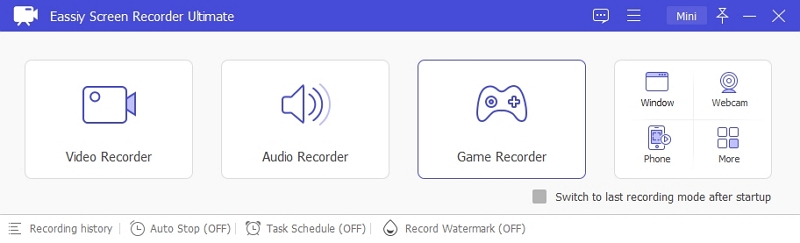
Step 1. Launch Eassiy on your computer. From the main drop-down, select Audio Recorder.
Step 2. Turn on System Sound and switch on the Microphone too if you want your own voice in the recording.
Now click the small arrow on the System Sound box to open the Volume Mixer that helps keep WhatsApp's volume up and pull down the volume of other apps. That way, no unnecessary notifications or pings will enter your file.
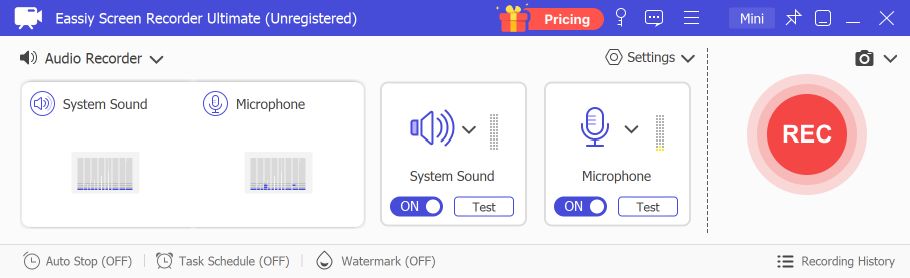
Step 3. Once the call is on, click REC. The recording will begin.
And if you want to exclude a part of the call, hit Pause — then Play when you're ready to resume.
Step 4. Click the red Stop button once it's done.
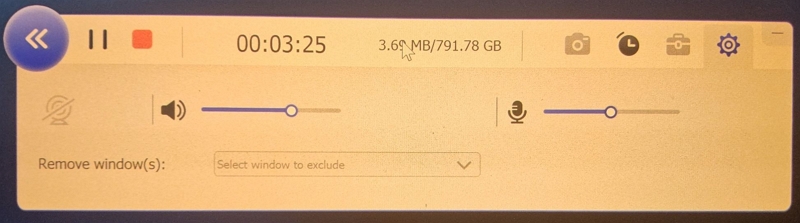
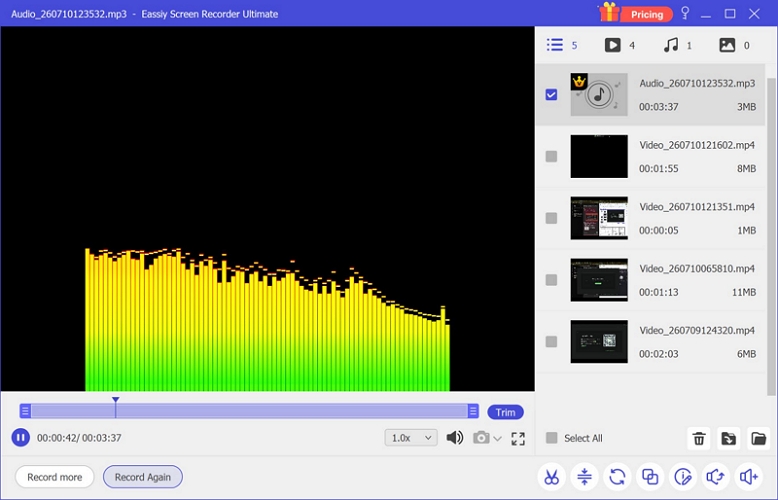
The audio will arrive right inside Eassiy. Use the Trim feature, boost the sound, or clear up anything unclear with the built-in audio editor. Then export the file.
On iPhone/Android
Step 1. Connect your phone and computer to the same network. On Eassiy, select Phone Recorder from the interface drop-down.
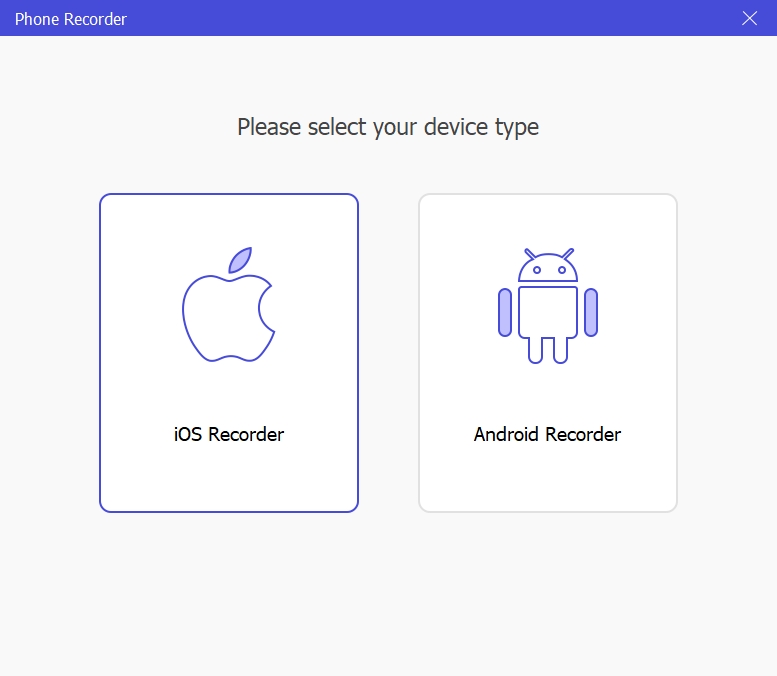
Step 2. Choose your device type: iOS Recorder or Android Recorder.
Step 3. Follow the on-screen instructions to cast your phone.
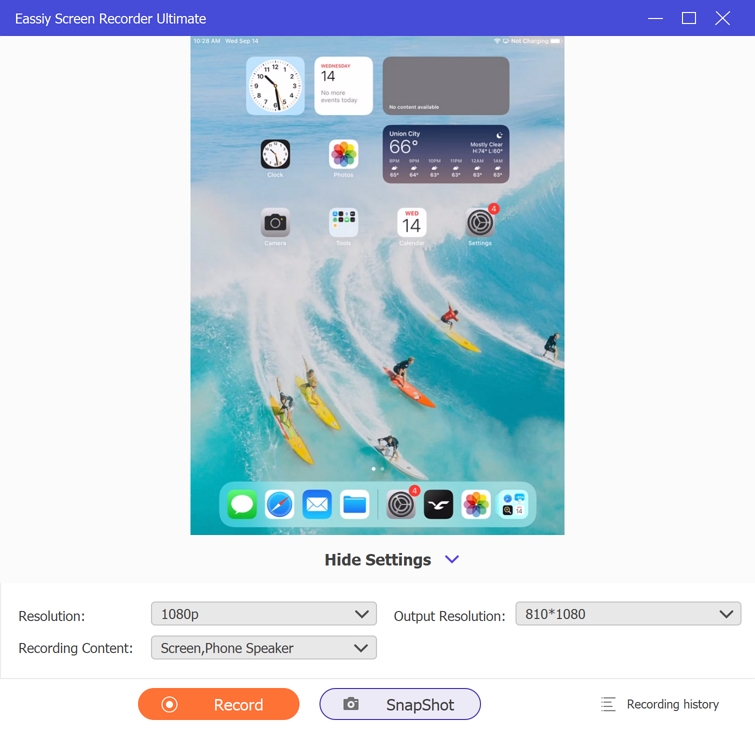
Step 4. Now choose Phone Microphone under “Recording Content”. Then, click Record and Eassiy will capture the call along with every sound coming from it.
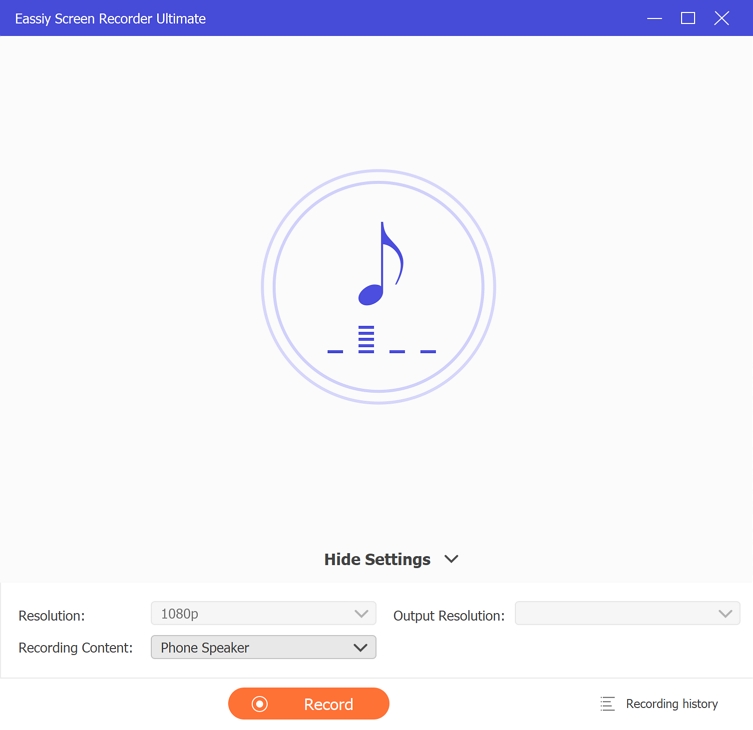
Step 5. End the recording after the call. You can edit the call recording and then save it back to your phone via AirDrop or USB transfer.
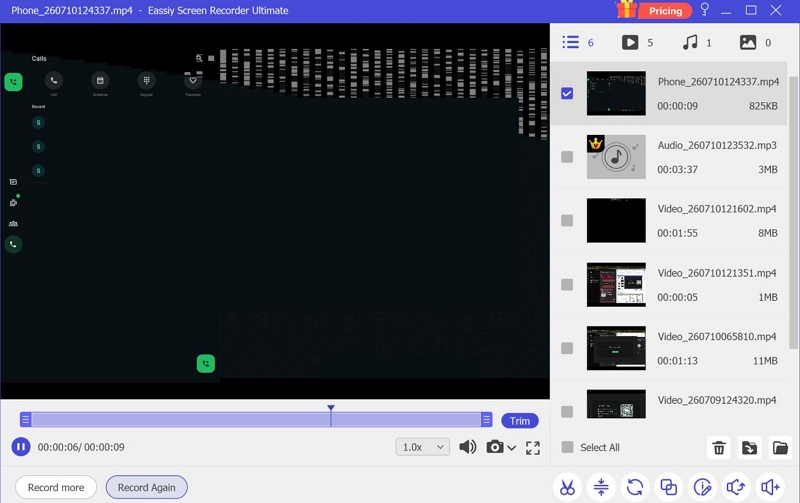
How to Record a WhatsApp Video Call with Audio Automatically
Eassiy’s Window Recorder feature also allows you to record WhatsApp Video calls on your phone and computer. Not only that, if you already know when a call is coming, like if it’s a weekly client meeting or a scheduled interview, Eassiy can automatically record it for you. So you don’t have to manually record the call and switch between apps.
You will just have to set up its Task Schedule feature once. After you set the time, Eassiy will automatically record the WhatsApp voice or video call at that time.
On Computer or Phone
Note: To record WhatsApp video calls on iPhone or Android, mirror your phone screen to Eassiy Desktop first and then follow the same steps below.
Step 1. Launch Eassiy and select Window Recorder from the main drop-down. Pick WhatsApp as the window, enable System Sound and keep the Microphone on if your voice belongs in the file.
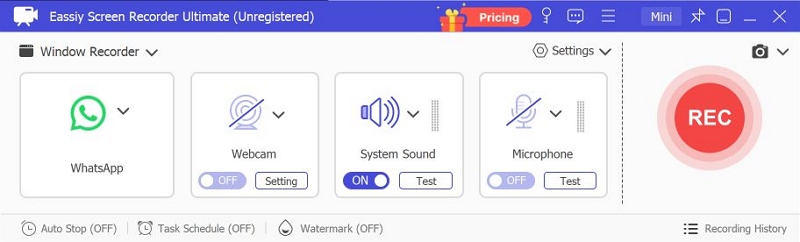
Step 2. Click Task Schedule at the bottom of the interface.
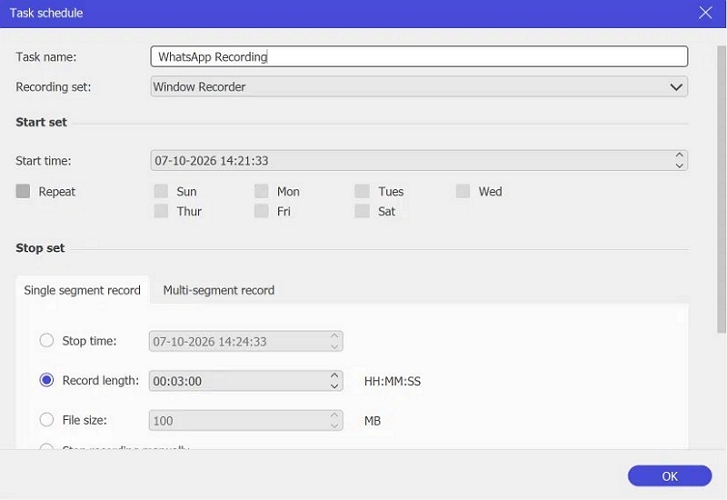
Step 3. Click + to create a new task. Give it a name like “WhatsApp Recording”. In the Recording set, keep Window Recorder selected.
Step 4. Set the Start time. Then decide how the recording ends under Stop set — a fixed stop time, a record length or a file size. You can even tell Eassiy what happens once it's finished: stop, close the program, or shut the computer down.
Note: If a call repeats weekly, you can tick Repeat and select the days.
Step 5. Click OK.
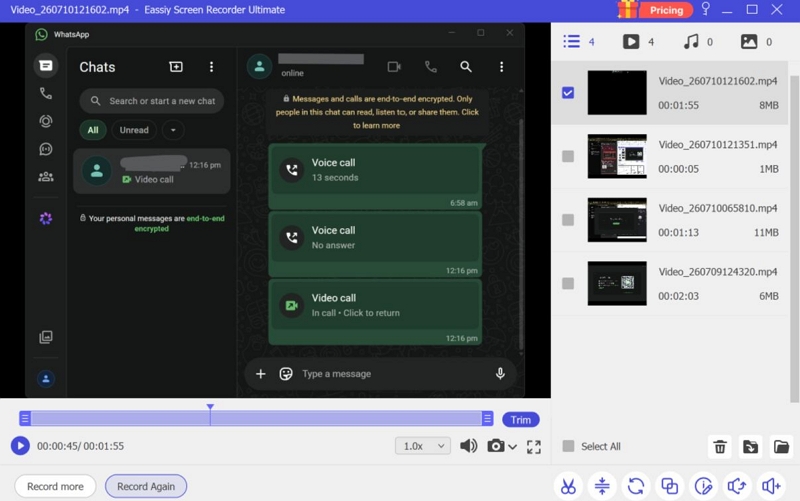
That's it. At the set time, Eassiy will start recording the WhatsApp window with its audio automatically, including video call and all. You can find the recorded video via the Recording History menu in the Eassiy program.
2. Bandicam
| Supported OS | Record Content | Pricing | Schedule |
|---|---|---|---|
| Windows. A separate Mac app exists on the Mac App Store. |
Video calls with audio via its specific window mode. Voice calls with both sides — speaker plus mic, via its Audio-only mode. |
US$33.26/year or US$44.96 one-time. The free version has a 10-minute cap on videos plus a watermark. |
Yes. Daily or weekly auto start and stop, but it is locked behind the paid version only. |

Bandicam is another popular name in the screen recorder market. It does not extend its recording powers to mobile devices like Eassiy, so a WhatsApp call on your Android or iPhone will be out of its reach.
But on the computer, Bandicam has some of the features that Eassiy gives, including a window-specific recorder. And here's a genuinely good part: an audio-only recording that comes in MP3 or WAV format and it lets you make unlimited recordings even on the free plan. Video recording is what carries the free limits — 10 minutes per recording and a www.BANDICAM.com watermark. However, both tiers will let you export in the same quality and formats.
How to Record WhatsApp Calls with Bandicam
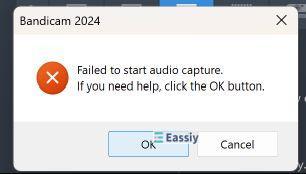
The Bandicam interface still retains its 2008 look, but it is fairly straightforward to use. Just keep in mind that there's some initial setup to get through. Otherwise, you could get a "Failed to start audio capture" error, the moment you press that REC button. Such issues are common, though Bandicam offers comprehensive guides to help you resolve such issues easily.
For Voice Calls
Bandicam puts no time limit on audio. So you can record your WhatsApp conversations even past 24 hours without breaks. One major limitation is that it will record all the sounds playing through your computer's system audio. Yes, you can turn on your mic and system audio, so your voice is captured in the call recording as well. But it will not let you isolate the WhatsApp app alone. This means any notification pings or sounds playing on your computer will be captured along with the call.
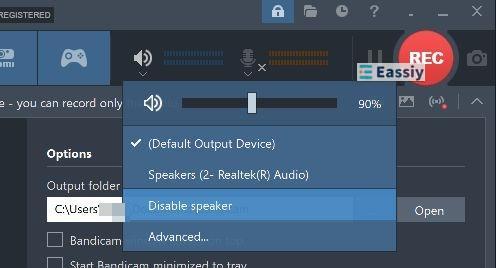
So close the noisy apps before the call or silence them one by one before recording WhatsApp calls with Bandicam.
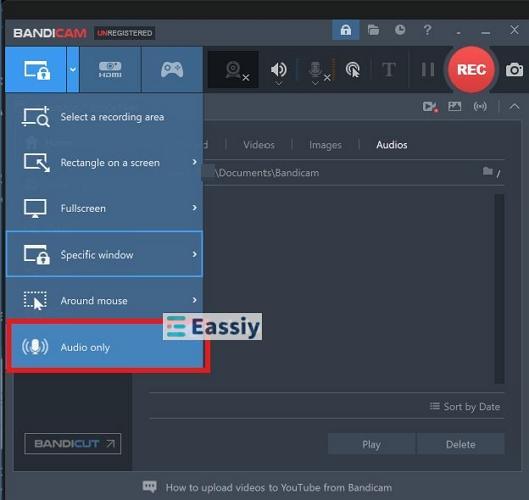
Step 1. Open Bandicam. Click the small arrow next to the monitor icon in the top drop-down. Select Audio only at the bottom of the recording mode list.
Step 2. Set your two sources.
- Keep Speakers on (Default Output Device) so the caller's voice gets captured.
- Then keep your Microphone selected for your own side — you can raise its volume slider and switch on Noise Suppression to tame fan noise and the like.
Step 3. Configure the output before you record. For this, click Settings under the Audio tab — choose between MP3 and WAV. Adjust the channels, frequency and bitrate as you want.
Step 4. Once you're on the call, click the REC button or just press F12.
Step 5. Press it again (or hit F12) to stop.
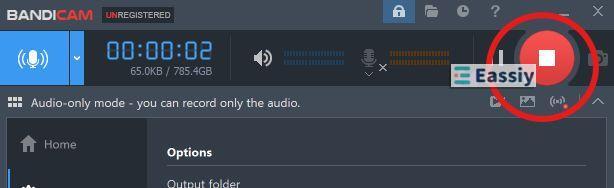
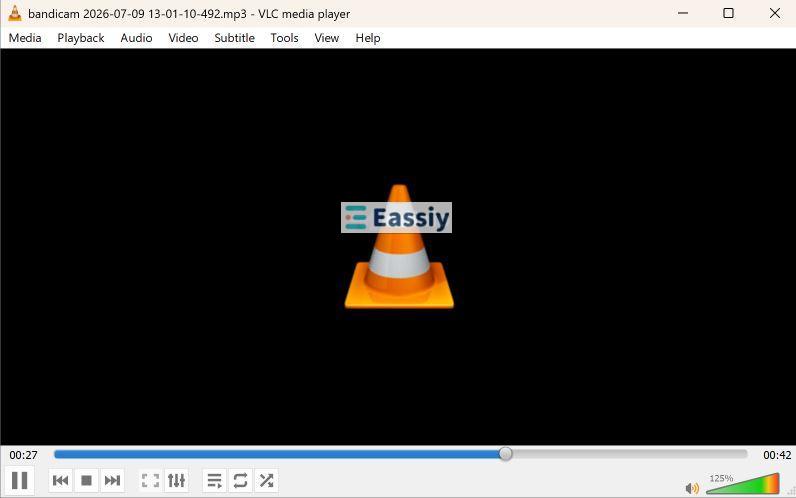
Your file will sit under Home > Audios. Or you can go manually to the Documents folder and open the Bandicam folder. The MP3 recording will be saved right inside.
For Video Calls
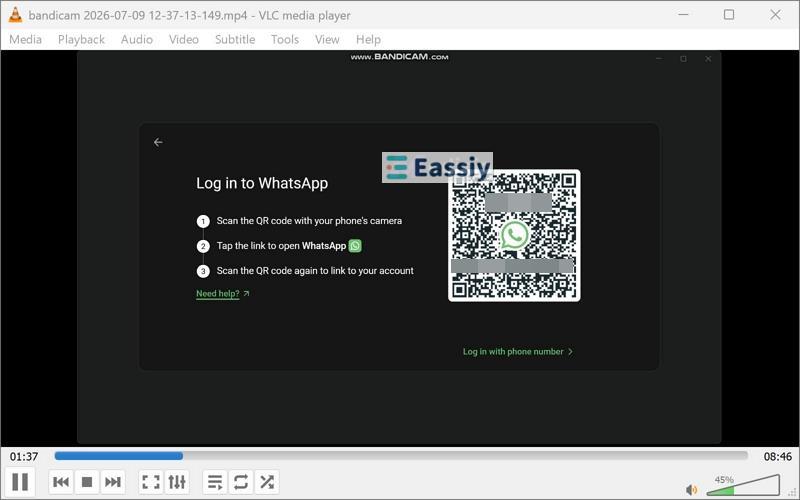
Bandicam’s screen recording features are not as granular as Eassiy's controls, but it does include window-only recording. So you can record WhatsApp video calls. By default, your file will be exported as MP4 and you can change the format in the Video menu if needed.
One thing decides your workflow here: keep WhatsApp closed at first. Start Bandicam before WhatsApp. Otherwise, the Specific window mode will fail to detect WhatsApp if the app is already open. We encountered this glitch ourselves while testing. The fix was to relaunch WhatsApp for Bandicam to recognize it. However, that means disconnecting the call. In other words, Bandicam is not the tool to grab when a call is already ringing on your screen.
Step 1. Start Bandicam first. Then open WhatsApp on your computer.
Step 2. Click the same recording-mode arrow once again, hover over Specific window and pick WhatsApp from the window list.
Bandicam locks onto it and shows the WhatsApp window size at the top.
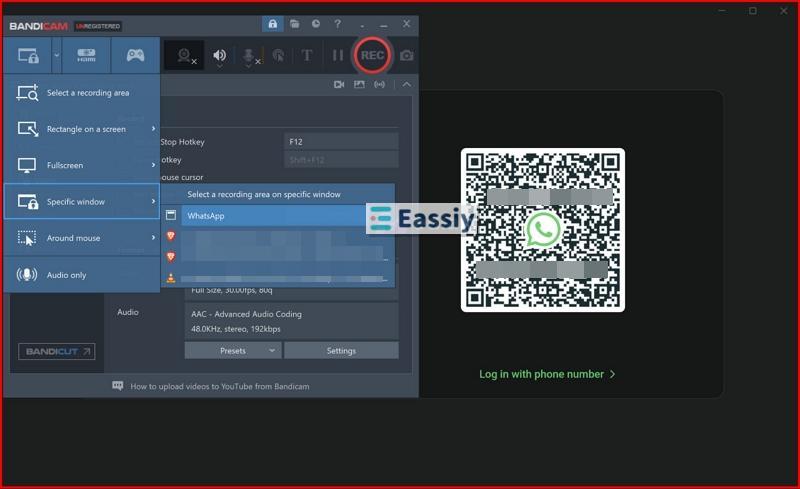
Step 3. Start your WhatsApp video call, then press the red record button (or press F12).
Step 4. Press F12 again once the call wraps up. That's it.
Step 5. Head to Home > Videos. Your recording sits there, saved in the dedicated Documents > Bandicam folder. Note that you can only record up to 10 minutes with the free version and need to go paid before recording beyond the free cap.
3. Cube ACR
| Supported OS | Record Content | Pricing | Schedule |
|---|---|---|---|
| Android only. Note: The iOS version is a Call Recorder and voice memo tool, which cannot record WhatsApp calls. |
WhatsApp voice calls with both sides recorded automatically. Video recording is not an option. |
Free for call recording. Premium (around US$9.99/year) adds cloud backup, PIN lock and extra formats. |
None. It records every call automatically in the background. |
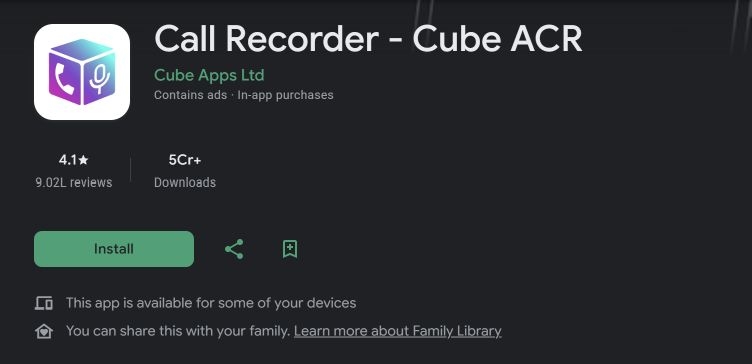
The only app that allows us to record WhatsApp calls (on Android) is Cube ACR.
It is designed to record VoIP — Voice over Internet Protocol from WhatsApp and other apps, such as Telegram, Signal, Viber, LINE, and more. However, it requires a comprehensive setup. So let's go through it properly.
What Cube ACR does is simple on the surface. It will run in the background and automatically record your incoming and outgoing WhatsApp audio calls. So, you don't even have to press the REC button before a call.
But underneath, Cube ACR needs a comprehensive setup. For instance, it will ask you for a bunch of permissions — access to accessibility, battery optimization exceptions, and more. Moreover, it will run in the background 24/7 (consuming your battery). Additionally, Cube ACR will require a small additional Helper app (installed separately) to do its job. Without these setups, this APK simply will not work.
One honest note before you start: Cube's own team admits that some phones cannot record VoIP calls due to hardware limitations, so test it with a friend before using it for recording an important call.
Note: You will find so many third-party recorder apps on the Play Store — Video Call Recorder for WhatsApp is one instance.

While on iOS, AZ Recorder is the most recommended option.
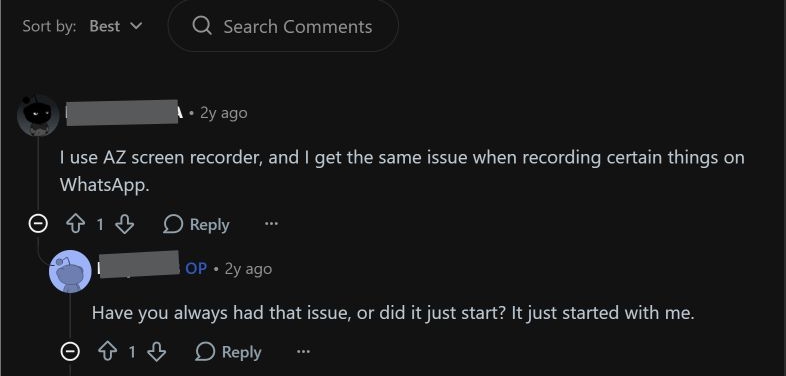
However, keep one thing in mind: none of these can record WhatsApp (VoIP) calls by default. Yes, they capture whatever is visible on the WhatsApp screen like messages and chats which you could grab anyway with a screenshot. But the moment a voice call or video call starts, WhatsApp privacy blocks will kick in. So:
- For voice calls, such apps will hand you blank MP3s.
- For video calls, you will get a silent, blank recording.
How to Use WhatsApp Call and Video Recorder APK - Cube ACR
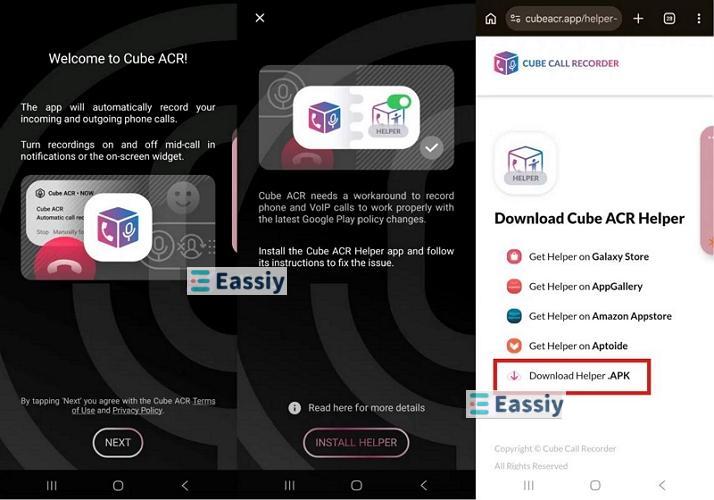
Step 1. Install Call Recorder – Cube ACR from the Play Store and open it.
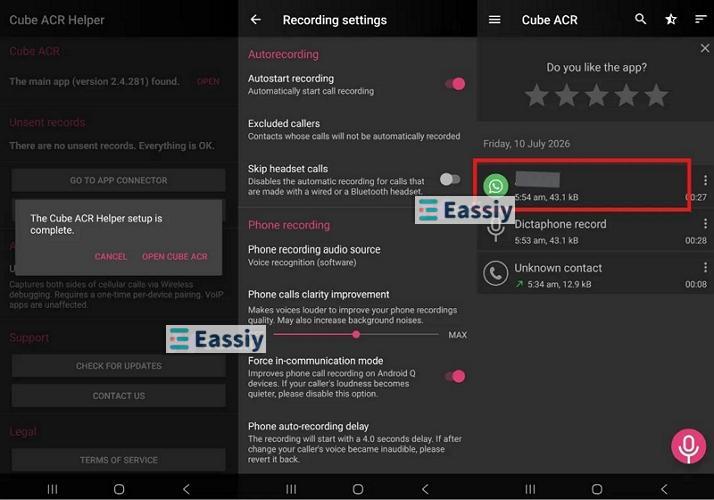
The welcome screen tells you exactly what it does — automatically records your incoming and outgoing calls. Tap Next and agree to the terms. Upgrade to Premium if needed.
Step 2. Tap Install Helper. Your browser will then open the official helper page. Here, you can install it as a direct APK.
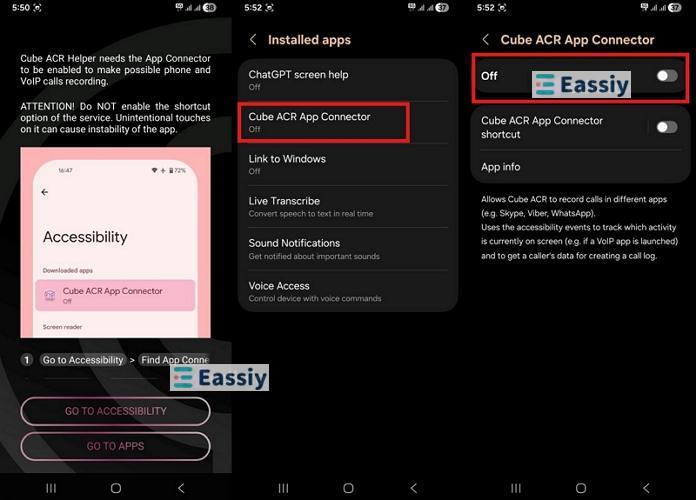
Step 3. Tap Go to Accessibility, find Cube ACR App Connector under your installed apps and turn it On.
Step 4. Give Cube ACR the remaining permissions — microphone, contacts, notifications and turn off battery optimization for it.
Once everything is done, the Helper confirms that the Cube ACR Helper setup is complete. Tap Open Cube ACR.
Step 5. Tweak the settings your way. Head to Recording settings and make sure Autostart recording stays on.
Take or make a WhatsApp call and Cube will record it in the background without any manual intervention. Every call will be saved to the app's list with a WhatsApp badge. Just tap to listen, share and save.
FAQ: How to Record WhatsApp Audio and Video Calls Without Any App
Yes, there are ways.
For voice calls:
You can put the call on speaker, max out the volume, and record it with a secondary phone's voice recorder. Although you will catch some room noise, this method will work on any device with zero setup and the audio quality is good enough.
For video calls:
An extra camera pointed at your screen is one way, but the copy will look dull and distorted. Plus, most of you wouldn’t want to go through these lengths every time you want to record a WhatsApp call.
The cleaner route:
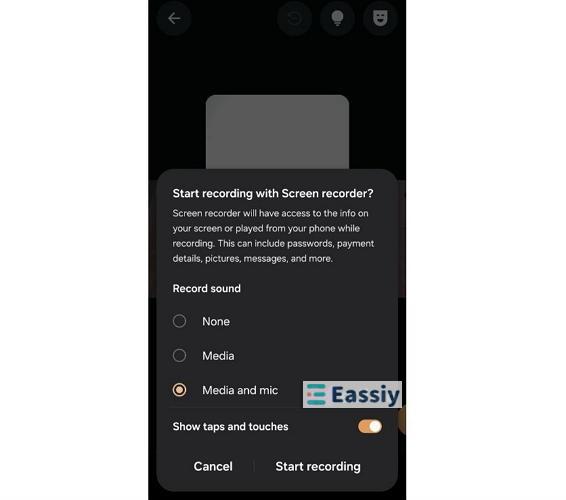
You can use your phone's built-in screen recorder. However, it doesn't work on every phone, because the phone’s microphone cannot serve two apps simultaneously. WhatsApp holds the mic during a call, so on many devices, the screen recorder will save a silent video. Some Android phones handle it, though — Samsung, for instance. For this:
- Pull down the quick settings menu.
- Tap Screen recorder.
- When the pop-up asks about sound, select Media and mic which captures the call from both sides.
- Leave Show taps and touches as you like.
- Then, tap Start recording.
- Take your voice or video call.
- Once the call ends, you can find your recording in the Gallery app.
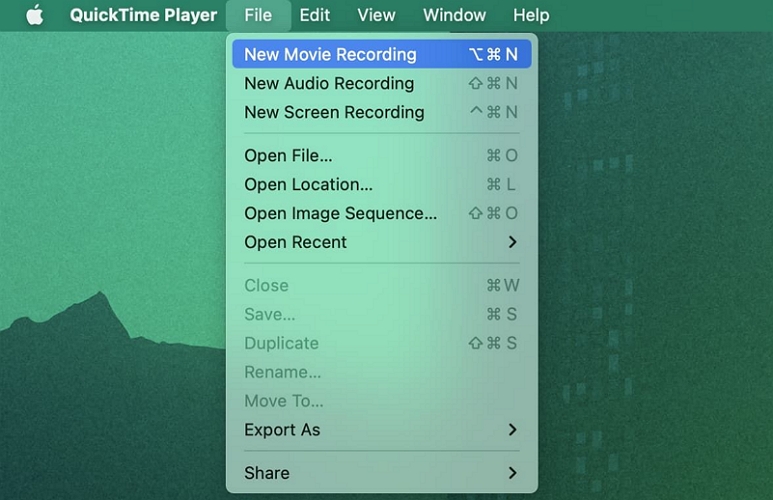
On iPhone, the built-in screen recorder won't get you there. One trick that has worked is using a Mac with QuickTime Player. However, the setup is a bit complicated. Here are the steps:
- Connect your iPhone to the Mac using a cable. Then, launch QuickTime Player.
- Click the File menu. Choose New Movie Recording.
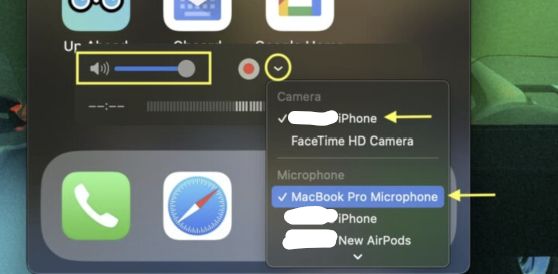
- Click the tiny arrow next to the Record button. Select your iPhone under Camera.
- Under Microphone, pick your Mac's mic, AirPods or any other input you're using — not the iPhone's own microphone, because WhatsApp is already using it for the call.
- Hit the circular Record button and start your call.
- Once everything is done, hit the same button again to save the recording. You can then share it with your other devices later.
Final Words
We have shown you every working method available to record your WhatsApp calls, whether you're on Windows or Mac or you want the recording made right on your phone. You can use the one that fits your needs.
Of course, Eassiy Screen Recorder Ultimate remains the best of them all. Voice call or video call, phone or computer — Windows, Mac, iPhone, or Android, it can record them all, with no limits. Just remember the one rule that never changes: get consent from everyone on the call before you press record.