Help Center
Updated on 2026-07-08
views
5min read
Discord is where conversations happen. There are voice channels, DM calls, group hangouts, and even stage channels. But once a call ends, the audio is gone. There is no built-in recorder to record and replay something. Thankfully, there are reliable third-party solutions that let you record any Discord audio, including one-to-one conversations and this guide will introduce you to those options. We will show you how to record Discord audio on both computer and mobile, so you can be sure they work.
Way Overview
Here is an overview of all four methods we have included. It tells you what types of audio each one can record in Discord, so you can easily choose the method that captures what you want.
| Method | What Content It Records | Compatibility | Needs Internet to Record | Price | Best For |
|---|---|---|---|---|---|
Craig Bot 
|
Captures only the audio of users inside server Voice Channels. It cannot record DMs or group calls. |
Any device running Discord. Desktop, browser, iOS, and Android. |
Yes. The bot records on its servers. A weak connection can bring drops and distortions into the recording. |
Free. | Podcasts, group interviews, and RPG sessions that need multi-track editing later. |
Eassiy Screen Recorder Ultimate 
|
Every Discord sound on your computer. Records calls, meetings, DMs, and private calls. Records gameplay and phone screens too. |
Windows and Mac. Records iPhone and Android screens through its Phone Recorder on desktop. |
No. It records locally on your machine. |
Free trial. Paid plans unlock full features. | Clean audio-only files with instant trimming. Record Discord audio with game, microphone, etc. Capture private calls that other methods miss. |
OBS 
|
It can capture any sound from Discord, but it will save it as a video file, not an MP3. | Windows, Mac, and Linux. It does not support mobile devices. |
No. Everything is captured locally. |
Free and open source. | Gameplay with Discord audio in the background. Streaming supported too. |
Audacity  |
All desktop audio in one raw track. Discord calls and every other sound are playing. |
Windows, Mac, and Linux. Mac needs BlackHole to capture system sound. |
No. It records straight from your sound card. |
Free and open source. | Raw audio capture followed by deep manual editing. |
Way 1. Record Discord Audio with Craig Bot
There are Discord bots for everything, and for recording Discord audio, there is Craig — the most popular one.
Craig is a multi-track recorder that joins your voice channel as a participant and records every single person speaking separately. Yes, everyone speaking in the channel will be captured separately.
So you can export the recorded file as a single-track recording (in FLAC, WAV or AAC formats) where everyone’s voices are merged together. Or you can choose multi-track formats, which will give you separate copies for each participant. You can import these copies to Adobe Audition or Audacity to work on everyone’s voice and synchronize everything while editing.
The highlight is that Craig is completely free. It records up to six hours in one go and keeps your recordings for seven days for you to download. But keep in mind, it only works inside Discord servers and won’t let you record your one-to-one calls or group DMs. So use it for things like recording a podcast, a group interview or your weekend RPG sessions.
Steps to Record Discord Audio on Mobile/Desktop
Craig works through Discord itself, not your device, so the steps stay quite the same whether you're on mobile or desktop. Just follow along on either one.
Step 1. Go to craig.chat and click the Invite Craig to Your Discord Server button. You can also find it on top.gg.
You will be prompted to give access to your Discord account. Select your server and make sure it's a personal one or one you manage.
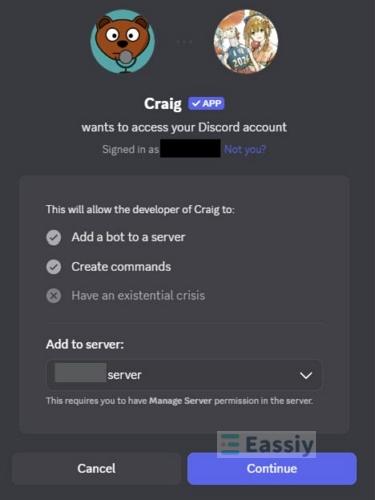
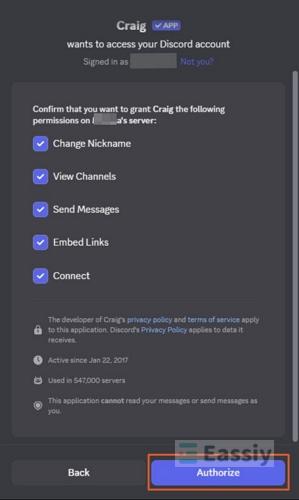
Step 2. Review the permissions Craig asks for and hit Authorize. Craig will now show up in your server's member list, like any other member.
Step 3. Join the voice channel you want to record, then type /join in the chat.
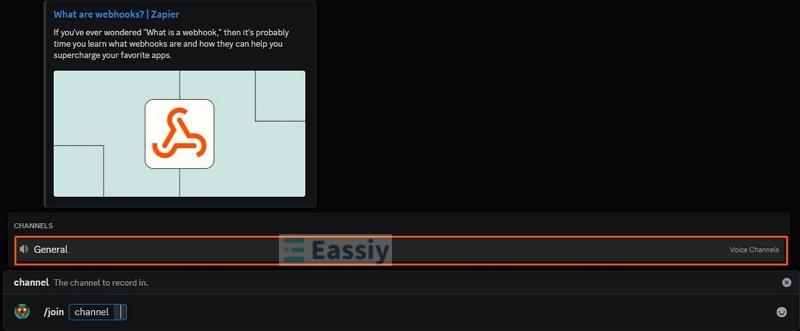
Craig will enter the channel and show the now recording message. Plus, it even changes its nickname so everyone knows a recording is on.
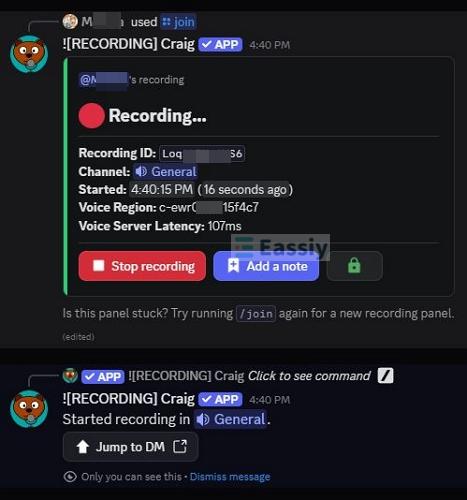
Step 4. When you're done, type /stop or press the Stop recording button. Craig will leave the channel right away.
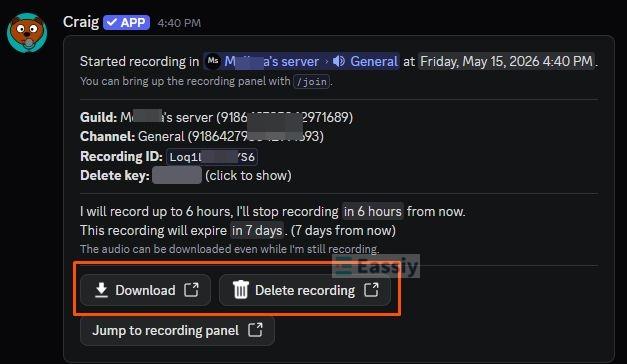
Step 5. Click the Jump to DM option or manually scroll through the DMs. Select the Download option.
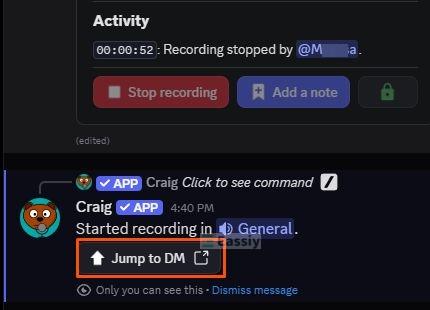
Craig will send you to an external page with download options where you can grab a single mixed track or separate multi-track files in formats like FLAC and AAC. Make sure to download the recording within 7 days. Otherwise, the recording will be gone.
Way 2. Record Discord Audio Using Eassiy Screen Recorder Ultimate
Eassiy Screen Recorder Ultimate is an all-in-one powerhouse that lets you record the Discord app in the way you want.
Its Audio Recorder feature records the entire sound coming from your computer. Or you can record only the sound coming from the Discord app by first configuring the volume mixer. You can even set up your microphone and record Discord audio alongside it.
Since it records on a computer level, it bypasses any server requirements or permissions. Any sound coming from Discord can be recorded. So be it music file, a podcast, an interview, an RPG session, your own meetings or one-to-one calls, you can record it easily.
Moreover, Eassiy is an ultimate screen recorder. It also comes with advanced screen recording options like a Game Recorder that is useful when you want your game screen recorded alongside the Discord audio.
Key Features:
- Advanced audio isolation and mixer — select sounds from specific applications while ignoring all other system sounds (built-in volume mixer).
- Noise cancellation and enhancement — remove background noise from your microphone while you record.
- Scheduled recording with auto-stop — set a specific time and it starts recording on its own while auto-stop ends the session for you when you're busy elsewhere.
- Multiple export formats and bitrates — record the way you want, then push it further with post-production tools like the advanced trimmer, media converter, sound extractor, and sound booster.
Steps to Record Discord Audio Only on PC/Mac with Eassiy
If you only need the audio, like a podcast, voice notes, or anything audio-only from Discord, you can use Eassiy's dedicated Audio Recorder feature.
Step 1. Download and install Eassiy Screen Recorder Ultimate on your Windows or Mac. Open it and select Audio Recorder from the main drop-down.
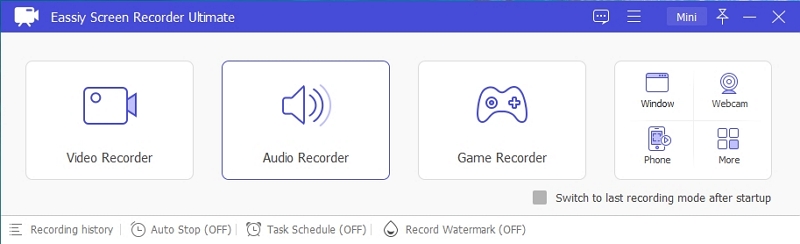
Step 2. Simply hit the REC button to start capturing every sound on your system by default. If you want granular controls, you can configure your audio recording settings. For this:
- Click the drop-down next to System Sound. Click Volume Mixer and choose to keep Discord's audio at the top and mute other sounds.
- Then switch the Microphone on or off as needed.
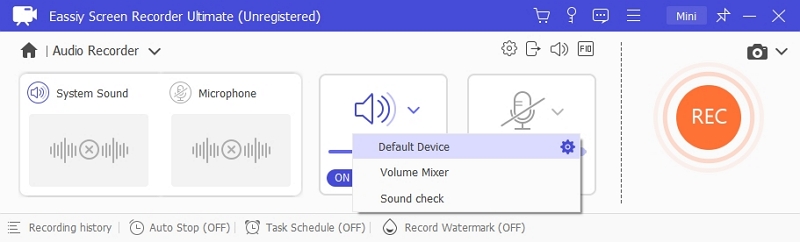
In the same window, you can schedule a recording or set an end time as well.
Step 3. Click the REC button on the right.
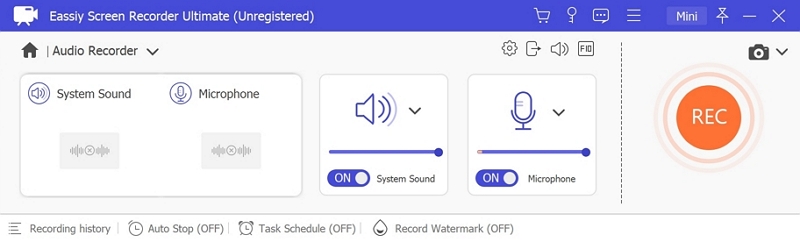
A floating toolbar appears in three seconds, showing your ongoing recording. Once your Discord voice is covered, click the red Stop button.
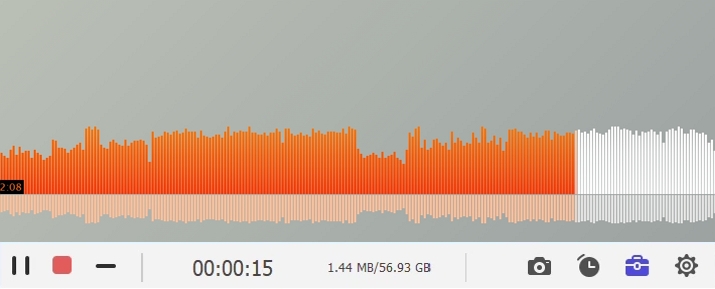
That’s it! You can save the audio file in MP3, FLAC, etc.
How to Clip Discord Audio on PC
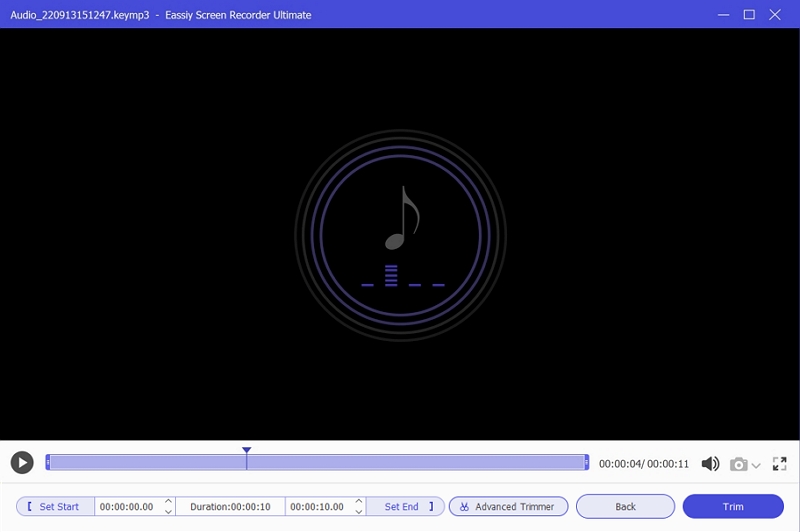
Once the Discord audio is recorded, Eassiy will automatically import it into its built-in audio timeline, with editing options right there. So you can immediately cut unwanted sections, remove long silences, normalize audio levels, reduce noise, and export the recording in formats such as WAV, FLAC, MP3, or OGG without moving to another application. For this:
- Select your recording on the timeline.
- Click the Trim option.
- Highlight the sections you want to remove and cut them out.
Then use the editing controls at the bottom right like sound booster and more to polish the audio your way.
Steps to Screen Record Audio via Eassiy
Eassiy is first and foremost a screen recorder. It comes with many screen recording features, such as a window-specific recorder (for recording the Discord app only), webcam recording, and a follow-mouse mode to show something in a tutorial. And more importantly, it can even record your phone screen. So let's see how you can do this on a computer and a mobile device.
For Windows/Mac
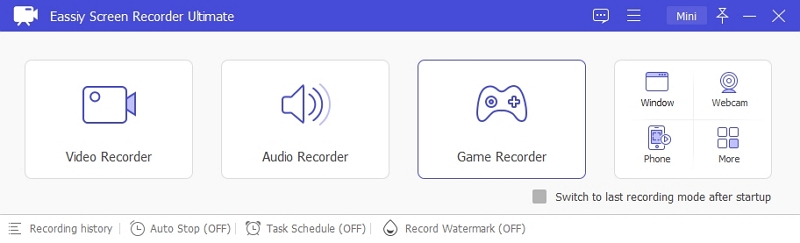
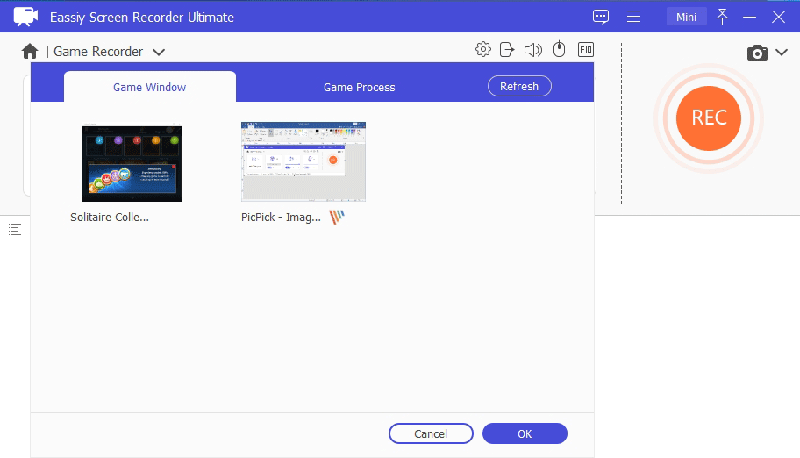
Step 1. Launch Eassiy. For gameplay, choose Game Record, select your game as the window while the Discord sound keeps rolling in the background. Or, you can use Window Recorder to only capture the Discord screen with audio.
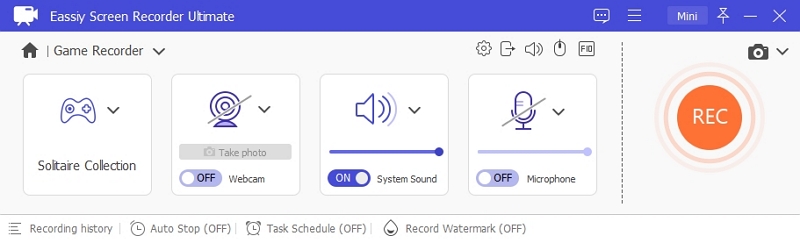
Step 2. Click the System Sound menu to adjust the Discord audio level and enable microphone sound.
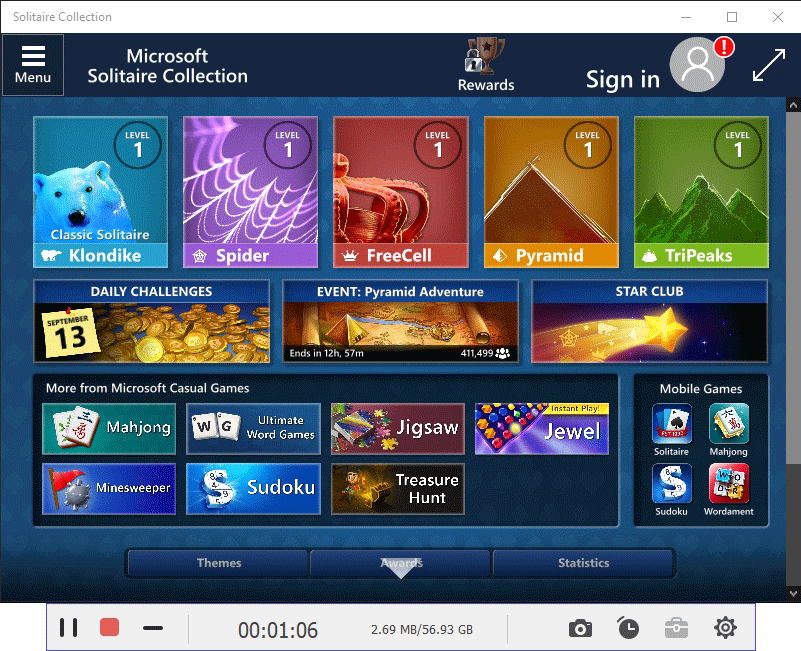
Step 3. Click REC. Being an offline application, it will not interfere with your game or anything. It will just sit in the background and you control it with shortcuts.
Step 4. Click Stop or use the Start/Stop hotkey to end the recording while still focusing on your game or other screens with Discord audio.
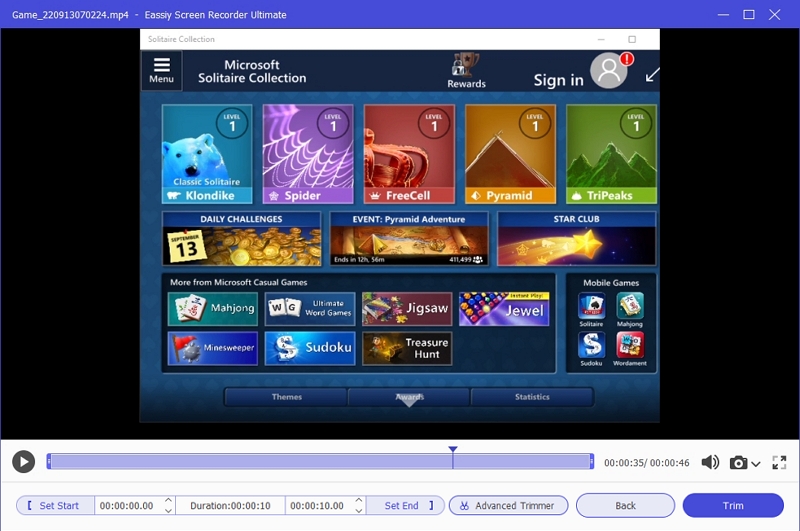
Step 5. Export the video in the format you want.
For iPhone/Android
When you try to record Discord on a phone, you normally get a black screen because Android and iOS enforce strict privacy blocks there. Eassiy works around this from your computer.
Step 1. Launch Eassiy and select Phone Recorder.
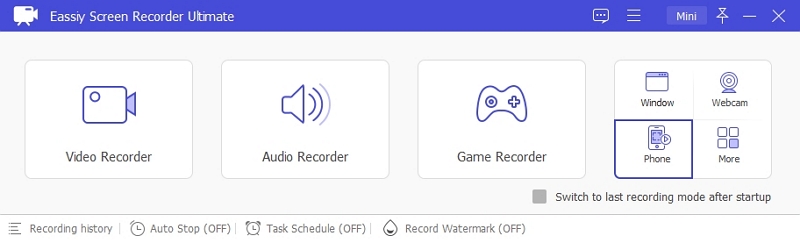
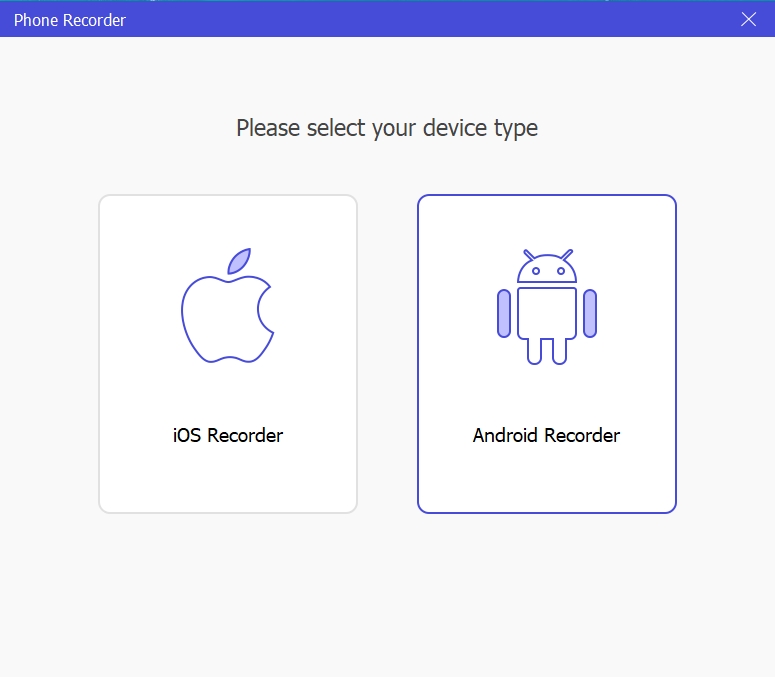
Choose iOS Recorder or Android Recorder as your device type.
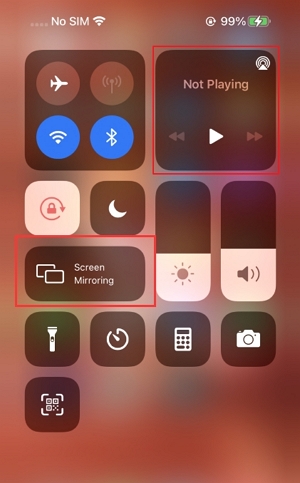
Step 2. For iPhone, connect your computer and phone to the same Wi-Fi network, then use Screen Mirroring from the Control Center to mirror your iPhone to Eassiy. Your phone screen will automatically show up in the app.
For Android, connect your phone through the FoneLab Mirror app and Eassiy will guide you through the process.
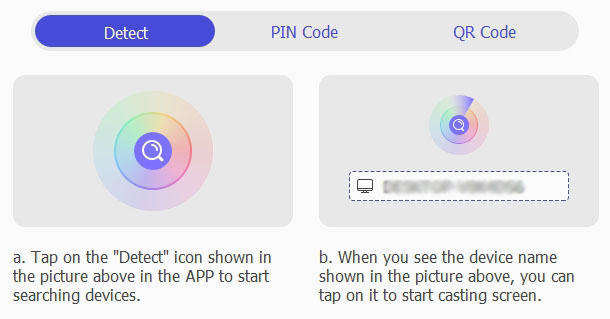
Step 3. Set up your sound however you want — record just the phone microphone, your PC speaker, or both.
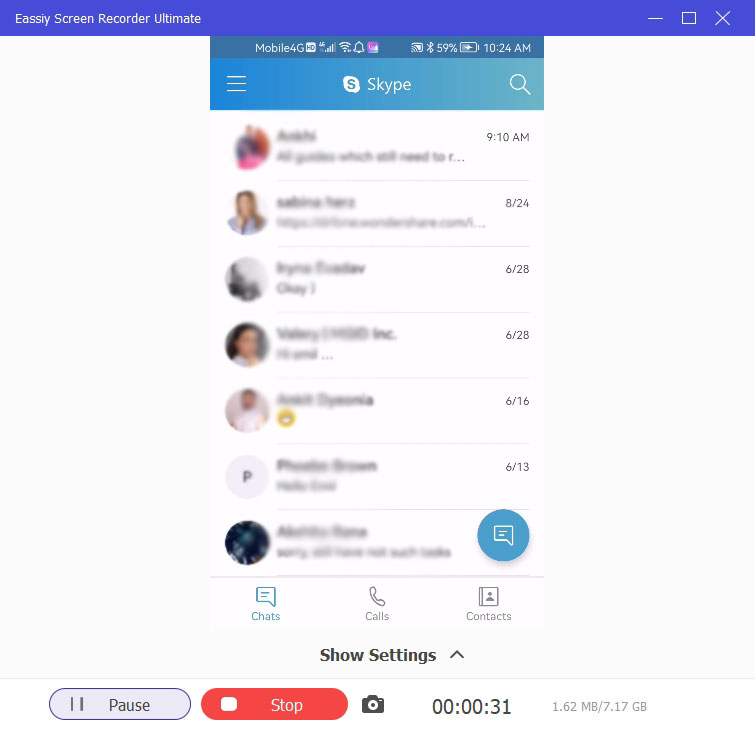
Step 4. Click Record and carry on with your Discord activities — everything on the screen, along with all the sounds coming from it, will be captured.
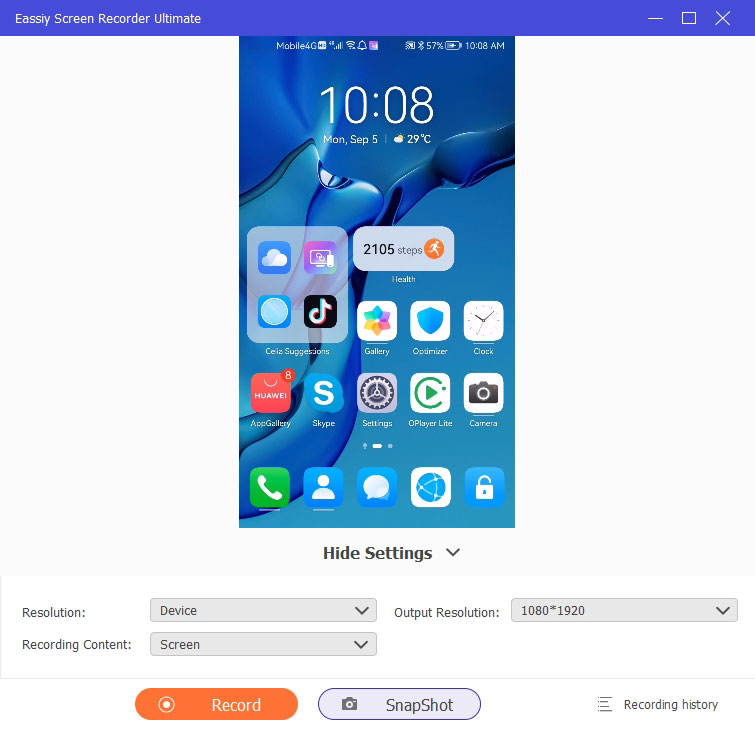
Step 5. Click Stop when you're done, trim if needed, and save.
Way 3. Record Discord Audio with OBS
OBS comes with one major flaw - it cannot record audio solely. Yes, it has an audio capture feature, but it will record audio with a blank screen and save the output file in MKV, MP4, or another video format. So, you will have to convert it to MP3 using another audio format converter later. Still, if that's okay with you or you’re looking to record gameplay alongside Discord audio, OBS is a decent application that offers many benefits.
OBS is completely free, so you can create unlimited recordings without any problem. It also comes with an Application Audio Capture feature to record a single program, meaning you can record the Discord app solely and the sounds coming from it. You can even attach your own mic or game audio on top, since OBS can handle multiple audio sources at once.
One more thing you should know before starting. Configuring the scenes, sources and audio tracks in OBS can take quite a while. It's not a quick setup like Eassiy or Craig, so you could miss the first minute or two of your call or conversations.
Steps to Record Gameplay and Discord Audio with OBS
Step 1. Open OBS Studio. In the bottom-left Sources box, click the + icon and select Application Audio Capture. Name it Discord and hit OK.
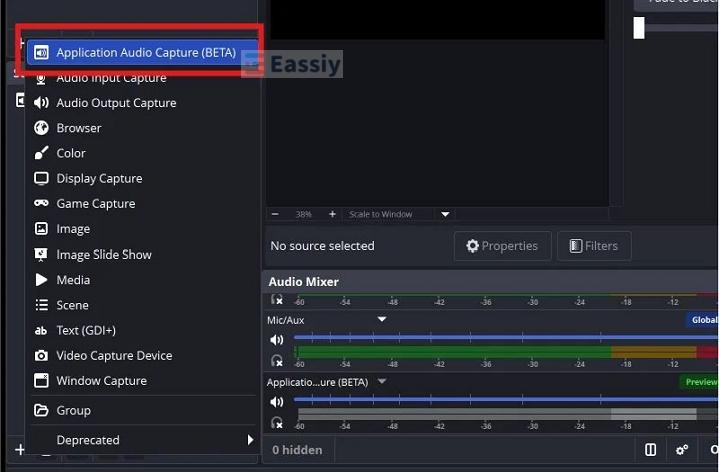
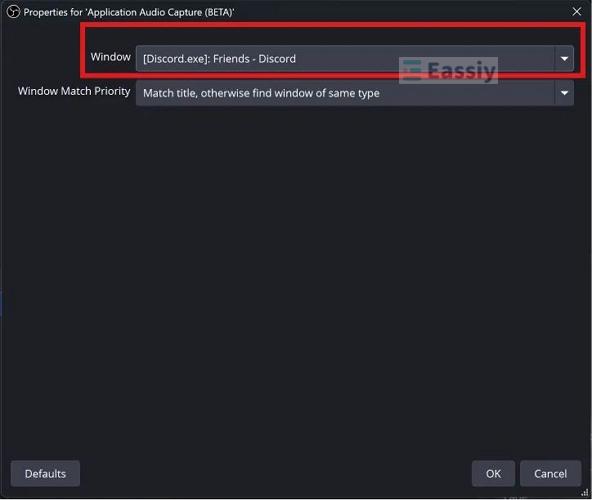
A Properties window will open up. In the Window drop-down, select [Discord.exe]. OBS will now actively listen to the Discord app.
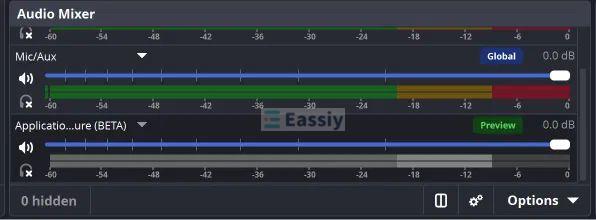
Step 2. Head to the Audio Mixer. You'll see a new bar for the application right below your Mic/Aux. You can use the blue slider to lower Discord's volume, adjust your mic, or mute either one completely if needed. Set these the way you want.
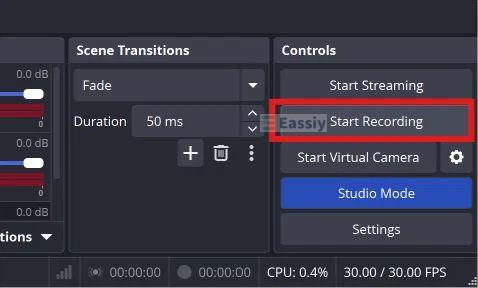
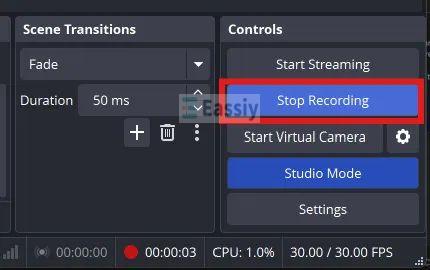
Step 3. In the Controls section at the bottom right, click Start Recording.
A pop-up will warn you that there are no video sources and the output will be a blank screen. Simply click Yes.
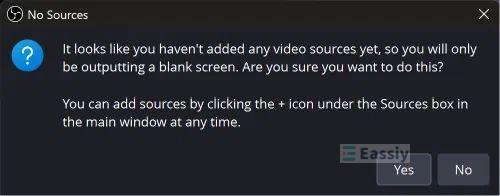
If you want to record gameplay along with Discord, make sure to add a Game Capture source from the same Sources box. In this case, you won’t see the blank-screen pop-up.
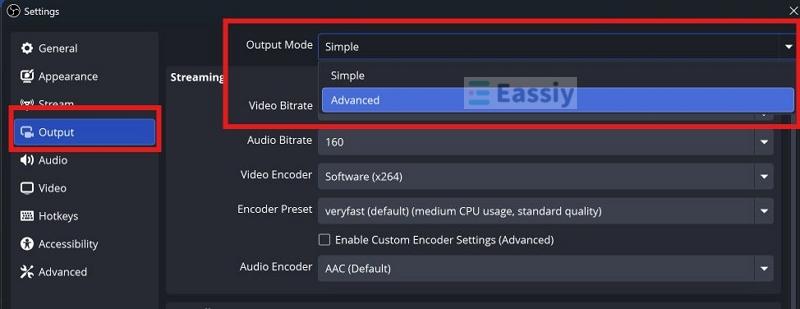
Step 4. Once your game session wraps up, hit Stop Recording in the same Controls section.
Step 5. Go to File > Show Recordings. Your recording will be sitting in the Videos or Movies directory, saved in OBS's usual naming style — the date and timestamp together.
Way 4. Record Discord Audio with Audacity
You can choose Audacity when you need to record just raw audio from Discord. Since it records any sound playing on your computer, it needs no server permissions. No matter what you want to record in Discord, such as podcast interviews, voice-only content, anything else, Audacity will serve you well.
Plus, Audacity is primarily an audio editing tool. So, where it will excel is in post-production. It will give you access to timeline editing and you will get trimming features, volume adjustment, and export in the format of your choice.
Steps to Record Conversation/Call in Discord Using Audacity
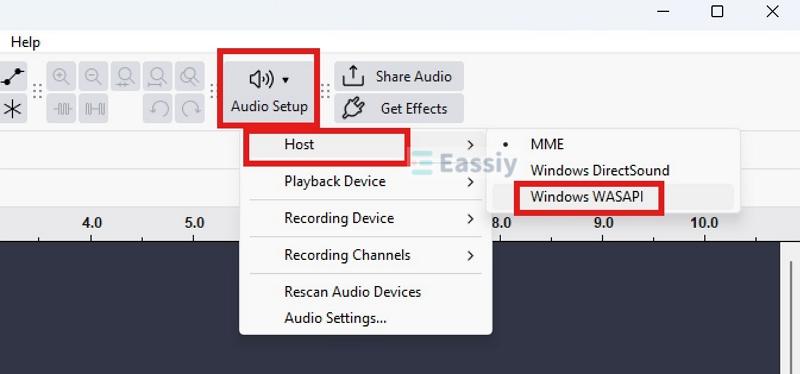
Step 1. Install and open Audacity. Move to Audio Setup on the toolbar, click Host, and select Windows WASAPI. This tells Audacity to listen to your desktop audio directly.
Step 2. Return to the Audio Setup menu, select Recording Device, and pick your speaker output marked with (loopback).
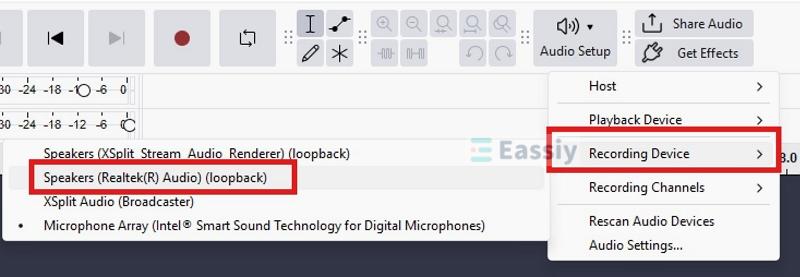
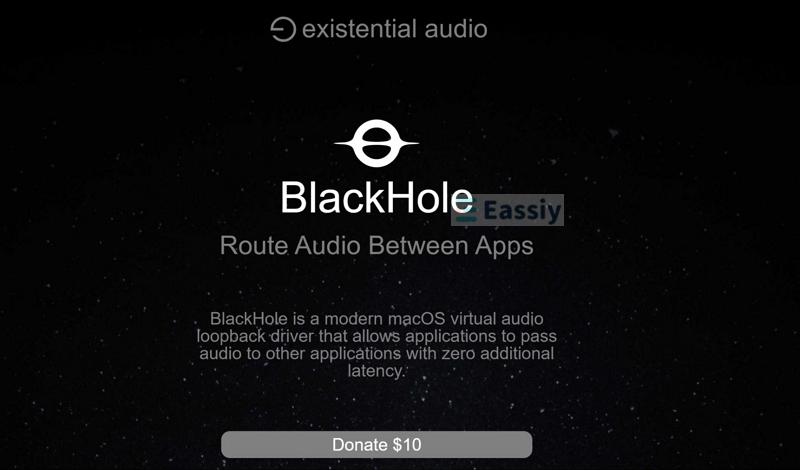
Note: On macOS, you'll need BlackHole or another sound card to see that loopback option. Otherwise, it will record through your microphone and that carries room noise and distortion.
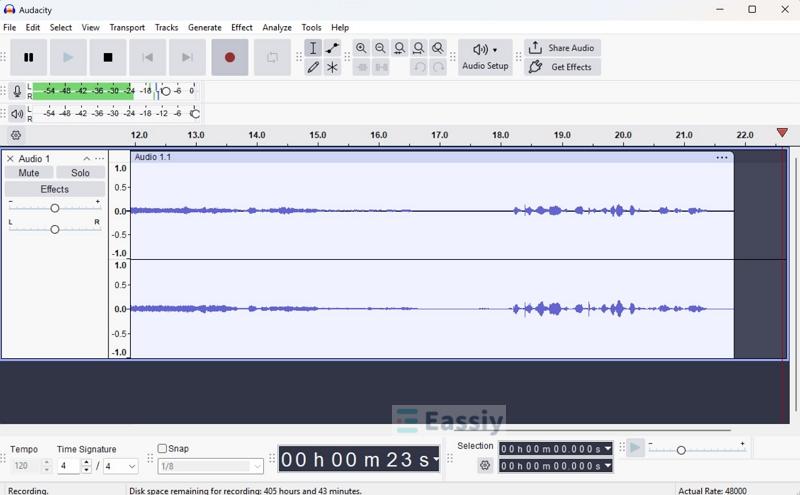
Step 3. Once your Discord call is on, simply click the red dot button to start capturing the sound on your computer.
Audacity will capture anything that plays — notifications and any other sound on your computer included. Once it's done, click the Stop button.
Step 4. After that, you can edit the file as you'd like, such as adding effects, using trim, and working the timeline however you want.
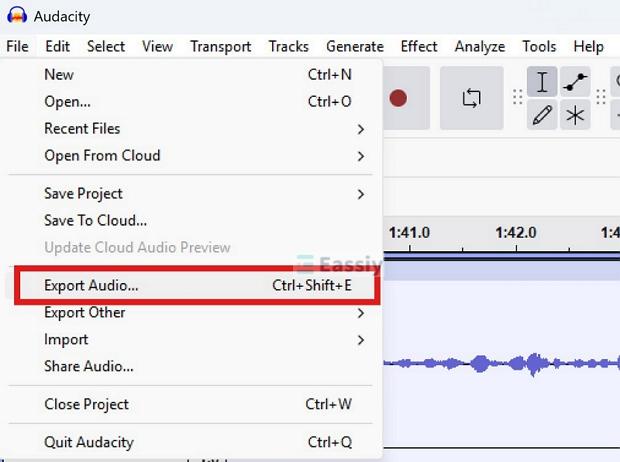
Step 5. Once you're done, click File > Export Audio.
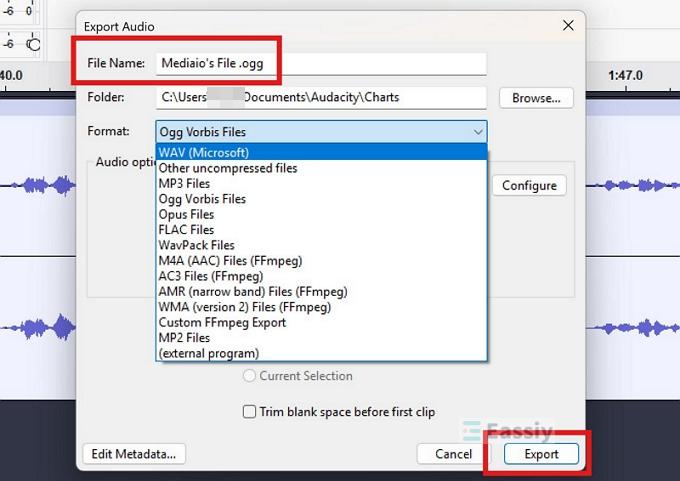
Choose the output format you want and click Export. That's it.
FAQ: Can Discord Detect If You're Audio Recording
The short answer is NO when using Eassiy, OBS, and Audacity. As they are all offline tools, they record at the system level and never interact with Discord itself.
This thing is different from Craig that joins the server as a participant. As Craig stays visible to anybody in the participant list with a recording tag right in its name, everyone in the channel will know a recording is on. Discord server administrators may notice that too.
A Note on Privacy: While Eassiy and OBS record silently, make sure you never record without someone's consent — it violates Discord's guidelines and privacy laws in many regions. So always ask the group for consent before recording anything.
Final Words
Recording Discord audio comes down to what you need from the file. Craig is good as long as you want clean audio files of a group meeting or a session inside a voice channel. However, it soon falls short — it cannot capture DMs, it works only inside servers.
Eassiy Screen Recorder Ultimate stands out for letting you record Discord the way you want. You can capture just Discord audio or capture the phone/desktop screen along with Discord audio in the background.