Help Center
Updated on 2026-07-17
views
5min read
Your Dell laptop already comes with free screen recording features built into Windows. You just have to use keyboard shortcuts to use them. These inbuilt recorders handle everyday recording well on any Dell laptop model, from Latitude to Inspiron and Alienware. However, they fall short when you need more, such as including a webcam in your screen recording, using live annotations, etc. For that, you need a more powerful screen recorder. This guide covers both. We will show you how to screen record on a Dell laptop with embedded features and third-party tools, each suited to a different purpose. So you can use the one that matches your screen recording needs.
Way 1. Screen Record on Dell Laptop with Xbox
If your Dell laptop runs Windows 10 or Windows 11, you can use Xbox Game Bar to record your screen without installing any additional software. It is built into the operating system and is a convenient choice for capturing gameplay or taking quick screenshots with just buttons.
However, Game Bar isn't a comprehensive screen recorder. It can record only a single app or game window. If the recorded window is minimized while recording, Game Bar will kill the capture immediately. Also, Game Bar relies heavily on your Dell laptop's hardware. For instance, it requires specific hardware encoders (Intel Quick Sync, NVIDIA NVENC, or AMD VCE) to work.
In all, if you’re looking for advanced recording features, like recording your webcam or scheduling a recording, Xbox can't meet those needs.
Here is the breakdown of what exactly to expect:
| Features | Details |
|---|---|
| Compatible Dell Models | All Dell laptops running Windows 10 or 11. It works only with compatible GPU encoders. So this includes almost all recent Dell lineups: Inspiron, XPS, Latitude, Vostro, Precision, G Series, Alienware, etc. |
| Supported OS | Game Bar was introduced with Windows 10. |
| Supported Screen Content | Single application. Suitable for PC games. Switching to the desktop or File Explorer is automatically excluded. |
| Supported Audio | Basic system sound and microphone. Records both simultaneously or mute either one. |
| Shortcuts | Win + G (overlay). Win + Alt + R (start or stop recording). Win + Alt + M (toggle microphone). |
| Ease of Use | Easy. Suitable for single apps and games. It requires no installation. |
Screen Record on Dell Laptop Without Windows Key
Game Bar works well with the Windows key shortcuts. However, if your Windows key is not working, you can use it to capture a game or app with your mouse alone.
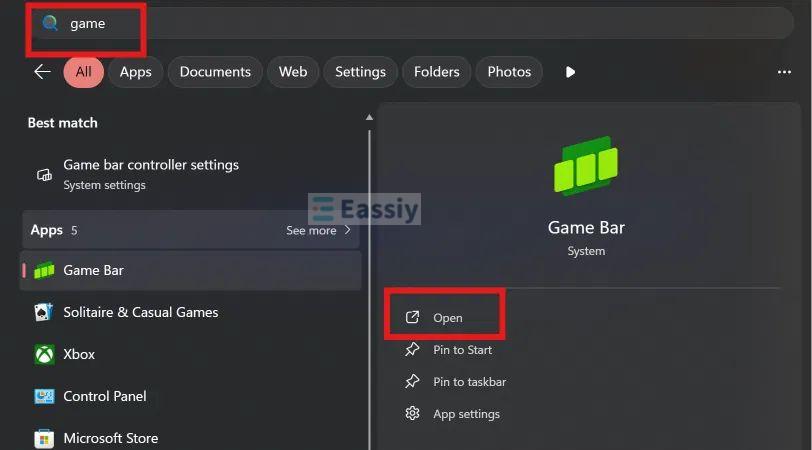
Step 1. Click the Start button with your mouse, type Game Bar in the search box and choose it from the results.
Note: If Game Bar is not showing up, update the Xbox app first. Windows will install it if you haven't used it before.
Step 2. The Game Bar overlay will open. Click the capture button (the small camera icon) on the toolbar.

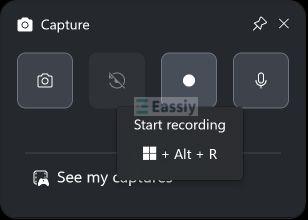
Step 3. The Capture menu will now open. Click the Start Recording button to begin the recording.
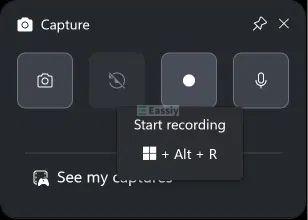
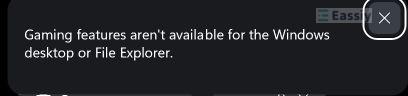
Note: If the Capture widget is showing an error stating "Gaming features aren't available for the Windows desktop or File Explorer", opening an application or game can remove the error.
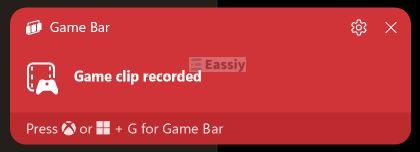
Step 4. Click Stop Recording to stop capture. You will see a "Game clip recorded" notification.
That’s it! You can find your recording in the Videos > Captures folder.
Screen Record on Dell Laptop with Keyboard
Game Bar is known for its direct hotkey commands. These shortcuts will work by default on your Dell laptop, so there’s no need for any pre-configuration. Here's what to do:
Step 1. Press Win + Alt + R to start the recording.
Step 2. Press Win + Alt + R again to stop the recording.
Step 3. Go to Videos > Captures to find your recording.
Way 2. Screen Record on Dell Laptop Using Eassiy Screen Recorder Ultimate
Eassiy Screen Recorder Ultimate is the tool you go to when you want to record your screen exactly the way you want — with full control. It runs smoothly on all Dell models.
You get multiple ways to screen record your Dell desktop. You can capture your entire screen, a selected portion, or one specific window. You can even layer your webcam over the recording and keep your microphone input running alongside the system audio. If you need to record a live WhatsApp video call or Teams meeting, Eassiy can help record the screen with the conversations included.
Besides multiple recording modes and customizable screen areas, Eassiy’s real-time annotation is also excellent. It allows you to draw, add text, arrows, and highlights on the screen while the recording is running, which is useful when you are creating a video tutorial. Its optimization options are powerful either. The noise cancellation and microphone enhancement features make your voice comes out clear even in a noisy room.
| Features | Details |
|---|---|
| Compatible Dell Models | Every Dell laptop: Inspiron, XPS, Latitude, Vostro, Precision, G Series, and Alienware. Light on resources, so even budget models can run Eassiy well. |
| Supported OS | Windows 7, 8.1, 10, and 11. The widest OS coverage on this list. |
| Supported Screen Content | Full screen, custom region, specific window, games, webcam, phone screen and locked windows. Advanced modes include follow-mouse and around-mouse recording. |
| Supported Audio | System sound and microphone, together or separately. It comes with noise cancellation and microphone enhancement. |
| Shortcuts | Default hotkeys included — Alt + S can start and stop recording. You can customize shortcuts from Preferences > Hotkeys. |
| Ease of Use | Extremely easy. Clean interface with one-click recording, yet deep enough for advanced needs. |
Record Screen on Dell Laptop Without Keyboard
Step 1. Launch Eassiy and select Screen Recorder.
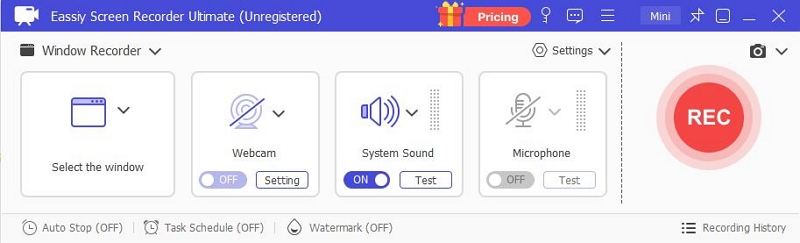
Step 2. Choose Full for the whole screen or Custom to draw your own region. Right on the same panel, toggle the Webcam, System Sound, and Microphone switches to whatever mix you need.
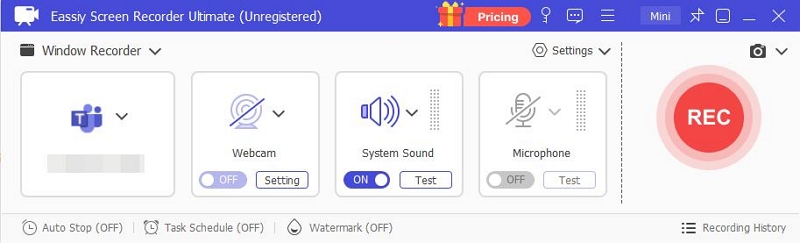
Step 3. Hit the big REC button on the right. A floating toolbar will appear once the capture begins. Here, you can use annotation tools to draw shapes, drop arrows, add text, or highlight anything. It will be included in the screen recording.
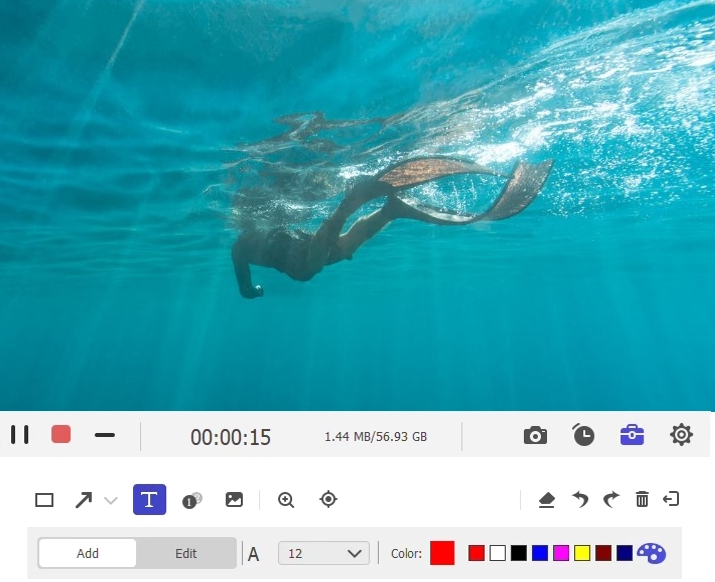
Step 4. Click the red Stop button when you're done.
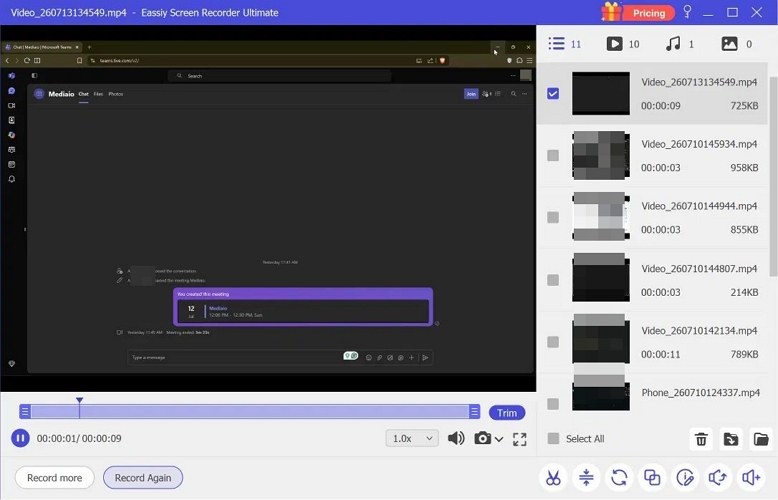
Your recording will open in a preview window automatically. You will find a few editing tools here. Use them to refine your screen recording. Then, you can export the captured video in multiple formats, like MP4, WMV, etc.
Screen Record on Dell Laptop with Audio with Shortcut Key
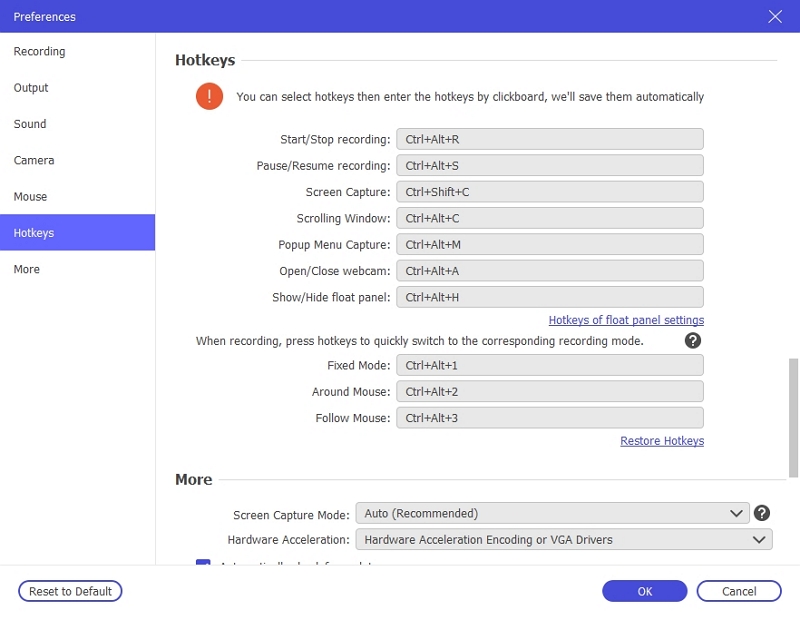
Eassiy comes with default shortcuts out of the box. However, you can even change these default shortcuts to your preferred keys. Here’s how to use:
Step 1. Press Alt + S to start the recording. Eassiy won’t be open on your screen. Instead, the shortcut will fire when Eassiy is minimized.
Note: Eassiy will start recording using the recording mode you selected last time like Screen Recorder or Window Recorder.
Step 2. Press the same Alt + S to stop. Need a breather midway? Ctrl + Alt + S pauses and resumes the capture.
Tip: Want your own combos instead? Head to the menu icon > Preferences > Hotkeys, click any field and press the keys you prefer. Eassiy will save them automatically.
Way 3. Screen Record on Dell Laptop via Snipping Tool
Snipping Tool is a part of Windows for capturing quick screenshots. However, one of the Windows 11 updates introducedscreen recordingin the Snipping Tool. So you now get a completely free screen recorder that works at the click of a button. It is an extremely lightweight tool, optimized for Windows, which means it runs on practically every Dell laptop running updated Windows 11.
The later releases also let you record system audio and microphone audio along with the screen, further expanding its functionality. However, that's about it. There are no live annotation features, cursor highlights or effects, or scheduled recordings. It is also not suitable for recording long videos.
| Features | Details |
|---|---|
| Compatible Dell Models | Universal. Compatible across XPS, Latitude, Inspiron, and Alienware. |
| Supported OS | Windows 11 (requires build 22622.1344 or newer). |
| Supported Screen Content | Custom regions and full selected portions. You draw a rectangle around what you want or pick a window. |
| Supported Audio | System sound and microphone. |
| Shortcuts | The shortcut only opens the recording toolbar. It won't start the recording itself. |
| Ease of Use | Easy for short or custom-cropped captures. Poor for long sessions or when you need advanced features. |
With Windows Key
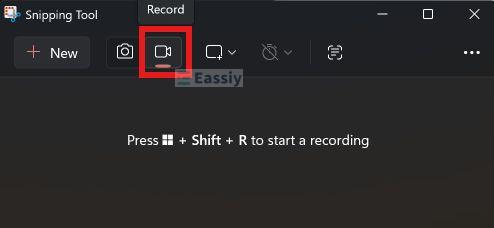
Step 1. Press Win + Shift + S to launch Snipping Tool. The screen will dim slightly, and a small toolbar will appear at the top with a camera icon and a video camera icon.
Step 2. Switch to the video camera icon. Then, pick Rectangle or Window.
Step 3. Hit Start on the toolbar. Before you do, you can tap the mic icon to include your voice or mute the system audio.
Step 4. You can pause whenever you need to with the pause button. Or tap the red button to end the recording.
Your video will automatically land in the Screen Recordings folder.

Without Windows Key
Step 1. Click the Start button. Search and click Snipping Tool.
Step 2. Switch from the camera to the video camera icon.
Step 3. Select the region, whether a rectangle or a full window.
Step 4. Tap Start to begin and Stop to end it. The recording will be saved directly to the Screen Recordings folder.
Way 4. Screen Record on Dell Laptop with PowerPoint
PowerPoint includes a built-in screen recorder. So if you have Microsoft PowerPoint 2016 or later installed on your Dell laptop, this method will work for you.
PowerPoint's Screen Recording is located under the Insert (or Record) tab. It can record anything on your screen — your desktop, browser or another app and you choose the area by dragging a rectangle over it. It captures your microphone and even your pointer movements. However, no annotations are available.
You can export the screen recording as a standalone MP4 too if needed. Plus, if you keep the clip inside the deck and export the whole presentation as an MP4 or WMV, it will include the embedded video, playing exactly as recorded. You can choose from different export quality — Full HD 1080p, 720p, or low quality for smaller files.
So here's the honest verdict. If your recording is meant to live inside a presentation, use this — it is made for exactly that. If you just want a plain screen recording, the Snipping Tool or Eassiy will get you there faster.
| Features | Details |
|---|---|
| Compatible Dell Models | Any Dell laptop that runs Microsoft PowerPoint 2016 or later. Inspiron, XPS, Latitude, Vostro, Precision and the rest. |
| Supported OS | Works smoothly only on Windows 10 and 11. Not available in PowerPoint for the web. |
| Supported Screen Content | Any selected area of the screen. |
| Supported Audio | Microphone narration and system audio. Pointer recording included. |
| Shortcuts | Win + Shift + D (record/pause), Win + Shift + Q (stop). These work only after the recorder is launched from Insert/Record. |
| Ease of Use | Simple if you already live in PowerPoint. Best for presentation-bound recordings. Overkill for quick captures. |
Record Dell Laptop Screen Using PowerPoint
Step 1. Open PowerPoint. Click the slide where you want the recording to sit, head to the Insert/Record tab and pick Screen Recording from the Media group.
Step 2. PowerPoint will minimize. A small control dock will appear pinned to the top of your screen.
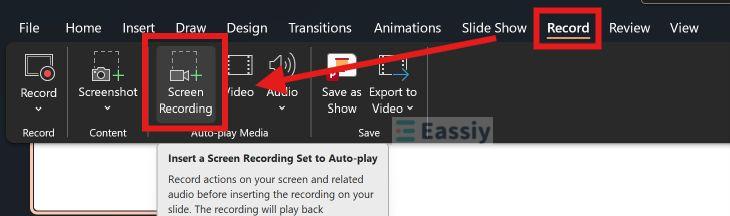
Click Select Area and drag the crosshair over the region you want to capture. Keep Audio and Record Pointer on if needed.
Step 3. Hit Record. The capture will begin after the three-second countdown.
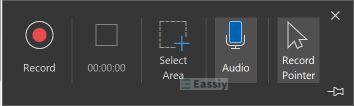
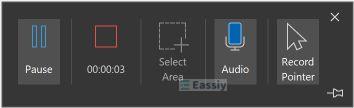
Step 4. Move your mouse to the top edge of the screen. Then hit the Stop button (Win + Shift + Q does the same).
Step 5. The recording will drop straight onto your slide as a video.
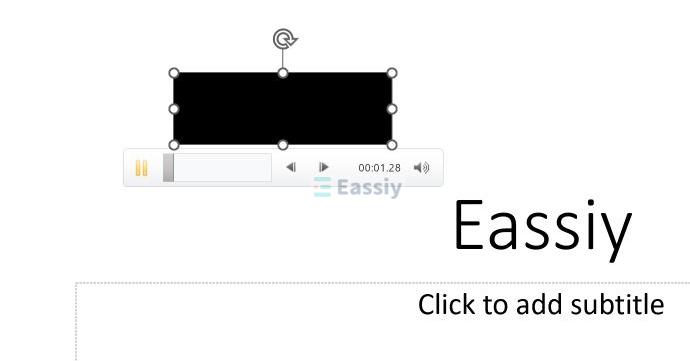
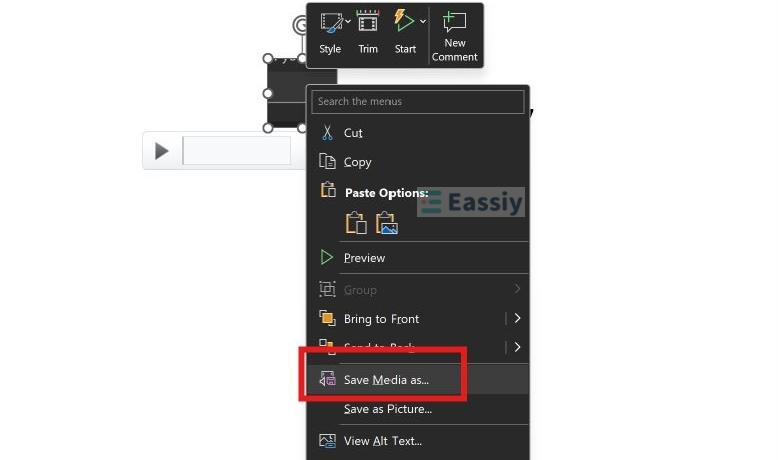
To pull it out as a separate file, right-click the video and choose Save Media as. Pick a folder, name it, and it saves as an MP4.
Way 5. Screen Record on Dell Laptop Using OBS
OBS Studio is a free screen recorder that offers many recording modes, such as an app interface or the full screen. The audio side is just as generous. OBS lets you capture system audio and microphone input on separate tracks or balance them using its built-in audio mixer.
But there is a bit of a learning curve here. Unlike Eassiy, OBS will greet you with a complex interface with too many buttons. So expect to spend a full tutorial before you can record.
| Features | Details |
|---|---|
| Compatible Dell Models | All modern Dell laptops, such as Inspiron, XPS, Latitude, Vostro, Precision, G Series, and Alienware. Need a DirectX 10.1 compatible GPU. |
| Supported OS | Windows 10 and 11. Recent OBS versions have dropped support for Windows 7 and 8. |
| Supported Screen Content | Full screen, individual windows, games, webcam, and multiple sources combined in one recording. |
| Supported Audio | System sound and microphone on separate tracks. Full mixer control with mute, balance, and filters. |
| Shortcuts | None by default. You have to assign your own Start and Stop Recording keys from Settings > Hotkeys. |
| Ease of Use | Steep at first, smooth after setup. Built for long recordings and frequent use, not quick captures. |
Use Mouse
Step 1. Install OBS Studio.
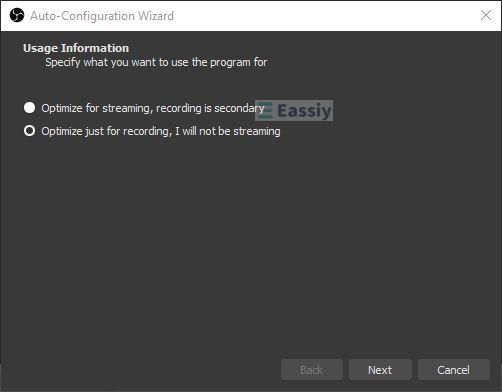
On first launch, let the auto-configuration wizard optimize the settings for your Dell laptop — choose "Optimize just for recording" when it asks.
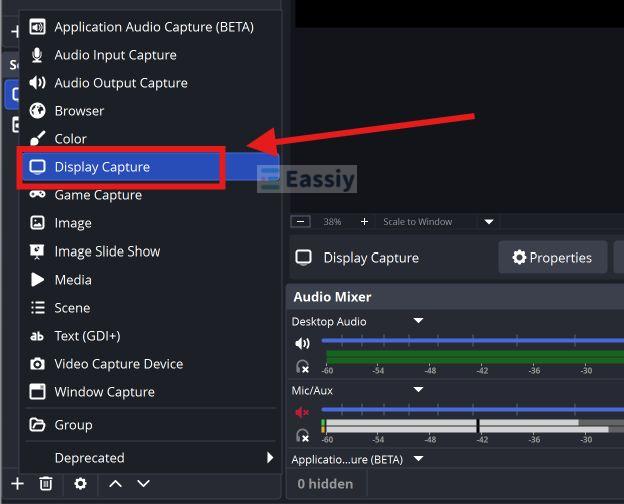
Step 2. In the Sources panel, click the + button and choose:
- Display Capture to record the whole screen.
- Window Capture for a single app.
Name it and hit OK.
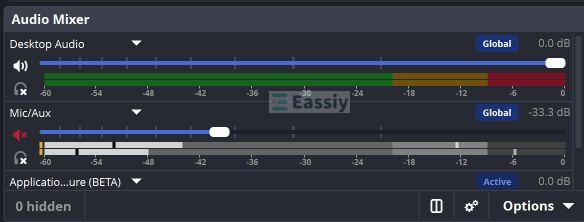
Step 3. Check the audio mixer sitting next to the Sources panel. Desktop audio and mic will be listed there. Just drag the sliders or hit the speaker icons to mute what you don't need.
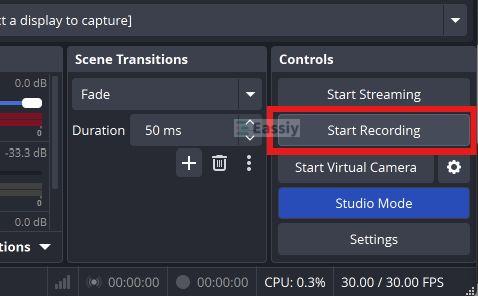
Step 4. Click Start Recording.
Step 5. Click Stop Recording.
Head to File > Show Recordings, and your video is waiting there. You can change this save location at any time in Settings > Output.
Use Shortcuts
OBS lets you control every aspect with shortcuts as long as it is running in the background (like minimized to the system tray). However, it comes with no default hotkeys. You have to assign every shortcut yourself before you can use it.
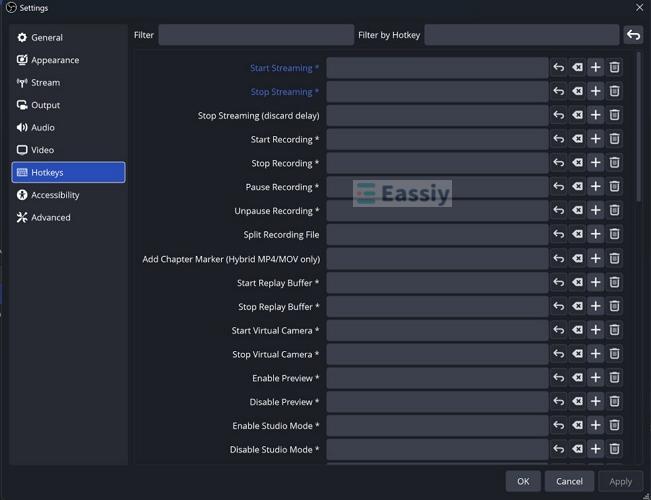
Step 1. Open OBS and go to File > Settings. Then pick the Hotkeys tab from the left panel.
Step 2. Find the Start Recording field and press the key combo you want. Do the same for Stop Recording. Click Apply and OK to save your settings.
Step 3. Now press your Start Recording combo anytime, even with OBS minimized in the background. The capture will begin.
Step 4. Press your Stop Recording combo to end it. Your video will save automatically to the Videos folder.
FAQ: Can You Screen Record on a Dell Laptop Without a Windows Key?
Yes, absolutely. But if that is not an option, we have already shown you how all five methods work without the Windows key and can be used entirely with your mouse.
Plus, if you like to use shortcuts but your Windows key is broken, choose Eassiy and OBS as your picks. They let you create your own hotkeys. For instance, you can use Alt+S to start/stop recording.
Note: When your physical Windows key is broken, you can always try the on-screen keyboard or connect an external one.
Final Words
So that’s how to screen record on your Dell laptop, for any purpose.
Of the five, Eassiy Screen Recorder Ultimate gives you the most flexibility to screen-record the Dell laptop the way you want. For one, it lets you add live annotations right on your recording. Most importantly, it uses very few system resources, so it has been shown to run smoothly on any Dell model, from a budget Inspiron to an Alienware.