Help Center

Updated on 2026-06-22
views
5min read
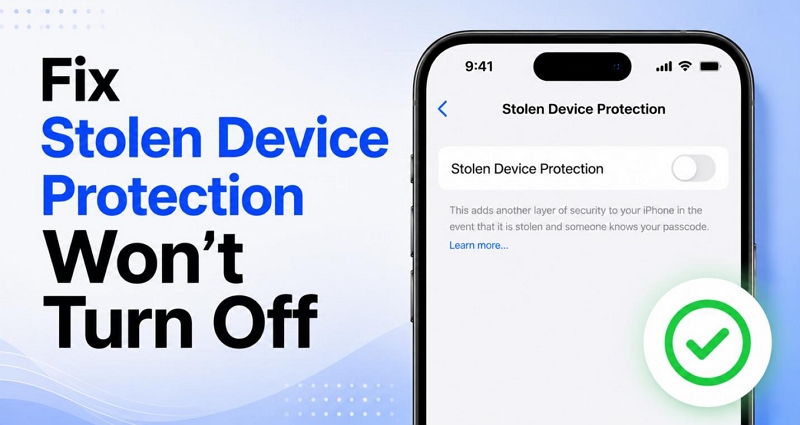
Stolen Device Protection is a brilliant fail-safe that makes it really difficult for someone else to gain control of your device. And most of the time, it stays out of the way and does its job quietly. But once it starts behaving unpredictably, it can become frustrating. For instance, it can trigger an one-hour security delay when you’re at home(familiar locations) or prevent you from making a change when Face ID is unavailable.
The good news is that these situations are usually fixable. In this guide, we'll show you how to resolve the issue where Stolen Device Protection won't turn off, so you can use your iPhone without any restrictions or limitations.
Common Cases and Fixes for Stolen Device Protection Won't Turn Off
The right fix depends on what's happening on your iPhone.
- Some of you may find that the Face ID & Passcode menu itself is missing, preventing you from toggling off Stolen Device Protection.
- Some of you could be running into the one-hour Security Delay even when you're sitting at home.
- In some cases, your Face ID could be unavailable and thus you can’t verify your identification when trying to disable Stolen Device Protection.
So, no matter the case, you can jump to the section, follow the recommended solution and finally turn off Stolen Device Protection.
Case 1. Stolen Device Protection Won't Turn Off Due to Greyed-out/Missing Face ID & Passcode Option
One main reason users cannot turn off Stolen Device Protection settings is that they cannot find the menu itself. This could be because the Face ID & Passcode menu in Settings could be entirely missing or you can locate the menu but some of its options are grayed out.
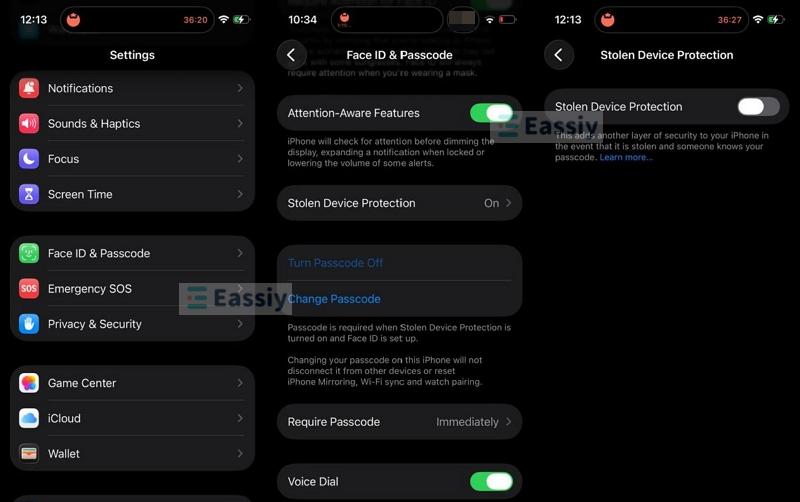
Fortunately, this isn’t a glitch. In most cases, Screen Time restrictions are what's blocking access to the menu. Once you remove that restriction, the Face ID & Passcode settings will become available and then you can turn off the Stolen Device Protection toggle.
Fix: Turn Off Content & Privacy Restrictions
Step 1. Go to Settings. Locate the Screen Time menu. From there, open Content & Privacy Restrictions.
Step 2. Enter the Screen Time passcode to get in. Then scroll down to the Allow Changes To section and select Passcode & Face ID Changes.
Step 3. Change the setting from Don't Allow to Allow.
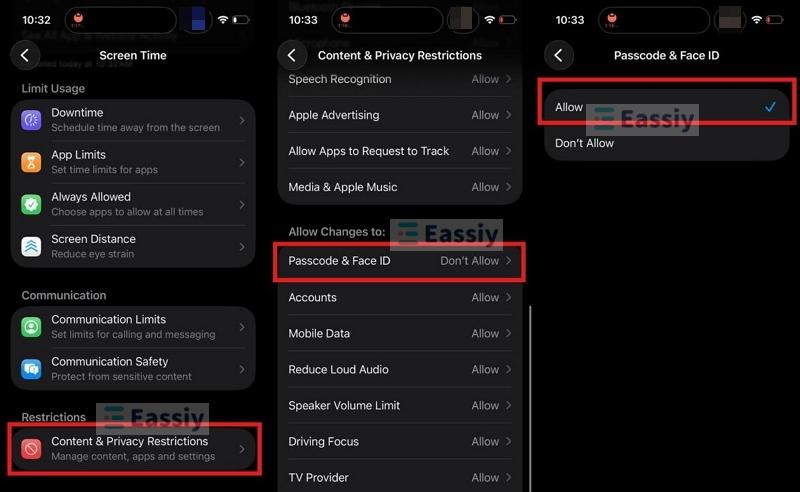
Step 4. Return to the main Settings page. You should now be able to locate the Face ID & Passcode menu. Enter your device passcode to open it.
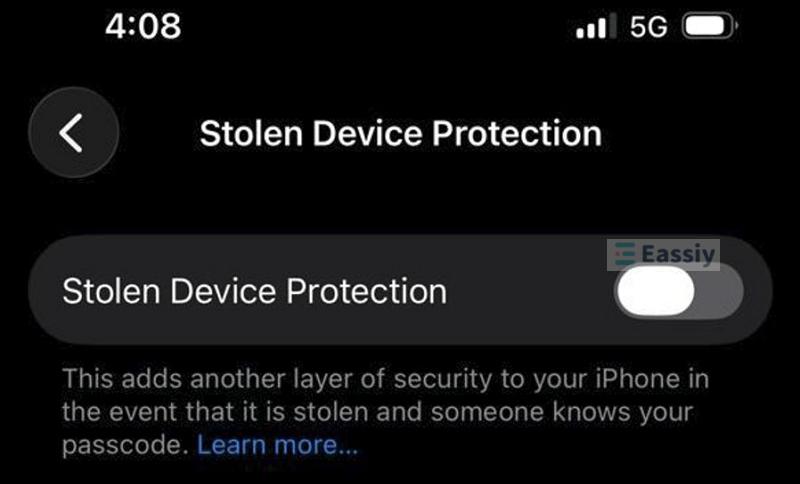
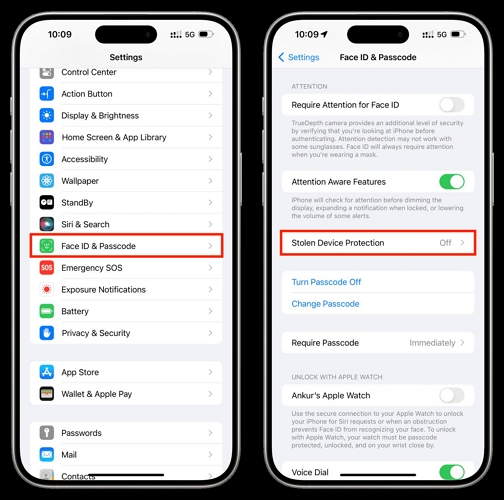
Step 5. Scroll down until you find Stolen Device Protection. Then turn off the main toggle.
Depending on your current configuration, iPhone may show a Start Security Delay prompt. Select it and wait for the required delay to finish.
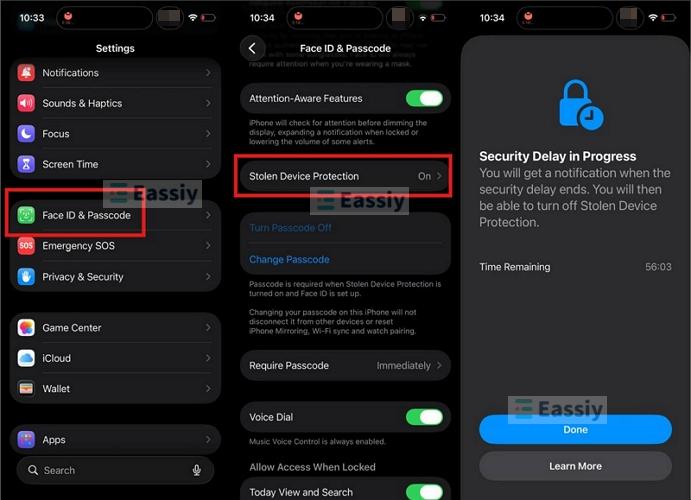
Once the delay time runs out, return to the same screen and turn off Stolen Device Protection again.
Case 2. Can't Turn Off Stolen Device Protection Because of Unavailable Face ID
This is the classic iPhone security deadlock. Your Face ID has stopped working, so naturally, you want to reset it. The problem is that Stolen Device Protection won't let you make that change without first authenticating with Face ID. That will leave you stuck in a loop.
Once again, you're not stuck here. Depending on what caused Face ID to stop working and your Stolen Device Protection configurations, there are several ways to resolve the issue. We'll walk you through many solutions below.
Quick Check: Ensure TrueDepth Camera Isn't Covered or Dirty
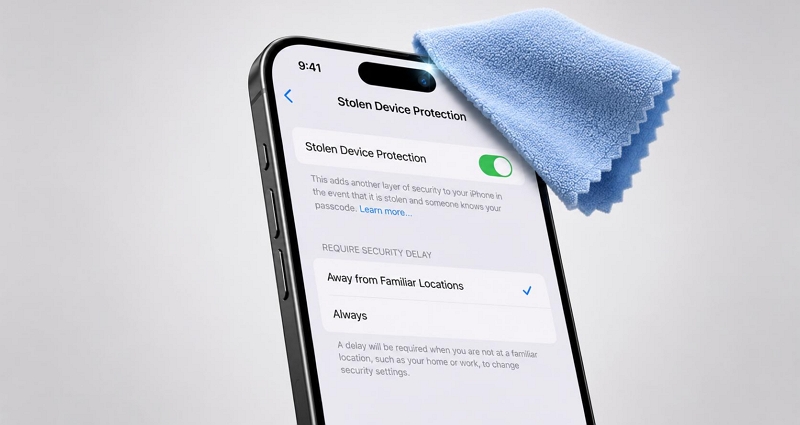
When you see repeated Face ID errors, it is common to assume the TrueDepth sensors have failed. Quite often, that's not the case. Generally, dust or fingerprints can interfere with Face ID sensors and trigger "Face Not Recognized" errors. So first clean the top area around the Dynamic Island or notch where the Face ID sensors are located.
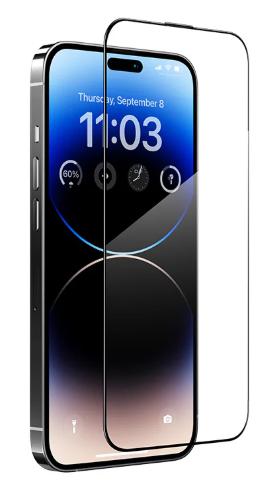
The same goes for screen protectors or a new phone case. A thick protector, a crack near the sensor area, or even lifting around the notch can affect how the sensors read your face. So if Face ID becomes unresponsive after installing a new one, remove it completely.
Face ID will return to normal immediately after the obstruction is removed. So you can head back to “Face ID & Passcode” to turn off Stolen Device Protection in the usual way.
If not, continue with the fixes below.
Fix 1: Reboot iPhone
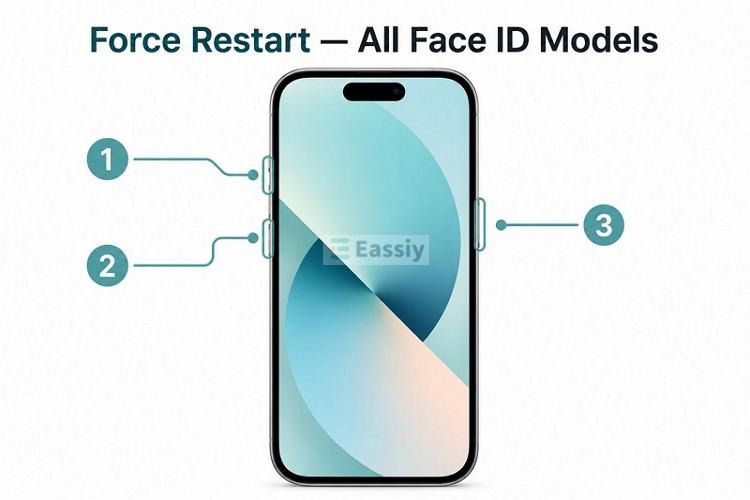
Sometimes, the biometric components stop responding, which is why Face ID stops working. A force restart can help here. It will force the biometric hardware and related services to restart. That’s enough to get Face ID functioning again. Don’t worry, you won’t lose any of your settings or data.
Here's what to do:
Step 1. Press and quickly release the Volume Up button.
Step 2. Right after that, press and quickly release the Volume Down button.
Step 3. Press and hold the Side button (the power button). Keep holding it until the Apple logo appears.
Unlock the iPhone after a restart. You’ll have to use your device passcode here.
Return to the Stolen Device Protection settings and in many cases, Face ID will start responding normally. You can continue with the remaining steps and turn off the Stolen Device Protection.
Fix 2: Disable Stolen Device Protection via Screen Passcode
Stolen Device Protection comes with two Security Delay options: Always and Away From Familiar Locations.
- If it is set to Away From Familiar Locations, you have an easy way out. As long as you're making the change from a familiar location, such as your home or another place Apple recognizes, iPhone can fall back to the device passcode.
- However, the passcode workaround won't help when the setting is configured as Always. In this case, skip to the next fix that we'll cover what to do in that situation.
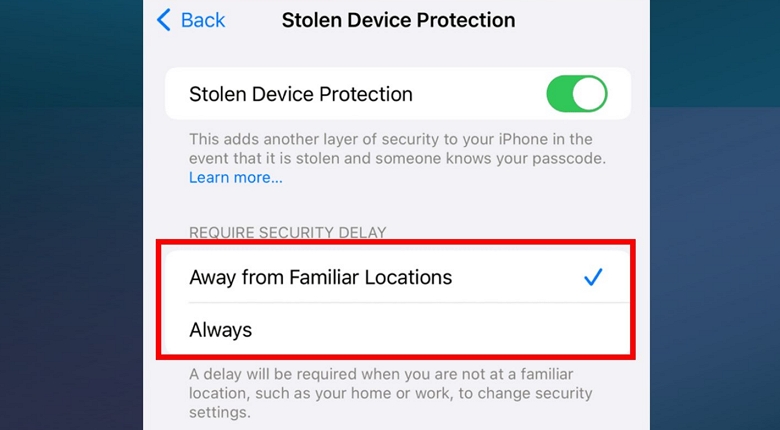
So if the Security Delay option is set to Away From Familiar Locations and you're currently in a familiar location, here's how it works:
Step 1. Return to the Stolen Device Protection settings and try to turn the feature off.
Step 2. Once Face ID fails and you'll see a Face Not Recognized message. Select Try Face ID Again in the pop-out.
Step 3. The Face ID scan will fail one more time. This time, iPhone should display the Enter Passcode option.
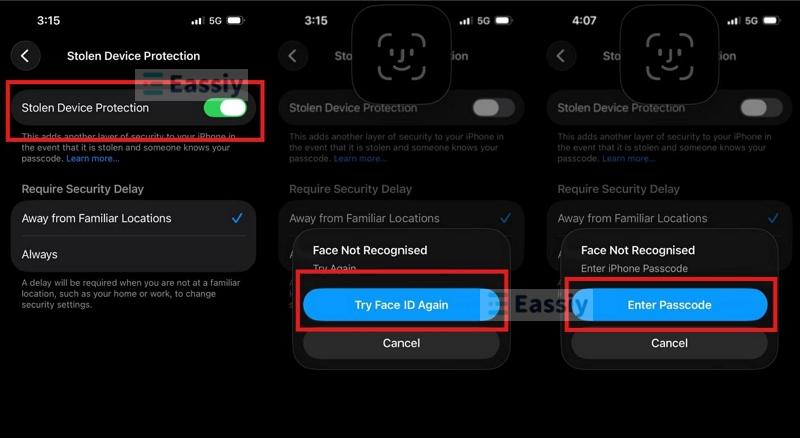
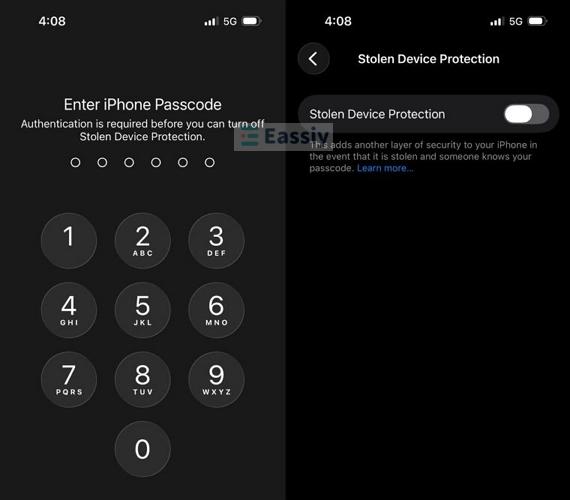
Step 4. Enter your device passcode to authenticate the change.
That's it. Stolen Device Protection will be turned off.
As you're making the change from a familiar location, you won't have to go through the one-hour Security Delay.
Fix 3: Unlink iPhone from iCloud Via Browser
When Stolen Device Protection is configured to Always, Face ID is required to disable it. There is a workaround, though. You can remotely disable the Activation Lock. Some users in Apple Community say they were able to turn off Stolen Device Protection afterward.
Although it’s not guaranteed to work, here's what to do:
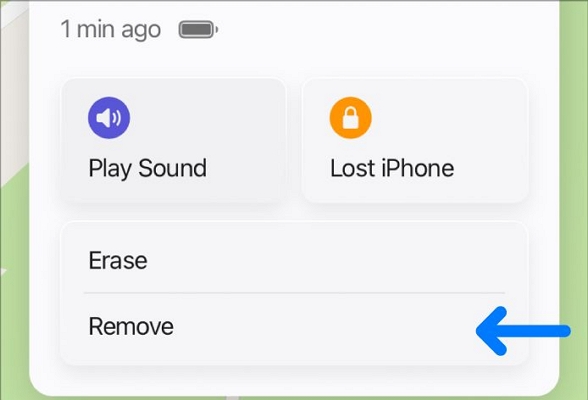
Step 1. Visit the iCloud Find Devices page. Sign in with your Apple ID used on the iPhone.
Step 2. Select your iPhone from the list.
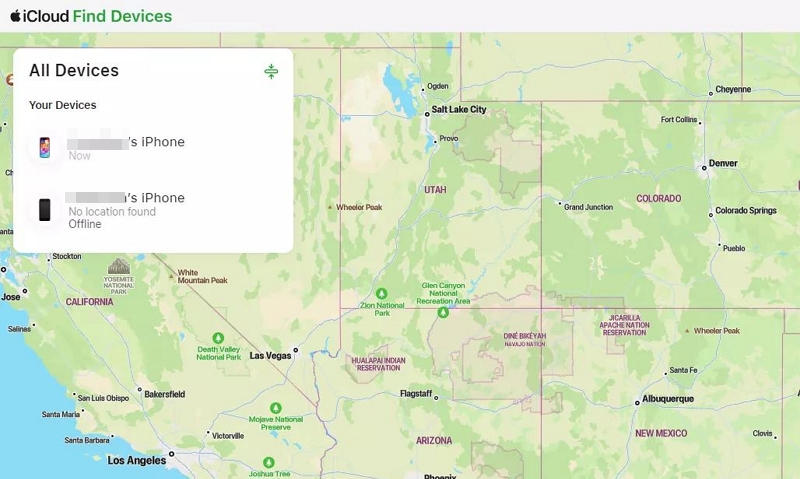
Before continuing, turn off both Wi-Fi and mobile data on the phone. This is an important step for removing Activation Lock. Once the iPhone appears offline (a black screen in the iCloud list), select Remove This Device and confirm the action.
Step 3. Reconnect the iPhone to the internet and try to disable Stolen Device Protection.
However, this isn't a guaranteed fix. Only some users have reported success. So if you cannot turn off Stolen Devices Protection by using this way, move on to the ultimate fix.
Case 3: Stolen Device Protection Not Turning Off Due to Unrecognized Familiar Location
If there is a one-hour Security Delay, even when you're sitting at home or work, it usually means that Apple isn't recognizing the location as familiar. Sometimes, the iPhone doesn't know your familiar locations yet. Other times, it knows them but cannot verify where you are right now. The result will be the same. It will not let you use the passcode workaround when Face ID isn’t working and it will keep pushing the one-hour delay.
Luckily, you can usually fix this. Simply help iPhone verify your current location or tell the device what your familiar locations are. With these fixes, your iPhone will start treating those places as trusted locations. The Security Delay will no longer appear there and you can use the passcode method shown earlier to turn off Stolen Device Protection.
Fix 1. Turn On Location Services
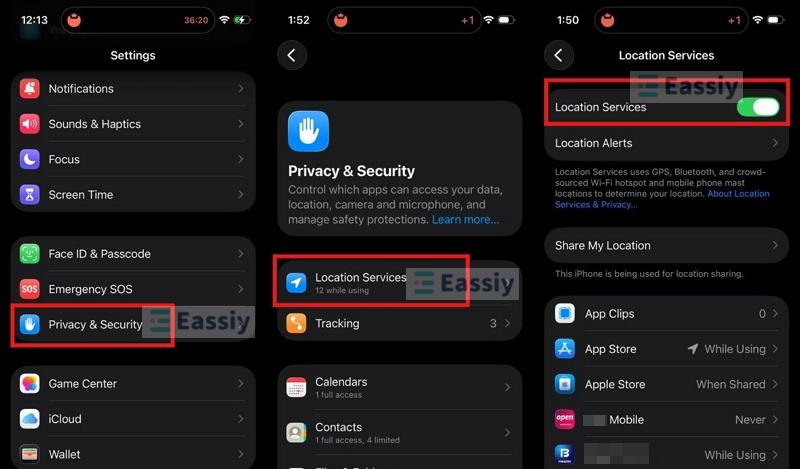
Apple relies on Location Services to determine your location. If this feature is turned off, iPhone cannot tell whether you're at a familiar location (home or work) or an unfamiliar one, triggering the one-hour delay. So start by making sure Location Services is enabled.
Step 1. Open Settings and go to Privacy & Security.
Step 2. Select Location Services.
Step 3. Turn on the main Location Services toggle.
After that, try turning off Stolen Device Protection again and see whether the Security Delay still appears.
Fix 2: Enable Significant Locations
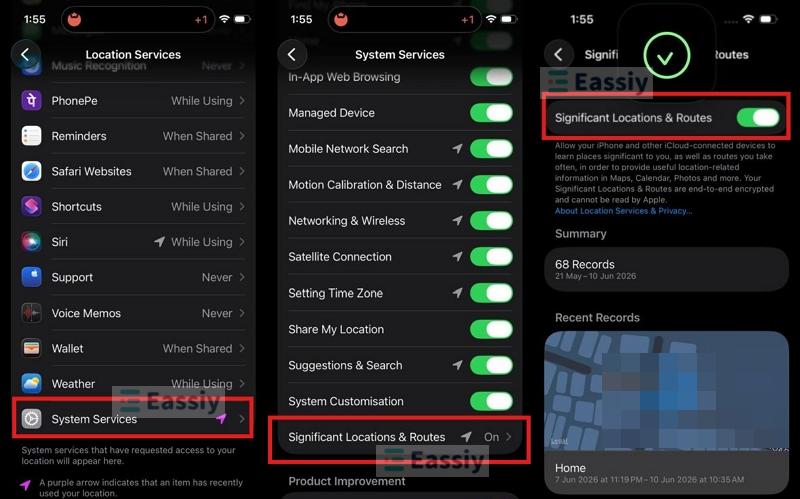
Turning on Location Services automatically enables the Significant Locations toggle. Significant Locationsis the setting that actually keeps track of places you visit regularly. In simple terms, this is the feature to help iPhone recognize familiar locations and Stolen Device Protection relies on that location information when deciding whether to trigger a Security Delay. So make sure it is enabled.
Step 1. Return to the Location Services menu and scroll all the way to the bottom.
Step 2. Open System Services.
Step 3. Select Significant Locations & Routes. Make sure the main toggle is turned on.
If this feature has been turned off until now, it means the iPhone might not be tracking your familiar locations properly. You can turn it on now and give it some time. After a few days, Apple should start recognizing places you visit regularly and the one-hour Security Delay will no longer appear in those locations. In many cases, you'll also be able to use the screen passcode method shown earlier to turn off Stolen Device Protection.
Fix 3: Add Home Address to Your Contact Card
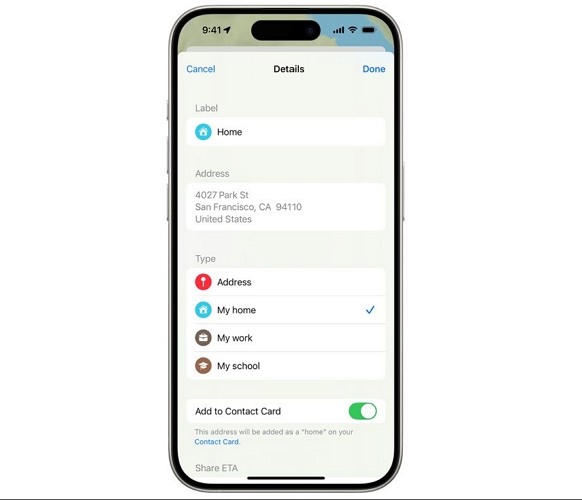
Sometimes the iPhone already recognizes the location but it can’t know that the location is your home. So you can help it recognize the location as your home by adding your home address to your personal contact card. This will give Apple a clear reference point for where you live. Plus, it will also help when relying on other Apple services, such as Maps, Siri and Autofill. Follow these steps:
Step 1. Open the native Contacts app.
Step 2. Tap My Card at the top.
Step 3. Select Edit from the top-right corner.
Step 4. Scroll down to the address section. Then, enter your actual home address. Save the changes.
After that, Apple can recognize your home as a familiar location and prevent unnecessary Security Delays.
Universal Fix for All Cases of Stolen Device Protection Won't Turn Off
If the methods above don’t work or if you need an immediate solution, here’s the fix that is often the fastest solution and works in most cases.
Fix: Factory Reset iPhone
A factory reset will completely remove the Face ID requirement, along with the Stolen Device Protection settings attached to it. Yes, this process will erase everything on the iPhone. After reset, you can restore from a backup, but anything that isn’t backed up beforehand will be lost. At the same time, this backup also needs to be created while Stolen Device Protection is turned off, otherwise the SDP settings will be restored as well.
That said, there are several ways to reset an iPhone. Here are the two easiest ones. You can pick one that works best for your situation.
Option 1: Restore iPhone Using Eassiy iPhone Access
Eassiy iPhone Access, an iOS unlocking tool, provides a Unlock iOS Screen option to help you remove all kinds of screen locks, including Face ID, from iPhone while restoring iPhone at the same time. Once the reset is complete, Stolen Device Protection will automatically turn off. You can then set up the iPhone again and choose to create a new Face ID profile or skip it entirely.
Eassiy isn't limited to screen lock removal alone. Sometimes, Screen Time or MDM restrictions can block access to the Face ID & Passcode menu, stopping you from turning off Stolen Device Protection. At that time, you can use Eassiy to remove those first without Screen Time passcode or MDM credentials and then turn off Stolen Device Protection without having to reset the iPhone at all.
Key Features:
- Supports all iOS versions and runs smoothly on iOS 26 too.
- Remove 4/6-digit, custom passcode, Face ID and Touch ID locks.
- Remove a signed-in Apple ID when it’s disabled or you forget the password.
- Bypass iCloud Activation Lock without previous owner and make your iPhone useful again.
How to Restore iPhone with Eassiy iPhone Access
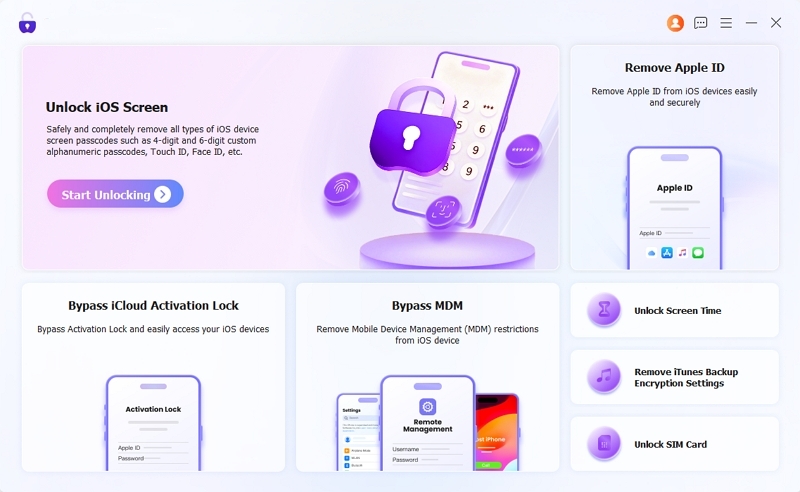
Step 1. Open Eassiy iPhone Access on your Windows PC or Mac. Select Unlock iOS Screen to deal with the Face ID lock and turn off Stolen Device Protection.
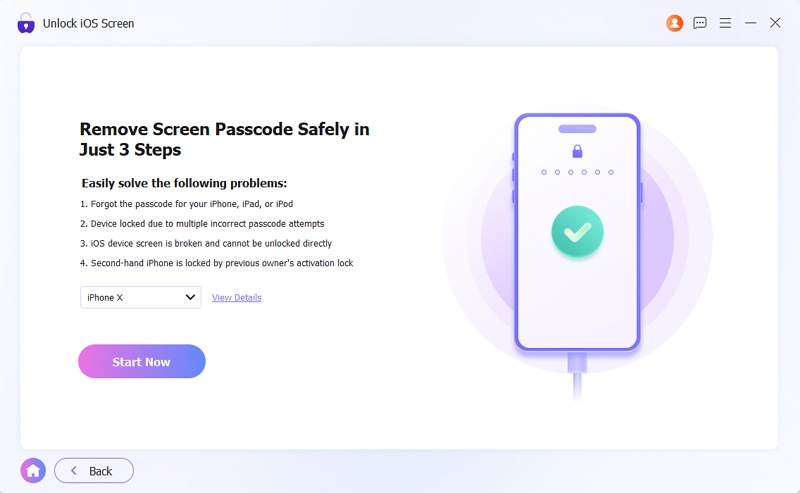
Step 2. Connect the iPhone using a USB cable. Eassiy will automatically identify the connected model. Verify the details. Then click Start Now to download the correct firmware package.
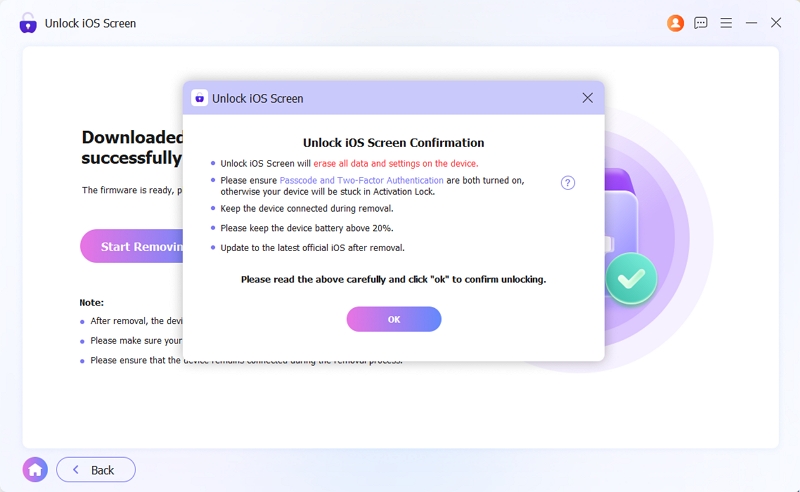
Step 3. Click Start Removing. Click OK > Confirm Again to confirm the iPhone reset process for removing Face ID and Stolen Device Protection.
Step 4. Wait until the Unlock iOS Screen Successfully message appears.
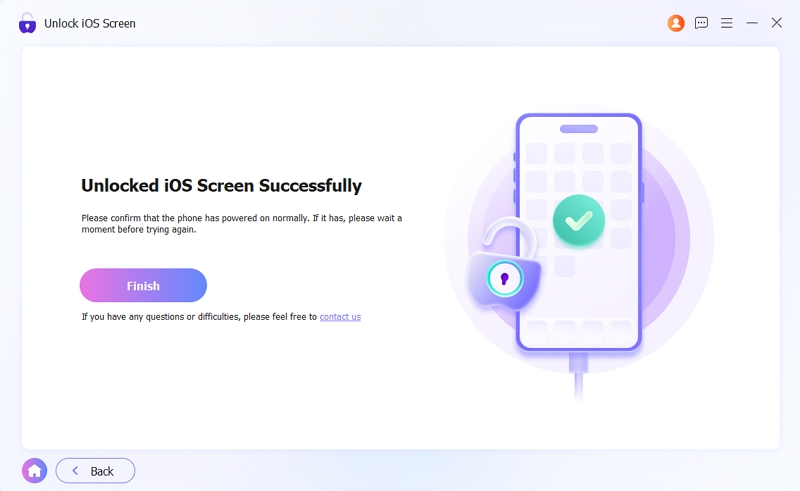
After that, you can disconnect the iPhone and start the setup process again. Enter the Apple ID to turn off iCloud Activation Lock first and follow the onscreen steps to set up your iPhone.
Option 2: Erase iPhone via iCloud Site
Apple's Find Devices portal lets you remotely erase an iPhone and restore it to factory settings. You only need two things for this: the iPhone must remain connected to the internet and you need another device where you can sign in with your Apple ID. Here's how this process works:
Step 1. Go to iCloud Find Devices from another device and sign in with your Apple ID.
Step 2. Select the iPhone you want to erase.
Make sure the device appears online. You should see its current wallpaper or active status on the screen. That confirms the iPhone is connected and ready to receive commands.
Step 3. Select Erase This Device. Follow the on-screen prompts. Since the device isn't lost, you don't have to enter a phone number or custom message.
Step 4. Confirm the erase request and wait for the remote reset to finish.
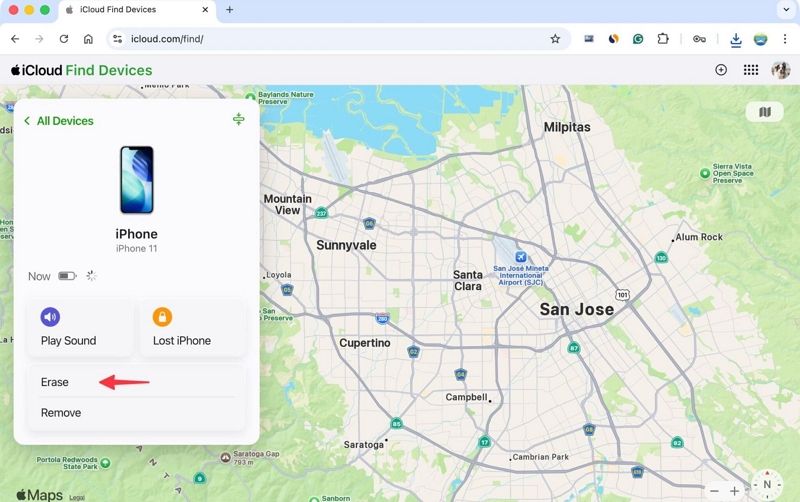
Step 5. Return to the Find Devices page and select the iPhone again. This time, choose Remove This Device.
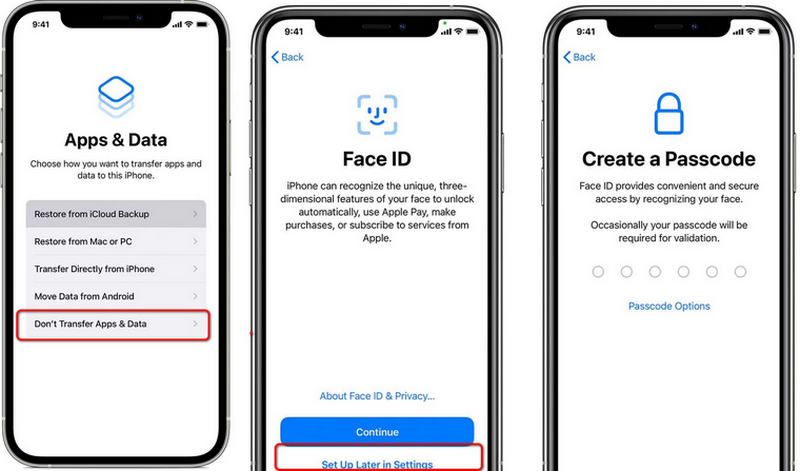
After that, you can set up the iPhone again. You can either enter the same Apple ID during setup or configure it differently depending on your situation. And this time, you can skip Face ID setup. Since Stolen Device Protection depends on Face ID, it won't be enabled unless you choose to set up Face ID again later.
Final Words
That's how you can deal with the Stolen Device Protection won't turn off issue and disable it successfully. The fix can be surprisingly simple sometimes, like cleaning the TrueDepth sensors or turning on Location Services.
When Stolen Device Protection is set to Always and Face ID no longer works, then resetting the iPhone is the only practical option. We've covered that as well. You can use Eassiy iPhone Access to reset your iPhone in a few simple steps and bypass the Face ID roadblock. Beyond that, Eassiy can also help with other iPhone locks, including Screen Time restrictions, MDM locks, forgotten Apple IDs and other security-related issues.