Help Center

Updated on 2026-06-25
views
5min read
Are you trying to erase your iPad in the Settings app but being asked for your Apple ID password? Or does your iPad request an Apple ID after an iTunes restore to remove iCloud Activation Lock? You may be wondering why an Apple ID is required during a factory reset and what to do if you need to factory reset your iPad without the Apple ID password, especially if you’ve forgotten it or if a second-hand iPad is still linked to the previous owner’s account. In the following section, we’ll answer these questions in detail.
Why You Need Apple ID Password to Factory Reset iPad
Whether you need the Apple ID password to reset your iPad depends on whether Find My is enabled.
- If Find My iPad is Off, there’s no Apple ID password standing between you and a clean reset. You can easily factory reset the iPad and there will be no Activation Lock waiting after reset. You can wipe your iPad in Settings or using iTunes without entering the Apple ID password during the reset process.
- However, if it’s turned on, you’ll need the Apple ID password to turn off Find My in Settings before reset and it will also be required to remove iCloud Activation Lock after erasing the device with iTunes or other methods.
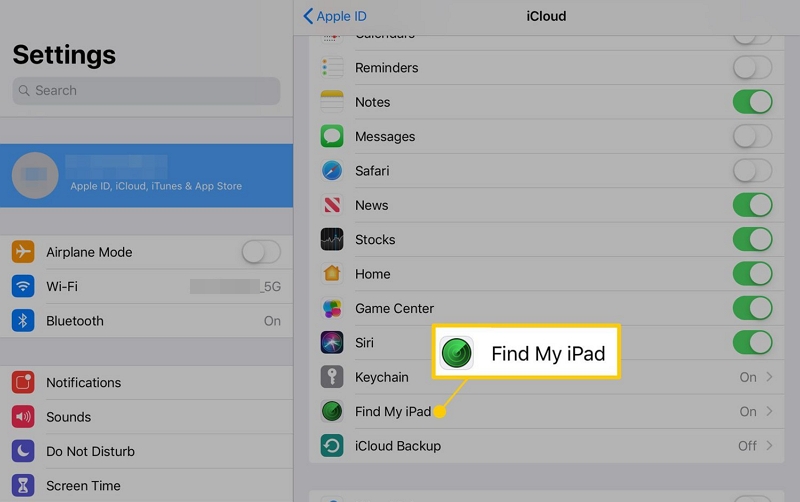
Tip: Some reset methods, such as erasing the iPad through iCloud Find My or from the lock screen, require the Apple ID password as a prerequisite. Without it, these methods won't work.
If You Can’t Provide the Apple ID Password Because You Forgot It
Forgetting Apple ID password isn't a dead end. Apple gives you a few solid ways to reset it and we will show you how to do that below. Once you've set a new password, write it down somewhere safe. After that, you can move straight on to the factory reset — we’ve covered the steps for that too.
Reset Apple ID Password
How you reset the Apple Account password depends on what you still have access to — a trusted device, a trusted number, a backup email, or maybe a recovery key. Each path works a little differently.
Below are two common ways to reset the password. They cover almost everyone — having a trusted device or a trusted number for two-factor authentication has become close to mandatory at this point anyway.
Way 1. Use Settings App
You can follow this method right on the iPad or on any other trusted device signed in to the same Apple account. All it will require is that device's screen passcode — 4-digit, 6-digit, or alphanumeric, whatever it's set to. Apple won't even ask for the old Apple Account password first.
Tip: A trusted device is simply an Apple device already signed into your account — an iPhone, iPad, Mac, or even Apple Watch. Since it's already proven to be yours, Apple will let you make critical security changes, like resetting your password.
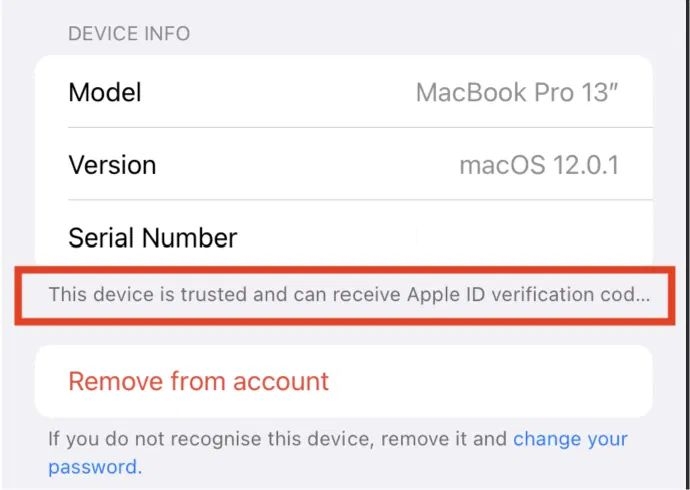
Here's how it works:
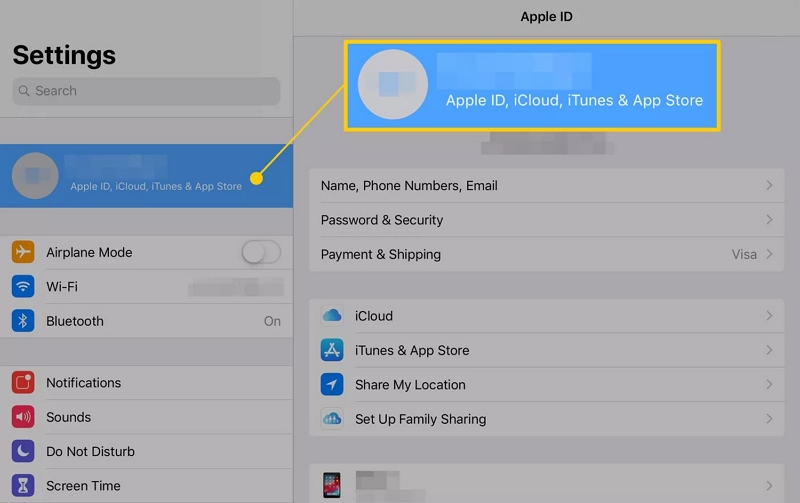
Step 1. Open Settings on the trusted device. Tap your name at the top.
Step 2. Tap Sign-In & Security. On older iPad models, this shows up as Password & Security instead.
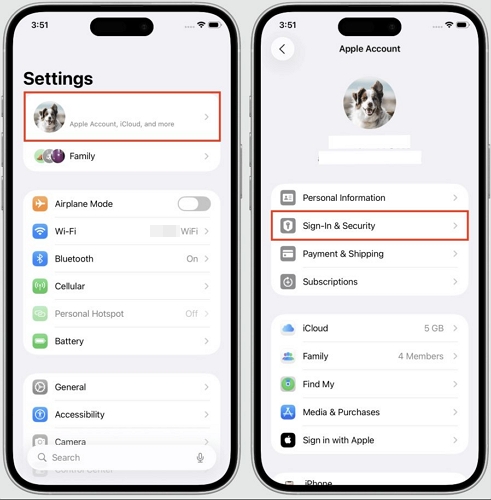
Note: In rare cases, Apple asks for the iPad's own Apple Account password before letting you into this menu at all. If that happens, try a different trusted device. If it keeps happening, skip to Way 2 below.
Step 3. Choose Change Password. When prompted, enter the trusted device's screen passcode.
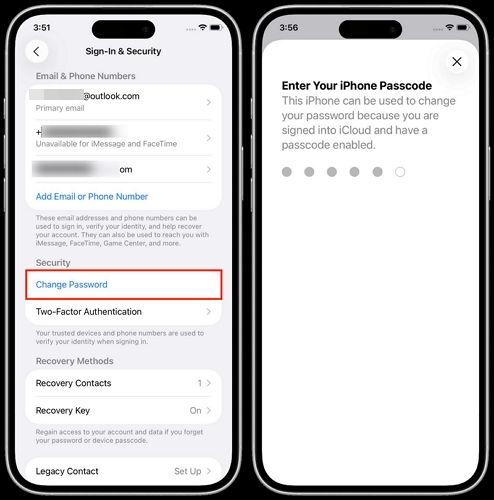
Step 4. Authenticate with Face ID or Touch ID if asked.
If Stolen Device Protection is enabled, Apple may delay the change for an hour. Plus, it'll specifically ask for Face ID or Touch ID — the passcode alone won't be enough.
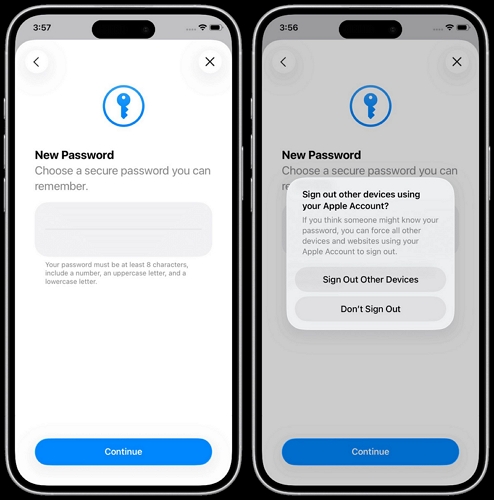
Step 5. Type in a new Apple ID password. Confirm it and tap Continue. You'll get the option to Sign out Other Devices or Don’t Sign Out. Sign out if security's the priority or stay signed in if you'd rather not deal with logging back into everything right now.
That's it. Your new Apple ID password is set.
Way 2. Through iforgot.apple.com
No trusted device on hand? Or Apple keeps asking for the password before it'll even open the Sign-In & Security menu? Either way, Apple's official recovery site is the next stop. This site will work as long as you have a trusted phone number, a recovery email, or something similar tied to the account.
Here's how it works:
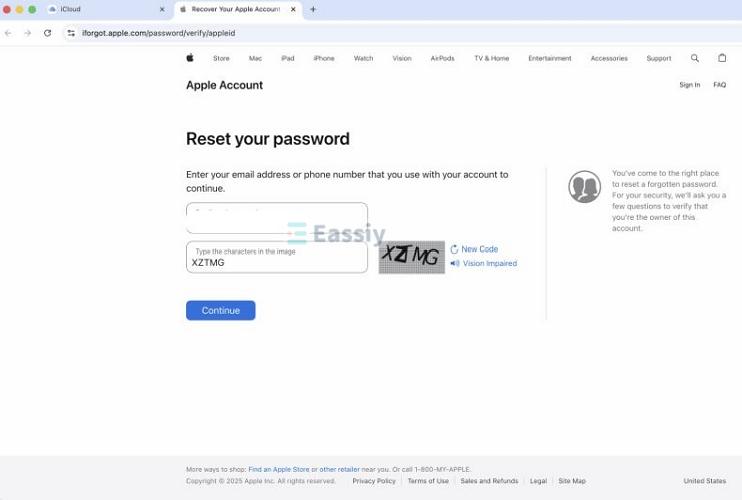
Step 1. Go to iforgot.apple.com. Enter the email or phone number tied to the Apple Account.
Step 2. Complete the CAPTCHA. Then hit Continue.
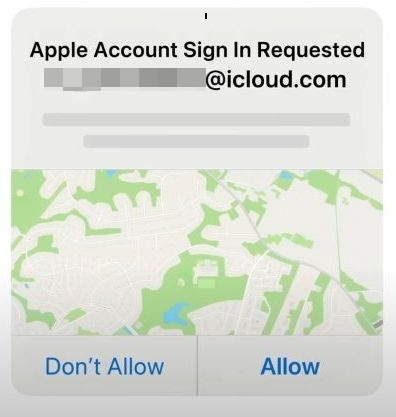
Step 3. If a trusted device is available, a prompt appears there automatically. Tap Allow.
You'll be asked to enter a new password. Confirm by entering the same password. Then, hit Continue. Done.
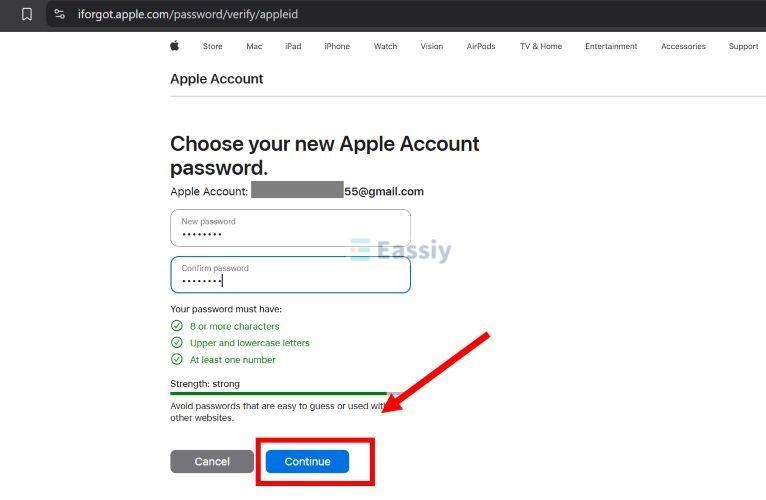
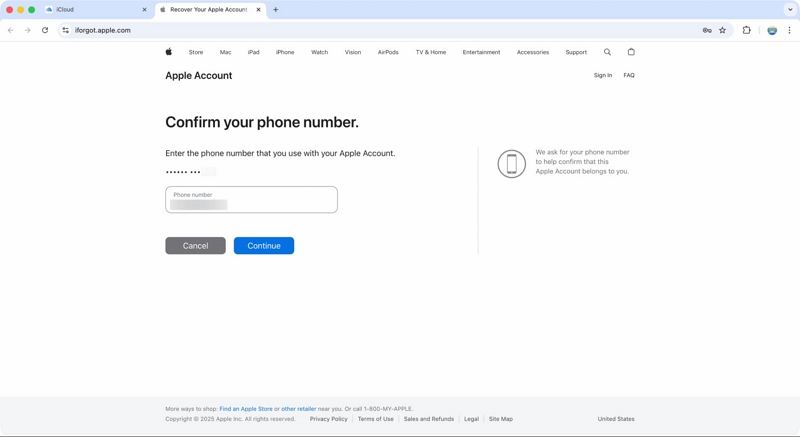
If you don’t have a trusted device, Apple will ask you to enter the trusted number. A trusted number is the phone number Apple sends your two-factor codes to.
Apple will send a code to that trusted phone number instead. Just enter that code on the iforgot page. It will walk you through creating a new Apple ID password. And if neither option is available, you can also get back in by answering security questions (if you’ve previously set them) or by using your email.
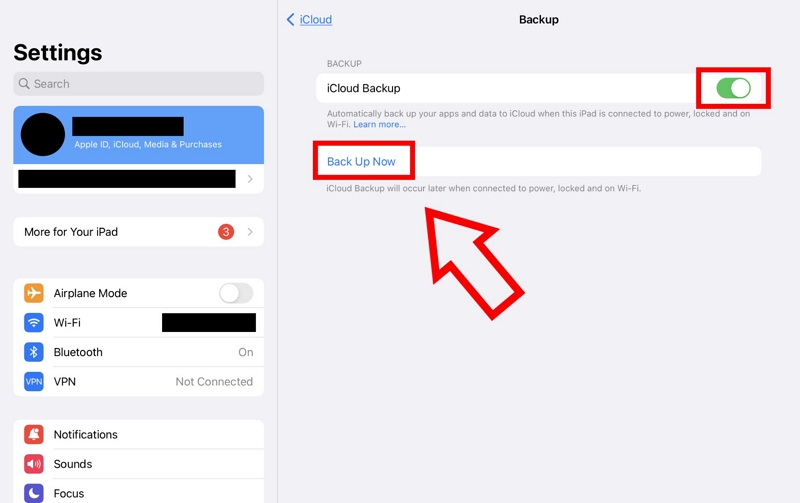
Note: Back up the iPad first if you haven't already. This way, nothing's lost once the iPad is wiped.
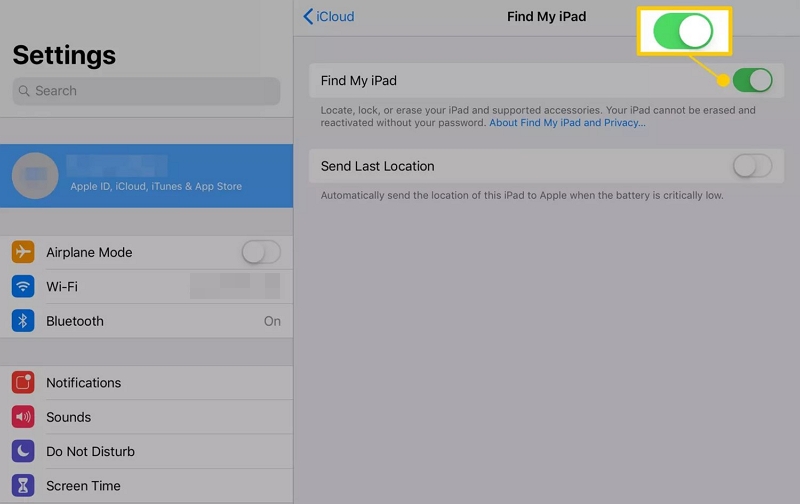
Since you now know the Apple ID password, turn off Find My before erasing. Do this first so the iPad won't trip the Activation Lock after the erase.
- Go to Settings on the iPad itself. Tap your name.
- Choose Find My, then Find My iPad.
- Toggle it off. Enter the Apple ID password to confirm.
With Find My off, erasing the iPad is simple from here:
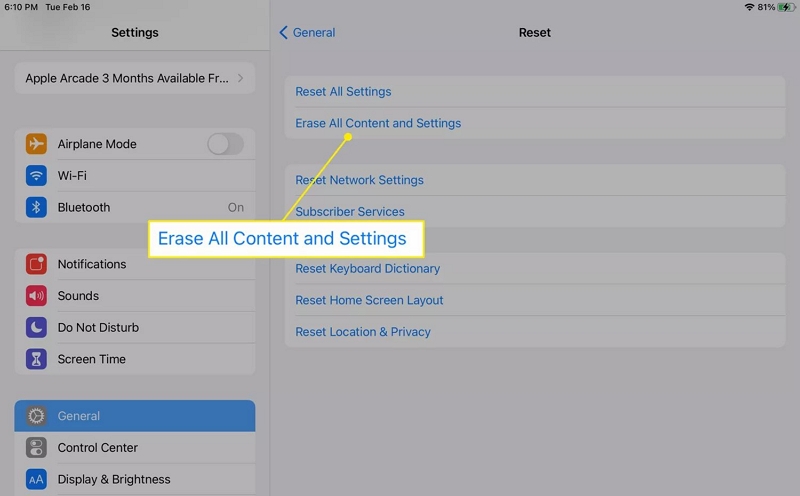
- Go to Settings on your iPad.
- Tap General.
- Tap Transfer or Reset iPad, then tap Erase All Content and Settings.
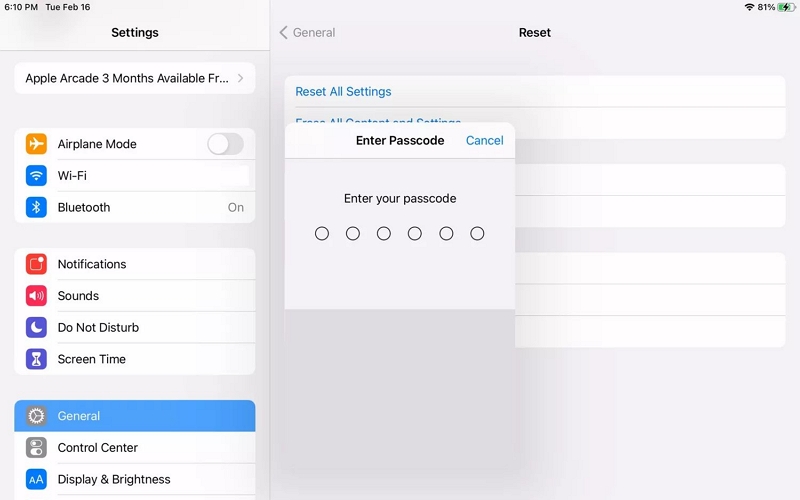
- Enter the device passcode or the Apple Account password, depending on which it asks for. If Screen Time restrictions were ever set up on the iPad, Apple could also ask for that passcode.
- If your iPad has an eSIM, choose whether to erase it or keep it.
- Tap Erase iPad to confirm.
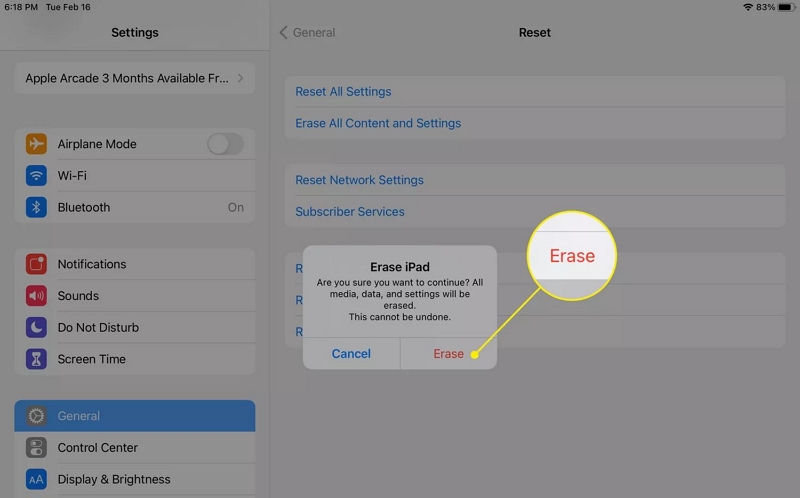
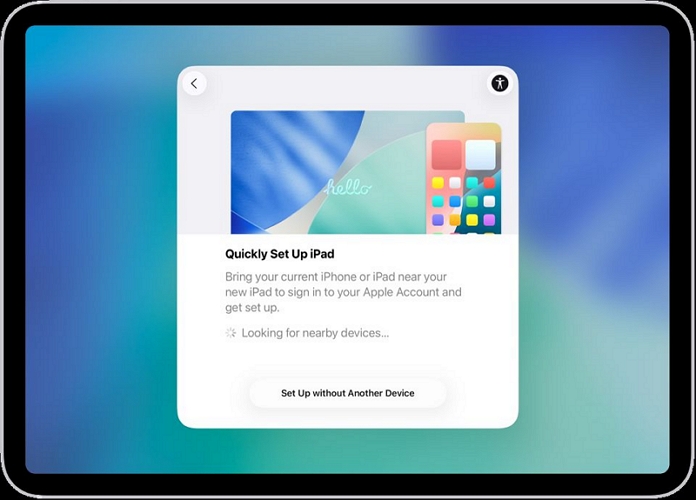
The iPad will restart and land at the Hello screen. That’s it, there will be no demand for Apple ID waiting on the other side, since Find My was already off before the erase began.
If you don't have the Apple ID password because the iPad is second-hand
You can contact the previous owner and ask them to factory reset the iPad remotely. This removes all their data, along with the Apple ID signed in on the device. Plus, they don't need to share their Apple ID credentials with you. Just ask them to keep the iPad online and follow these steps.
Step 1. Go to icloud.com/find. Sign in to the same Apple ID linked to the iPad.
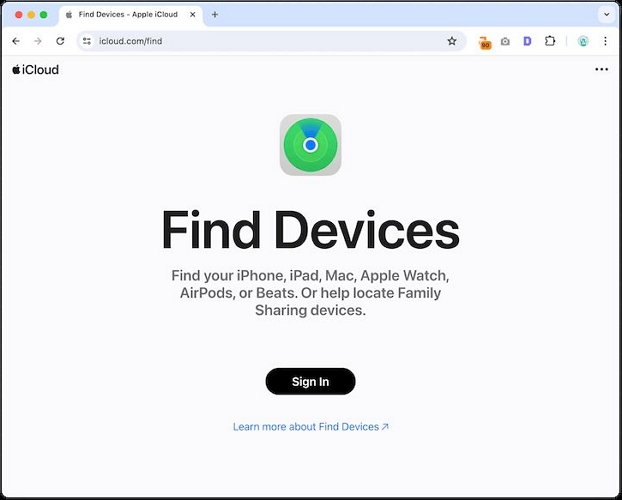
Step 2. Pick the iPad from the All Devices list.
Step 3. Hit Erase or Erase This iPad and confirm it with the Apple ID password.
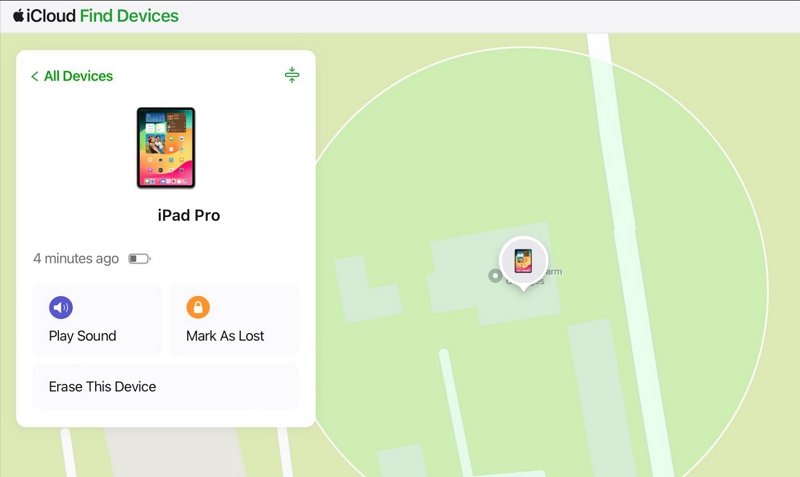
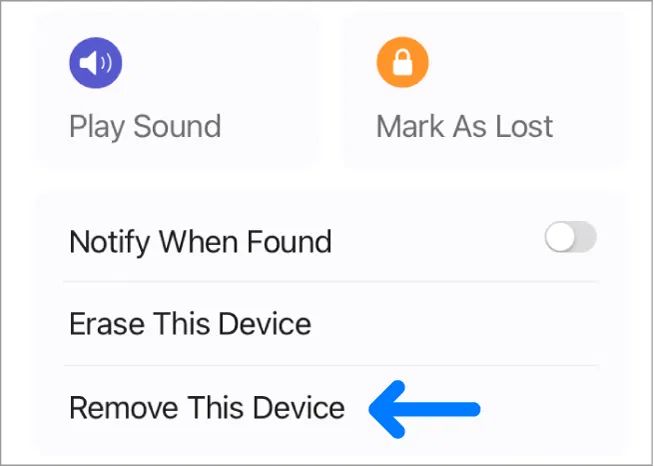
Now here's where most people mess up. Erasing alone isn't enough. After they erase it, the iPad will still boot into a lock screen tied to their account. So ask them to do one more thing — remove the iPad from their account.
Step 4. Ask the previous owner to return to the same iCloud page and tap Remove or Remove This Device. That's what actually frees the device from the Apple ID after the factory reset.
Can You Factory Reset an iPad Without Apple ID Password? Yes and How!
Yes and this is where a dedicated unlocking tool like Eassiy iPhone Access earns its place.
When neither resetting the password nor contacting the previous owner gets you anywhere, Eassiy steps in to make it easy by removing the Apple ID from the device and performing a factory reset on the iPad during the same process.It's built to work with almost all iPad models, running up to iPadOS 26. Plus, it works the same whether Find My is turned on or off. Once it's done, the iPad will land on the Hello screen and from there, you can set it up and start using it like normal again.
Key Features
- Remove screen passcode from your iDevice, whatever the type — 4-digit, 6-digit, alphanumeric, Face ID or Touch ID.
- Bypass iCloud Activation Lock on iPad without Apple ID or screen passcode.
- Clear a forgotten Screen Time passcode with no data lost in the process.
- Delete MDM profiles to prevent your iPad from being tracked by your previous organization.
How to Factory Reset iPad Without Apple ID Password
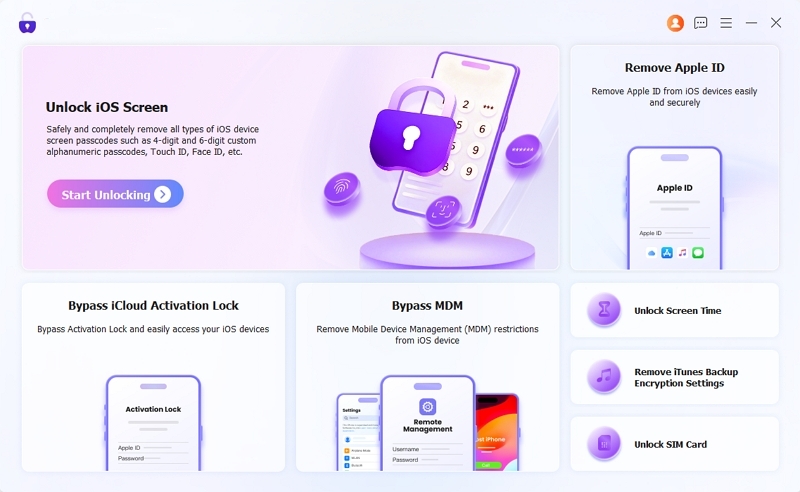
Step 1. Open Eassiy iPhone Access on your computer and pick Remove Apple ID from the dashboard.
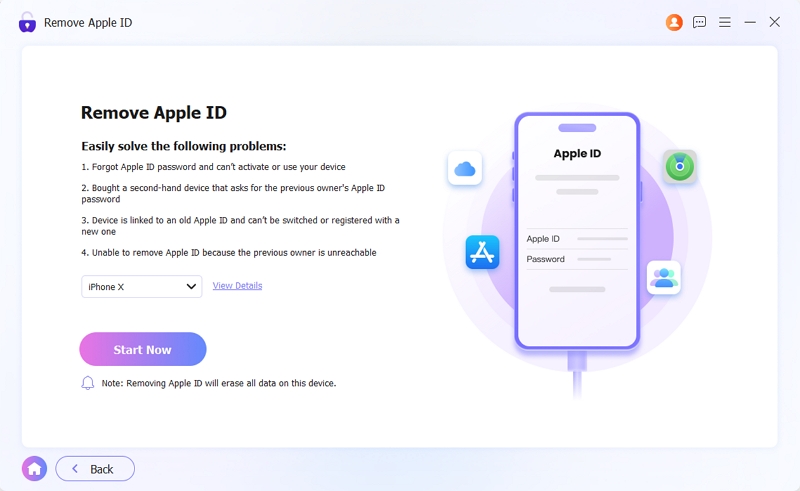
Step 2. Plug the iPad into the desktop with a cable, then hit Start Now once it’s recognized.
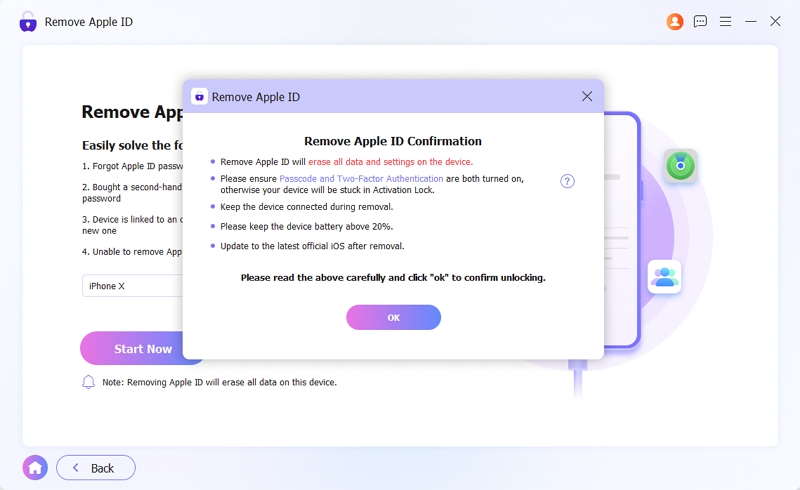
Step 3. Ensure there is a screen passcode set on your iPad. Eassiy will also check for iPad’s Two-Factor Authentication status. If 2FA is off, it’ll prompt you to enable it from the iPad’s Settings. Once that’s sorted, click OK, then Confirm Again to greenlight the removal.
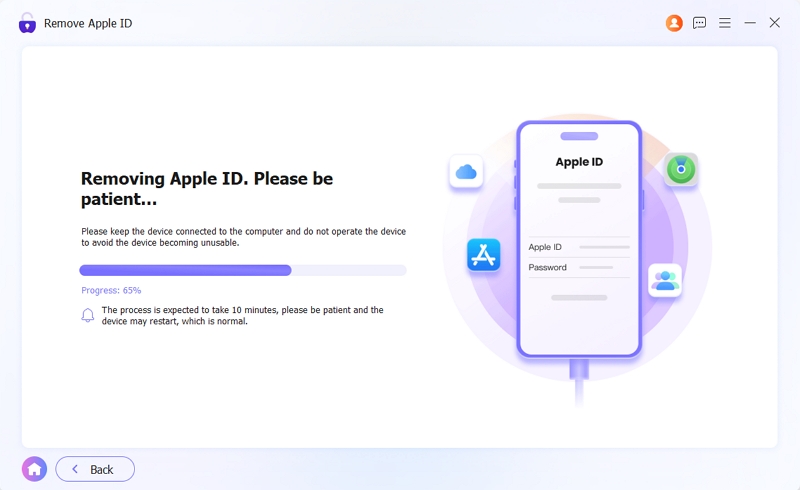
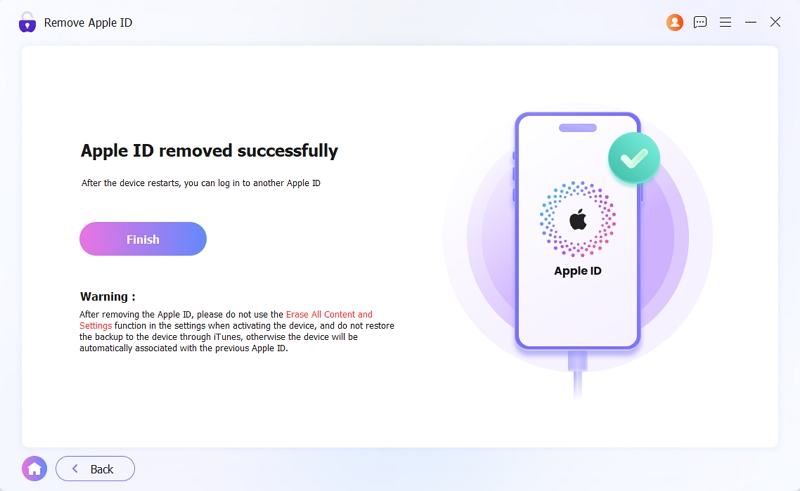
Step 4. From here, Eassiy will run on its own — stripping the Apple ID off the device. Just keep the cable connected and leave it be until the removal ends.
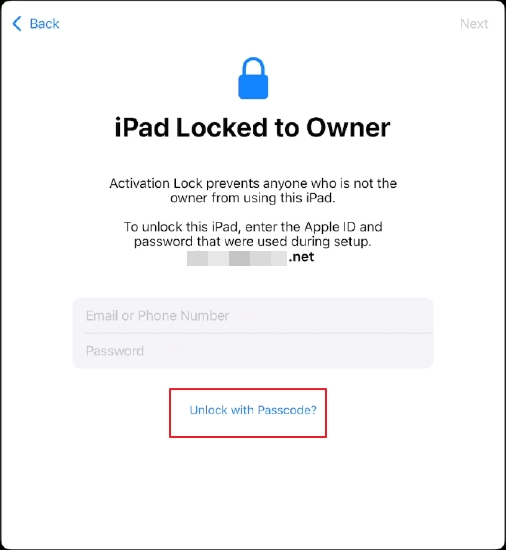
Step 5. When it’s done, the iPad will restart into setup.
In the Activation Lock screen, tap Unlock with Passcode and enter the device’s own passcode. After that, you can sign in with a different Apple ID and set the iPad up fresh.
Can You Factory Reset iPad Without Apple ID Password or Computer?
Yes, if Find My iPad is disabled, you can directly erase the iPad from the Settings app without computer or Apple ID password. However, if Find My iPad is enabled, the Apple ID password is required to turn off iCloud Activation Lock after the reset using official methods like iTunes restore. Otherwise, you won’t be able to access the device. When you have the Apple ID password, it is possible to erase the iPad without computer by using the iCloud Find My website on another mobile device.
In summary, if Find My is enabled, you will definitely need the Apple ID to reset the iPad unless you use Eassiy iPhone Access mentioned above. Since Eassiy runs on Windows or Mac, a computer is required in that case.
To Sum Up
So that brings us to the end of this guide. By now, you know how to factory reset your iPad even without the Apple ID password. Even when you don’t have the password, resetting the forgotten password is rarely as hard as it sounds, and Apple gives you several ways to get it done.
But if that's off the table, for example, the previous owner's gone, the password's truly lost, there's nothing left to recover from. At that time, you can rely on Eassiy iPhone Access to remove Apple ID and factory reset the iPad. It works across almost every iPad model and iPadOS version, with a strong success rate either way.