Help Center

Updated on 2026-06-17
views
5min read
Hand your iPhone to a baby or toddler and it will not take long before they start tapping the screen. They may pause the video you put for them, open an app they shouldn’t or end up calling your boss. Even worse, put a locked phone in front of them and they will lock you out of your own iPhone due to accidental passcode entries.
Fortunately, Apple includes built-in features to prevent exactly that. In this guide, you'll learn how to lock screen on iPhone from touch, so videos keep playing no matter how many times your baby taps on the display. We'll also cover ways to avoid Unavailable iPhone caused by unintended touches on the lock screen.
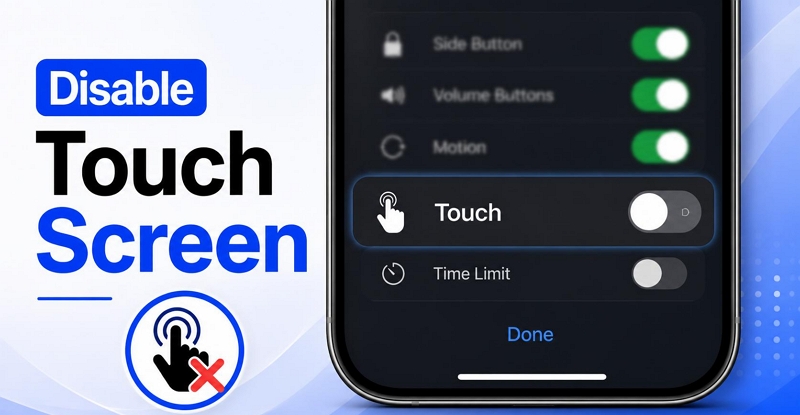
How to Lock Screen on iPhone from Touch
Apple's built-in solution for this is Guided Access that is designed to keep the iPhone locked to a single app and prevent unwanted touches. Once set up, it will give you two ways to control touch input every time you start a Guide Access session.
- You can draw disabled areas over specific parts of the screen and create touch-free zones.
- Or you can disable touch input entirely, making the whole screen unresponsive until Guided Access is turned off.
Guide Access also lets you lock down the hardware buttons when needed, so you can even temporarily disable the Side button and volume controls. This extra layer of protection is useful in situations when you don’t want your child to lower the volume or exit the app.
Steps to Lock Screen on iPhone for a Baby
Step 1. Open Settings. Head to Accessibility, scroll down and select Guided Access.
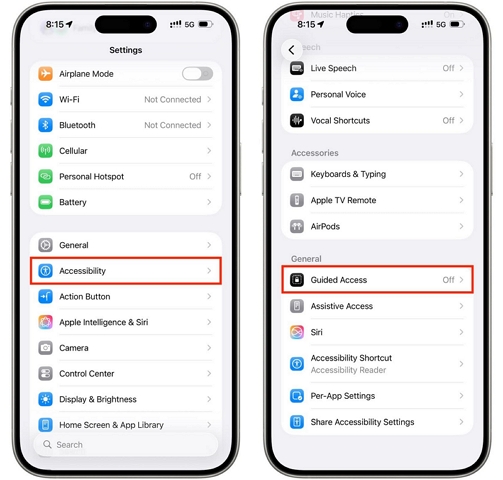
Step 2. Turn on the Guided Access toggle. The first time you do this, your iPhone will warn you that some button shortcuts can behave differently while Guided Access is active. Simply continue with the setup.
You'll now see a few additional options:
- Passcode Settings: You can create a dedicated 6-digit passcode for ending a Guided Access session. This is separate from your iPhone passcode. You can also enable Face ID or Touch ID.
- Time Limits: You can choose Time Limits for an app when starting a session. This option lets the iPhone play a sound or announce the remaining time before a session is about to end.
- Use the Accessibility Shortcut toggle to keep accessibility features available during a Guided Access session.
- Finally, there's Display Auto-Lock. You can choose how quickly the screen should turn off when there is no activity.
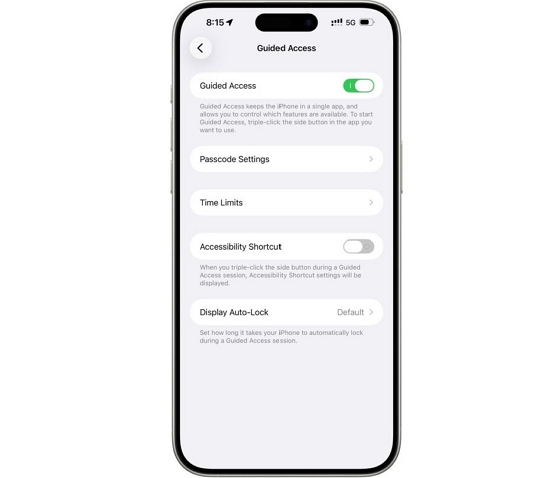
That’s it! Guided Access is ready to use now. The next time you start a cartoon or video for your child, you will just have to start a Guided Access session. That way, random touches won’t pause the video. Here's how to lock the screen for a baby by starting a Guided Access session:
Step 3. Open the app you want to lock to the screen. This can be a video app, a game, a learning app, a web page, or almost anything except the Home Screen itself.
Step 4. Triple-click the Side button (Power button) on iPhone X and later models. On Touch ID iPhones, triple-click the Home button instead.
This will open the Guided Access setup screen. The current app will zoom out slightly, and you'll see controls such as Cancel, Start, and Session Settings.
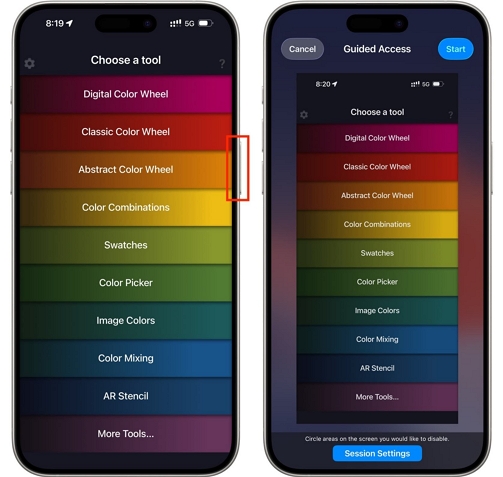
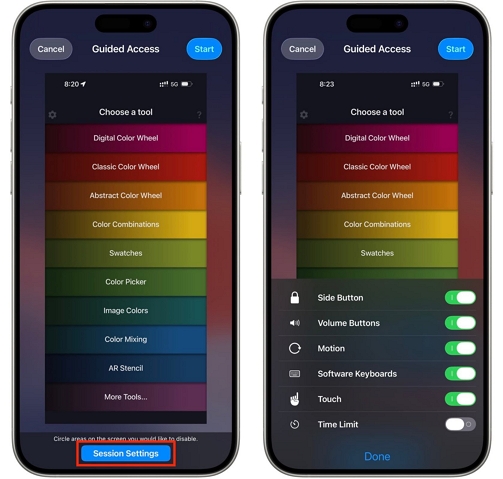
Step 5. Tap Session Settings (previously Options).
From here, you can decide exactly what should remain available during the session.
- Turn off Touch to disable the entire touchscreen.
- Turn off Motion if you don't want the device reacting to movement.
- Disable hardware buttons such as the Side button or volume controls.
- While the Time Limit option in settings lets you control the behavior, this Time Limit option lets you set when the session ends automatically.
Tap Done to save the settings for the upcoming session.
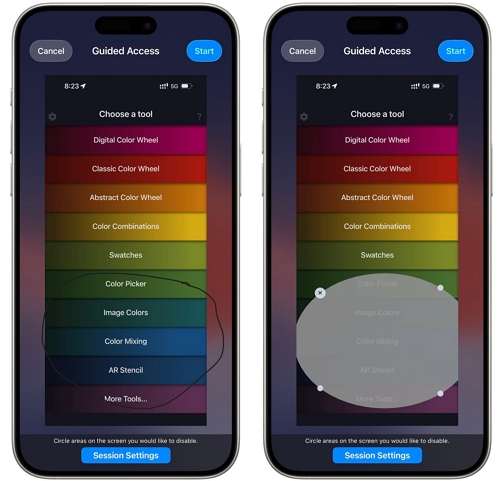
You can also disable only part of the screen. To do this, circle the area you want to make inactive. Anything left outside the marked area continues to work normally.
This can be useful when you’re handing over a phone for games or learning apps. For instance, you can let them interact with only a specific button.
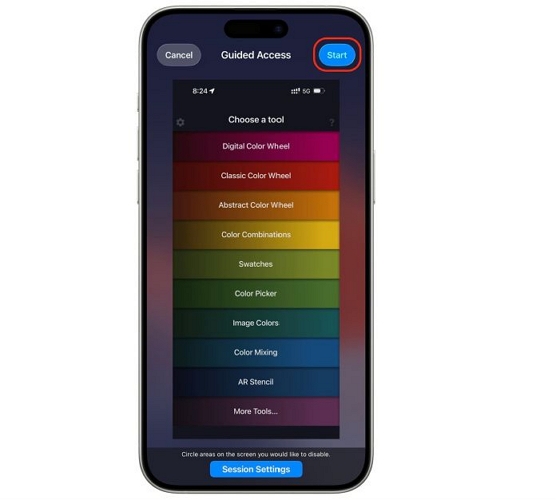
Step 6. Tap Start at the top-right to begin the Guided Access session. Your child will not be able to touch the screen where touch input is disabled.
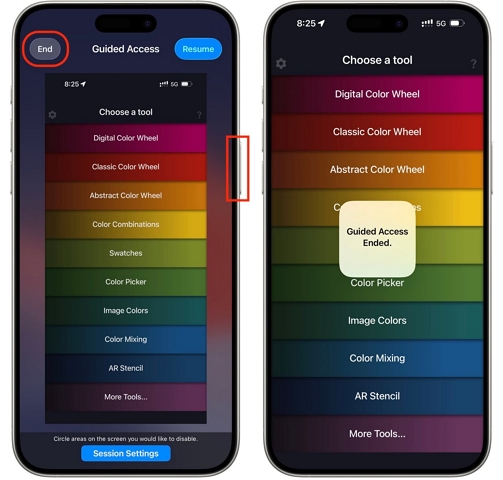
To end the session:
- Triple-click the same button again — Side button or Home button.
- Tap End.
- Enter the Guided Access passcode you created earlier.
You'll see the Guided Access Ended message and your iPhone will return to normal use.
Bonus: How to Lock Apps on iPhone for a Toddler
Guided Access is excellent when you want to lock the entire screen or keep your child inside a single app.
However, nowadays, toddlers don't use the iPhone for just one activity. One moment, they may be coloring a character and the next, they may request you to open a puzzle app, a story, and so on. So starting a new Guided Access session every time is impractical. But this also doesn’t mean you give them full access. You can lock apps to keep your photos and conversations private. Here are two highly effective ways to do that.
Way 1. Lock Apps with Face ID
On iOS 18 or later, you can lock individual apps directly from the Home Screen. Here’s how;
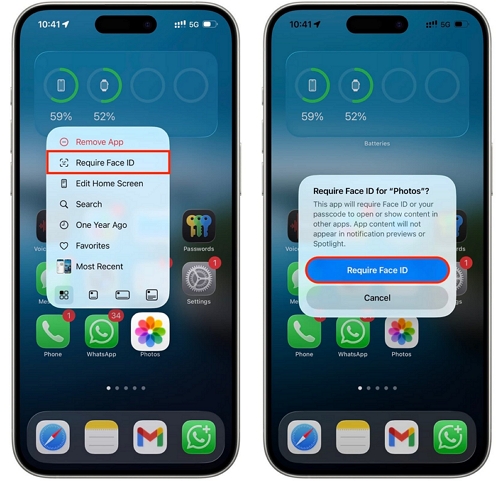
Step 1. Touch and hold the app you want to lock. You can lock just about any app on your iPhone, including Photos, Messages, and many other apps that contain personal information.
Step 2. Select Require Face ID from the quick actions menu.
Step 3. Tap Require Face ID again.
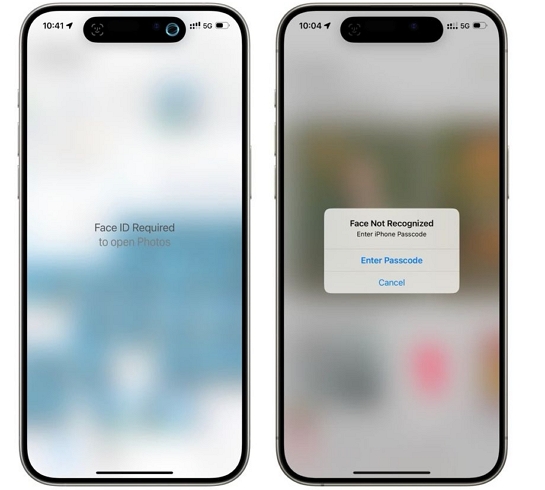
The lock app will add very little friction for you. Face ID will typically recognize you right away, so opening the app will feel like before. But when your toddler tries to open it, they'll see the Face ID Required to Open Photos message.
Note: iPhone will still offer the passcode option after Face ID fails. So your child can access the app if they know the passcode.
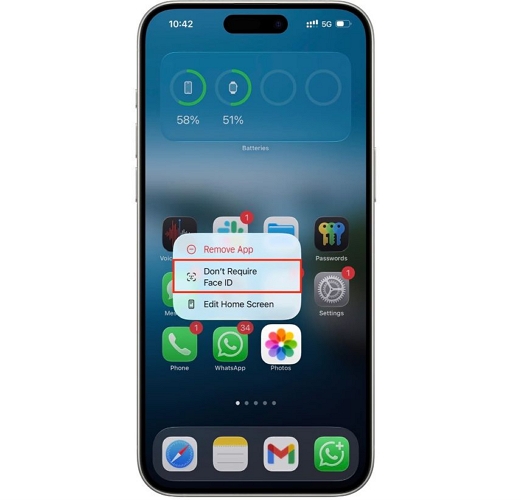
To remove the Face ID requirement from an app:
- Just choose Don’t Require Face ID after the long-press.
- After successful Face ID authentication, the app will unlock.
Way 2. Set App Limits
You can also limit how long your toddler spends on games or social media. For this, you’ll have to use Screen Time. It includes dedicated App Limits controls that can lock an app after a certain amount of usage.
Here's how to set it up:
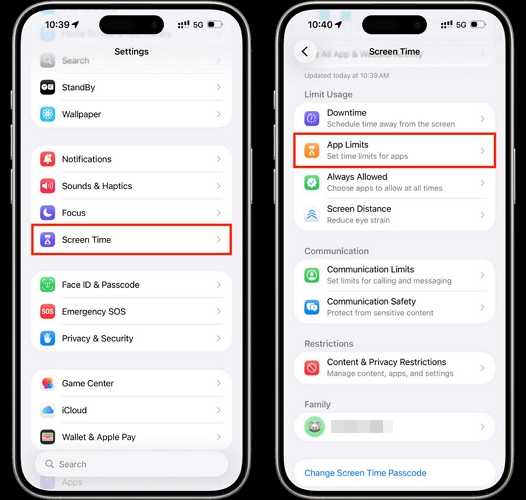
Step 1. Open Settings and select Screen Time.
Step 2. Select App Limits. On some iOS versions, you'll see App Limits immediately. On others, you'll first need to tap App & Website Activity and turn it on to locate App Limits.
Step 3. Enter your Screen Time passcode or create one. This could differ from your screen passcode.
Step 4. Tap Add Limit one more time. Choose what the app you want to limit and tap Next to continue.
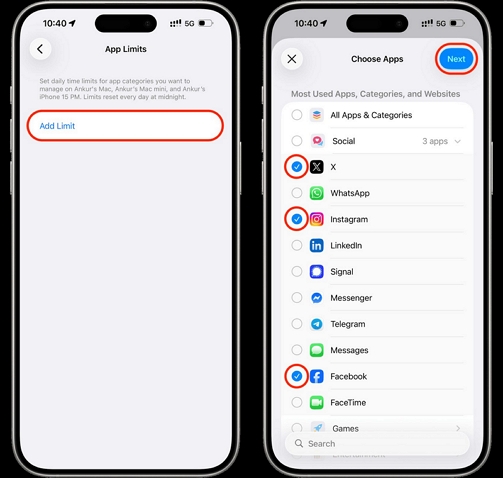
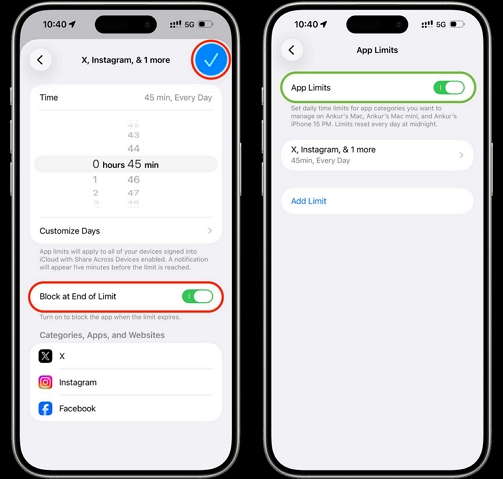
Step 5. Set the amount of time you want to allow each day. You can also customize the schedule if you want different limits on different days.
Step 6. Make sure Block at End of Limit is turned on. Then tap the checkmark on the top-right. Also, make sure the App Limits is turned on before you exit the Settings.
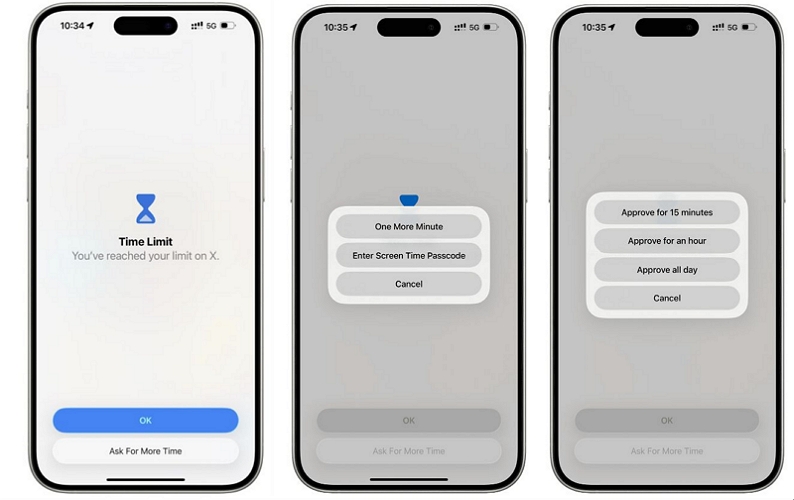
The iPhone will display the “Time Limit” reached message when your child has used up the allowed time. If they need additional time, they can click Ask For More Time. You can then choose whether to enter the Screen Time passcode and grant additional time or keep the app locked.
How to Stop Lock Screen on iPhone from Accidental Touch
You can end up staring at an iPhone Unavailable screen and have to wait through one-hour lockout timers due to accidental touches. There are many ways this can happen. For instance:
- Your toddler picked up your locked iPhone and entered random passcodes.
- Or the phone was sitting in your pocket or bag and registers ghost touches.
Because of too many incorrect passcode attempts, you can get locked out of your device. If this has happened to you before or if you simply want to avoid this, here are the best ways to stop accidental touches from triggering an iPhone lockout.
Note: Do not turn off the following features when the power button is broken.
Step 1. Turn off Tap to Wake
Debuted with the iPhone X, the Tap to Wake feature wakes your iPhone whenever you tap the lock screen. This is really useful when you just want to quickly check notifications or see lock-screen widgets.
However, the biggest downside is accidental touches. A tap through your pocket or even while handling the phone can light up the display unnecessarily, which increases the chances of unwanted touches and adds to extra battery drain.
To Turn Off Tap to Wake:
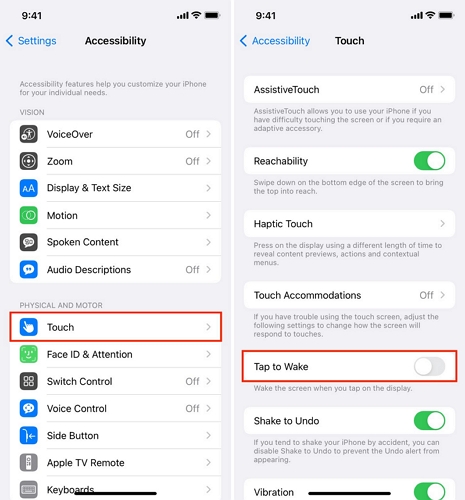
Step 1. Open Settings and select Accessibility.
Step 2. Under the Physical and Motor section, tap Touch.
Step 3. Turn off the Tap to Wake toggle.
From now on, you will have to press the Side button to scan the Face ID. Or, you can use another wake method.
Step 2. Disable Raise to Wake
Every iPhone from iPhone 6 onwards comes with Raise to Wake. It automatically turns on the display whenever you pick up the iPhone and raise it. The disadvantages of this feature are similar to Tap to Wake discussed above.
To Disable Raise to Wake:
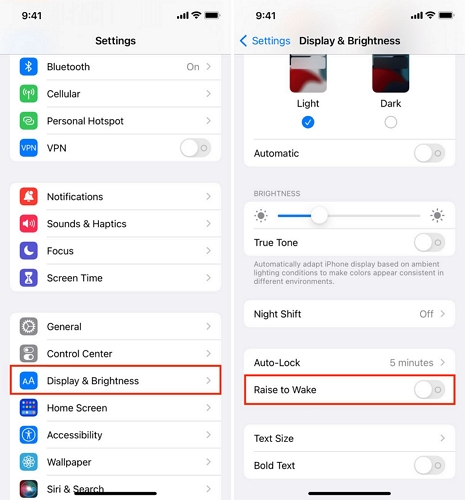
Step 1. Open Settings. Select Display & Brightness.
Step 2. Scroll down and toggle off Raise to Wake.
How to Unlock iPhone Locked Due to Accidental Touches
If accidental touches have already locked the device completely and you're staring at an iPhone Unavailable or iPhone Security Lockout screen without lockout timers, it means the iPhone must be erased. After that, you will be able to use it again without any problems. Apple offers several ways to erase an unavailable iPhone, including Finder, iTunes, and, in some cases, the lock screen itself.
But if you're looking for the easiest and safest solution, Eassiy iPhone Access must be what you want. Eassiy can reset an unavailable iPhone in just a few steps and works with all iPhone models. It can unlock unavailable iPhone locked due to forgotten screen passcode, disabled Face ID/Touch ID or broken screen. If you bought a locked iPhone, you can use Eassiy to unlock the device without previous owner either. After Eassiy resets the unavailable iPhone, you can set it up like new and continue using it normally.
Beyond removing screen lock from iPhone, Eassiy can also deal with other types of iPhone locks, including Screen Time/MDM restrictions, iCloud Activation Lock, helping make the device usable again.
Key Features:
- Unlock unavailable, disabled, security lockout iPhone without Face ID or passcode.
- Allow you to remove an Apple ID from iPhone even when the original login details are no longer available or the account is disabled.
- Clear MDM restrictions placed by schools or workplaces without admin help.
How to Unlock Unavailable iPhone with Eassiy
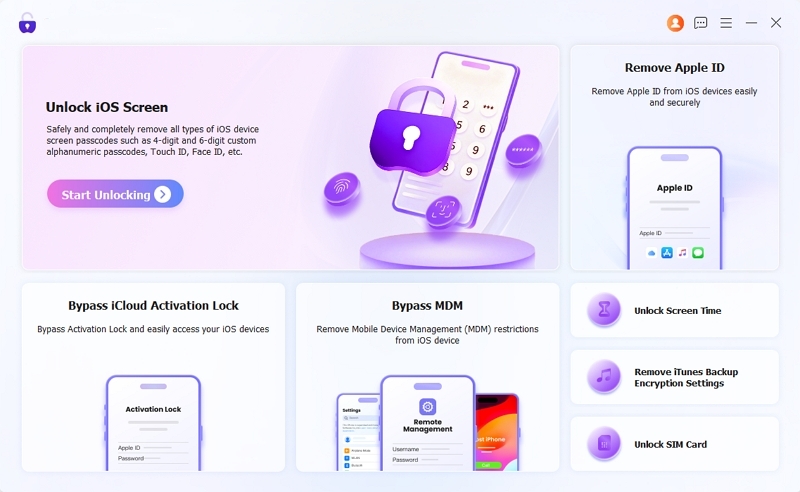
Step 1. Download and open Eassiy iPhone Access on your Windows PC or Mac. Select Unlock iOS Screen.
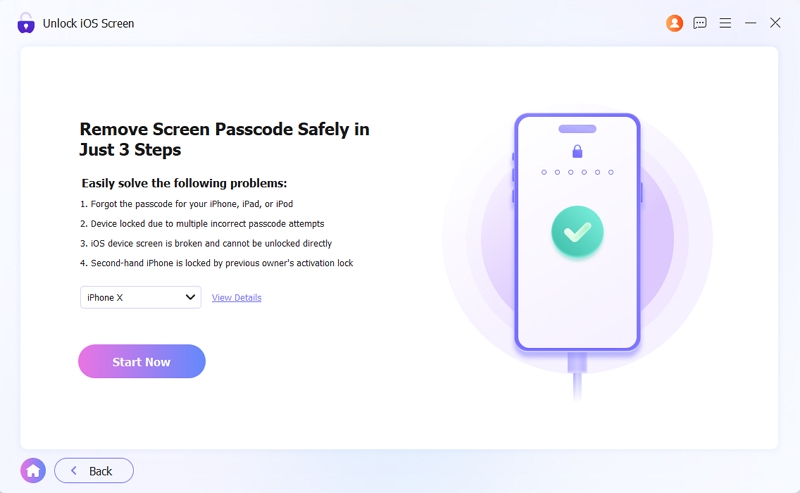
Step 2. Connect the disabled iPhone to the computer. Verify the device information that Eassiy detects and then click Start Now to get the firmware for iPhone unlocking.
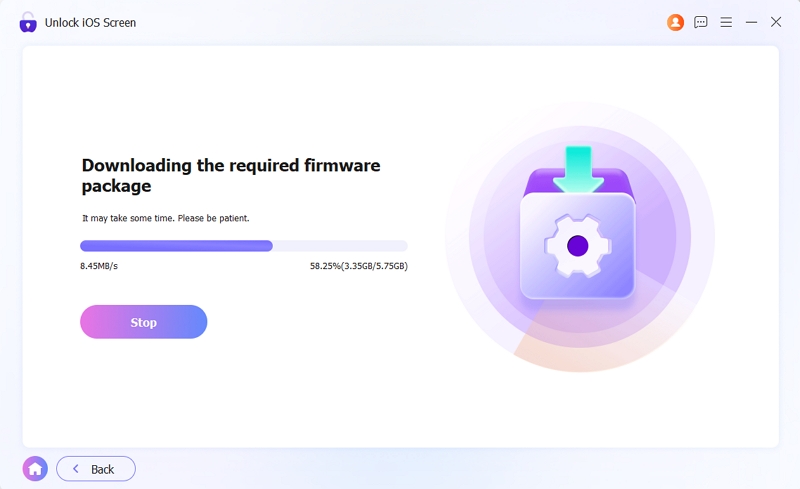
Wait while Eassiy downloads the matching firmware package directly from Apple's servers.
Step 3. Click Start Removing. Review the information shown on the screen, click OK to proceed and hit Confirm Again to confirm the unlocking.
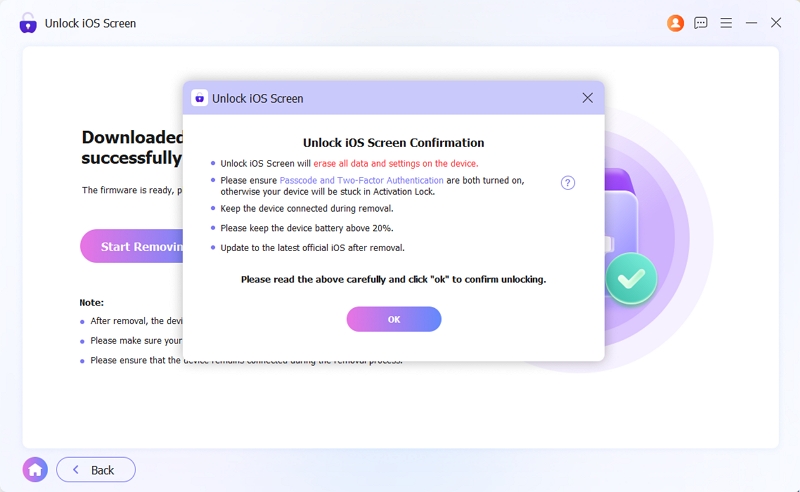
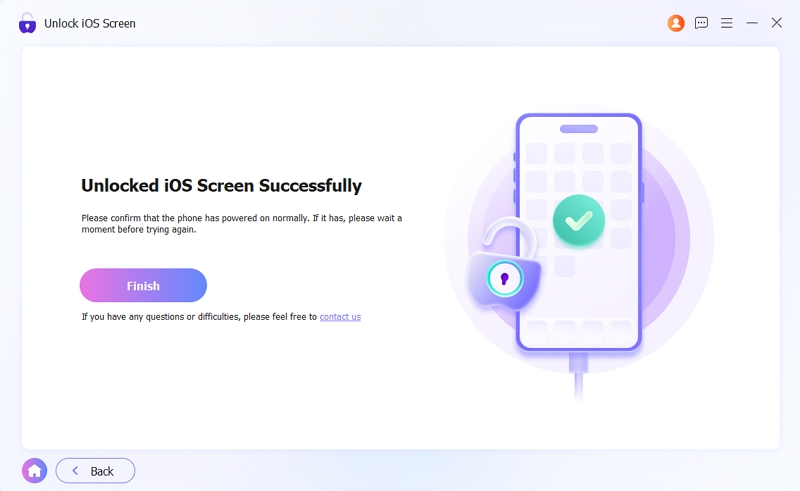
Eassiy will begin removing the screen lock from the device. Shortly after, you'll see the Unlock iOS Screen Successfully message. You can then set up the iPhone again and start using it like before.
Tip: How to Lock Screen on iPhone via Touch
A broken or jammed Side(Power) button can make it difficult to lock the screen. And you’ll always have to wait for the iPhone to lock itself after inactivity. So if you want an instant replacement for the lock button, AssistiveTouch is the easiest option. It will add a small floating button to the screen that can perform many hardware-button functions, including locking the iPhone.
Keep in mind that you'll also need to wake the iPhone before locking it. So before using this method, make sure features such as Tap to Wake or Raise to Wake are enabled.
Step 1. Open Settings. Select Accessibility.
Step 2. Tap Touch. Then, turn on the AssistiveTouch toggle.
Immediately, a floating button will appear on the screen.
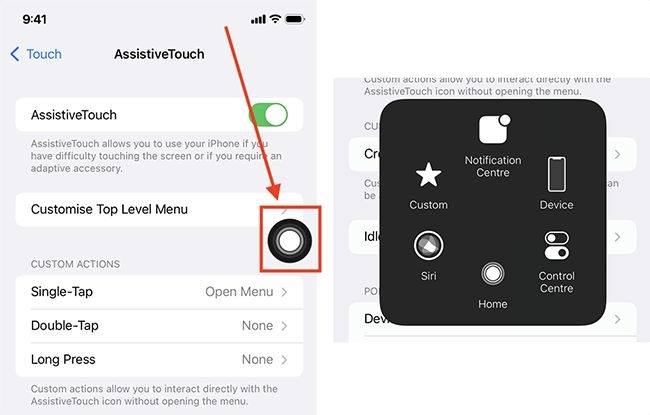
Step 3. To lock the iPhone, you’ll just have to tap that AssistiveTouch icon. By default, the menu options will open. Select Device and then choose Lock Screen.
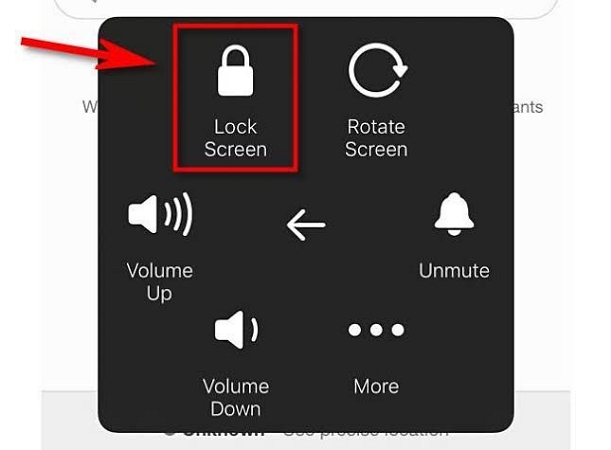
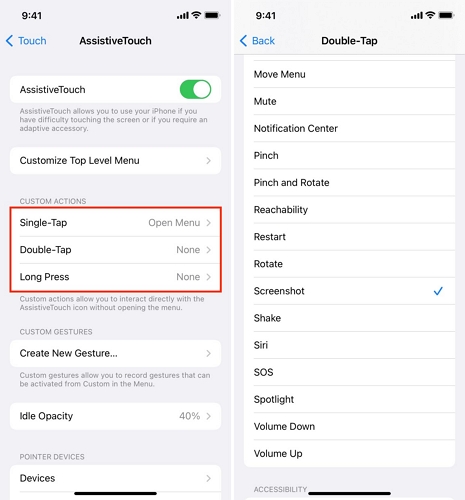
You can also customize the taps and configure the button to lock the screen with a single tap if needed. Another advantage of AssistiveTouch is that it isn't limited to screen locking. The same menu also provides quick access to actions such as Restart and other device controls.
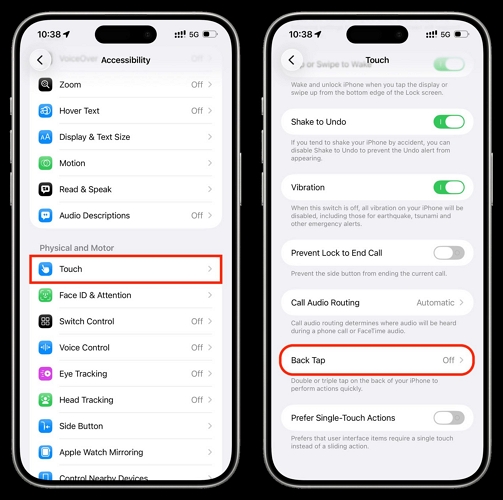
An alternative to Assistive Touch is to use the Back Tap gestures. You’ll find its configurations within the Touch menu where you can assign a Double Tap or Triple Tap gesture to lock your iPhone screen.
Conclusion
Whether you want to hand the device to a baby for watching videos or let your toddler play their favorite game, the right settings can save you from unwanted taps and accidental lockouts.
And if you're already stuck on an iPhone Unavailable screen, use Eassiy iPhone Access to reset the device and make it usable again. After that, you can simply sign in with the same Apple ID or create a new one and use your iPhone as before without any restrictions.