





 Help Center
Updated on 2026-04-10
views
5min read
Have you ever tried sharing your Netflix account with someone, but got the screen limit notification? Well, you’re not alone.
Netflix uses the device limit approach to restrict the number of devices that can download and stream content from one account simultaneously.
So, if you’re looking to find out more about the Netflix device limit, this article will teach you all you need to know. You’ll also discover the best solutions to bypass Netflix device limits without any complications.
Part 1: What is Netflix Device Limit?
Netflix's device limit refers to the maximum number of devices that can stream or download content from one Netflix account simultaneously. For more details on this topic, you can check out this Reddit discussion. The table below provides a breakdown of Netflix’s device limits for various subscription plans:
| Netflix Plans | Basic with Ads ($6.99/month) | Basic ($9.99/month) | Standard ($15.49/month) | Premium ($19.99/month) |
|---|---|---|---|---|
| Devices | Watch on 1 supported device at a time | Watch on 1 supported device at a time | Watch on 2 supported devices at a time | Watch on 4 supported devices at a time |
| Content | Some movies and TV shows unavailable (learn more), unlimited mobile games | Unlimited movies, TV shows, and mobile games | Unlimited movies, TV shows, and mobile games | Unlimited movies, TV shows, and mobile games |
| Quality | Good video quality in HD (720p) | Good video quality in HD (720p) | Great video quality in Full HD (1080p) | Best video quality in Ultra HD (4K) and HDR |
| Ad-Free | - | Ad-free TV shows and movies | Ad-free TV shows and movies | Ad-free TV shows and movies |
| Downloads | - | Download on 1 supported device at a time | Download on 2 supported devices at a time | Download on 6 supported devices at a time |
| Extra Members | - | - | Option to add up to 1 extra member who doesn't live with you | Option to add up to 2 extra members who don't live with you |
| Additional Features | - | - | Netflix spatial audio |
As you can see from the table above, Netflix’s device limit varies depending on your account plan. However, it is important to note that the Netflix device limit only applies to the number of screens that you can actively stream movies on. This doesn't apply to the number of devices you can sign in to your Netflix account.
Part 2: How to Bypass Netflix Device Limit
There are different workarounds that you can use to bypass the Netflix device limit. In this part, we’ll teach you two ways to go about it.
Solution 1: Upgrade Netflix Subscription Plan
One of the ways to bypass the Netflix device limit is to upgrade your Netflix subscription plan.
If you’re using the standard plan (whether ad-supported or not), it’s advisable you upgrade it to premium plan so you can actively stream movies on up to 4 devices and download movies on up to 6 devices.
Here are the steps to follow if you want to upgrade Netflix subscription plan:
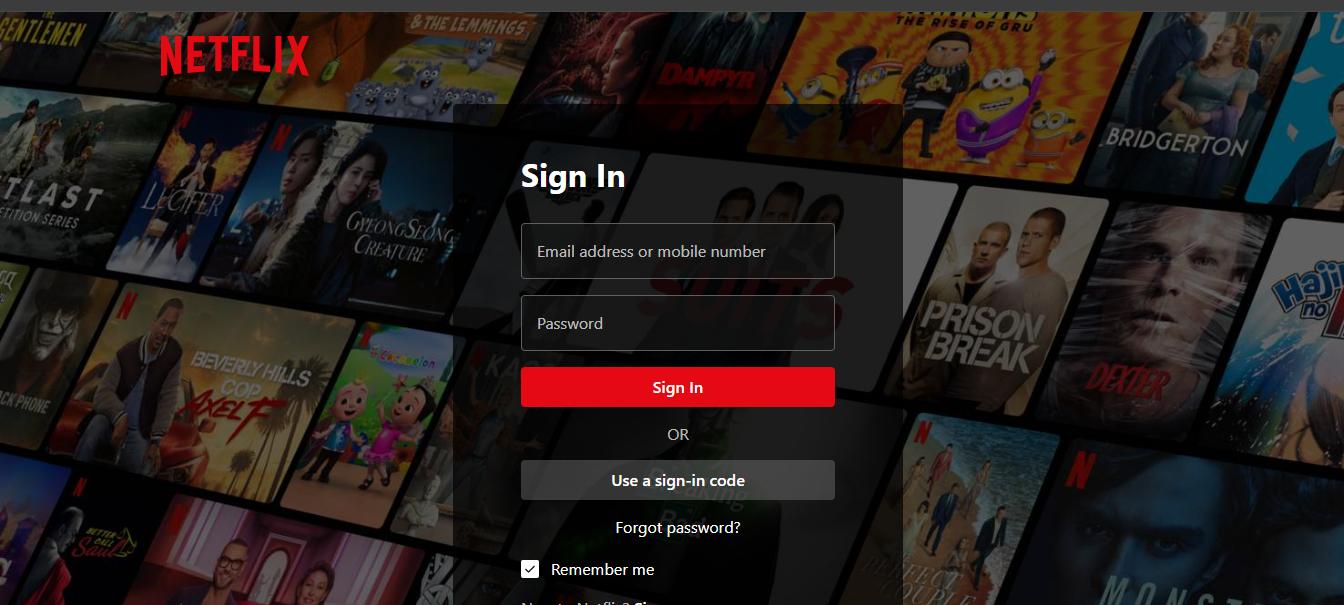
Step 1: Sign in to your “Netflix account” via your browser.
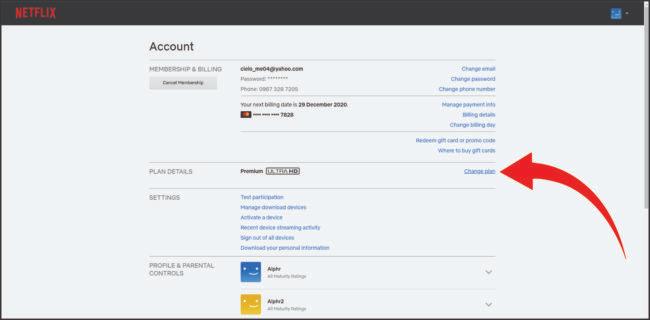
Step 2: Find the “Change Plan” option.
Step 3: Select the “Plan” you want to upgrade to and choose “Continue” or “Update”.
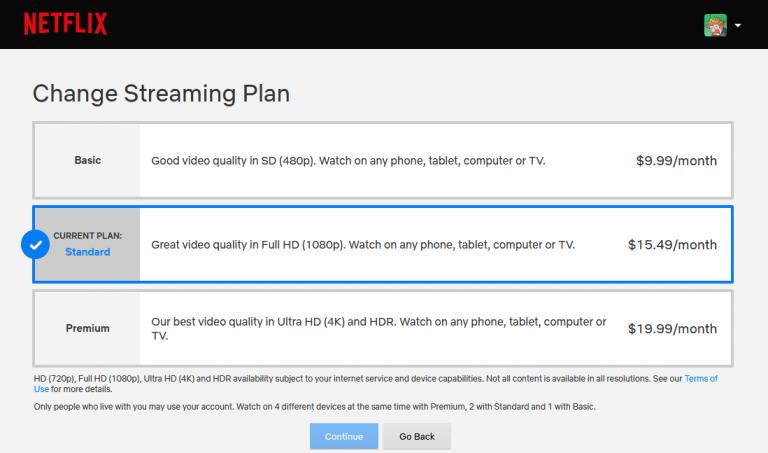
Step 4: Enter the relevant payment details when prompted. Then, click “Confirm Change” or “Confirm” to finish.
Ultimate Solution: Record Streaming Videos as Local Files (Ultimate Solution)
Upgrading your plan is very effective for bypassing the Netflix device limit. But you'll still be limited to a maximum of 4 devices for simultaneous streaming and 6 devices for simultaneous downloads.
If you want to save and watch streaming videos on unlimited devices at the same time, you need to capture them as local files using Eassiy Screen Recorder Ultimate.
Eassiy Screen Recorder Ultimate is a powerful screen recording tool that allows you to capture any video playing on your screen and save it permanently in your preferred format — regardless of your subscription plan. This tool records in up to 4K quality and supports multiple output formats including MP4, MKV, and MOV.
The best part about using Eassiy Screen Recorder Ultimate is that the recorded files are saved permanently on your local storage with no expiry dates or device restrictions, allowing you to enjoy your content on any device at any time.
Key Features
- Permanently record streaming videos in up to 4K resolution and watch them on any device, including laptops, game consoles, phones, and smart TVs.
- Captures system audio and microphone simultaneously for a complete and immersive recording experience.
- Supports output formats including MP4, MKV, and MOV for broad device compatibility.
- Scheduled recording and auto-stop features allow you to fully automate recording tasks without manual intervention.
Follow the steps to bypass streaming device limits using Eassiy Screen Recorder Ultimate
Step 1: Launch Eassiy Screen Recorder Ultimate and select Video Recorder from the main interface.
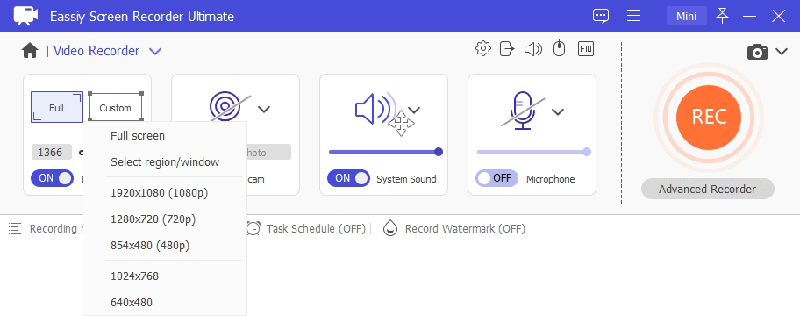
Step 2: Select your recording area. Choose full screen or drag to define a custom region around the video player window.
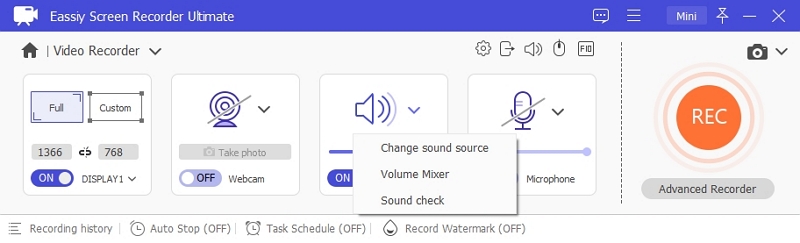
Step 3: Enable System Sound to capture the video's audio. Adjust the volume slider to your preference. If you want to include subtitles, make sure they are enabled on the video player before recording.
Step 4: Open Preferences to configure your output format (MP4, MKV, or MOV), video quality, and hotkeys before starting.
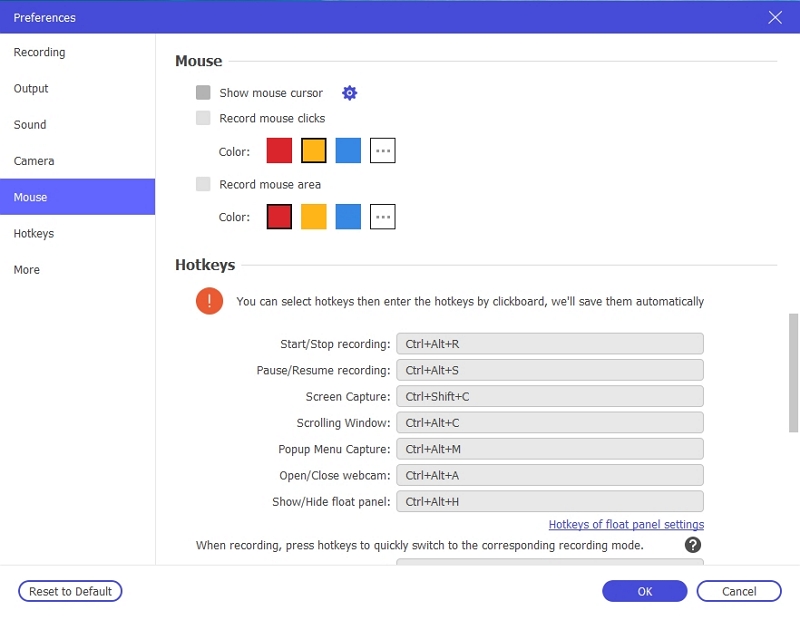
Step 5: Play the video on your screen, then click the REC button to begin recording. Use the annotation toolbar to add highlights or notes in real time if needed.
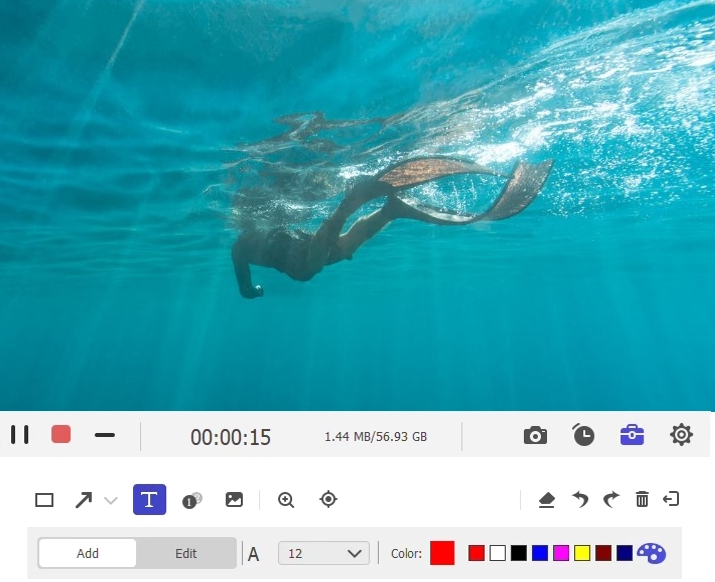
Step 6: Click the Stop button when the video finishes. The recording will be automatically saved to your computer's local storage and ready for offline playback on any device — permanently, with no expiry dates or device restrictions.
Part 3: Can You Kick Someone Off of Netflix?
Yes, you can remove someone from your Netflix account if they're using it without your permission or exceeding your streaming device limit. This often becomes an issue when Netflix reaches its maximum screen limit and you receive an error message like:"Your account can't stream to any additional devices."
This typically happens when too many people are streaming from your account simultaneously.
How to Sign Out All Devices on Netflix
If you're unsure who is using your account, or you simply want to reset all active devices, you can log everyone out of your Netflix account by following these steps:
- Log into your Netflix account on a browser or the app.
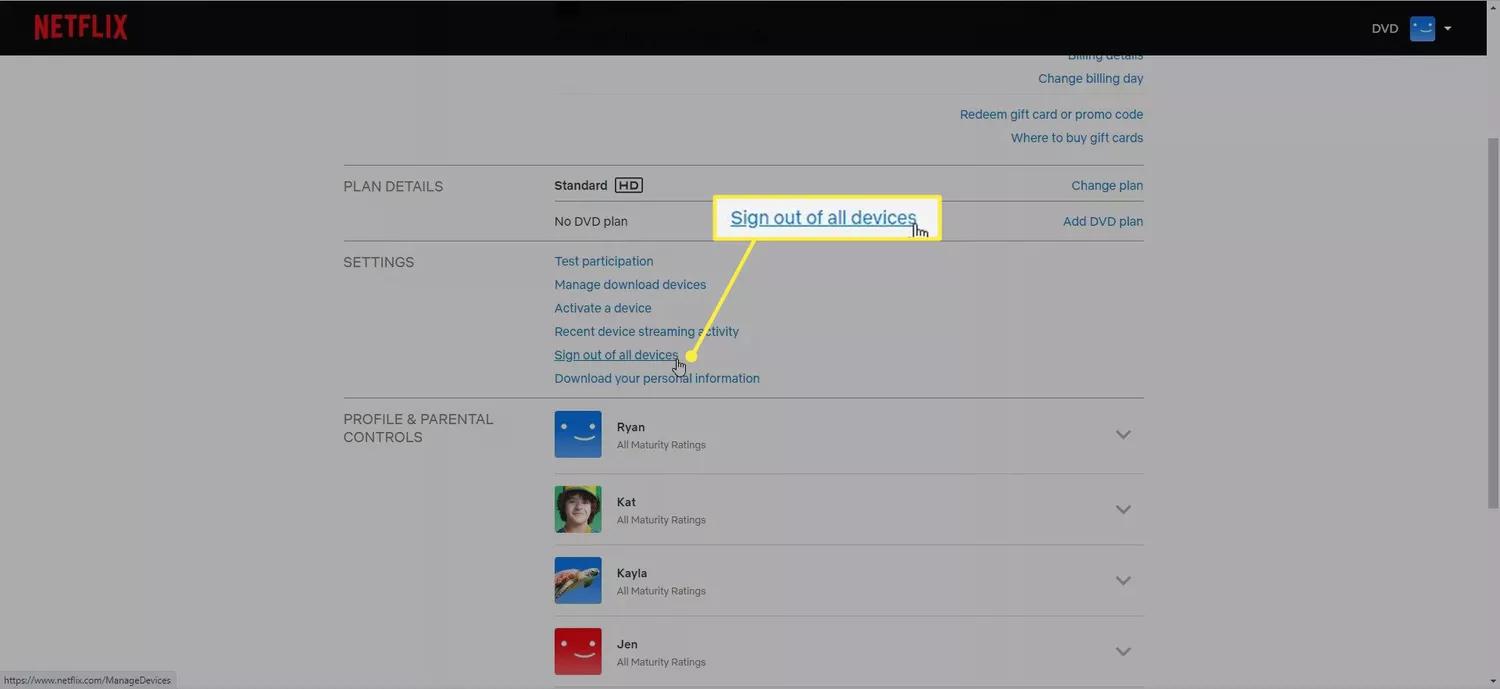
- Click on your profile icon in the top-right corner and select Account from the dropdown menu.
- Under the Settings section, click on Sign out of all devices.
- Netflix will prompt you to confirm. Click Sign Out to log everyone out of your account.
- Once this is done, all users will be logged out of every device, and they'll need to log back in to use the account again.
Additional Steps to Take:
Change Your Password: To prevent unauthorized access, go back to your account settings and update your password. Make sure to use a strong password and share it only with trusted family members or friends.
Manage Profiles: You can review and edit the profiles associated with your account. Remove profiles that are no longer needed or those created by unauthorized users.
Part 4: How to Share Netflix With Family Members
Netflix allows you to add profiles to your account for family members, regardless of their location, as long as it stays within the plan's rules.
Here’s how to add a profile:
- Log in to your Netflix account.
- Click the dropdown menu next to your profile image and select Manage Profiles.
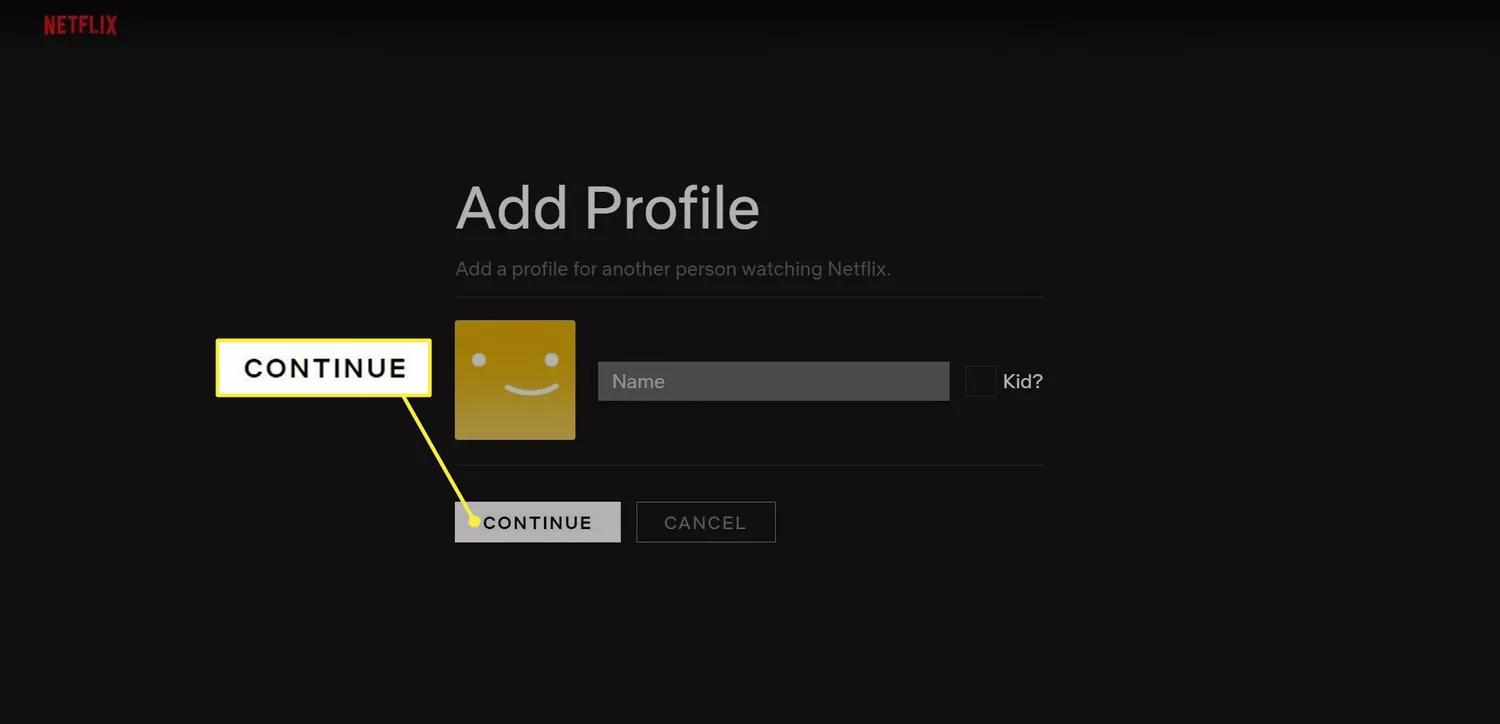
- On the Manage Profiles page, select Add Profile.
- Enter a name for the new profile and specify whether it’s for a child.
- Click Continue to complete the process.
- You can have up to 5 profiles per account. Each profile will have personalized viewing preferences, a unique activity log, and its own Netflix experience.
Adding a profile is free, but remember that sharing your account outside your household may require adding an extra member slot depending on your subscription plan.
FAQs
Why Does Netflix Say Too Many Devices?
The best solution is to either remove a device, upgrade your Netflix account, or use Eassiy Screen Recorder Ultimate to record the video and save it permanently as a local file.
Can I Share My Netflix With a Family In A Different Home?
Netflix is designed for people who live in the same household to share an account. However, if you want to share your account with a family member who lives in a different home, you can add an extra member slot to your plan. Keep in mind this option is available only with Standard or Premium plans and comes with an additional fee.
How Many People Can Watch Netflix at One Time Per Account?
The number of people who can watch Netflix at once on an account varies depending on the Netflix account plan.
If the Netflix account is on a standard plan (both standard with ads and regular standard plan), only a maximum of two devices can watch Netflix at once. However, if the account is on a premium plan, up to four devices can watch movies at the same time.
How Many Devices Can I Download Netflix on?
Netflix’s limitations on the number of devices that can download a movie also varies depending on the subscription plan. For standard plans, you can only download on a maximum of 2 devices. While the premium plan allows downloads on a maximum of 6 devices.
Conclusion
By now, you should know what the Netflix device limit for different subscription plans is, and how to bypass it.
The methods shared in this article are the most effective ways to bypass the Netflix device limit — either upgrade your Netflix account or use Eassiy Screen Recorder Ultimate. Using Eassiy Screen Recorder Ultimate is the best choice because you get to permanently keep the recorded videos forever on your local storage, with no expiry dates or device restrictions.